A check-in can be canceled if the following conditions are met:
- The contract status is 'lower' than invoiced
- The resource status is checked-in, arrived, or planned
If the last condition is not met, in other words, if the vehicle is away under another contract, you must wait until this contract is checked in before you can cancel an older check-in.
Canceling the check-in can be done in the following way:
You open the contract on the 'Resource' tile and click on the symbol on the right side of the screen representing the check-in. The 'cancel check-in' button will be active there.
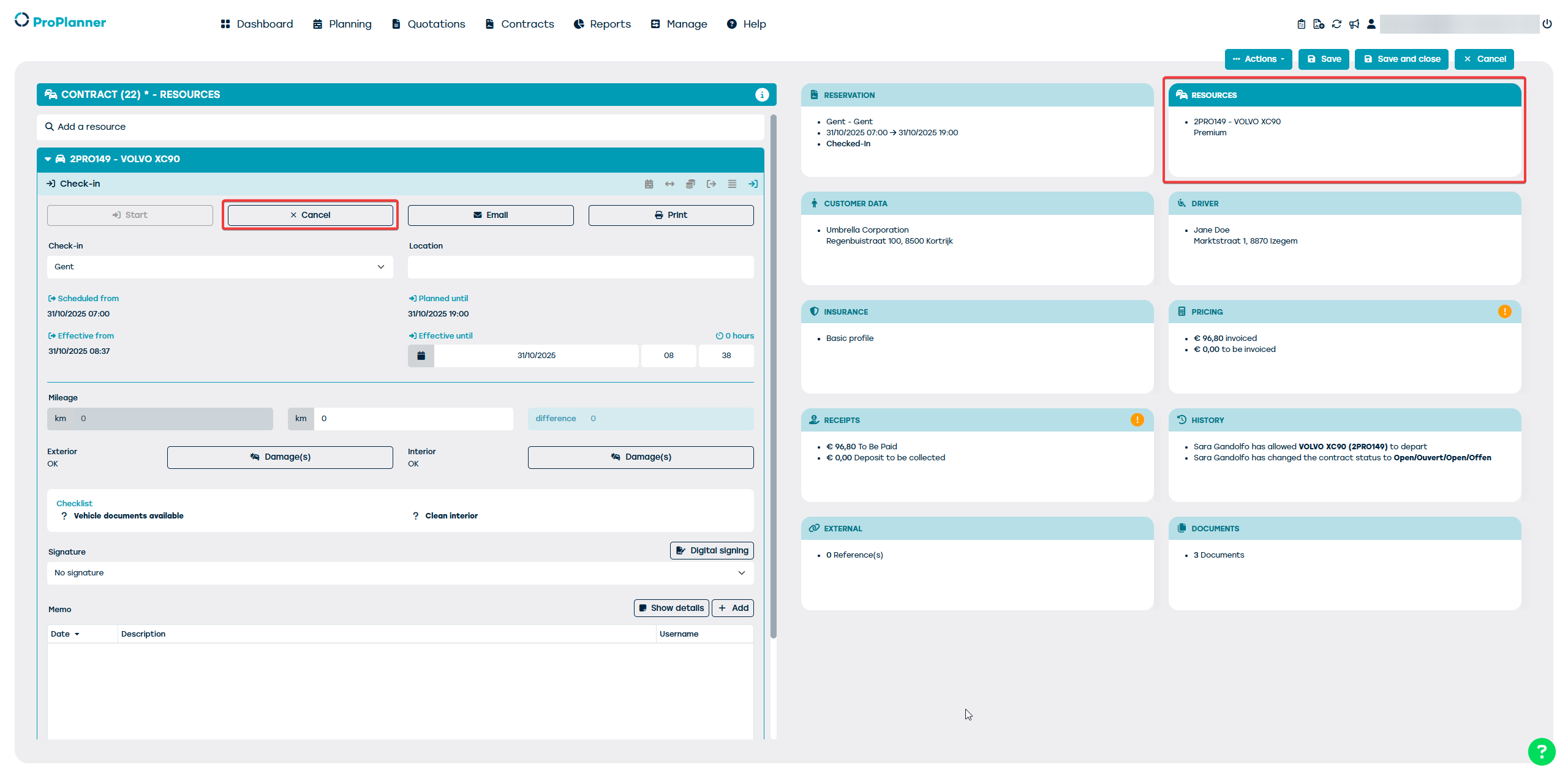
Click on this and enter a reason why you want to cancel the check-in. The contract will be set back to open and the check-in can be entered again.
The check-out can be canceled in the same way.