Sometimes you receive an overview of your fleet with all the necessary information from your financial institution or insurance. There is a possibility to add these in bulk in ProPlanner. For this, you need to put the data in the correct template and upload it to ProPlanner. How do you proceed for this?
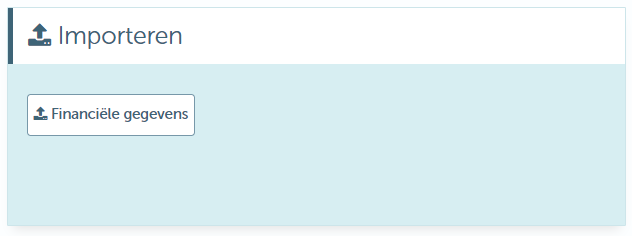
If you have the appropriate permissions, you will see a tile with "Import" on the management screen, and below it a button "Financial data".
You can download the template via the button "Download Template" in the top right corner:
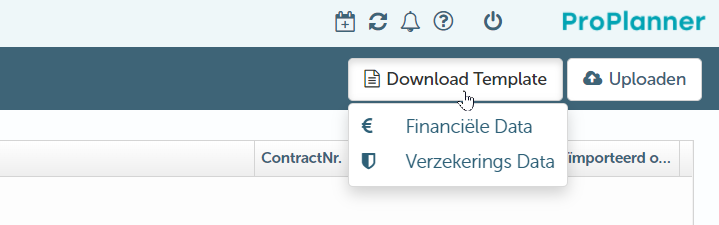
Depending on the chosen template, you will get different columns in the template. Below is a description of the different values.
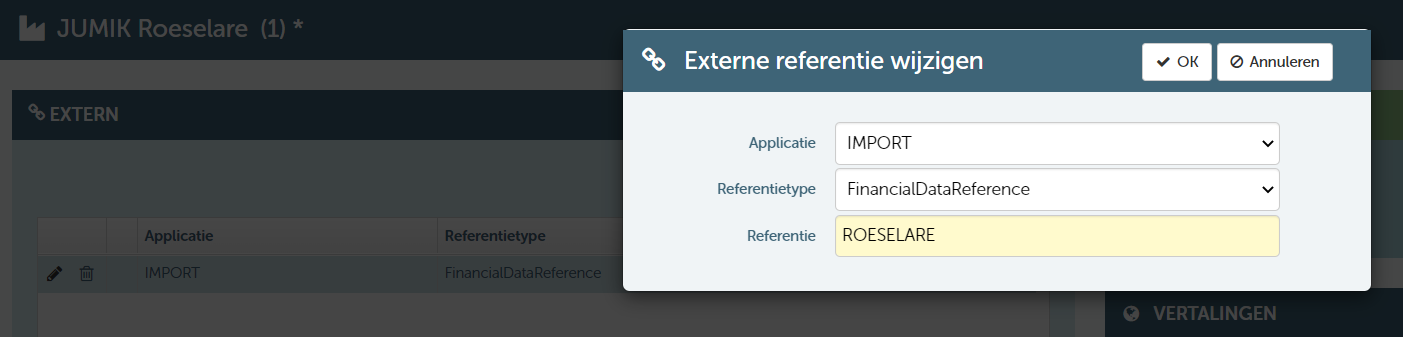
To know in which fleet to search for license plate or chassis number, it is necessary to have a reference to the correct branch. Added a self-selected external reference to the branch, which you will also use in the template.
Insurance data
| BusinessUnitReference | Enter the reference you chose above. |
| LicensePlate | The license plate number is searched first, and then the chassis number. |
| VinNumber | The license plate number is searched first, and then the chassis number. |
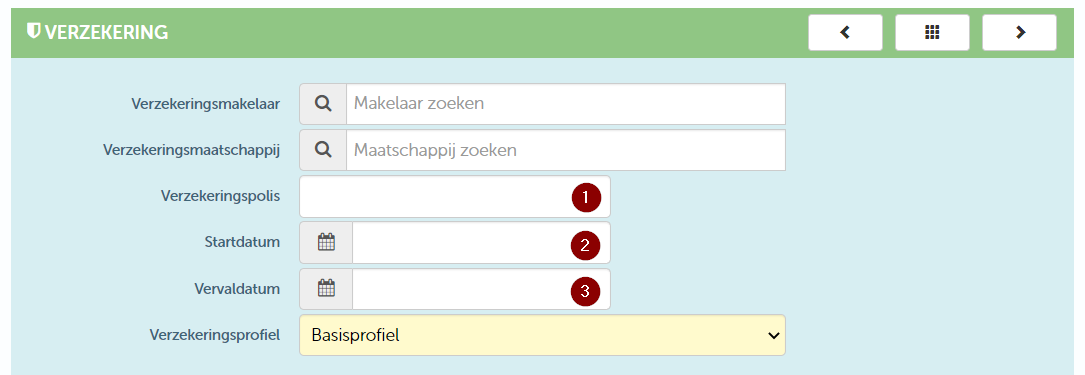
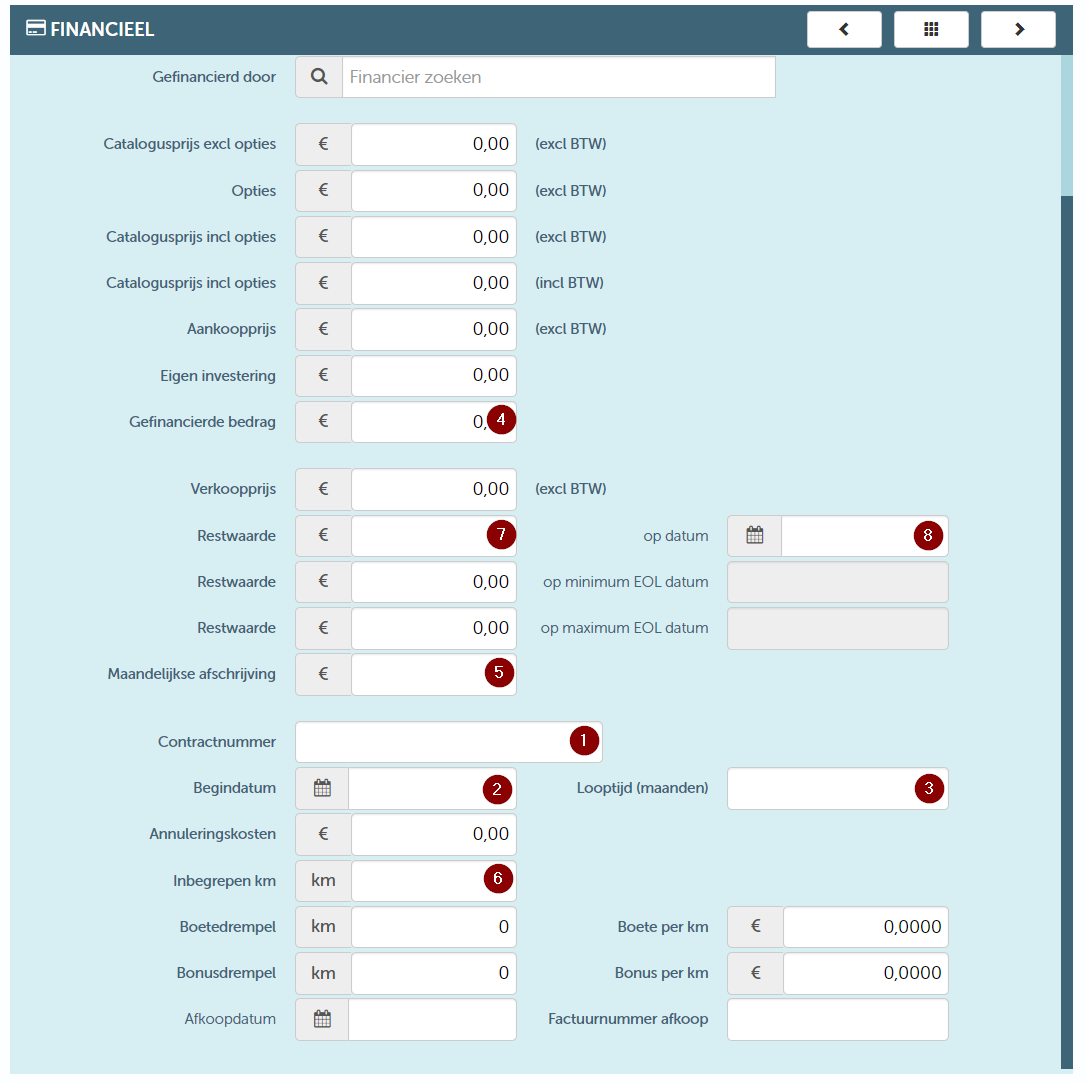
| ContractNumber | PolicyNumber Filled in the "Insurance policy" field on the resource sheet. (see 1 in screenshot) |
| ContractStartDate | Policy start date. Is filled in the field "Start date" on the resource form. (see 2 in screenshot) |
| ContractEndDate | Policy end date. Is filled in the field "Expiration date" on the resource form. (see 3 in screenshot) |
| Monthly Insurance Cost VAT Excl | Cost excluding VAT. A TCO line is added with this amount. |
| Date | File Date. |
Financial data
| Business Unit Reference | Enter the reference chosen above here. |
| License Plate | First, a search is performed based on the license plate number, and then on the chassis number. |
| VinNumber | First, a search is performed based on the license plate number, and then on the chassis number. |
| ContractNumber | Number of the contract. Will be filled in the "Contractnummer" field on the resourche record. (see 1 in screenshot) |
| ContractStartDate | Start date of the contract. Filled in the "Start date" field on the resource form. (see 2 in screenshot) |
| ContractEndDate | End date of the contract. Filled in on the lifecycle tile. |
| ContractDuration | Duration of the contract in months. Fill in the field 'Duration' on the resource file. (see 3 in screenshot) |
| FinancingAmount | Financed amount. Fill in the field 'Financed amount' on the resource file. (see 4 in screenshot) |
| RegistrationTax | BIV. Er wordt een TCO lijn toegevoegd met dit bedrag. |
| RoadTax | Verkeersbelasting. Er wordt een TCO lijn toegevoegd met dit bedrag. |
| MonthlyAmortization | Maandelijkse afschrijving. Will be filled in the "Monthly depreciation" field on the resource form. (see 5 in screenshot) |
| IncludedKm | Included kilometers in the contract. Will be filled in the "Included km" field on the resource form. (see 6 in screenshot) |
| ResidualValue | Residual value. Filled in field "Restwaarde" on resource sheet. (see 7 in screenshot) |
| ResidualValueDate | Date on which residual value is applicable. Filled in field "on date" on resource sheet. (see 8 in screenshot) |
| Monthly Rent Excl VAT | Monthly rent/payment. A TCO line is added with this amount. |
| Date | File date. |
Upload File
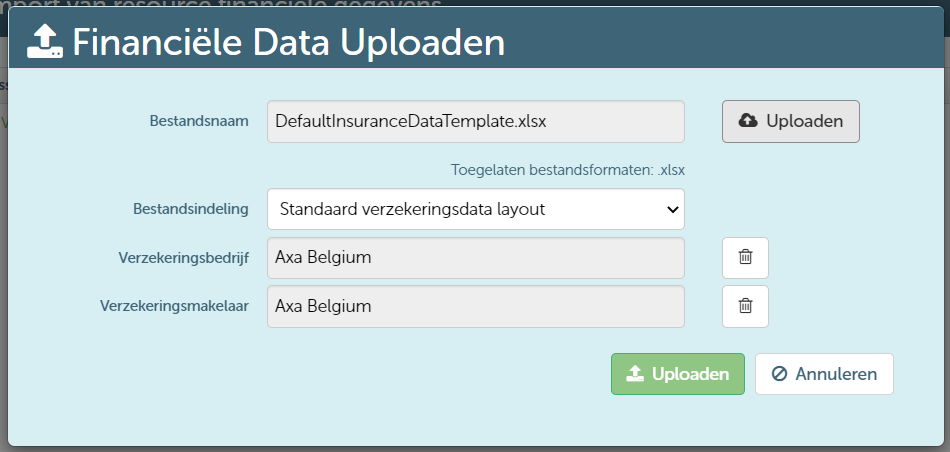
If the file contains the necessary information, you can upload it using the "Upload" button next to the button where you could download the template. Depending on the type of file you can search for an insurer/broker or financier. This search list only includes customers with the checkbox "Is supplier" checked.
After the upload, you can see on the overview screen what the status is per line in the Excel file.
