There are a number of ways to optimise your calendar and switch resource contracts. Most actions can be launched by right-clicking a reservation.
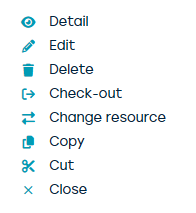
Change resource
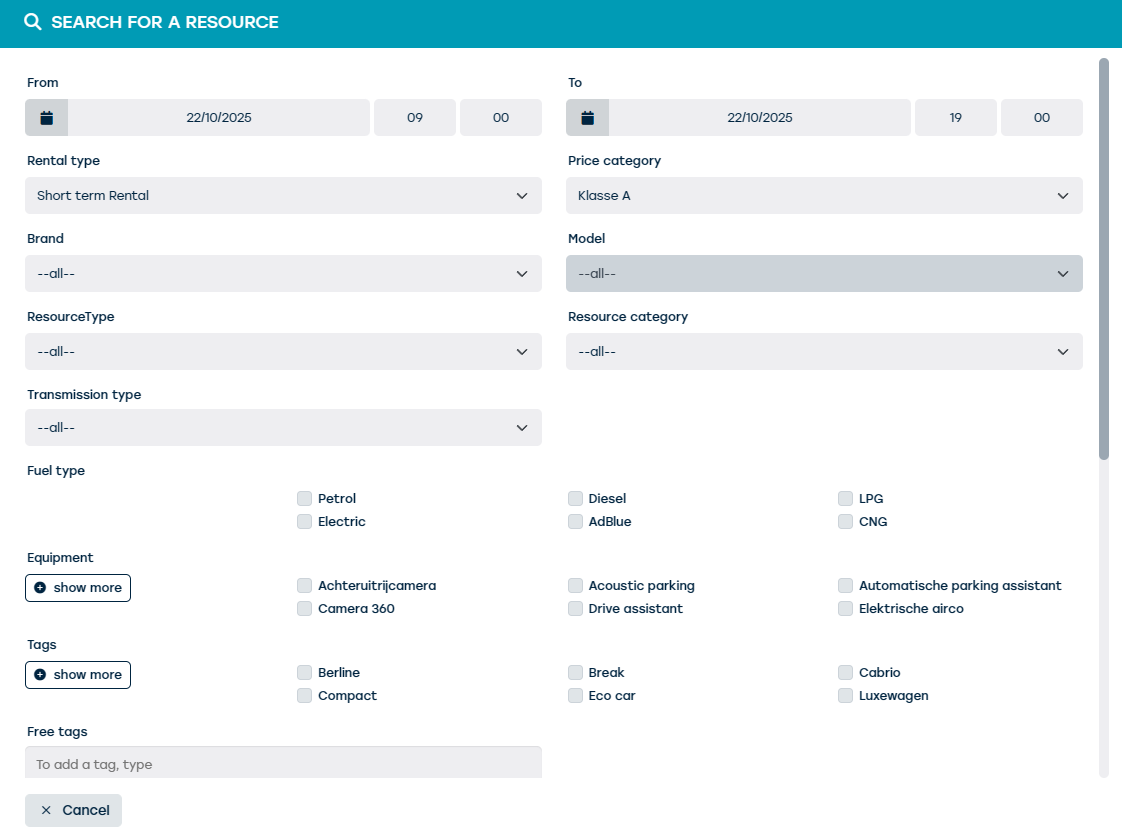
The resource that was already linked to the contract will be removed from the contract. The contract opens on the step to choose a resource via the "Search resource" screen.
Copy
Will duplicate the reservation. The reservation is set somewhat transparently.
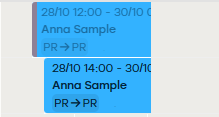
Search, filter or navigate to the right place in the calendar and click or drag where you want to paste the copy of the reservation. A context menu shows you where you can paste the reservation. If you don't want to copy, you can choose "Cancel".
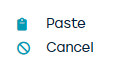
No confirmation is requested and you can paste as much as you want. Ideal to schedule recurrent reservations.
Cut
Works like copying, the difference being that the original contract is not duplicated, but moved. You will be asked for confirmation where you can choose whether you want to adjust the contract to the dragged time or duration.
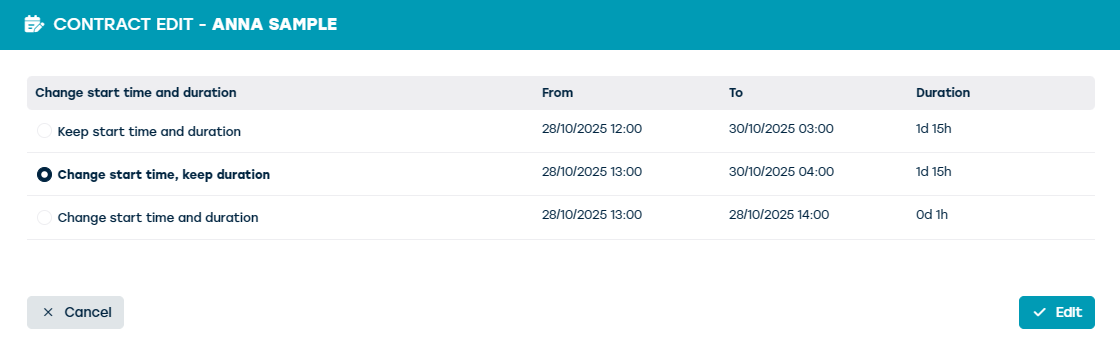
Switching reservations
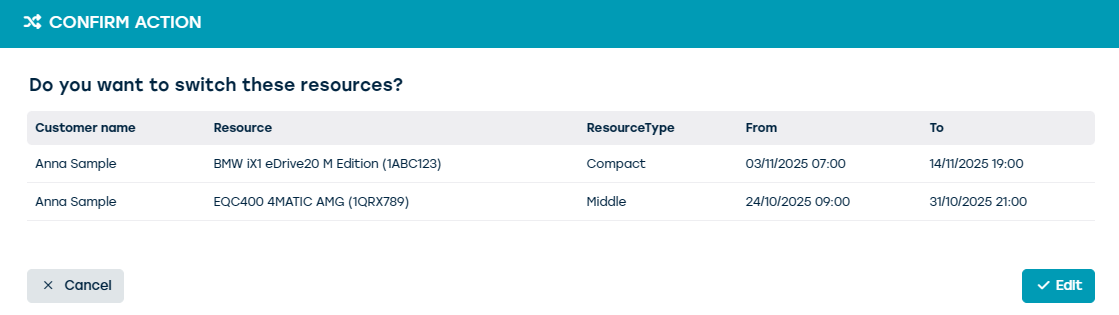
It is also possible to switch two reservations. To do this, proceed like cutting, but instead of clicking in an empty space in the calendar, right-click an existing reservation. A context menu is shown which gives you the choice to swap the resources on the reservation.
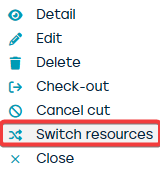
Confirmation is requested again.