In this video:
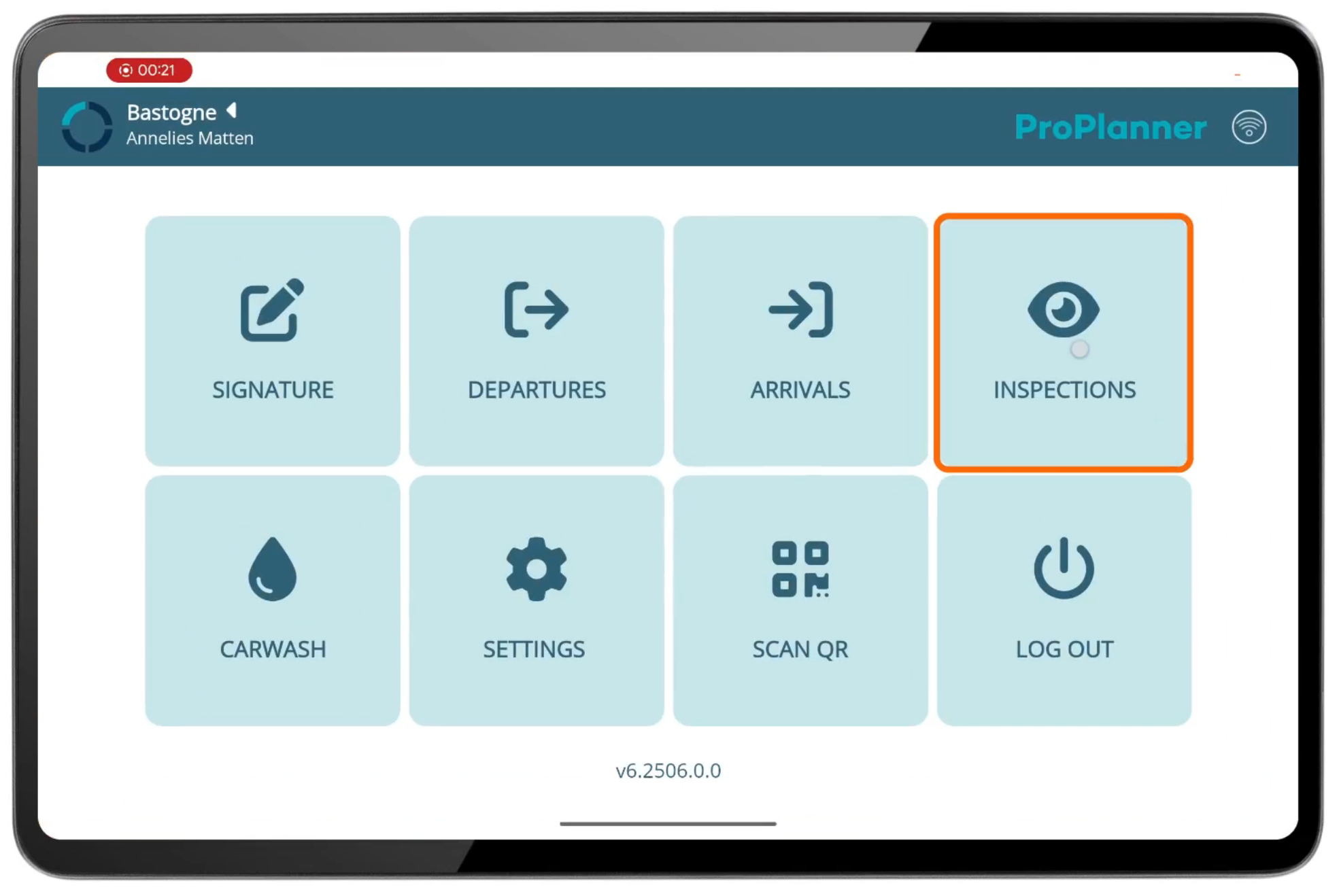
We can carry out the inspection of a resource/vehicle at every check-in and check-out, but it’s also possible to perform an inspection of a resource without a contract. Typically, we perform an inspection on a tablet. We open the ProPlanner tablet app and select “Inspections.”
Next, we search for the right vehicle. In the search field, we can enter a license plate, a vin number, a brand, or the vehicle name in ProPlanner...
In this case, we’re inspecting a Kia. It’s a new car in our fleet, and we need to record the current damages. We select it.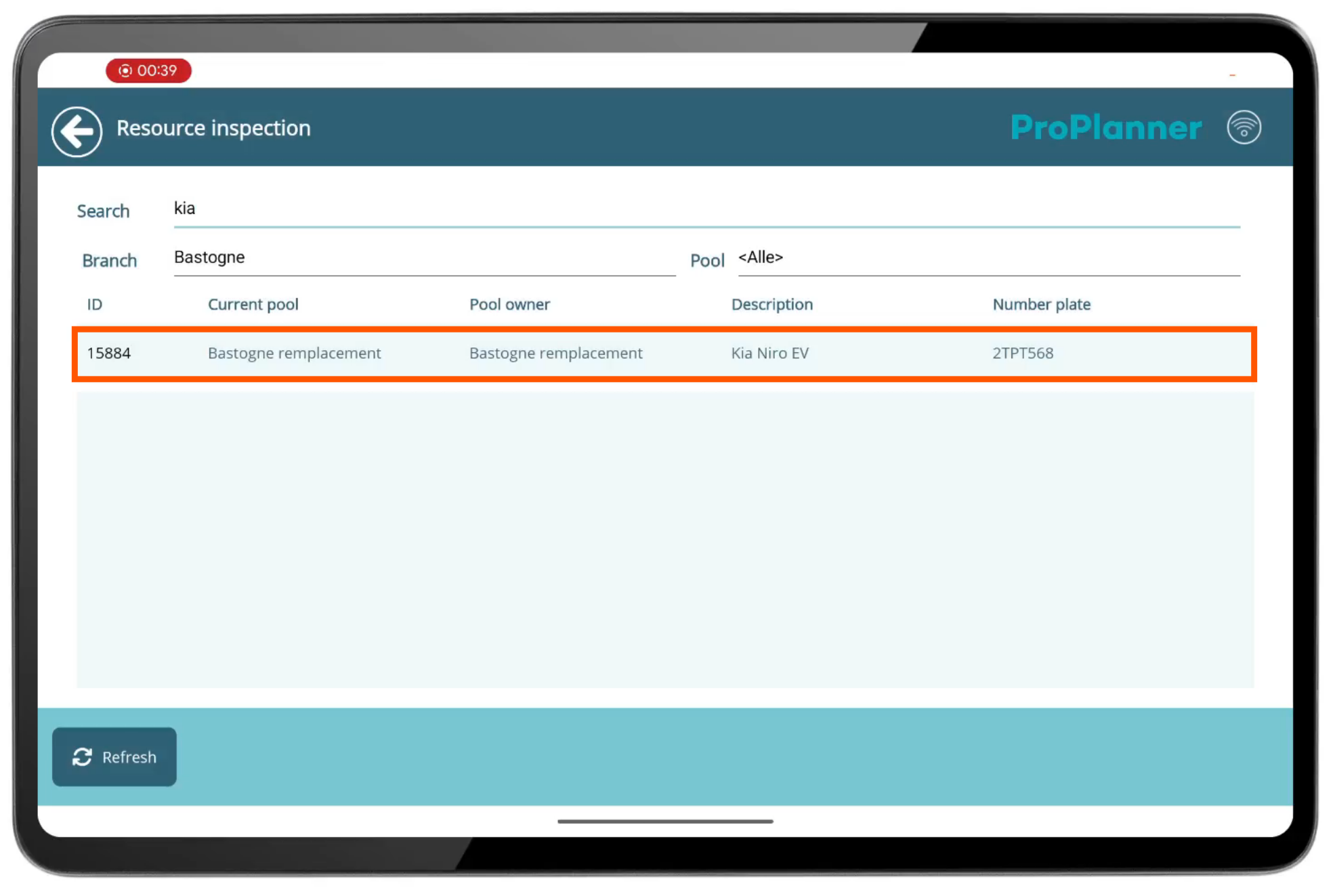
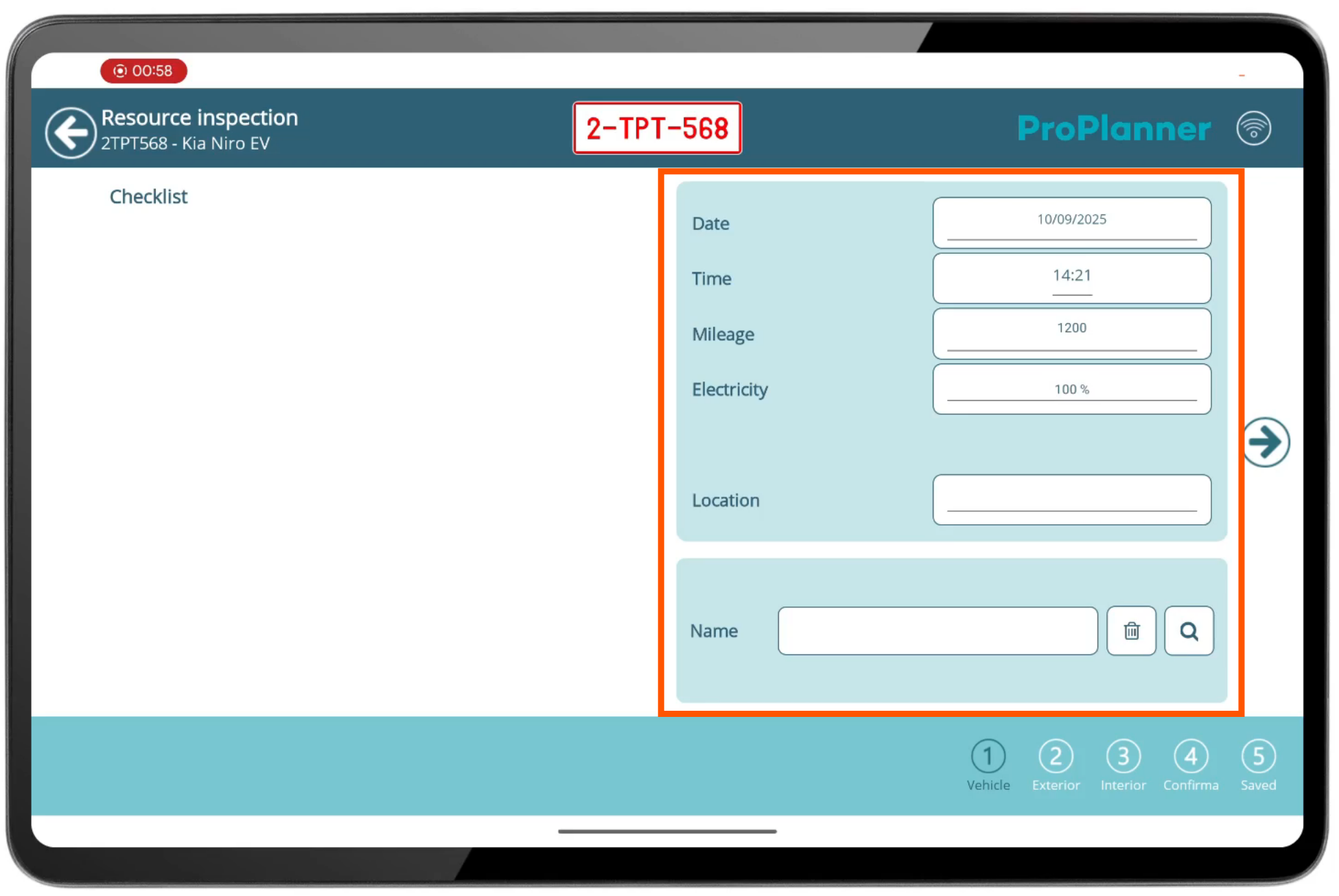
The inspection starts with some basic parameters. The date and time are automatically set to the current moment. If needed, we can adjust the mileage and the fuel level.
We move on to the exterior damages. To add a new damage, we click “Add.”
A purple dot appears. We can move the dot by pressing and holding it for a moment, then dragging it to the correct position. In this case, there's a dent on the passenger door.
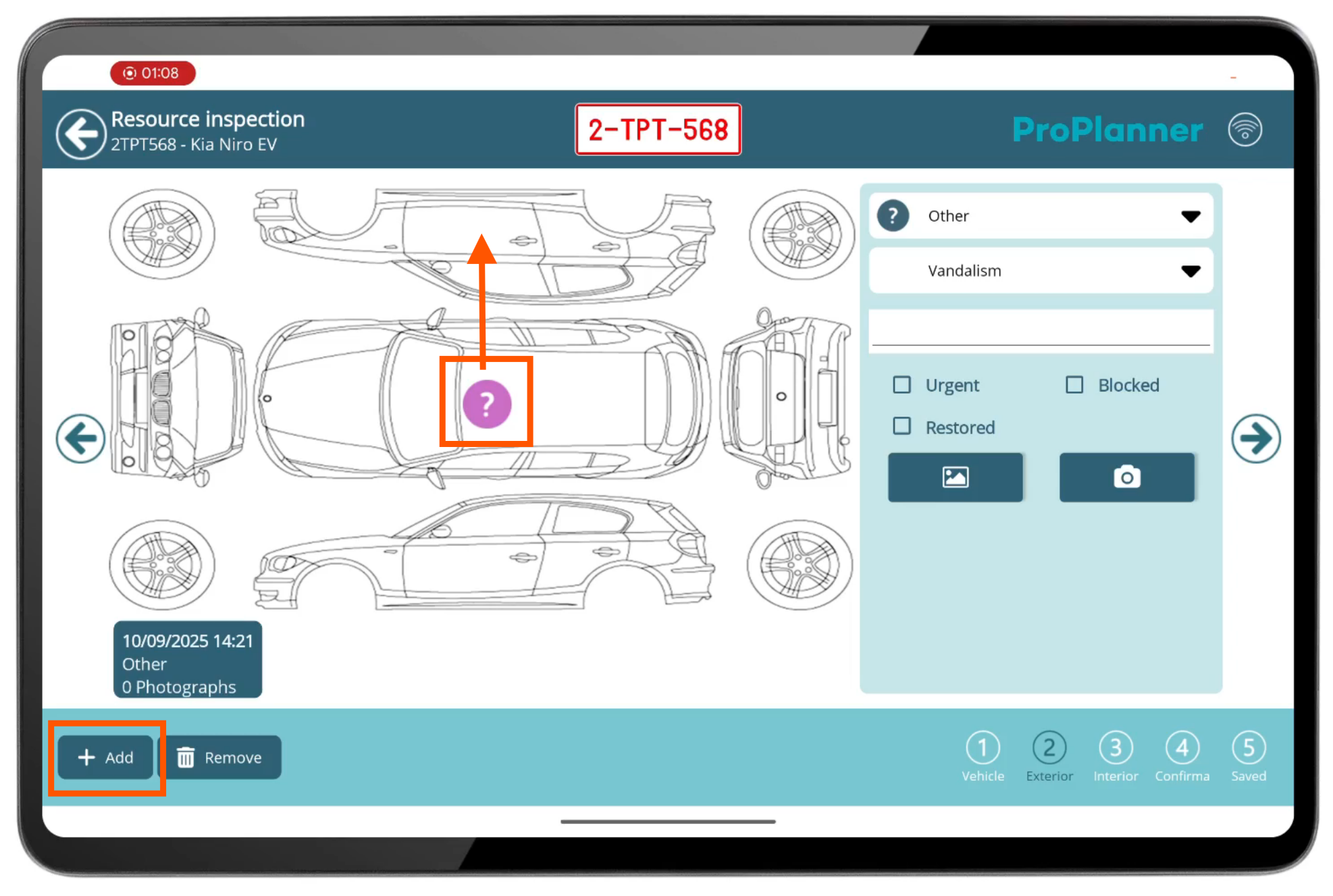
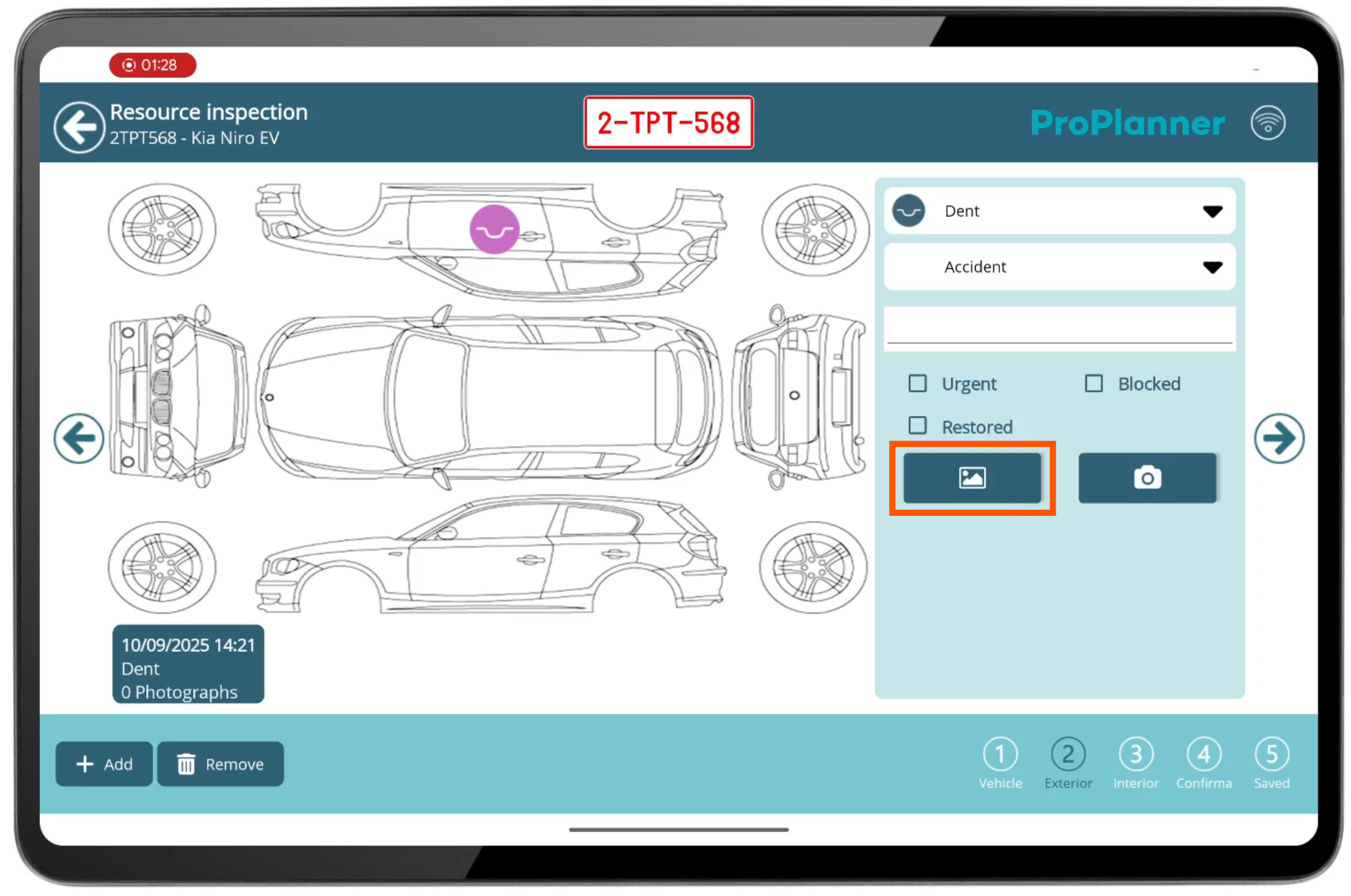
On the right side of the screen, we can fill in more details. We select the type of damage (dent) and its cause (accident). We can also add a memo and a photo if needed.
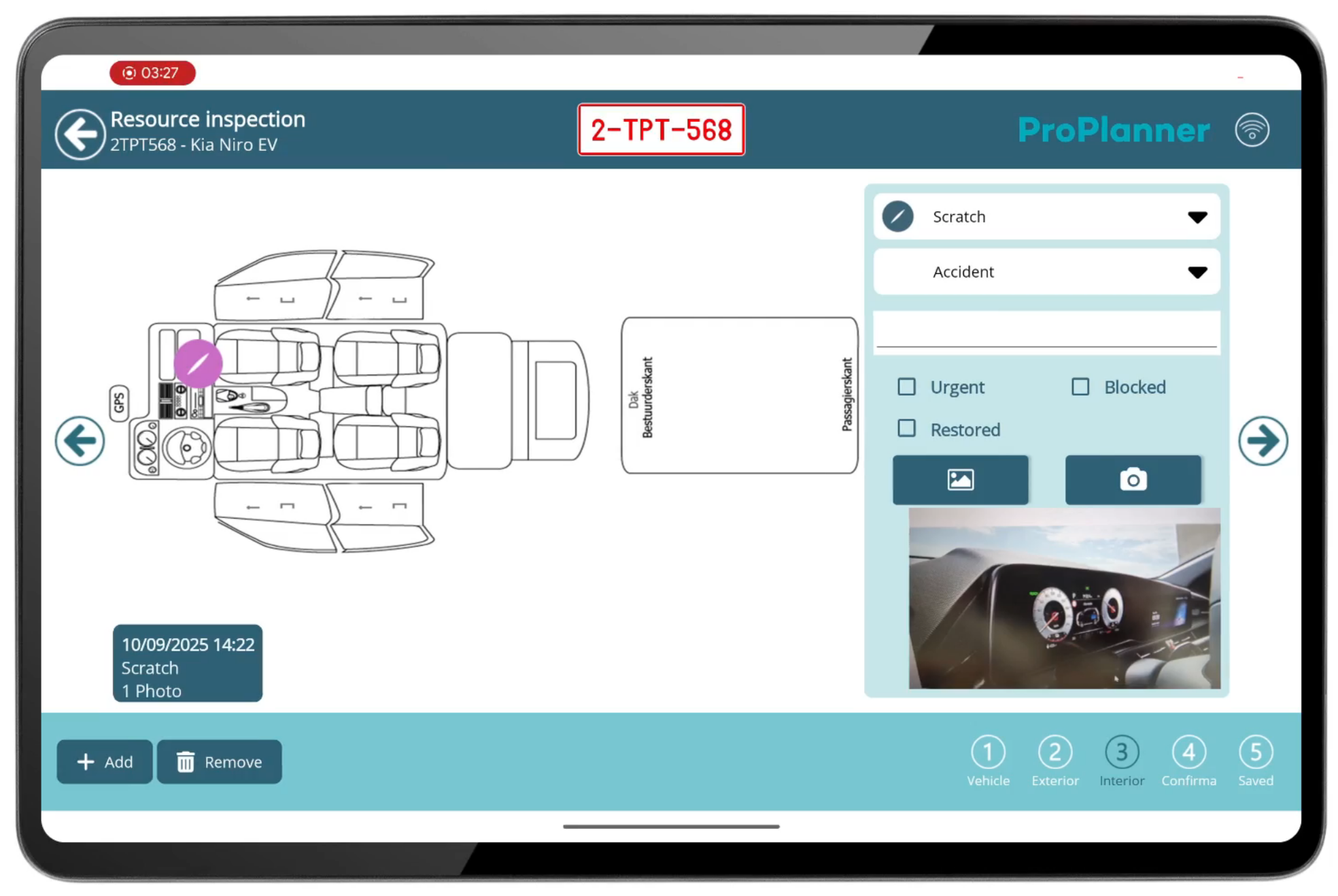
Next, we continue with interior damages. We see that there’s a scratch on the dashboard. We click “Add” and enter the details on the right. We can repeat this process as many times as necessary to register all damages.
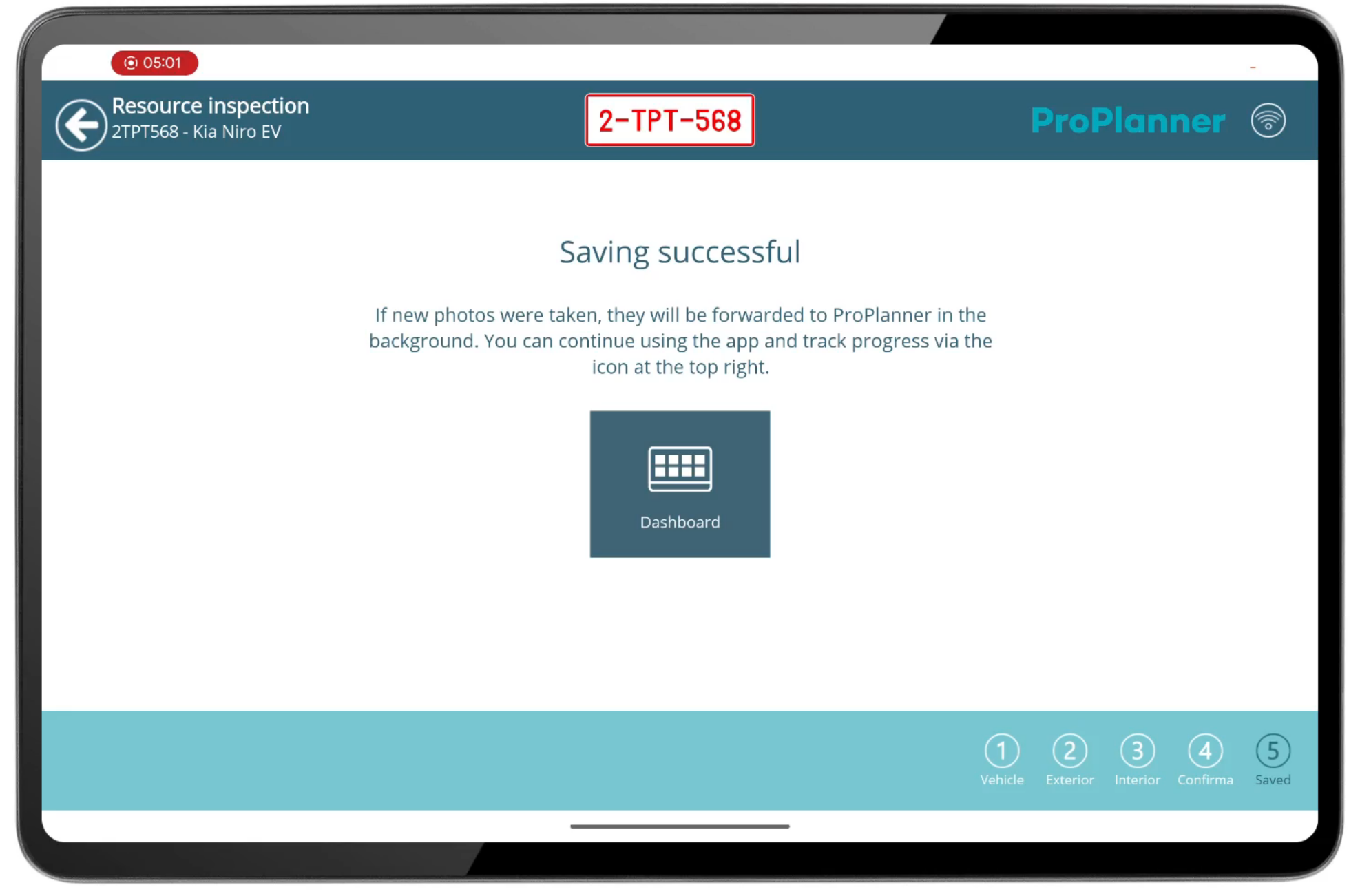
Finally, we reach the confirmation step. Here we see the summary of the inspection.
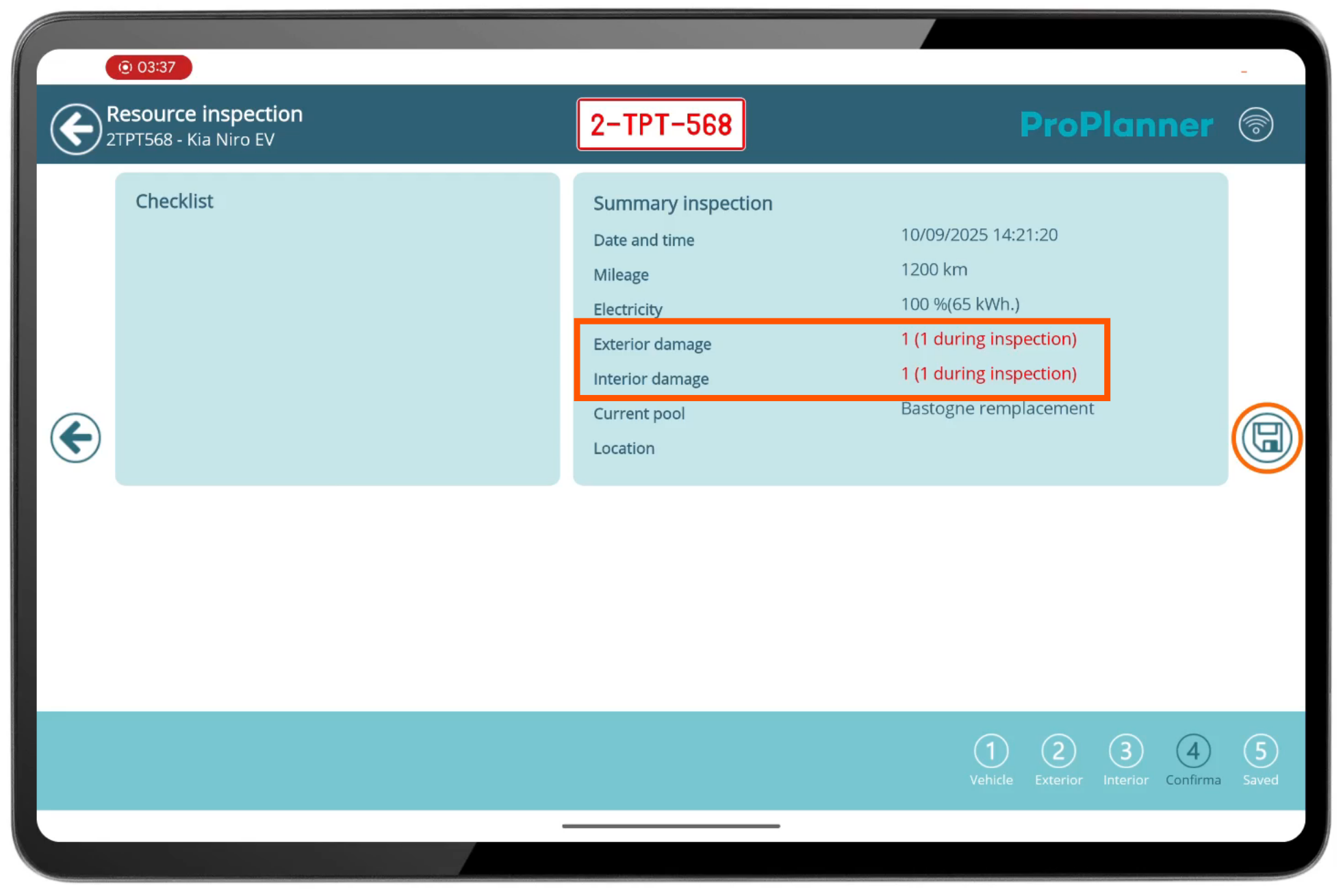
To save the inspection, we simply click the save icon.