Creating an action
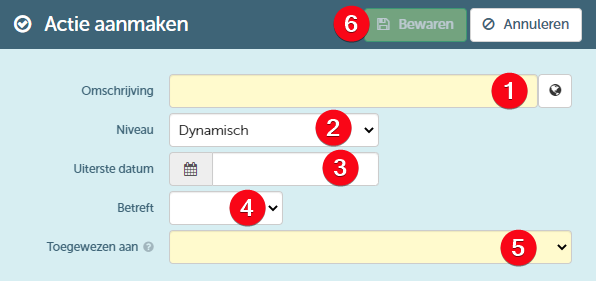
Action can be added to the home screen in various ways. However, each of these actions will lead to the same dialogue box where you can specify the necessary information of the action to be added:
- You can describe the action to be created in the "Description" field. As elsewhere, you can provide different translations for this description by clicking the globe.
- You can subsequently use the "Level" field to determine the level and, consequently, the colour of the action. Here you can choose from the following options:
- Dynamic - the colour of the action changes as the deadline approaches
- Informative - the action is shown in blue
- Warning- the action is shown in orange
- Alarm- the action is shown in red
- The "Deadline date" field allows you to define the date by which the action must be completed
- The "Subject" field allows you to indicate the subject of the action
- Finally, the "Assigned to" field allows you to define to which user(s) (groups) the action should be assigned.
When you then save the action (6), it will be shown on the "Actions" tile in the home screen (if the deadline falls within the selected period). This action will be shown:
- On your home screen, because you created the action
- On the home screen of the user(s) to whom the action was assigned (personally or via a group they belong to)
Determining the subject of the action
When determining the subject of the action you can choose from the following options:
- Resource - the action to be carried out is linked to a particular resource. When you choose this option, you can select the relevant resource via the search field.

- Contract - the action to be carried out is linked to a particular contract. When you choose this option, you can specify the contract number of the relevant contract.

- Customer - the action to be carried out is linked to a particular customer. When you choose this option, you can find the relevant customer via the search field.

- URL - this option allows you to link the action to a specific URL which, for example, redirects you to a specific page within ProPlanner (or possibly on another website).

You can also choose to leave the subject of the action blank.
Assigning an action to (a) (group of) user(s)
When you assign an action (via the "Assigned to" field), you can choose from several options:
- You can assign the action to one or more branches.
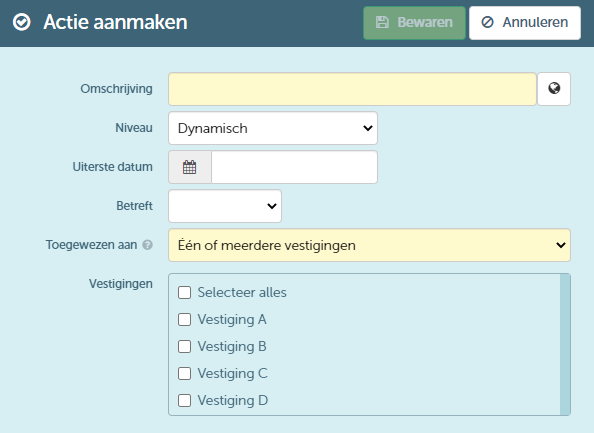
You can assign the action to one or more branches within the company group. When you then save the action, one action will be created for each selected branch.
The action for a particular branch will be marked as "Completed" if it was carried out by one user within that branch.
- You can assign the action to 1 or multiple roles
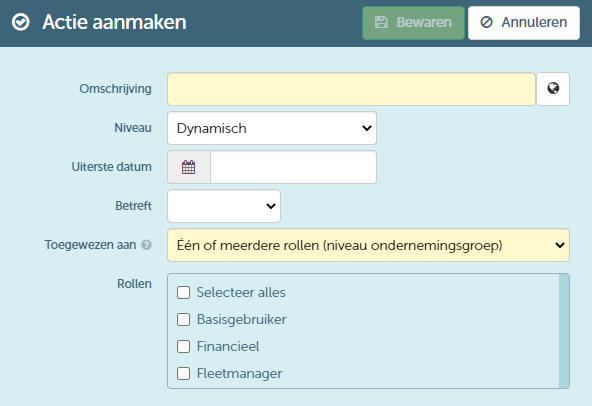
You can assign the action to one or more roles on the level of the company group. When you save the action, one action will be created for each selected role.
The action for a particular role will be marked as "Completed" if it was carried out by one user with that role.
- You can assign the action to (a) specific user(s)
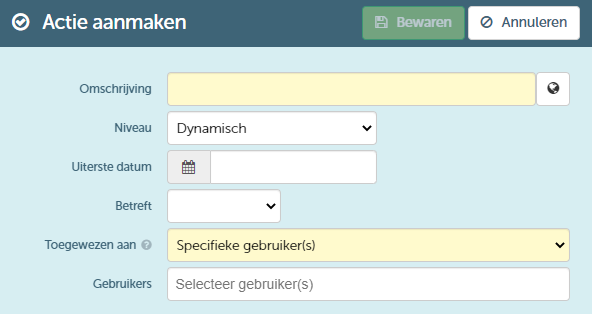
You can assign the action to one or more specific users with this option. The search field takes you to a new screen that allows you to add specific users to the action. On this screen, you can filter the list of users based on company group, company, branch, pool and role (7). In addition, you can look for a specific user (8). In here you can also deslect an already selected user (9). Finally, you can select the desired users (10) and link them to the action. Two methods are provided for this purpose as well:
- By clicking the "OK" button (10), you will replace the previously selected users with the newly selected users .
- By clicking the "Add to the already selected users" button (11) you will supplement the list of previously selected users, if any, with the newly selected users .
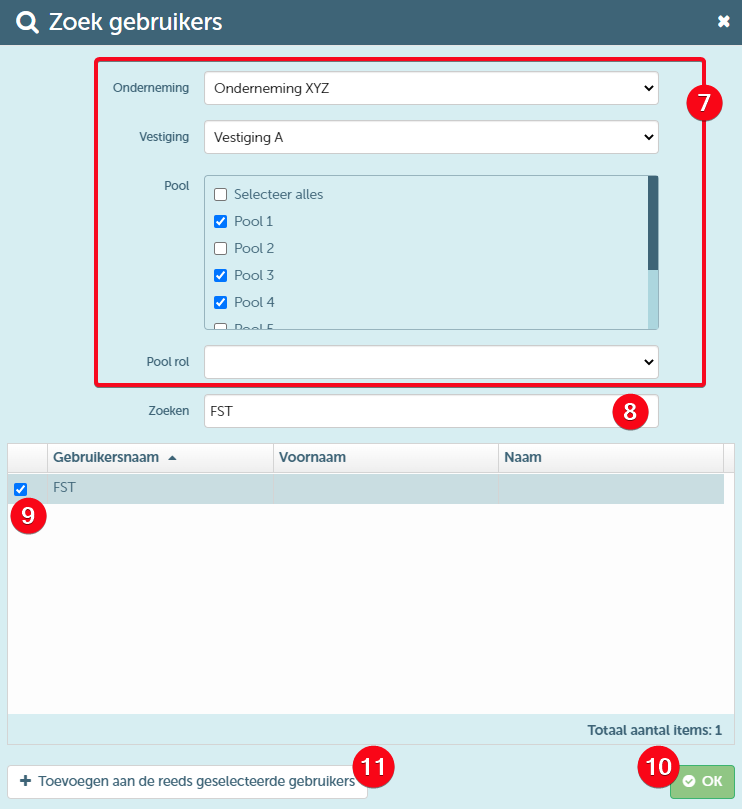
Only if you have selected at least one pool will you be able to select a pool role. if not, only the roles on the level of the company group will be shown.
When saving the action, one action will be created for each selected user. Each of the selected users will have to complete this action.