The ‘Pick Up and Deliver’ module in ProPlanner offers extensive options for specifying at contract level whether a resource must be delivered to the customer and/or picked up at the end of the contract. You can also provide the exact address, time, contact person, and any comments.
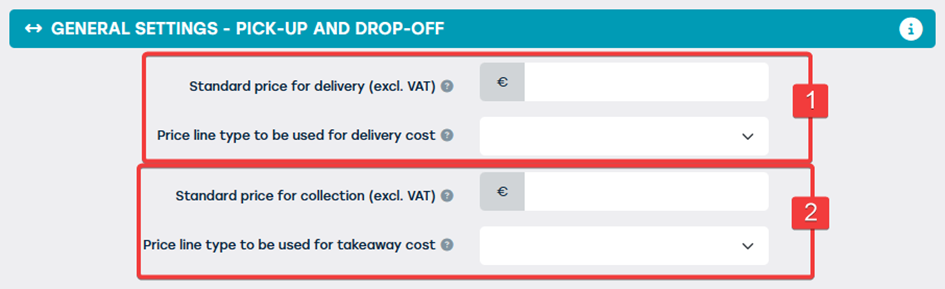
In addition to this operational data, the module also ensures that the associated costs are automatically invoiced. Via Management > General Settings > Pick Up and Deliver, you can set a standard price and price list type for both delivery (1) and collection (2).
Setting up at contract level
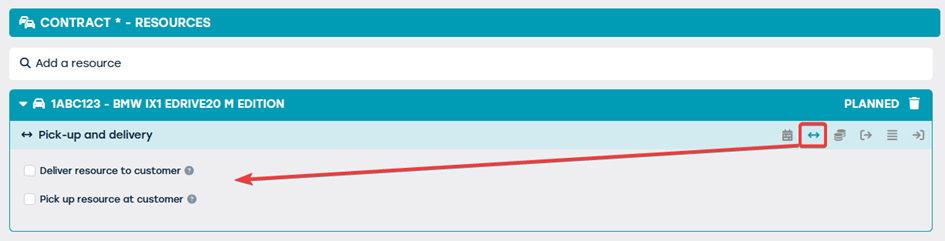
Delivery and collection addresses are configured via the Resources tile, where you can specify a collection and/or delivery address for each resource separately. By default, these addresses are empty.
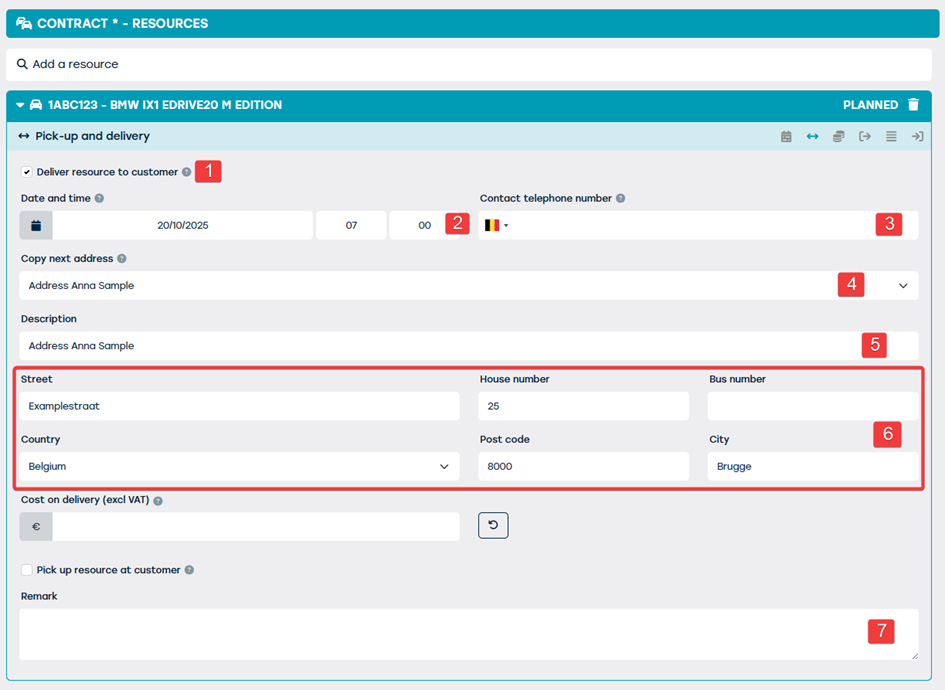
To explain the functionality further, we will start from the scenario where you, as a user, set up a delivery address (i.e., deliver a resource to the customer). The functionality is exactly the same for setting a pick-up address.
When you indicate that a resource must be delivered to the customer (1), additional fields automatically appear where you can configure the delivery address and additional information:
- Date and time (2) – This is filled in by default with the start date of the contract. When setting a pick-up address, this is the end date by default. These fields are optional and can be adjusted manually.
- Contact person's phone number (3) – Here you can enter the phone number of the person responsible for the delivery. This field is not mandatory.
- Copy next address (4) – A drop-down menu allows you to quickly select an existing address for a customer or driver on the contract. Previously set pick-up and drop-off addresses are also displayed as options. The selected address is filled in automatically.
- Description (5) – Optional field for a short description of the selected address.
- Address details (6) – Mandatory fields that are filled in by default with the address of the main customer or a previously set pick-up address. Please note: changes to this address are not transferred to the customer file.
- Comment (7) – Free field in which you can add additional information about the specified pick-up or drop-off address if desired.
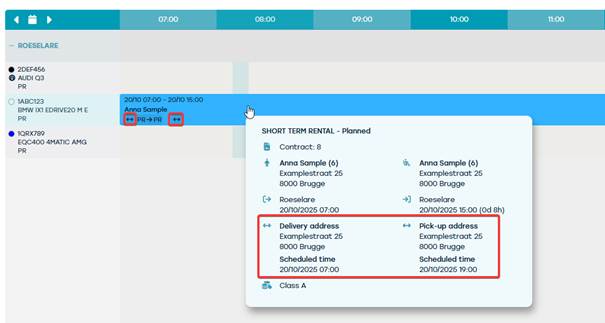
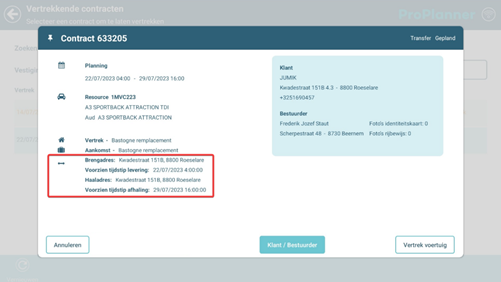
When a pick-up and/or drop-off address has been set on a contract, it will be displayed in several places:
Location | Example |
On the planning |
|
Op the tablet |
Both the start screen at check-out and the start screen at check-in will show the pick-up and drop-off addresses, if these have been set. |
In the “Pick up and deliver” report |
A new “Pickup and drop-off” report shows a list of all contracts within a certain period for which a pickup and/or drop-off address has been set. This report can be found in the ‘Reports’ screen on the “Fleet” tile, if you have the appropriate rights. |

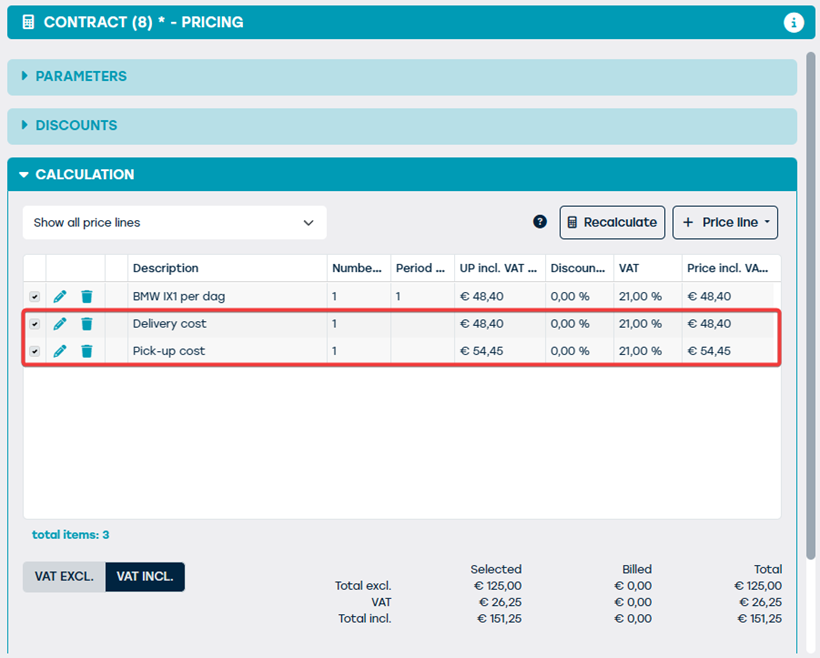
After recalculation in the Pricing tile, one or two price lines will automatically appear, depending on the options selected. The amounts correspond to the settings in the general management or the customer-specific settings (see “Customer-specific settings”).
Customer-specific settings
As mentioned earlier, the ‘Pick-up and Delivery’ module allows you to define a list of pick-up and delivery addresses to be used at customer level. These addresses are automatically displayed when setting a pick-up or delivery address on a contract to which the customer in question has been added as a customer or driver.
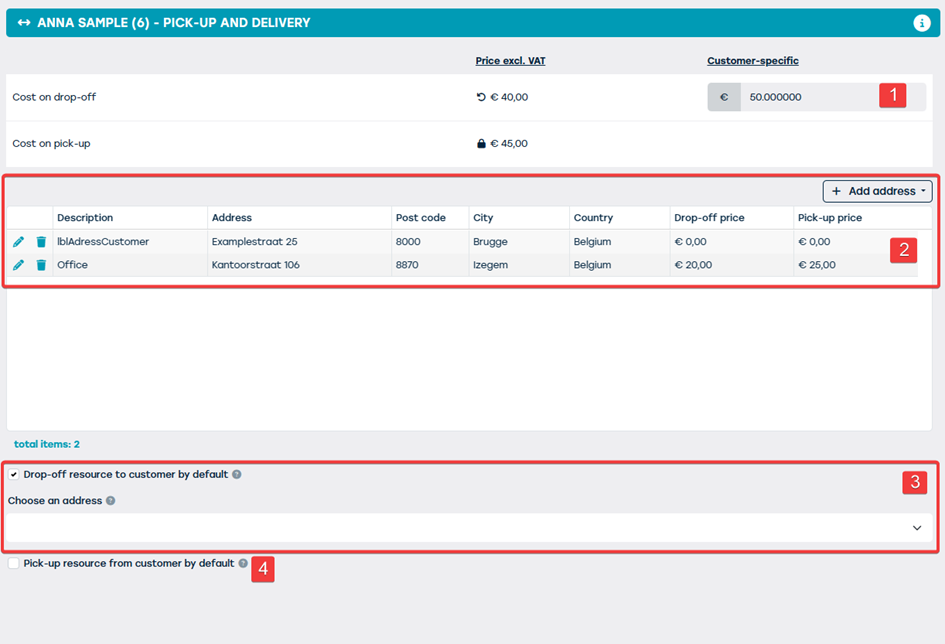
In addition, the module offers flexibility to deviate from the standard price per customer, both generally and per specific address. You can configure these settings via the new Pickup and Drop-off tile on the customer file:
- Customer-specific price (1) – By default, the price used is the one set in the general settings. If desired, you can use the lock icon to enter a different price for this customer, separately for delivery and collection.
- Customer addresses (2) – You can manage multiple addresses per customer for the delivery and collection of resources. When adding a new address via the ‘+ add address’ button, you also have the option of linking a custom price to that address. For example, you can charge a higher amount for delivery to a workshop.
- Standard delivery (3) – For certain customers, you can set resources to be delivered by default. You can also define a fixed delivery address that is automatically selected.
- Standard pickup (4) – Similarly, you can set resources to be picked up by default from specific customers, including a preset pickup address.