Customers can be added in ProPlanner in several places:
- From the customer overview
- From a contract
- On the "Customer data" tile
- On the "Driver" tile
In each of these places, you can add a new customer by clicking the "Add customer" or "+" button. Several default options are available:
- VAT number
- E-ID
- Private
- Business
In case of an integration(s) with external systems, a customer can be searched in an external system to add to ProPlanner.
Add customer via VAT number
This option is only possible for adding business customers and will therefore not be available if you wish to add the customer via the "Driver" tile on a contract. If you choose this option, the following screen is shown:
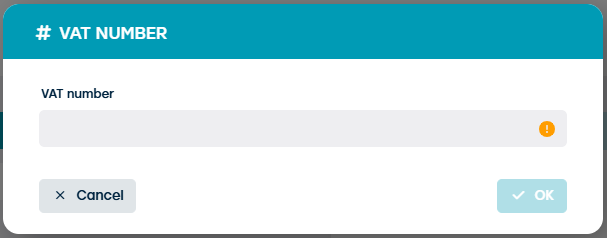
Here you can enter the customer's VAT number and then click "OK". The data of this customer will then be looked up via the services of the European Union (i.e. This customer's data will then be searched through European Union services (i.e. VIES: https://ec.europa.eu/taxation_customs/vies) and are used to automatically complete the customer record. A check is carried out to verify whether the customer is already known win ProPlanner.
Add customer via e-ID
This option is only possible for adding private customers. When you choose this option, you will have to read the customer's e-ID. Based on the data on the e-ID, the customer record will be automatically entered. A check is carried out here to to verify whether the customer is already known within ProPlanner.
Add customer via "Private" option
If you choose this option, a blank customer record will be opened for a private customer. This record can be entered manually and saved.
Add customer via "Business" option
If you choose this option, a blank customer record will be opened for a business customer. This record can be entered manually and saved.
Find customers in an external system
In case of integrations with one or more external systems, the customer can be searched in that system. Once you have found and selected the customer in question, a check will be carried out to verify whether this customer is already known in ProPlanner. The data from the external system can subsequently be copied automatically to enter the customer record (or if the customer already exists in ProPlanner, add or modify the data).