In ProPlanner, you can use document templates to automatically generate contracts, quotes, and other documents based on data from your environment. Since switching to Word & PDF templates, you can work in a familiar environment, with more control over the layout and content of your documents.
Creating a template
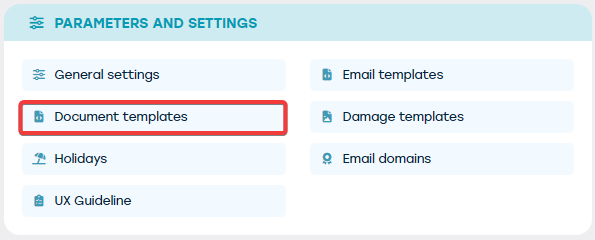
Start via Management > Parameters and Settings > Document Templates:
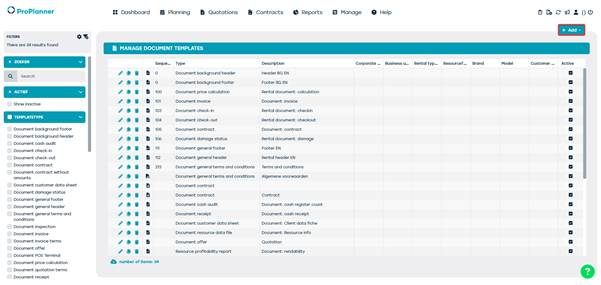
You will then see an overview of the existing document templates.
Click on ‘+ Add’ to create a new template:
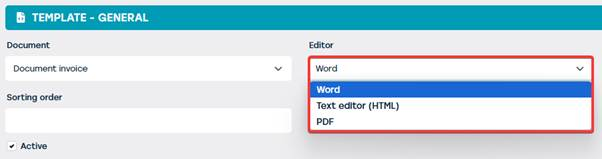
In the ‘General’ tile, select Word (or PDF) in the ‘Editor’ field:
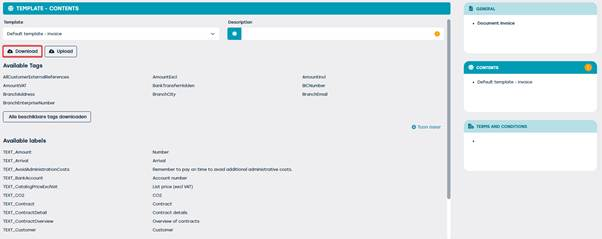
You can create your document under the “Content” tab. You can choose from standard templates offered by ProPlanner via the drop-down menu. These templates are regularly updated and always include the latest features. Would you rather work with your own template? That's possible, but keep in mind that you are then responsible for updates and compatibility.
After saving, you can download the template and edit it further in Word:
Labels and tags
Your template contains labels and tags that are automatically translated into the user's language:
- Labels are fixed texts, such as “TEXT_name,” which are translated into, for example, “Driver.”
- Tags are dynamic fields, such as the name of the driver, which are filled in with current data when the document is generated.
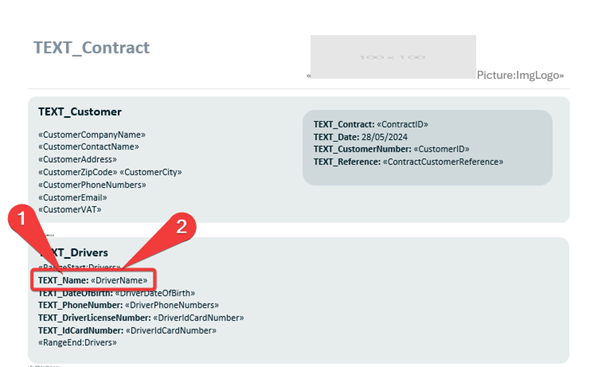
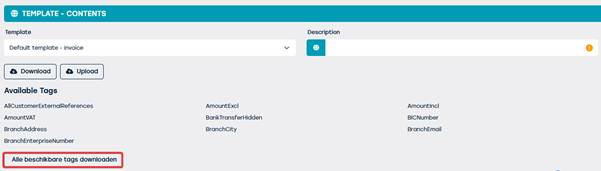
You can download an overview of all available tags via the ‘Download all available tags’ button:
When formatting your Word document, we recommend copying and pasting labels and tags from the overview. Tags cannot be typed manually because they function as ‘merged fields’. Labels can be inserted manually, but copying and pasting is the safest method here too:

Managing multilingual templates
ProPlanner supports multilingual document templates. By default, a single template is used for all languages in your environment. If desired, you can provide a specific template for each language:
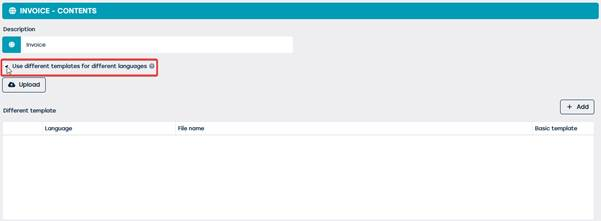
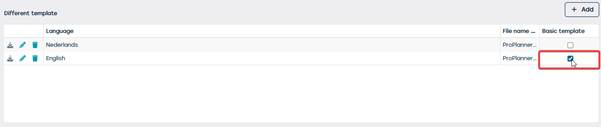
If you choose to use a separate template for each language, you designate one of the documents as the base template. This document is used when no specific version is yet available for a particular language.
This ensures that the system is always able to generate a document, regardless of the customer's language preference:
This approach is particularly useful for organizations that work with language-specific contract terms or legal documents.
When using Word templates, tags are used that are automatically translated. This means you do not need to create a separate template for each language, unless you explicitly want to. You can also use the globe icon to give your template a name for each language, so that everything remains neat and recognizable in the interface:
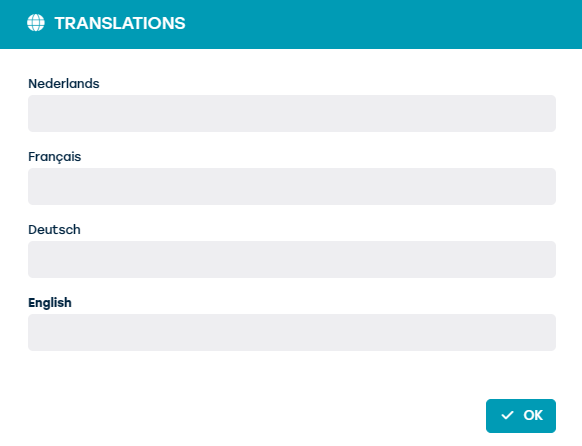
If you use PDF templates, the same multilingual support as described above applies. You can upload a document for each language and designate a basic template as a fallback. This ensures that a document can always be generated, even if a specific language version is missing.
Adding your own labels
ProPlanner supports multilingual document templates. By default, a single template is used for all languages in your environment. If desired, you can provide a specific template for each language:
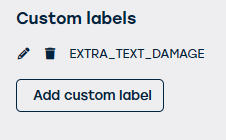
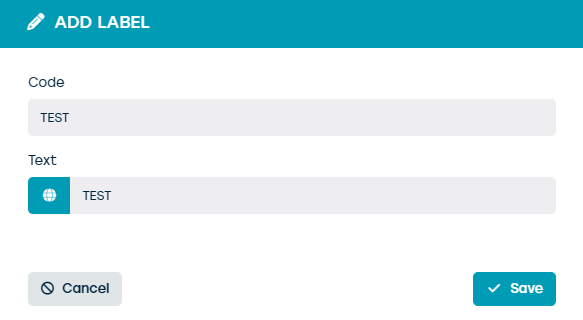
Enter a unique code and text, and translate it via the globe so that your label is available in all active languages within your environment:
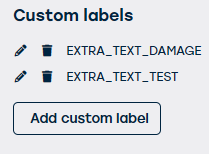
After saving, your label will appear in the list and you can use it in your template:
Uploading and final result
Is your template ready? Then upload it using the ‘Upload’ button:

The final result — the generated document for the customer — can be found under Contracts.
Select a contract and click on ‘Actions’ to print the desired document:
