Every document sent to the client and every automatic email sent by ProPlanner uses predefined templates. You can manage these templates through a specific management screen where you can:
- Define new templates
- Modify existing templates
- Delete unused templates
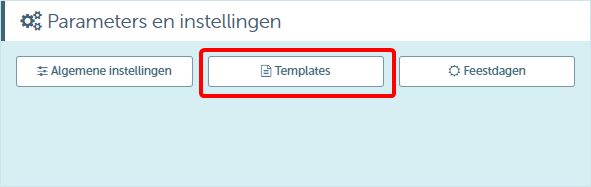
The template management screen can be found on the "Management" screen in the "Parameters and settings" tile:
The details screen of a template consists of 3 different tiles:
- A tile "General" where you can determine some general characteristics of the template
- A tile "Translations" where you can define the template itself and this in the different languages supported by ProPlanner
- A tile "Conditions" where you can determine the criteria for which the respective template should be used
Tile "General" of the detail screen for a template

On this screen you can determine for which type of document or email you want to customize or add a template (1). For example, you can choose the type "Document general conditions" to upload the template for the general conditions. Then you determine how you want to load the relevant template (2). This can be done as a PDF file or as HTML code. If you choose the latter option, you will still be able to indicate whether the template can be modified or not (5).
If the template in question contains variables that need to be filled in differently depending on the situation (e.g. Contract number, customer name, etc.), you should choose the HTML editor. When you upload a PDF document, this immutable document will always be used for the corresponding template.
If desired, you can specify a sorting order (3) (i.e. the order in which the template is displayed). the order in which the template is displayed). However, this is important when a specific template needs to be chosen under specific conditions. The templates are checked against the applicable conditions in their order. The first template that meets the correct conditions will be selected.
Finally, you can indicate via the checkbox "Active" (4) whether the respective template may still be used. If not, you must uncheck this checkbox.
Tile "Translations" of the details screen for a template
Depending on the selected editor in the "General" tile (see above), this tile will look different:
- Editor = HTML
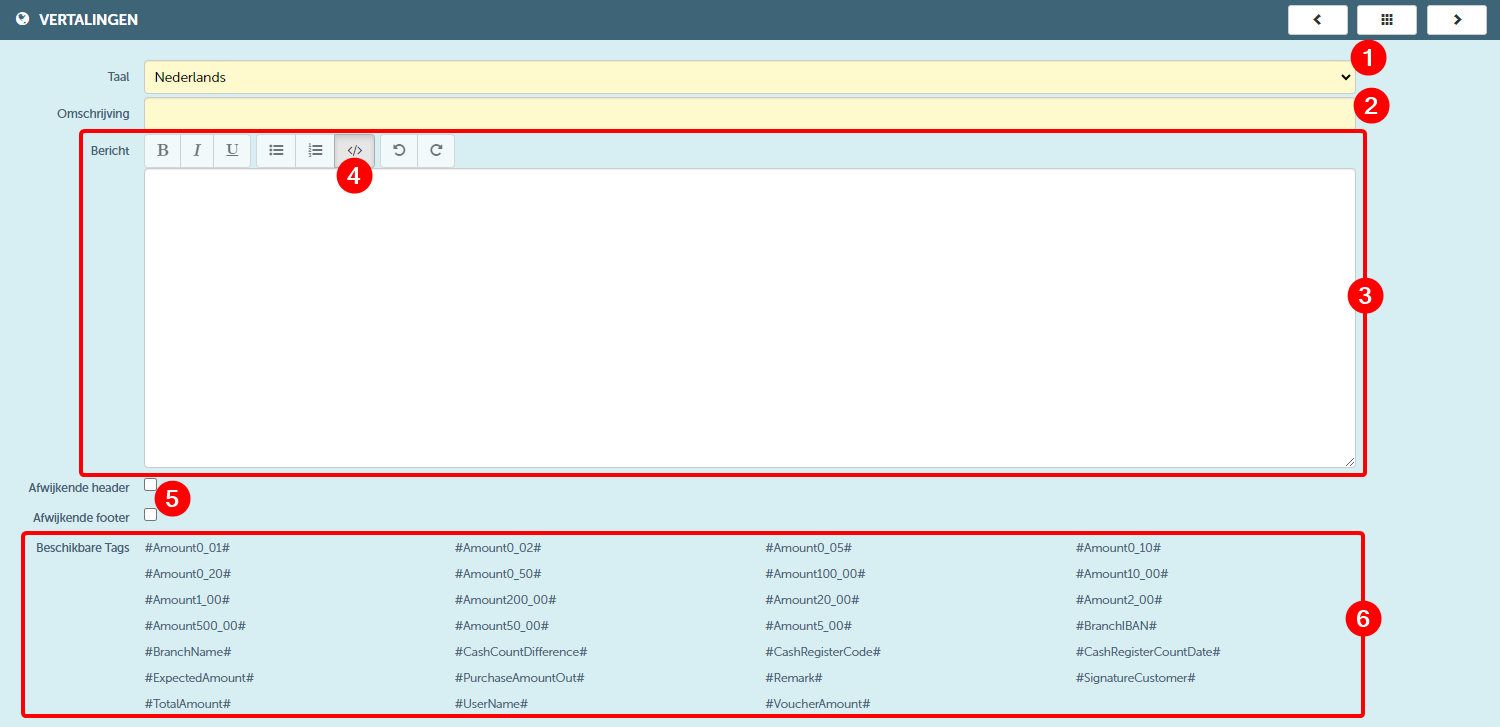
Here you can indicate for which language you want to define the corresponding template (1). You can choose from any language supported by ProPlanner. Then you can give a description to the template (2). This description will be used to identify the corresponding template in ProPlanner. In other words, it is the name you want to give to this template.
In the editor field (3) , you can fully develop the template. This can be done in both HTML code and a layout text (which will then be translated into HTML code). To switch between both modes, you can use the toggle button (4) found among the various edit buttons.
You can indicate via the checkboxes (5) whether the header and/or footer of the template should deviate from the standard header and footer. If you check the checkbox, an editor field will also be shown for that component, allowing you to develop the specific header and/or footer.
Finally, you can find the available tags at the bottom of the screen (6). These are variables that you can process in the template and that will always be filled in with the applicable values for that situation.
- Editor = PDF

Even if you have chosen PDF as the editor, you must first indicate for which language you will upload a PDF document (1) and then add a description (2). Finally, you upload the PDF document to be used (3).
Tile "Conditions" of the detail screen of a template
In this tile, you can specify the conditions under which the respective template should be used. For example, you can specify that a template should only be used within contracts with a specific rental type (see example).
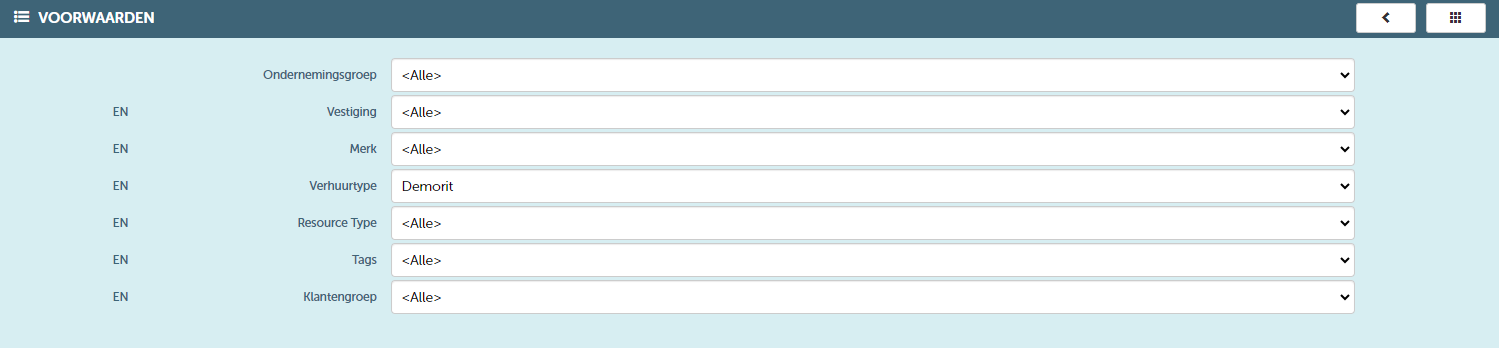
The possible criteria that can be determined are as follows:
- Business group
- Branch
- Brand
- Rental type
- Resource type
- Tags
- Customer group