This method is recommended for the creation / modification of only 1 or a few rates. For creating / modifying a large number of rates, we recommend using the automatic method instead of zero .

- Tile "General"
- Tile "Surcharges"
- Tile "Website" (only if the "Website Integration" module has been activated)
- Tile "Self Service App" (only if the "Self Service App" module has been activated)
Via the slide button "VAT excl / VAT incl" in the title bar of the screen, you can indicate whether you want to specify the prices excluding or including VAT.

Tile "General"
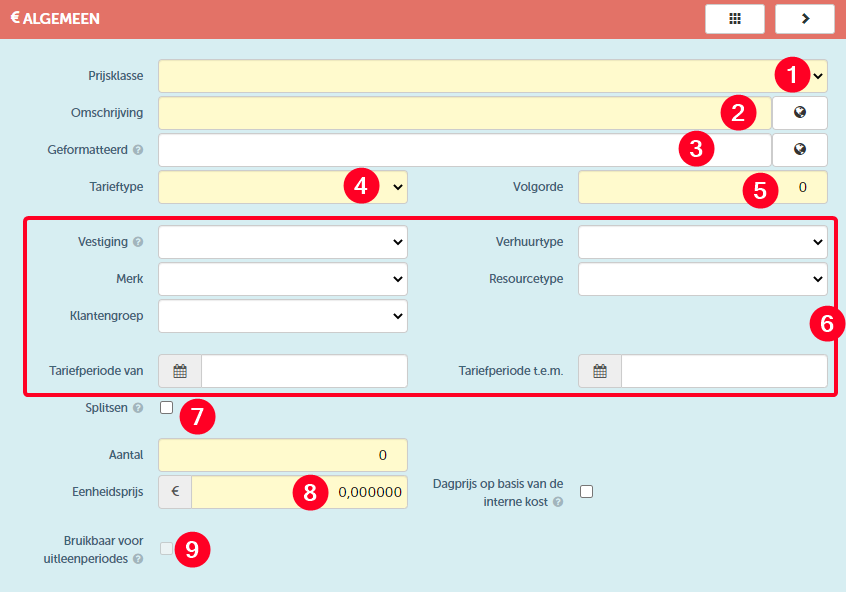
As everywhere in ProPlanner, the yellow fields here are mandatory to fill in. Through this tile, you can adjust the following settings regarding the tariff to be created:
| 1 | Here you indicate the price class to which the tariff to be created belongs. You can choose from all the price classes that have already been created within the enterprise group for which you are logged in. New price classes can be created through the relevant management screen. |
| 2 | Determine the name of the rate to be created. This name can be completely determined. The globe allows you to specify the translation of the name for each of the languages supported by ProPlanner. |
| 3 | Here you can determine the name of the rate as it will be shown on the invoices where this rate applies. You can use a number of variables as shown in the tooltip at the information icon. In this way, this name is dynamically adjusted to the situation in which the rate is used. Also here you can specify the different translations using the button with the globe. |
| 4 | Here you indicate the type of rate that should be used within the rate being created. Here you can choose from all the rate types that have already been created within the enterprise group for which you are logged in. New rate types can be created via the respective management screen. |
| 5 | In this field, you can determine the order for the rate to be created in the list of rates. This is important in the context of automatically assigning a rate to a contract (when checking the applicable rate, ProPlanner takes the first rate in the list that meets all the conditions). |
| 6 | Through these fields, you can specify a number of criteria to determine the use of the rate to be created. |
| 7 | When a rate is assigned to a contract, depending on certain settings, the start or creation date of that contract and the rate period on the rate are considered. If this date falls within the tariff period, the rate will be used for the entire duration of the contract (even if the contract ends outside the tariff period). However, if you check this checkbox, a different rate will be applied for the rest of the duration of the contract when the tariff period ends. |
| 8 | Here you determine the unit price of the rate. You can make it depend on the internal cost of the resource, which is calculated based on the registered costs on the resourceusing the checkbox. |
| 9 | Hier geef je aan of dit tarief kan worden gebruikt in het kader van een uitleenperiode. |
Tile "Toeslagen"
Via deze tile kan je eventuele toeslagen aanduiden die moeten worden aangerekend indien dit tarief van toepassing is. De tile ziet er als volgt uit:
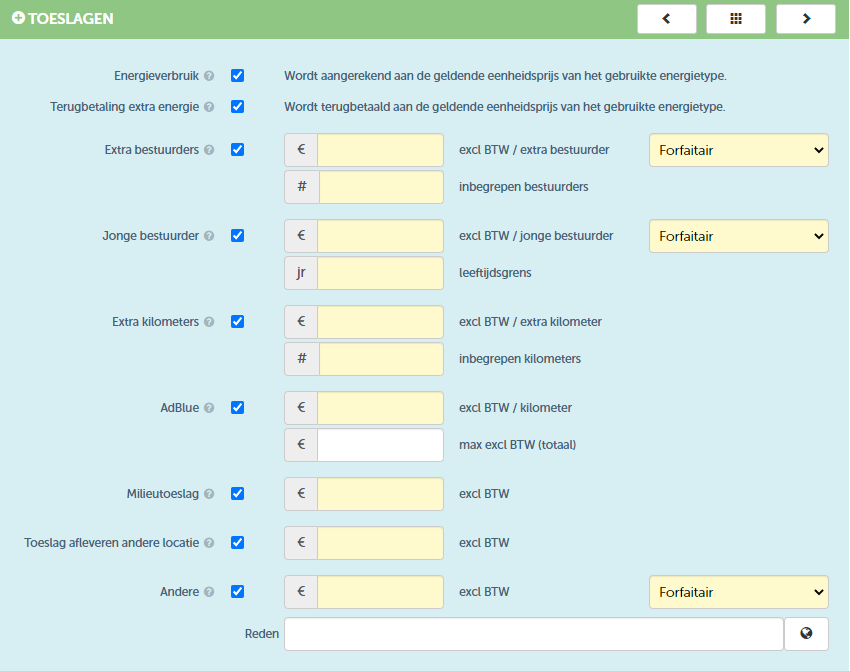
Bij de opening van deze tile zullen de checkboxen standaard zijn uitgevinkt. Het is pas bij het aanvinken van de checkboxen dat de betreffende velden zullen worden getoond.
The following surcharges can be added to the rate:
| Energy consumption | This determines whether fuel consumption should be charged in addition to the rate. This is the only surcharge that will be selected by default. |
| Refund extra energy | This determines whether the customer will be refunded for the additional fuel (or electricity) consumed. |
| Additional drivers | This is a surcharge that must be paid per additional drivers. The number of drivers included in the rate must be specified. Additionally, you must indicate the price per extra driver and whether this is a fixed price or a price that should be charged per period unit. With this last option, you can specify a maximum amount to be charged. |
| Young driver | This surcharge is charged for a driver who is younger than a specified age. Here too, you determine the price per young driver and indicate whether it is a flat amount or not (like with the extra drivers). |
| Extra kilometers | This surcharge will be determined per kilometer driven above the included number of kilometers. The unit price as well as the number of included kilometers must be specified. |
| AdBlue | This AdBlue surcharge (which is only charged if the relevant vehicle uses AdBlue) is calculated per kilometer driven. It is possible to determine a maximum amount for this surcharge. |
| Environmental surcharge | This is a fixed surcharge in the context of environmental preservation. |
| Surcharge for delivering to a different location | This fixed surcharge is charged if the vehicle is returned to a different pool than the pool from which the vehicle departed (check-in pool ≠ check-out pool). |
| Other | Here you can add a surcharge yourself. The reason you provide here will be displayed on the invoice where this surcharge is charged. Here you can also determine whether the specified price is a flat rate or unit price. |
Tiles "Website" and "Self Service App"
On these tiles, you can indicate whether the rate to be created should also be available for bookings through the website or the self-service app (if applicable).