When we talk about adjusting customers or drivers on a contract, a clear distinction needs to be made between the following actions:
- The current customer / driver on the contract needs to be replaced by another customer / driver
- Customer / driver data on the contract should be changed as they are incorrect
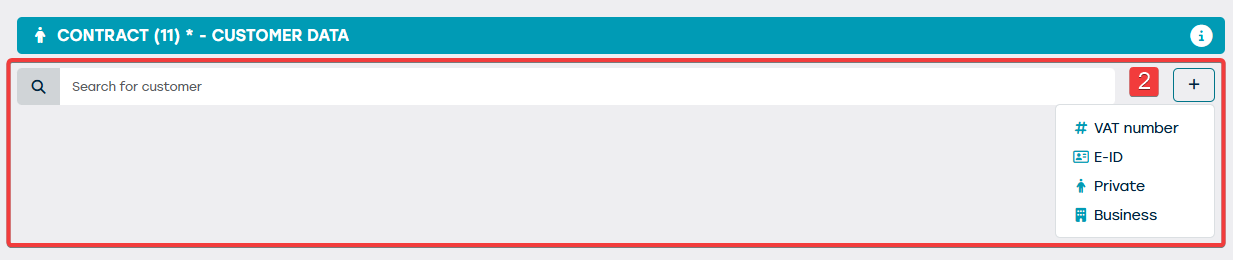
To replace an existing customer / driver on the contract by another customer / driver, first delete the current customer / driver (1) and then add the new customer / driver (2).
Delete existing customer / driver from the contract
To delete the existing customer / driver from the contract, simply click the cross next to the name:
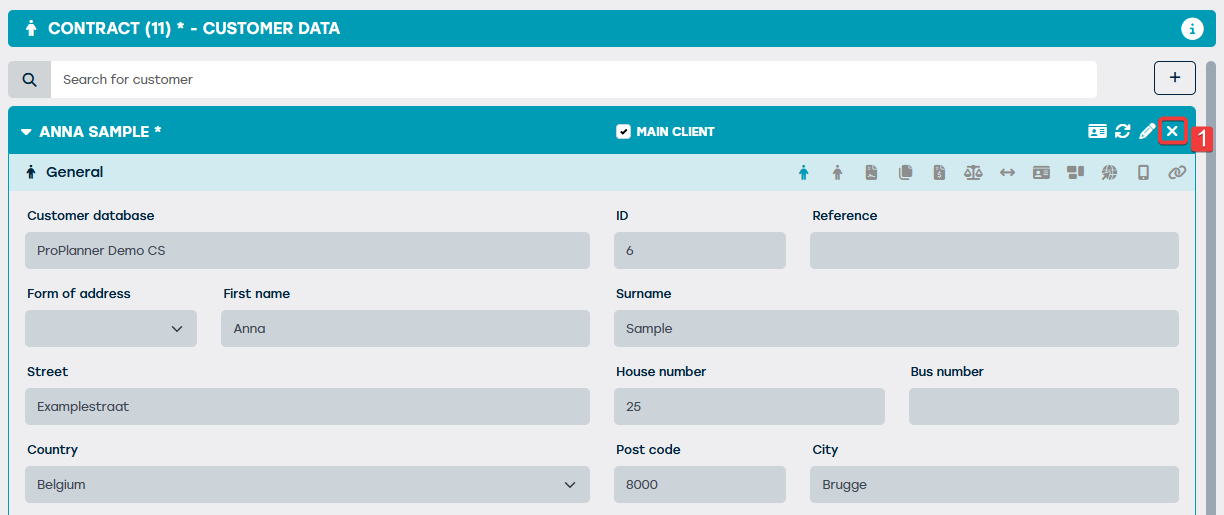
This is only possible on a contract that has not been checked out.
Add new customer / driver to the contract
To add a new customer / driver to the contract, there are several options:
- You can look up the new customer in the database
- You can create the new customer by reading the e-ID
- You can create the new customer (both private and business) completely manually
- In case of an integration with certain external packages, it will also be possible to retrieve the customer data there and to create a new customer in ProPlanner in this way.
To correct the data of the existing customer / driver on a contract, you can click the pencil icon after which the various fields on the record can be changed (3).
Update data of an existing customer / driver on the contract
The data of an existing customer / driver on the contract are shown in view mode by default. This means they cannot be changed. If you want to do so, click the pencil icon next to the customer / driver's name.
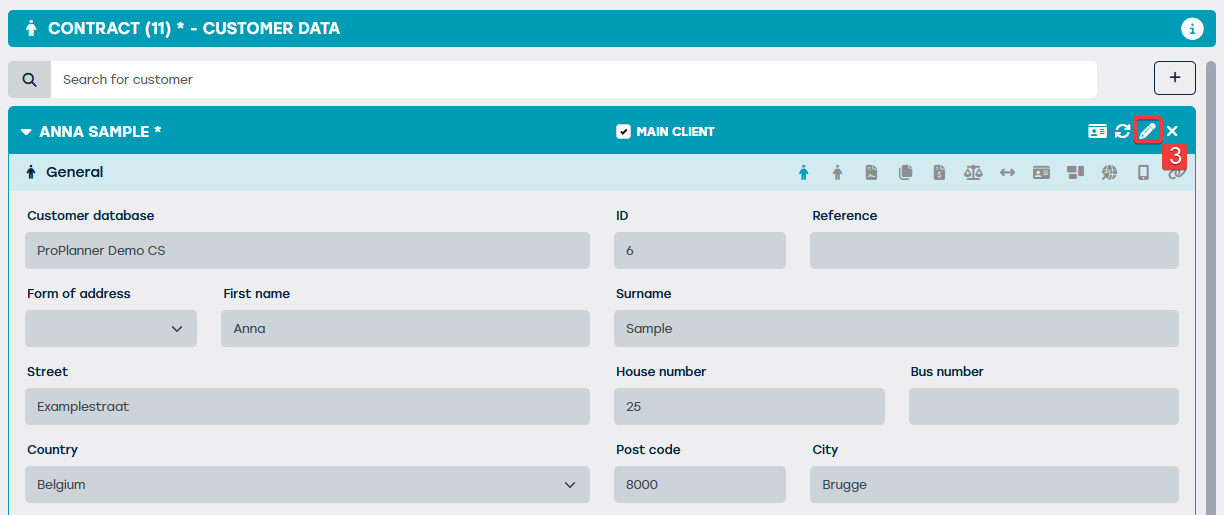
This action overwrites the data of this customer / driver when saving the changes. This means you have changed the existing customer in the database.