Documents can be uploaded in various places:
- To a contract (or quotation)
- To a resource
- To a customer
- To a resource category
Documents are uploaded in all these places in the same way. Via the tile documents on the relevant screen:
- You can view, edit and/or delete already uploaded documents (1)
- You can select the documents to then email (2) them
- You can upload additional documents (3)
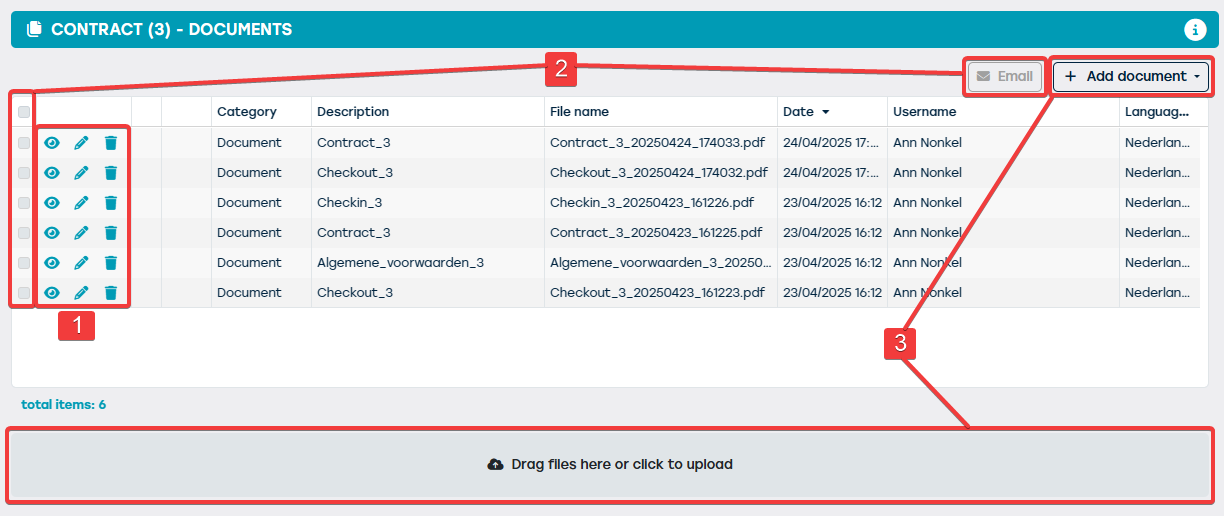
Documents can be uploaded in three different ways:
- When you click the "Add document" button, you must first specify the type of document you want to upload. The screen below opens:
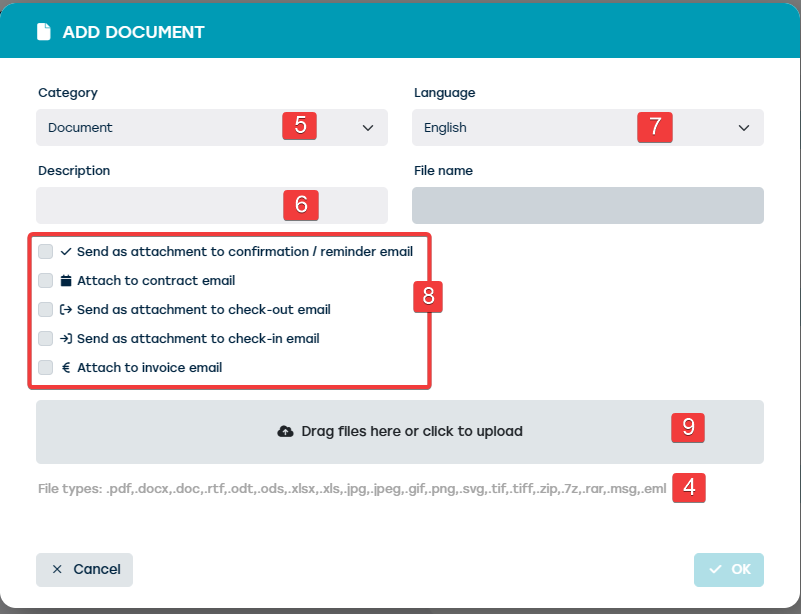 This screen offers you the following options:
- The file types that can be uploaded are shown on the screen (4)
- You can still change the category of the document to be uploaded if you want (5)
- You can add a description that will be shown in the table of already uploaded documents. This description is entirely up to you (6)
- The language of the document can also be specified (7)
- You can also specify whether the document should be sent as an attachment in the communication in certain cases (8)
- Finally, you can upload the document (9). And finally, the document can be uploaded (9) This can be done by dragging the desired document into the indicated box, or by clicking the box which will redirect you to the "Explorer" on your computer where you can find the document in question.
- When you click the "Drag files here or click to upload" box, you are redirected to the "Explorer" where you can find the document in question. When you select the document, you go to the screen shown above. The details of the selected document are already entered. Of course, you can still make changes.
- The document in question can be dragged directly to the "Drag files here or click to upload" box. The moment you let go of the document, you are redirected to the window above, where the details of the uploaded document have already been entered in the fields.
In all three cases, you will eventually have to confirm by clicking the "OK" button in the top-right corner of the dialogue box. After clicking "OK", you return to the "Documents" tile where the document you just uploaded appears in the list.
A mail message can be dragged directly from the mailbox to the "Drag files here or click to upload" box for uploading. When you then open this mail from the "Documents" tile, it will be shown in your mailbox.