Refunds are part of the module "Collections". If you want to use this, contact us at support@jumik.be.
Performing a refund to the customer can be registered in ProPlanner in different ways:
- You can directly register the refund as a transaction on the contract. The way this is done is discussed in more detail in the article "Recording transactions on a contract".
- You can record a transaction of the type "Request refund"on the contract. When saving this transaction, it will be displayed in the overview of refunds. From this overview (Manage > Financial > Refunds), you can execute the corresponding refund.
Executing refunds from the refunds overview
From the overview of the reimbursements, it is possible to manually execute or automatically execute the reimbursements. The way in which the reimbursements can be executed is determined by a setting:
The "XML export for refunds" setting (which is only available if the "Collections" module is enabled) determines whether refunds can be executed automatically. If this setting is enabled, it will be possible to download an XML file that allows you to automatically execute the selected refunds using payment software. If you wish to enable this setting, contact us via support@jumik.be.
Both scenarios are discussed below.
Manual execution of refunds
In this case, you must manually execute the refunds using the payment software you are using. Then, you must indicate in ProPlanner that the refund was executed:
- Firstly, to avoid executing it a second time
- Secondly, to ensure that the refund is also registered on the relevant contract
To mark a refund as "Processed", follow these steps:
- Select the refunds you wish to mark as "Processed"
- Click on the "Mark as Processed" button

Initially, the processed refunds will disappear from the screen. However, when you check the "Show processed items" checkbox in the filter, the processed refunds will also be displayed. The last column will indicate which refunds have already been processed and which have not:

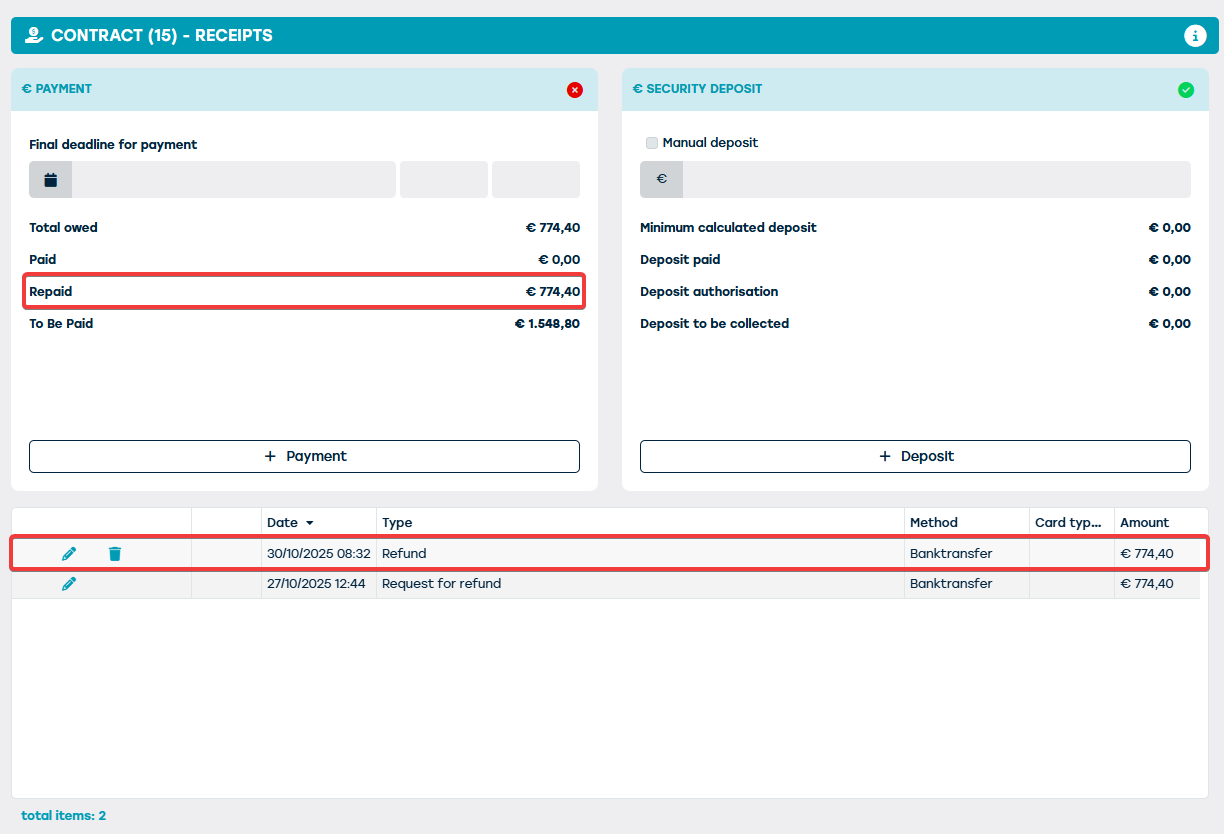
On the corresponding contract, the processed refund will be automatically registered as follows:
Automatic execution of refunds
If the "XML export for refunds" setting was enabled, you will have the option to export the refunds in XML format, in addition to manually processing them:
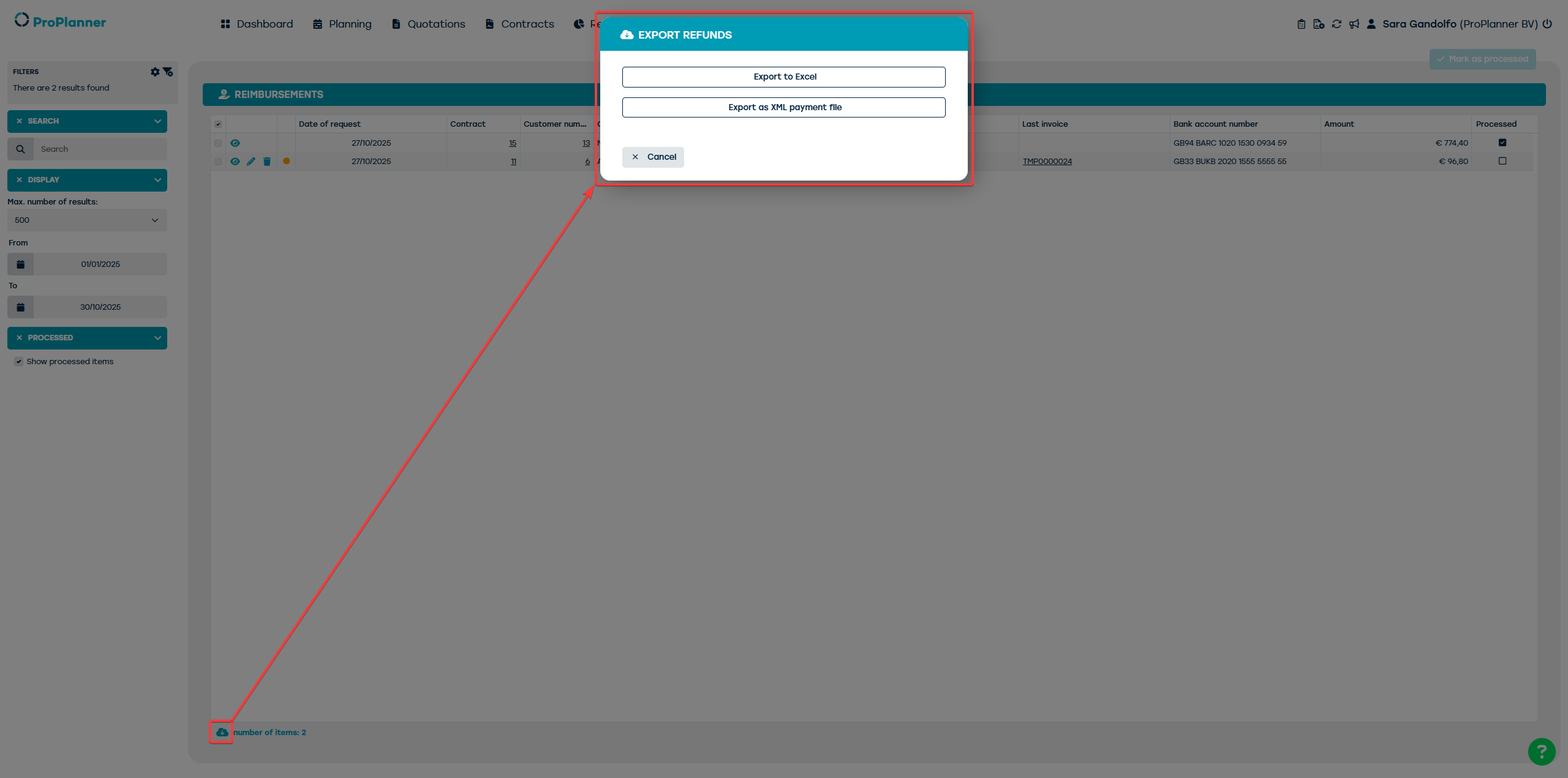
If you choose this option, you will be able to indicate whether you want to export the selected refunds or all unprocessed refunds within a certain period. After confirming your choice, the XML file will be generated. Next, you can import this file into the payment software, which will automatically execute all the refunds in the XML file.
In ProPlanner, the corresponding refunds will be automatically marked as processed .
If the bank account number of the customer to be paid is not known, a notification will be made when generating the XML file. After entering this bank account number, you can export the refund for this customer again.
If the bank account number of the branch has not been entered, the XML file will not be generated. An error message will prompt you to enter this account number.