Twikey is a software service that specializes in simplifying direct debit payments and managing recurring payments. It is mainly used in Europe and enables companies to digitally manage SEPA mandates and arrange direct debits for their customers.
ProPlanner integrates with Twikey, the tool that makes it easier to set up payment integrations.
In addition to the existing option of manually indicating that a customer pays by direct debit (and where you fill in the customer's details), the integration with Twikey makes this process much simpler and more automatic.
With the ‘request mandate’ button on the ‘Financial’ tile (customer file), you can choose how you want to inform the customer to start and complete their mandate request. This can be done via text message or email.

Please note that certain conditions must be met in order to choose one of these options. To send an email, the customer's email address must be entered. For text messages, the mobile number, IBAN, and BIC must be entered in full in the customer file in ProPlanner.
If you choose the ‘SMS’ option, the customer will receive an SMS with further instructions. You can determine the content of this SMS yourself from your Twikey account. When you choose the ‘email’ option, a pop-up screen will open where you can edit the email message if desired.
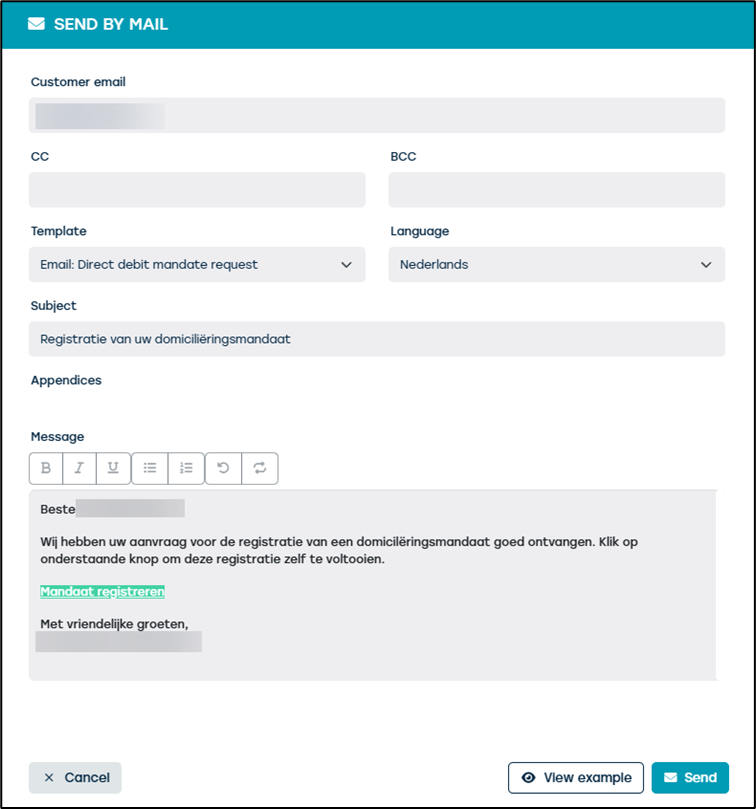
(If desired, the email template can also be customized.)
This email provides the customer with a link to complete the mandate. This means that the customer must enter their bank account number, BIC, and place of signature.
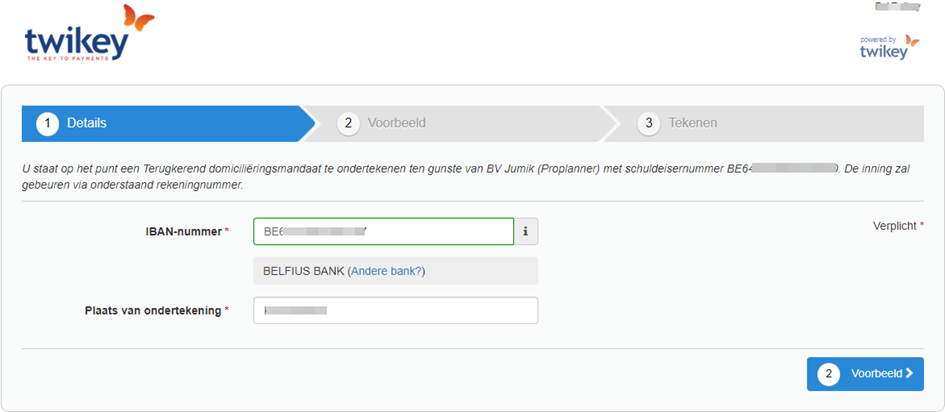
The customer can then choose how they wish to sign this mandate, with options such as ID card, Visa, itsme, etc. You can also manage these options yourself in your Twikey account.
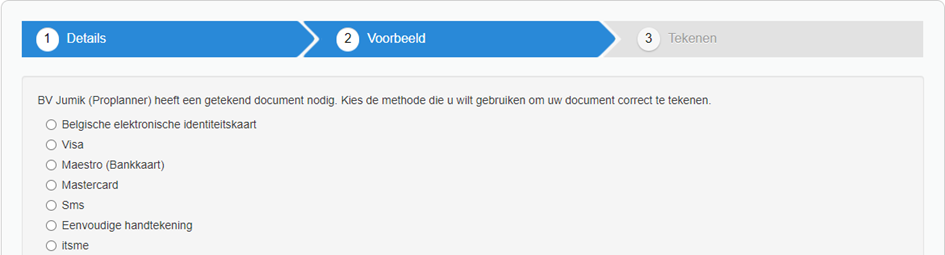
Once the customer has made their choice, the mandate is verified.
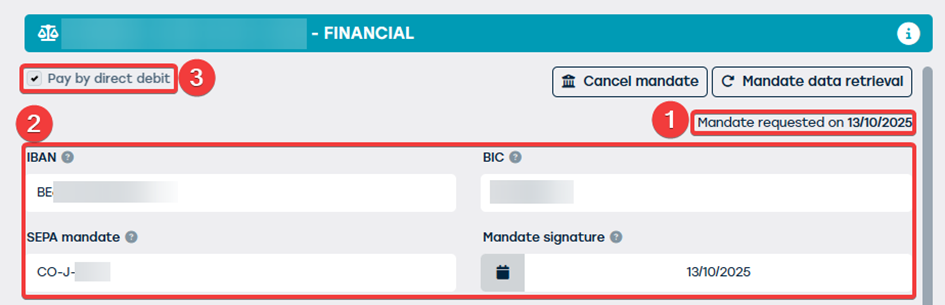
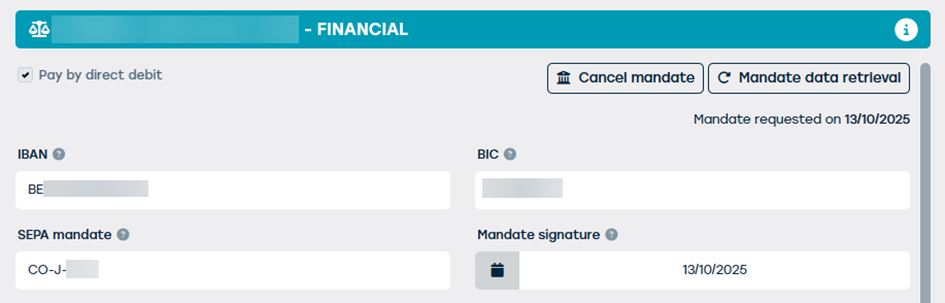
When you open the customer file after validation, you will notice that additional information has been added: the date on which the mandate was requested (1) (note that this date is already provided when you click on the ‘Request mandate’ button).
Once the registration has been approved by Twikey, Twikey will in turn complete the following information in ProPlanner: IBAN, BIC, SEPA mandate, date of mandate signature (2) and the checkbox ‘Paid by direct debit’ (3) will be automatically checked.
You can also do the reverse and create the mandate via Twikey and then retrieve the data in ProPlanner.
To do this, create a new agreement in Twikey and fill in the necessary customer details.
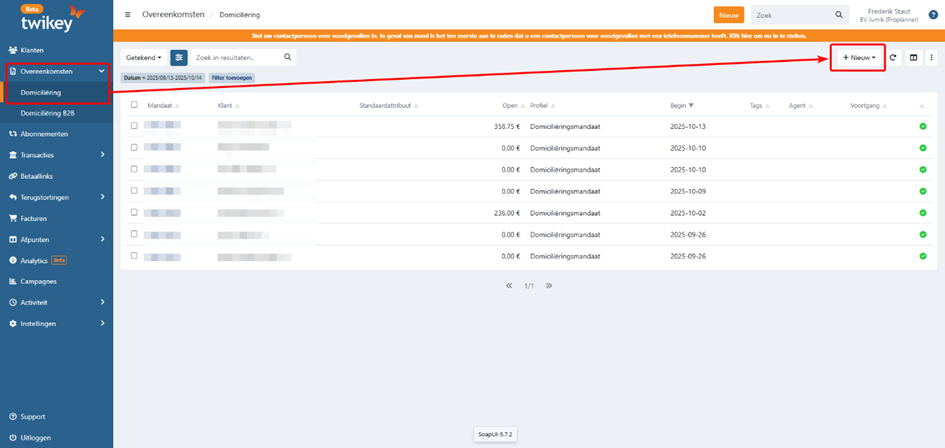
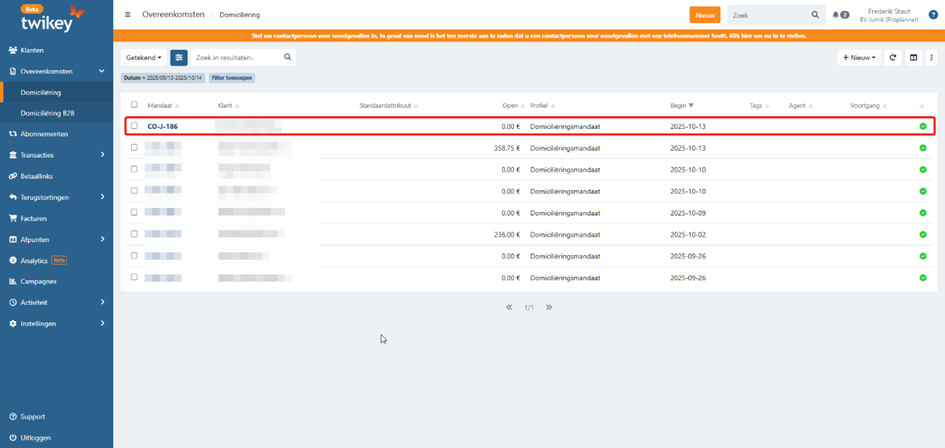
Once the agreement is complete, a new mandate will be available in Twikey.
Via the customer file in ProPlanner, you can now retrieve the details using the mandate number in Twikey.
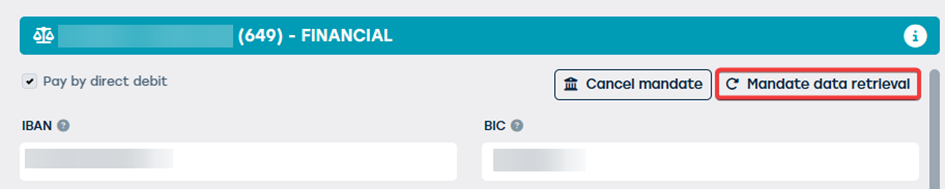
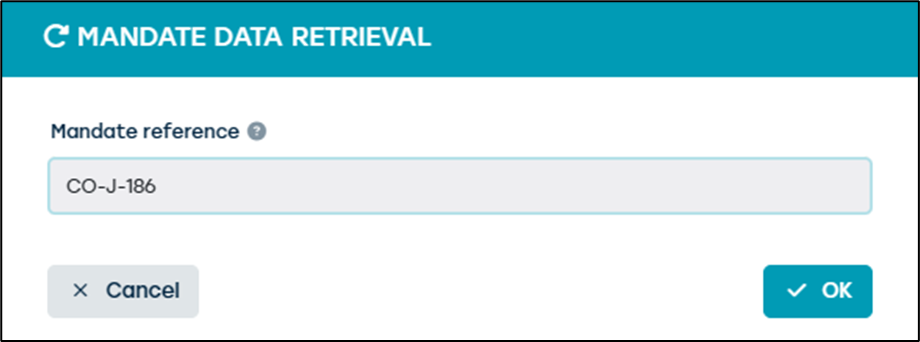
As soon as you click on “OK,” Twikey will then also complete the following information in ProPlanner: the date on which the mandate was requested, IBAN, BIC, SEPA mandate, date of signature of the mandate, and the checkbox “Paid by direct debit” will also be automatically checked.
Once the mandate has been approved, a confirmed invoice in ProPlanner will be forwarded to Twikey.
ProPlanner takes into account any payments already made and will therefore not charge the total amount (as shown in the screenshot of the invoice below), but will take into account the outstanding balance.
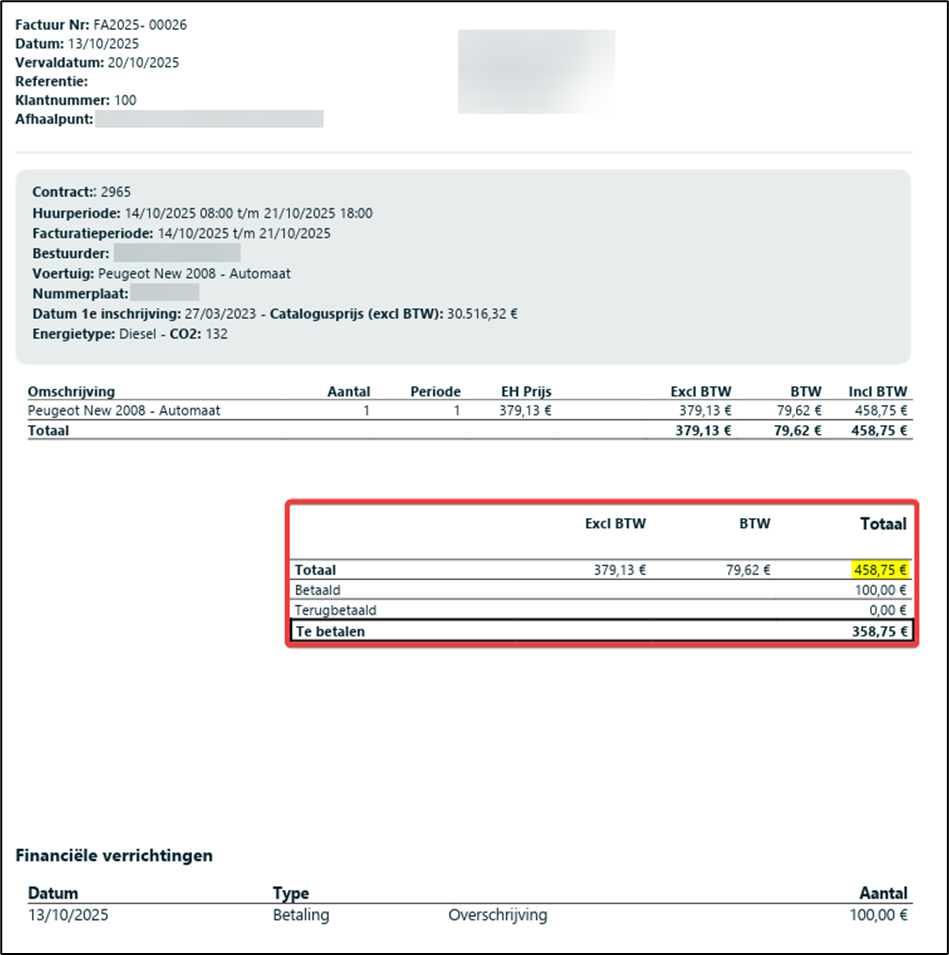
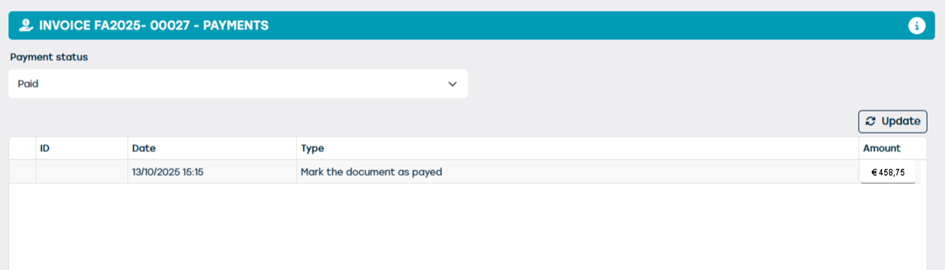
Twikey then submits the payment order for €358.75 to the bank. Once the invoice has been paid, the payment status is updated to ‘fully paid’ in ProPlanner.
In another situation, when the Twikey integration is active in the environment but the customer has not completed the procedure to activate a mandate, it is still possible to offer this. The customer receives a link to Twikey along with the invoice. Via this link, the customer can pay the invoice, either by registering a new mandate or via a payment provider.
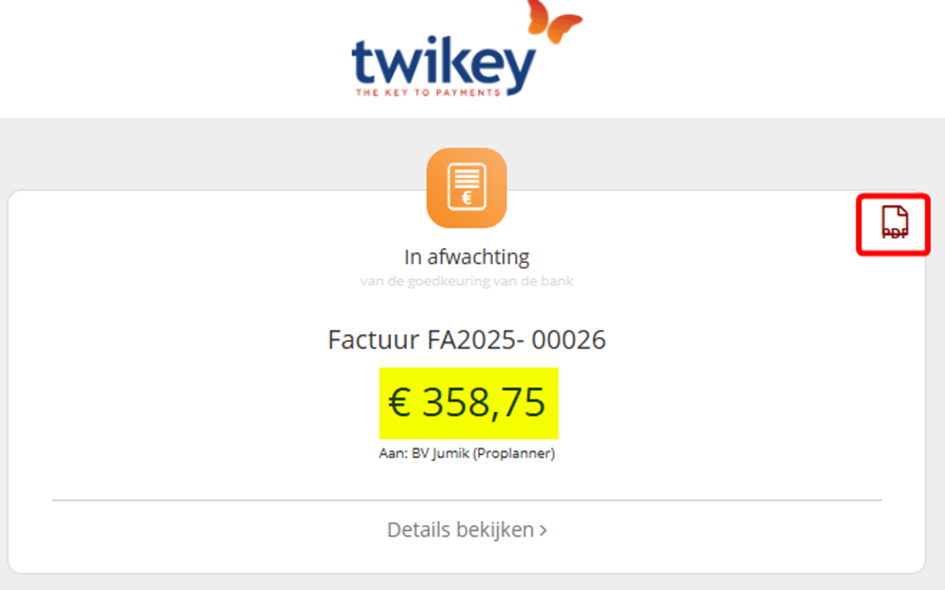
If the customer chooses to register a new mandate, the details of this mandate will be visible in ProPlanner after signing. Current and future invoices will then be paid via this mandate.
It is also possible (provided you have the necessary rights) to delete invoices that Twikey has already submitted to the bank in ProPlanner. These rights can be assigned to certain roles via Management > Rights > Delete processed invoices.
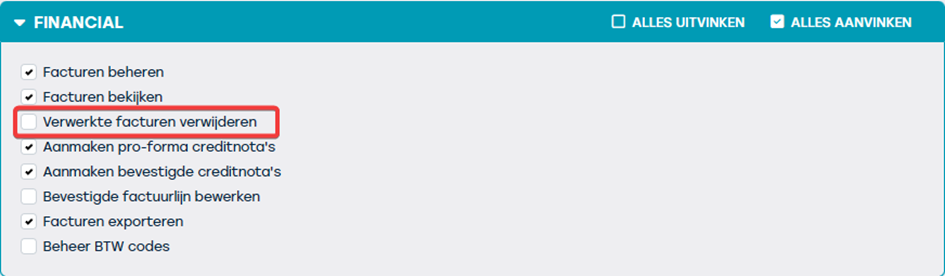
If these rights are enabled, you can delete the invoice in ProPlanner via the invoice overview.

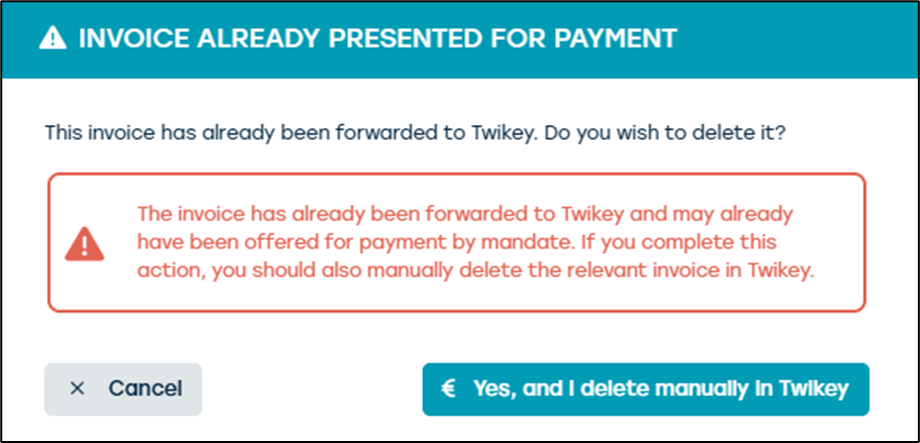
A pop-up will appear with a warning. Since the invoice has already been forwarded to Twikey, it will most likely already have been submitted to the bank. So don't forget to delete this invoice in Twikey as well.
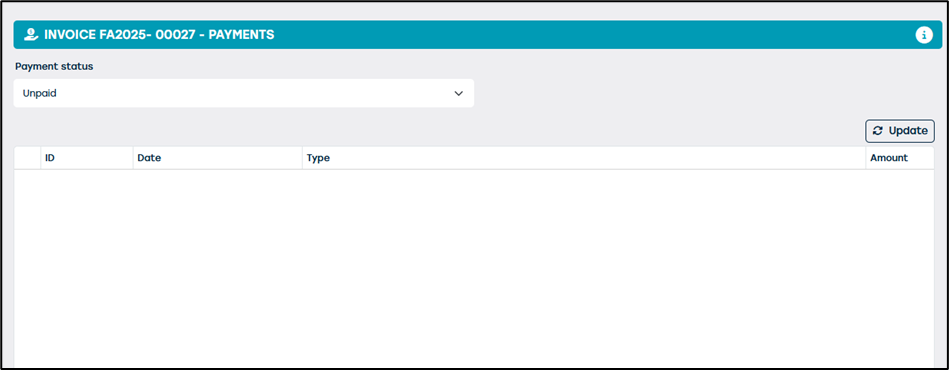
After the payment has been reversed and the invoice has been deleted, the payment status will revert to “Unpaid.”
For more information about the Twikey module or pricing, please contact our support department.