You can let the customer complete their own information on the contract so that it can be better prepared and check-out can go more smoothly. This is done via the tag #SelfRegistrationLink# which can be included in your confirmation email template.
Note: if you want to use this module, please contact us. Once this template is set up, you will see a clickable link appear in the confirmation email.
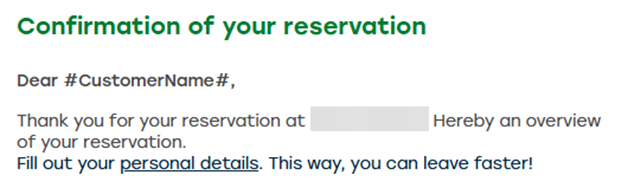
Once the customer clicks this link, they are directed to the onboarding screen to further complete their personal information.
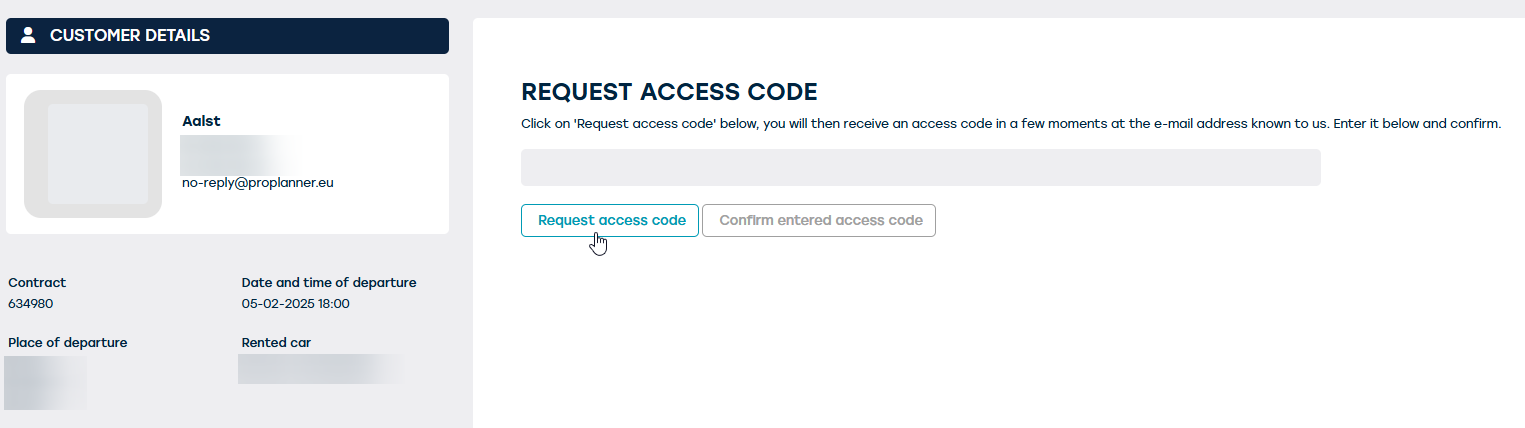
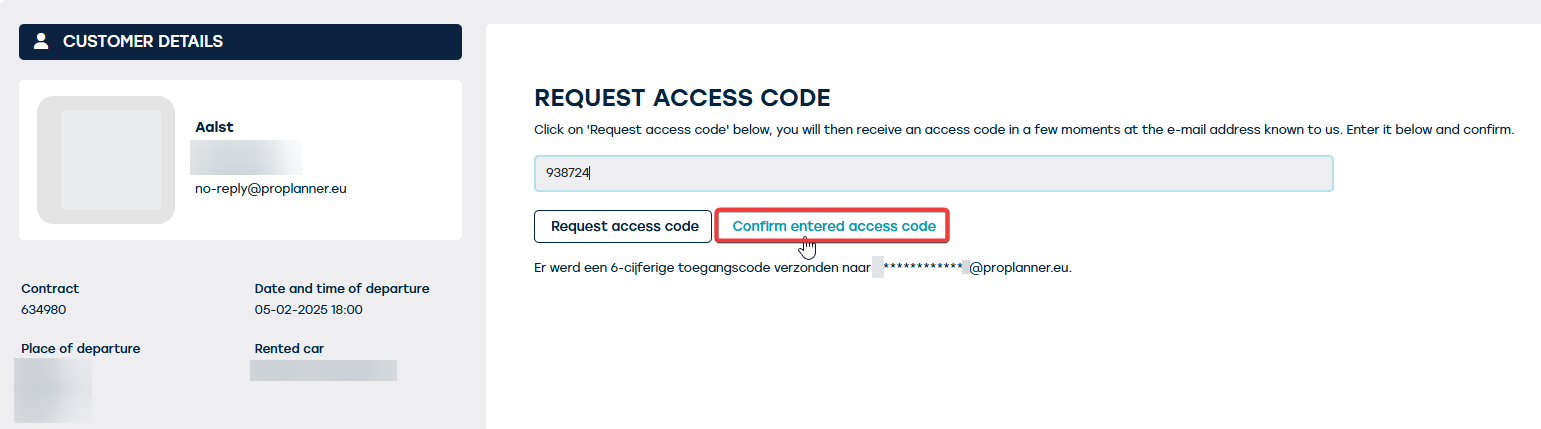
In this screen, the customer must request an access code. Once he clicks on 'request access code', the email to which the access code was sent will be displayed and the customer will receive an access code in his mailbox. He has to fill it in and confirm it in the form:
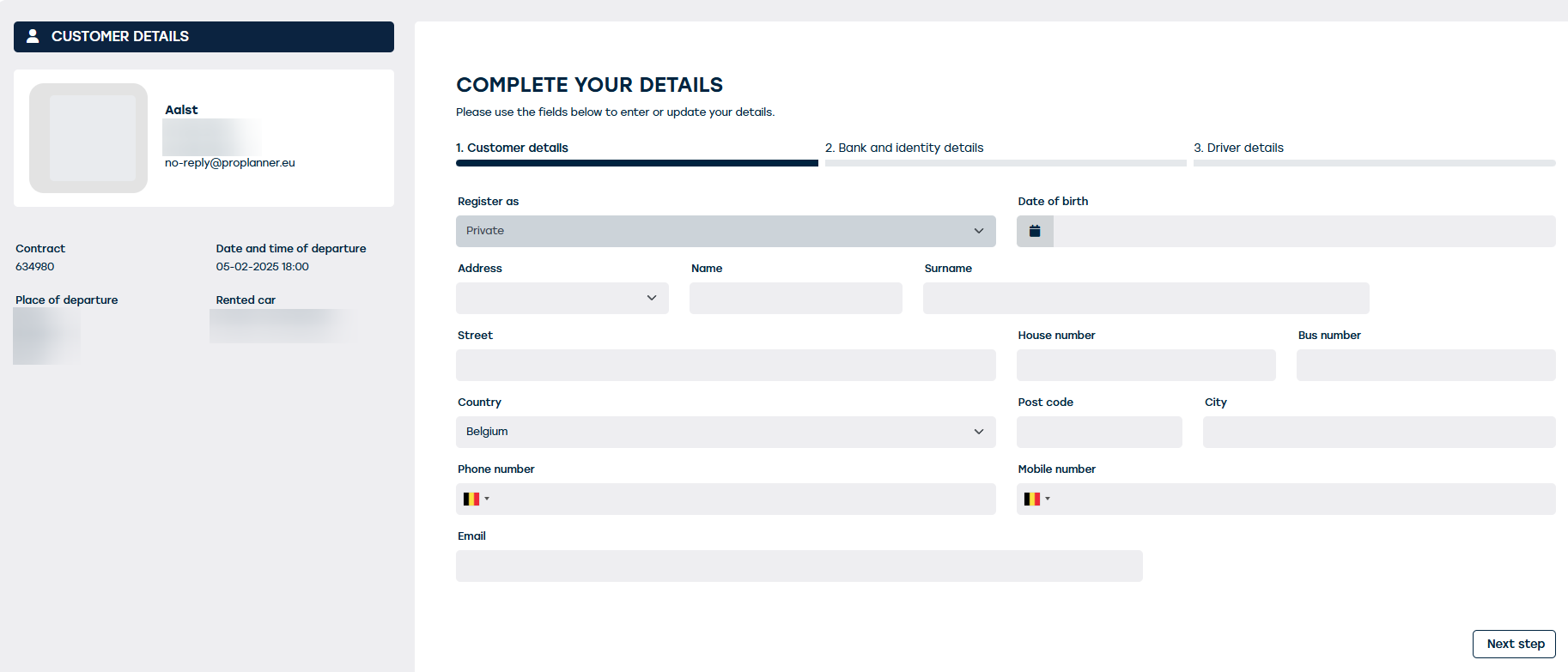
In the next screen, the customer can start completing his personal data, bank and identity data and driver data. He can always go to the next screen via the button at the bottom right: 'next step'.
In the last screen 'driver details', the customer should indicate if they are the driver themselves, or if another person is, or he/she can invite a driver:
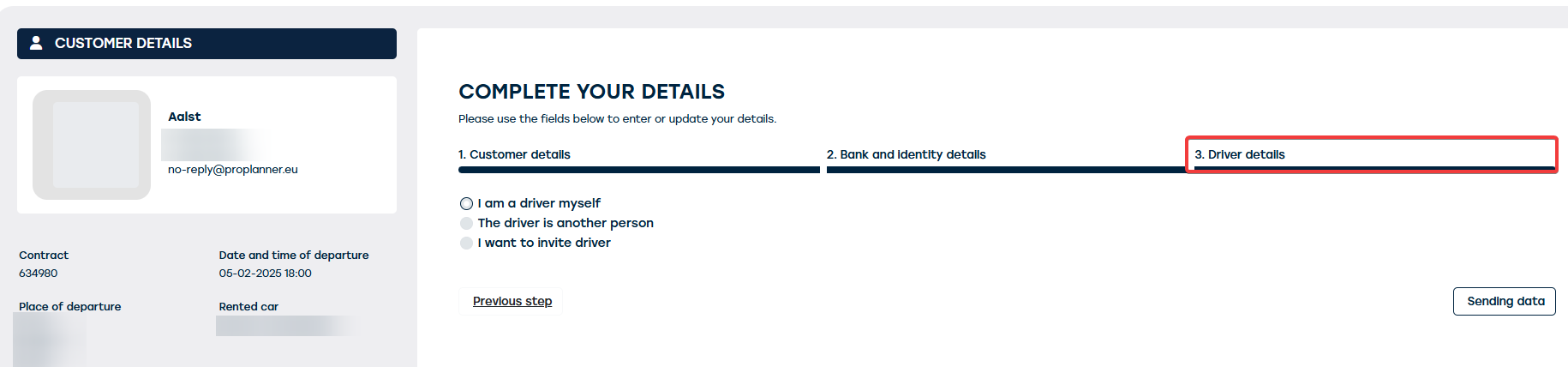
If the driver is another person, basic information must be provided (name, phone number, etc.).
If the customer wants to invite a driver, he should provide a name and e-mail. He can send the data using the 'send data' button at the bottom right.
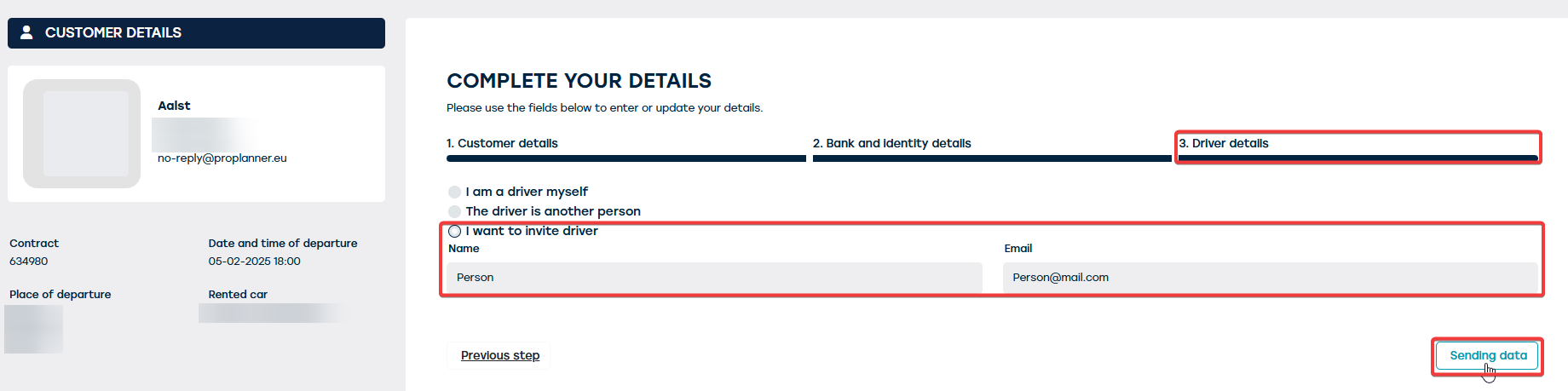
When the customer completes this last step, he/she will receive a confirmation of registration:

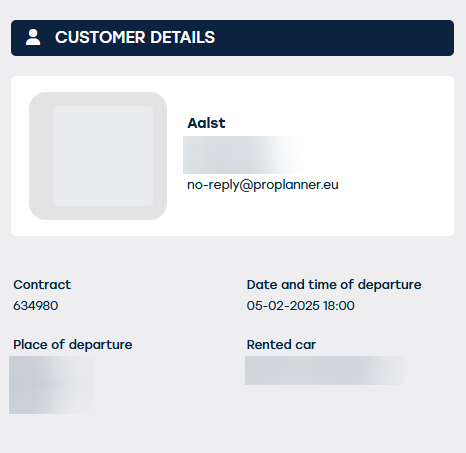
The onboarding sheet will always include the branch logo and its details:
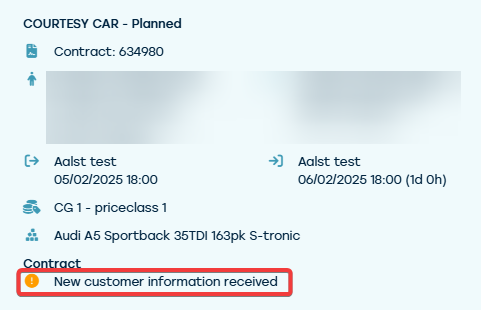
On your contract, the addition of customer data translates into an alert:
When you open that contract, you will then be asked if you wish to process this data:
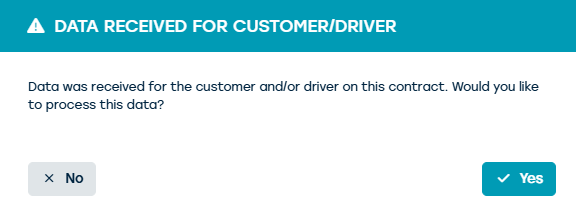
If you do not want to process these, for example because you just want to open the contract to change the period, you can choose 'no'.
In this case you will still see the alert 'There are still customer data to be processed on this contract'. This is visible at the customer data and at the personal data itself:
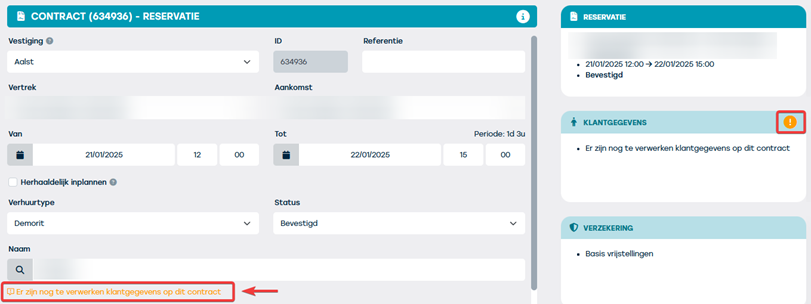
When you click on the message 'There is customer data still to be processed on this contract', a pop-up will appear to start updating the customer data. Note that only a summary of the fields on which there may be inconsistencies will appear here, fields that are not in dispute (previously blank and now completed) will not be shown here.
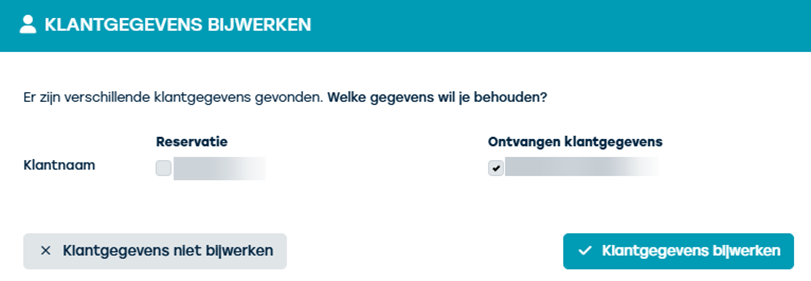
If you click on the button 'update customer data', you will see the data updated on the contract.
Attention: if a customer already exists in the customer file and you choose to update the customer data, the system will indicate that a customer already exists with the same name.
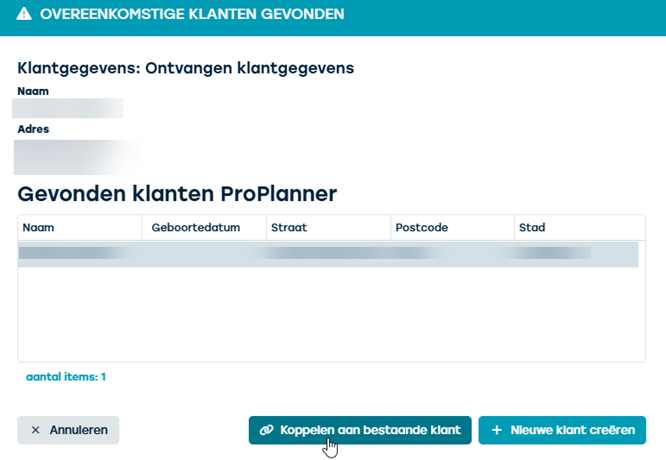
If you still want to create this customer new, select '+create new customer', if you want to overwrite this customer, select 'link to existing customer'.
If you want to link this customer to an existing customer, again a comparison of data will appear where you will have to select the correct one:
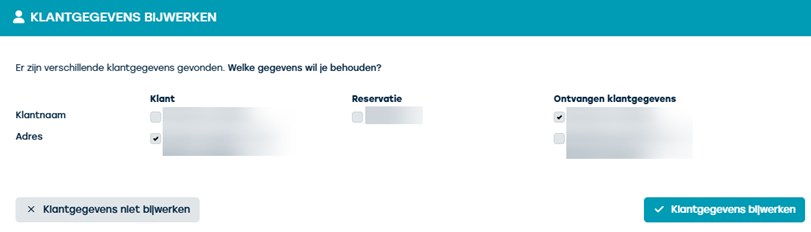
Once you have indicated which data needs to be updated, you can update the customer data using the 'update customer data' button. These are then transferred to the contract.
Coming back to the invited driver, he receives the e-mail below indicating that he has been designated as driver of the car in question:
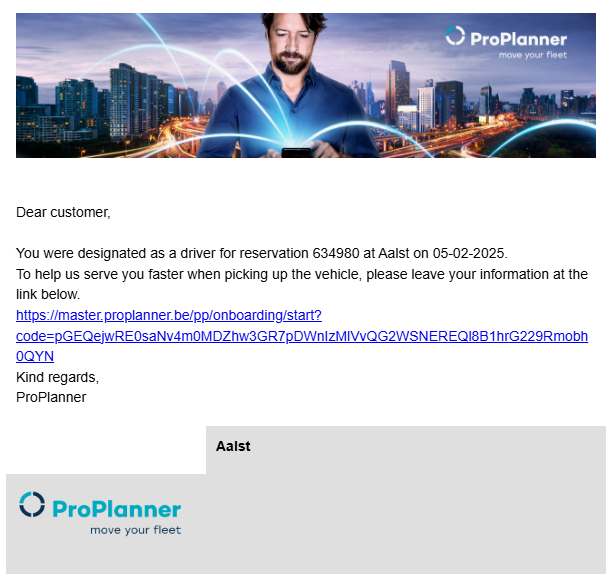
When this driver clicks the link, he will again be given the option to have an access code generated which will be sent to his/her email address. When he fills this code in the onboarding screen, he will get access to the screen where he can complete his customer data & bank and identity data (see also earlier).
A message will also appear on the contract once the driver has completed his data i.e. 'new driver information received':
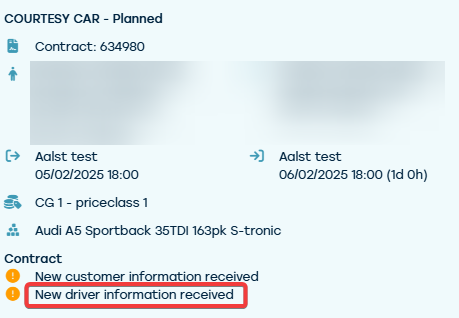
When opening the contract, you will be asked again whether these data should be processed or not. In the 'driver' field, if you choose 'yes', the data entered by the driver will be completed.