Necessary requirements to register transactions on a contract:
- the module "Collections" must be enabled (contact us for this via support@jumik.be)
- the necessary permissions (permissions in the group "Financial - Payments") must be assigned ('Manage' > 'Users and permissions')
Via the tile "Collections" on the contract, you have the possibility to register transactions. Here, you can choose to register:
- A payment-related transaction
- A guarantee-related transaction
Register a payment-related transaction
You can register a payment on the contract by clicking the "Payment" button. When you click this button, the following dialog box will be displayed:
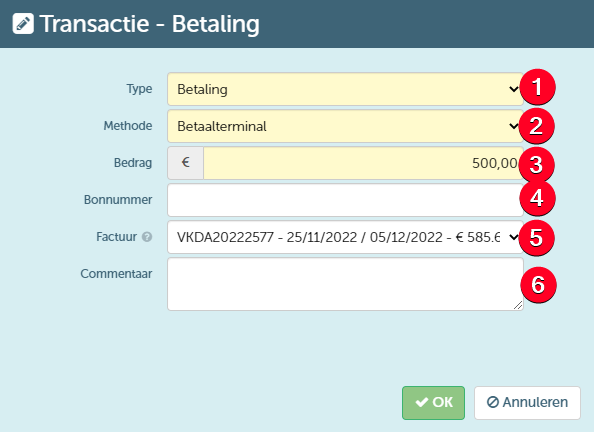
Through this window, you can:
- Determine the type of the transaction, choosing from the following options:
- Payment - when it concerns a payment from the customer, you must select this type
- Refund - when it concerns a refund to the customer, you must select this type
- Request refund - this type must be selected to indicate that another refund must be carried out. This request will then be shown in the refund overview from where they can be executed in bulk.
- Request transfer to another contract - this type should be chosen when you wish to transfer the refund amount to a new contract of the same customer (where it can serve as the guarantee payment)
- Indicate which method is used to perform the transaction. Depending on the selected type, you will be able to select different options here.
- Specify the amount of the transaction
- Provide the voucher number if a voucher was used for the transaction.
- Specify the invoice number of the invoice that is being (partially) paid by this transaction. You can only choose from the invoices created within the relevant contract. This can only be changed if the respective transaction has not yet been exported to a possible accounting package.
- Specify any additional comments .
When you save this transaction, it will be shown in the "Innings" tile and the balance will be adjusted if it is a payment (see further).
If you want to use the "Cash" method, you must first define at least 1 cash register at the location where the payment is registered. You define cash registers on the cash register management screen.
Register warranty-related transaction
You can register the (partial) payment of the deposit by clicking the "Deposit" button. When you click on this button, you will be directed to the same dialog box as when registering a regular payment. However, the available transaction types to choose from will be different. When registering a deposit payment, the following transaction types are possible:
- Deposit collection - when it concerns an actual payment of the deposit, you must select this type. Here, you can choose (via the method) to take over the deposit from another contract (if a transfer from another contract has already been registered).
- Guaranty credit card authorization - this registers the reservation on the customer's credit card for possible later payment of the guarantee (if necessary)
- Guarantee refund - this registers a refund of the guarantee to the customer at the end of the contract
- Request transfer to another contract - this type should be chosen when you wish to transfer the refunded guarantee to a new contract of the same customer (where it can serve again as the payment of the guarantee)
When selecting the option "Waarborg inning", an additional option will be displayed to specify the IBAN number for the possible refund of thedeposit. When filling in this number, you can also choose to copy the IBAN to the customer file of the main customer on the contract. In this case, the already filled in account number on this customer file will be overwritten.
After saving the transaction, it will also be displayed on the "Collections" tile and the guarantee balance will be adjusted (see further).
The "Guarantee refund" option is only available if the guarantee is not deducted on the final invoice. For more information about the processing of a guarantee, you can refer to here .
Example of the "Collections" tile after registering some transactions
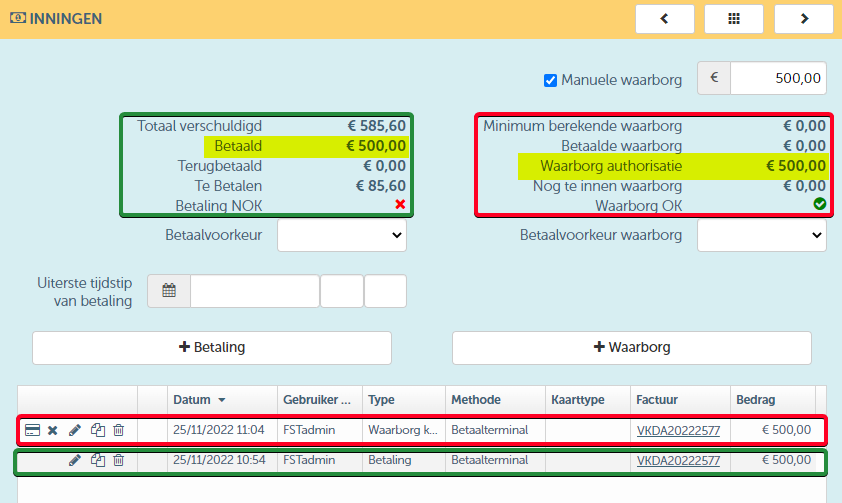
As you can see, this tile also displays the current payment status of both the invoice amount and the deposit.