During check-out, check-in, and inspection, a checklist is shown to the user.
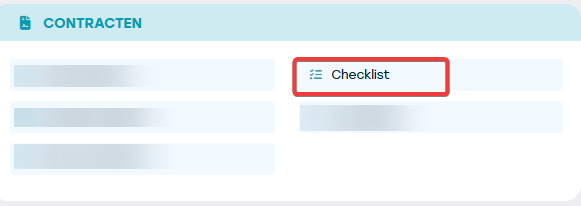
Our consultant goes over these during start-up. Anyone with the correct permissions can personalize this checklist themselves. Under Management > Contracts > Checklist you can find the management screen:
There are several ways to configure these. The parameters are discussed below:
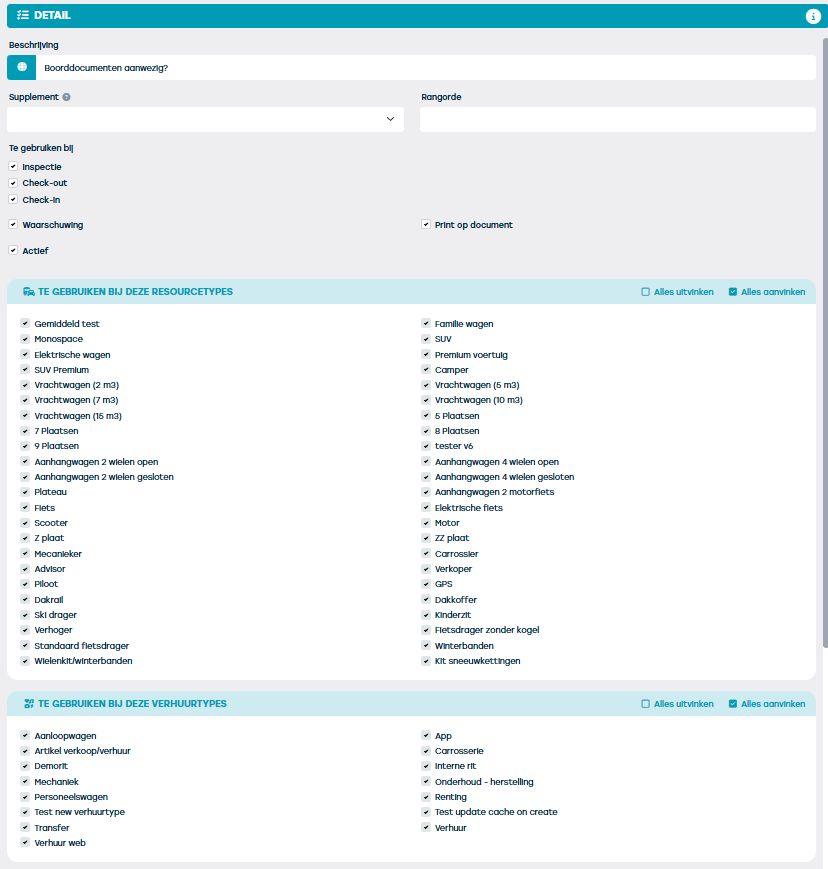
| Active | A checklist item that is in use cannot be removed. If you no longer want to use an item, you can deactivate it. |
| Ranking | This determines the sequence in which the item is displayed. |
| Description | Multilingual description of the item. Keep in mind that in the checklist you can choose: yes/ok (checkmark) or no/not ok (cross) or unknown (question mark). Be careful with double negatives such as "Not cleaned". |
| Use at check-out | Should this item be displayed during check-out? You may only want to check something at the departure of the resource, but not at the arrival. |
| Use at check-in | Should this item be displayed during check-in? You may only want to check something at the arrival of the resource, but not at the departure. |
| Use at inspection | Should this item be displayed during inspection? Maybe you also want to check this at that time. |
| Warning | Should there be a warning if the item is not checked or unchecked? |
| Print on document | Should the item be mentioned on the check-out document? It is possible to perform a check that you do not want to appear on the document. |
| To be used for the following resource types | For which resource types do you want to see this item? For a bicycle, you do not want to check if the SD card is present. |
| To be used for the following rental types | For which rental type do you want to see this item? For a demo ride, it may not be relevant to check whether the car has been cleaned. |
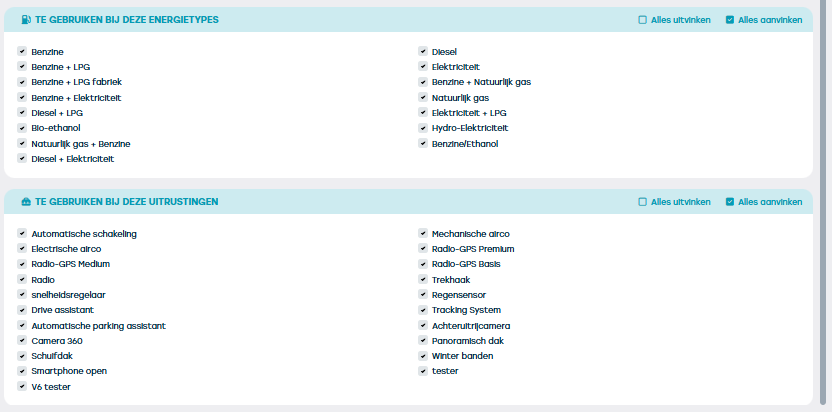
| To be used for the following energy types | Checking whether the charging cable is present is something you obviously only want to do for electric cars. |
| To be used for the following equipment | Snow chains, SD card, etc.—all useful to check if they were at least present. |