In this video:
Rates are essential for building contracts correctly and transparently. Since rental rates are listed in the contract that is signed and returned by the customer before departure, it is important that they are accurately configured—even if invoicing is not done through ProPlanner (for example, after-sales).
ProPlanner features a powerful pricing calculation module that supports this process and ensures the correct price is applied automatically.
Rates consist of two key elements: a price category and a rate type
1. Price category
A price category is a group of vehicles that share the same rate structure. These price categories are predefined and cannot be modified.
2. Rate type
A rate type defines the period to which a rate applies. Based on this period, ProPlanner automatically selects the appropriate rate for the contract.
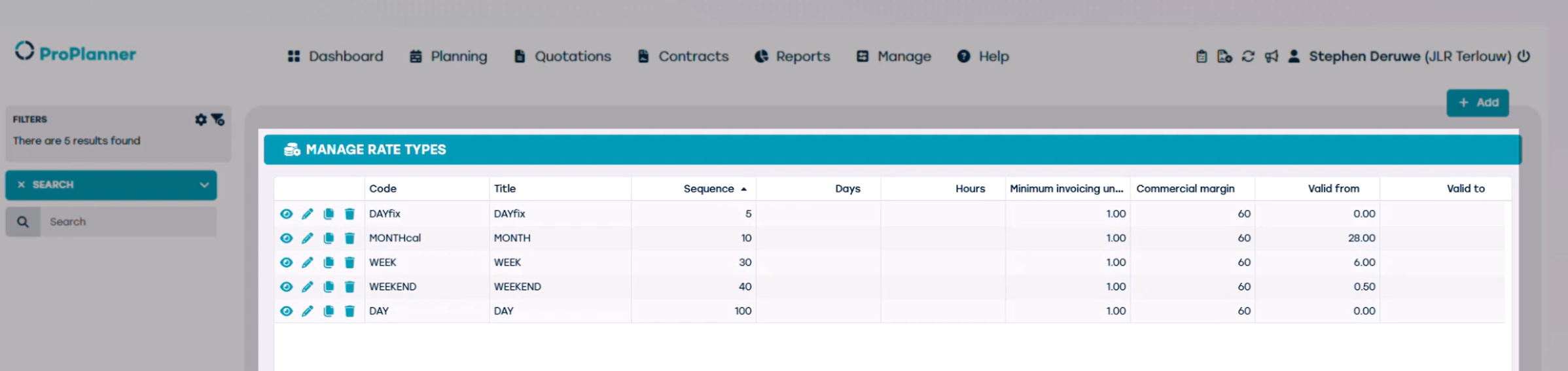
The available periods are predefined and cannot be modified. The following periods are configured in the system:
- Day
- Week
- Month: A monthly contract always runs until the same calendar day in the following month.
For example: from January 7th to February 7th, or from July 8th to August 8th. - Weekend: The weekend rate applies when check-out and check-in take place within specific time frames.
- check-out: Friday 4:00 PM - Sunday 12:00 PM
- check-in: Saturday 12:00 PM - Monday 9:00 AM
Now let's go over the rates. By going to Manage and then click rates
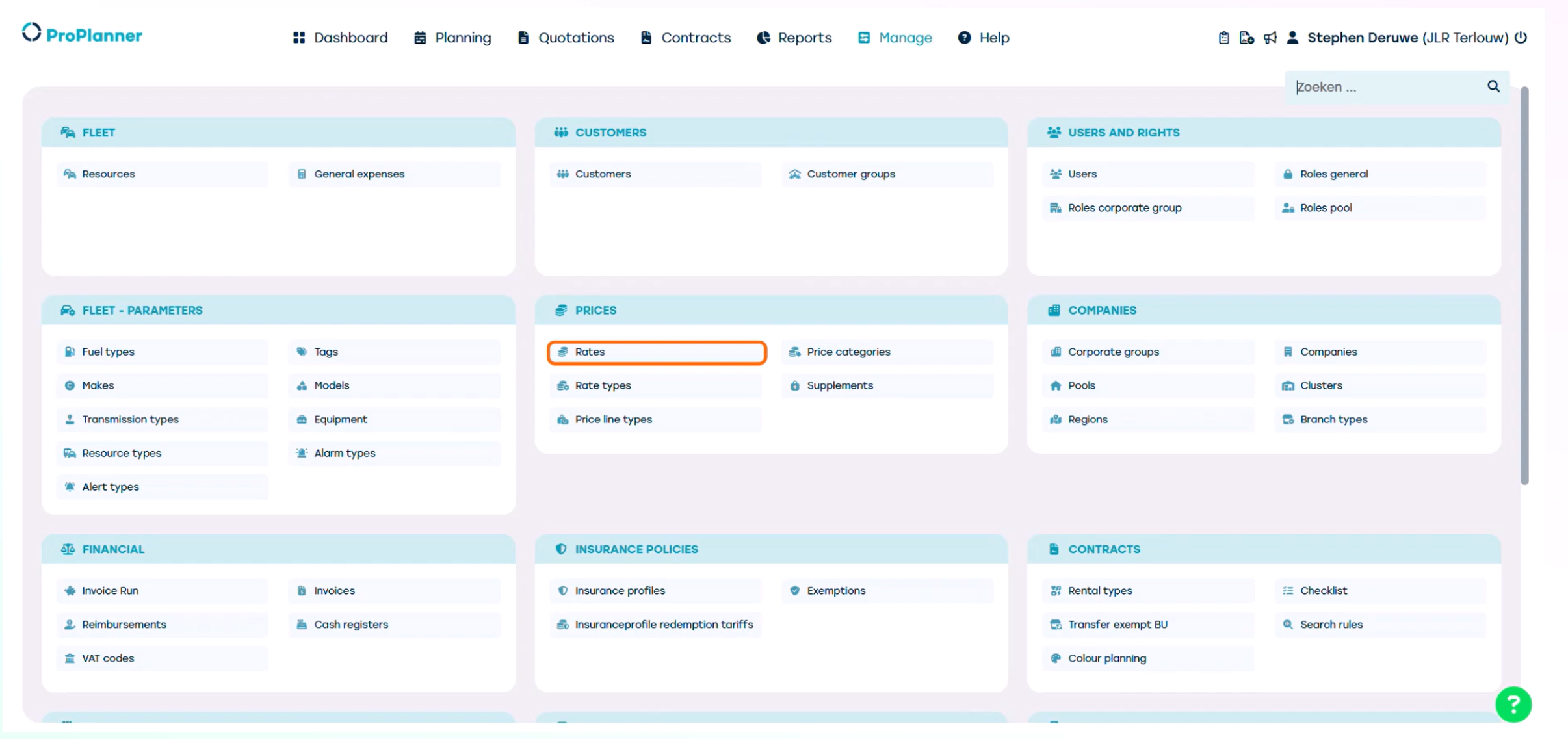
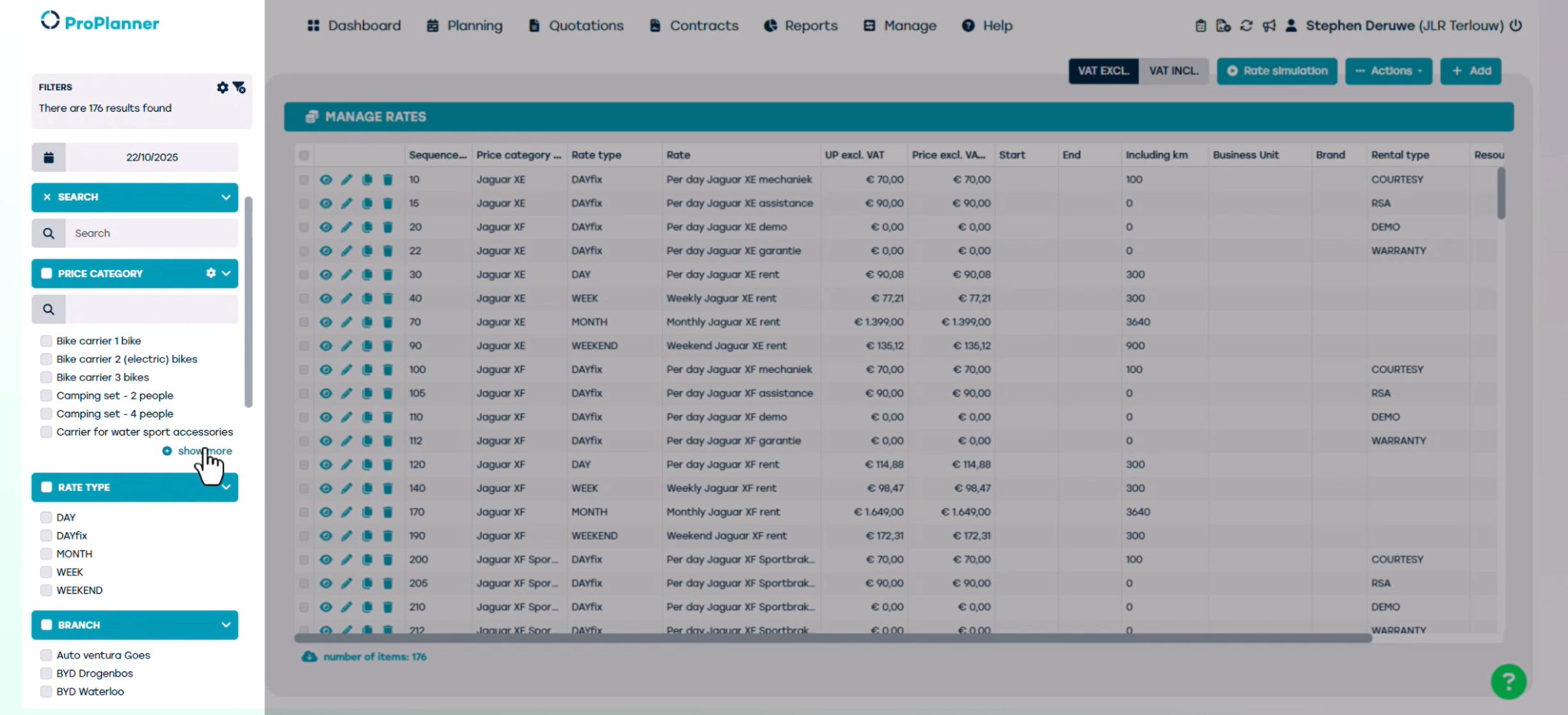
On this screen, you can find an overview of all the rates available for your company. On the left side of the screen, you can use various filters — for example, by price category or rate type, to quickly find the correct rate.
Let’s zoom in on a rate within a specific price category.
Within this price category, you can see that multiple rates are available. Each rate is linked to a specific rate type and may also be associated with a rental type
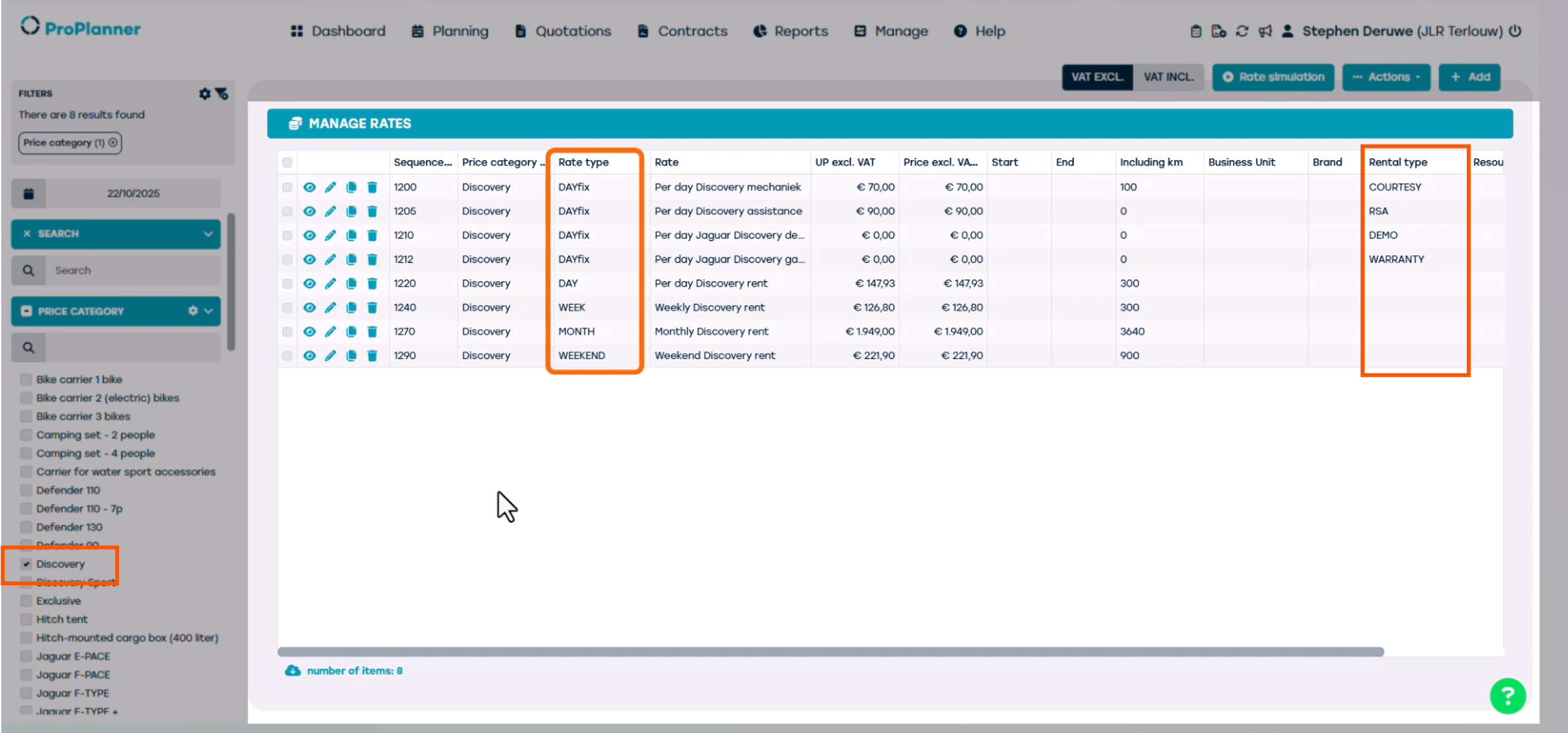
First, you’ll see four rate lines connected to the following rental types:
- Replacement car or also known as Courtesy
- Warranty
- RSA (short for Road Side Assistance)
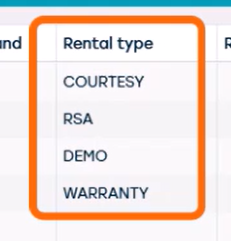
These rates are linked to the DayFix rate type. This means that, regardless of the duration of the contract, a daily rate is always applied as soon as one of these rental types is associated with the contract.
In this case, the length of the rental period does not matter — the daily rate remains applicable. For the rental type "DEMO" no price calculation is applied to the contract. This means that no rate is required for this rental type.

For all other contracts — meaning those where a rental type other than Courtesy, Warranty, or Roadside Assistance is selected — the rate is determined based on the duration of the contract.
These rates are not linked to a rental type. They are, for example, rates that can be used for the rental of a resource.
- Daily
- Week
- Month
- Weekend rate
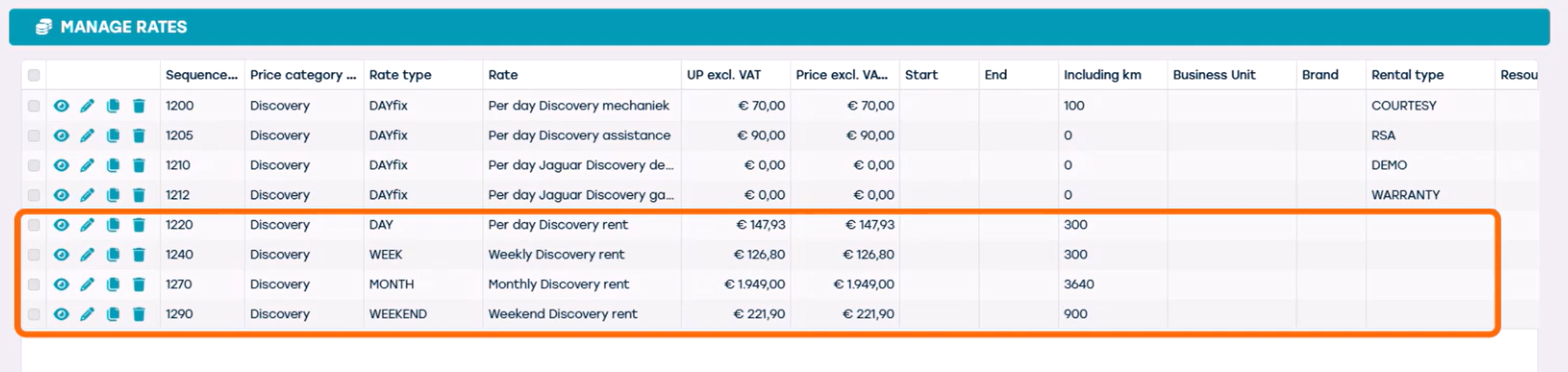
This rate structure ensures that each contract is processed correctly and efficiently, tailored to its usage and duration.
The structure of the rates in ProPlanner is fixed and must not be changed. However, you are allowed to adjust the prices within this structure.
To update the price of a rate line, simply click the pencil icon or double-click the line you want to edit.

The rate opens on the "General" tile, where you can modify the price of the rate.
On this screen, you also define how a rate is described on the contract. This is done per language in the "formatted" field.
Here, you combine fixed text with tags that automatically retrieve information from the database. This ensures the customer receives a clear and accurate description of the rate in their own language.
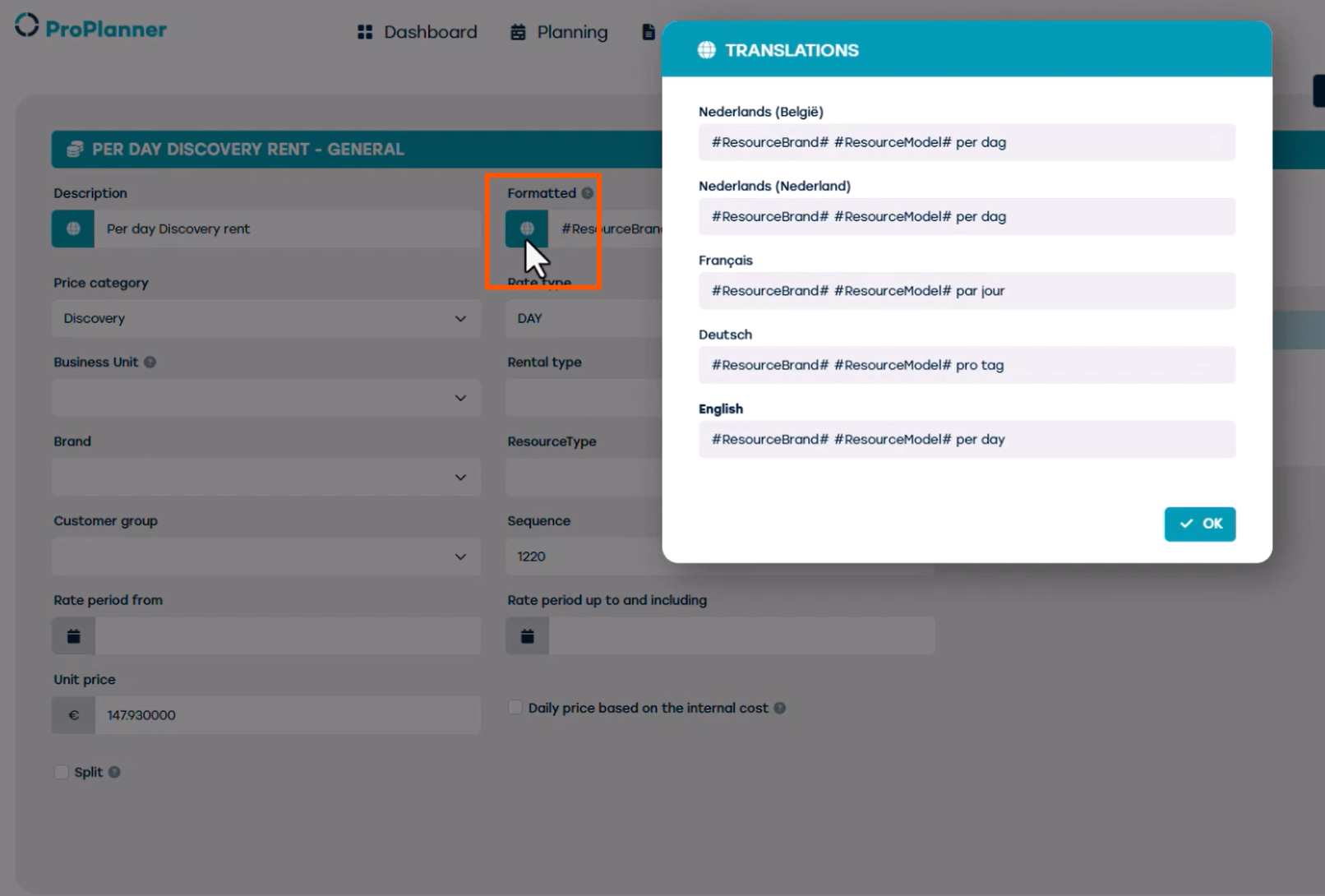
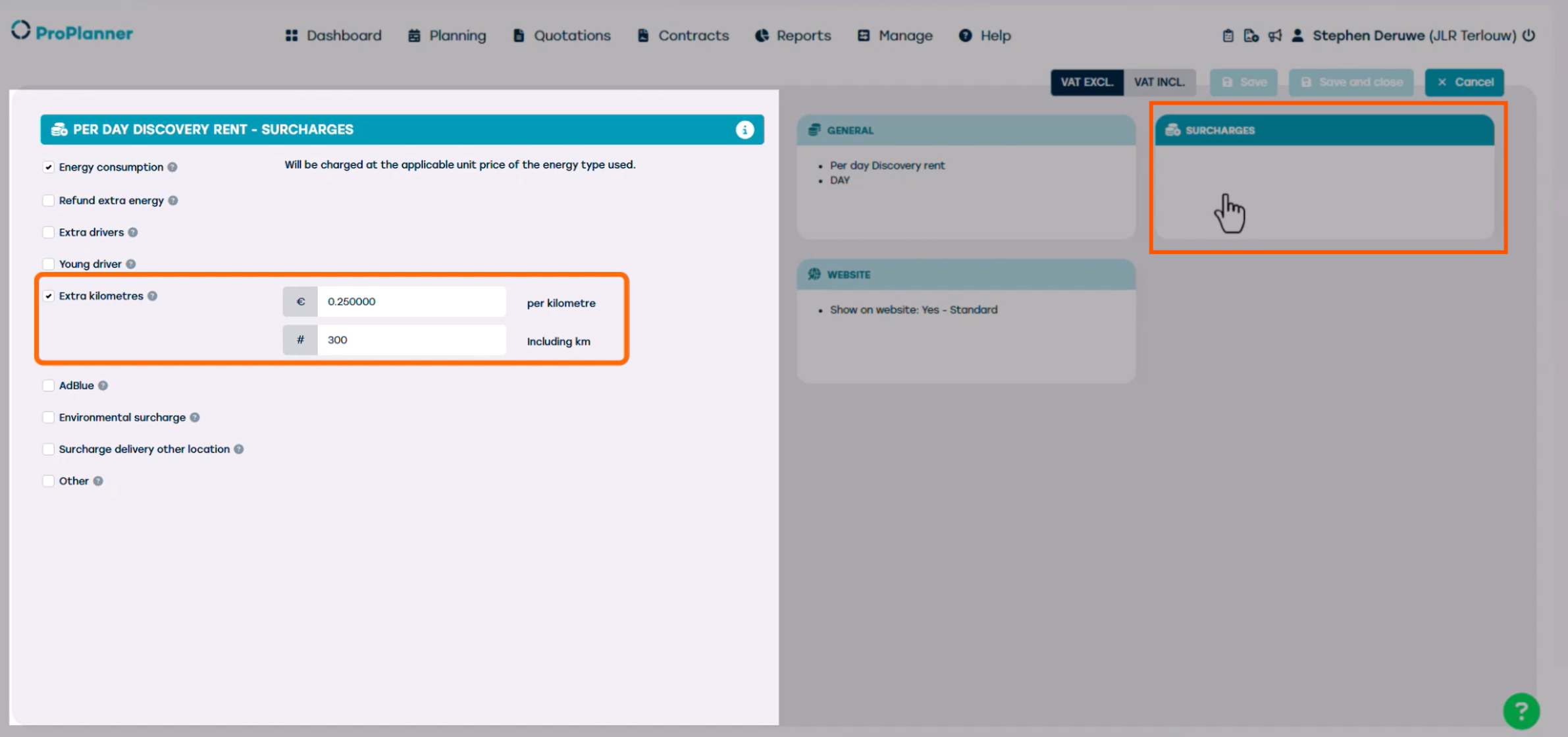
On the "Surcharges" tile, you define how many kilometers are included by default for the rental type.
Additionally, you set the extra charge per additional kilometer, in case the allowed number of kilometers is exceeded. ProPlanner automatically calculates the number of included kilometers — proportionally if necessary, depending on the rental period. If the number of driven kilometers exceeds this limit, an additional price line is automatically generated.This line contains the number of extra kilometers multiplied by the set rate per kilometer.
Now that you've learned the essentials about rates, in the next video we'll show you some examples.