In this video:
We can charge supplements on top of the rental price when a customer rents a vehicle. These could be cleaning fees or delivery costs, for example. These are fixed charges that other staff members can add to the invoice.
We can manage these supplements via the 'Manage' screen. We go to the tile 'Prices' and click 'Supplements'.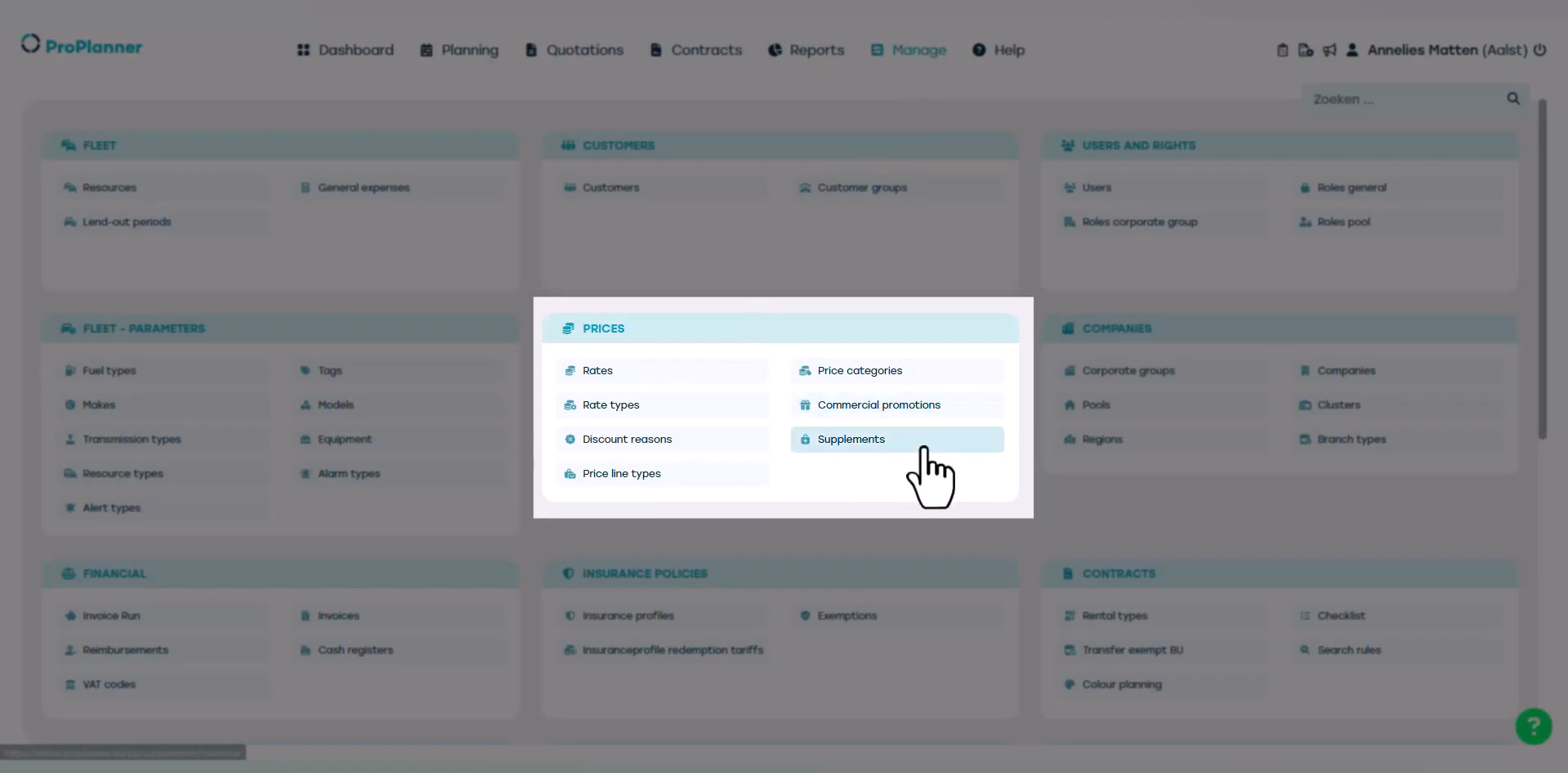
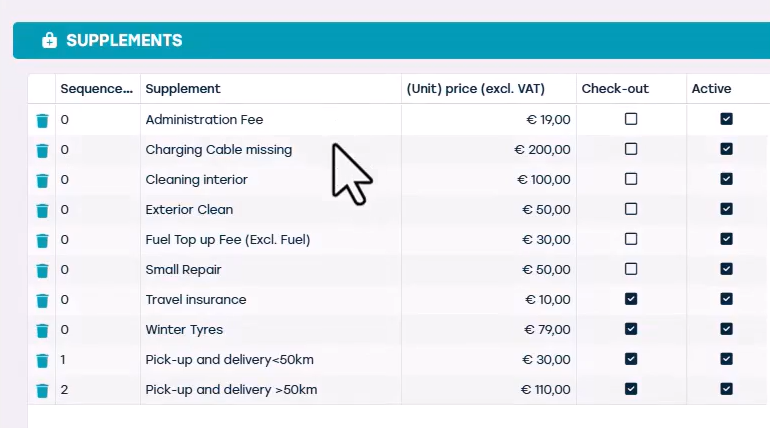
The existing supplements are visible here. This information will be visible in the contract, so customers will be informed about possible supplements.
To add a new supplement, click 'Add'.
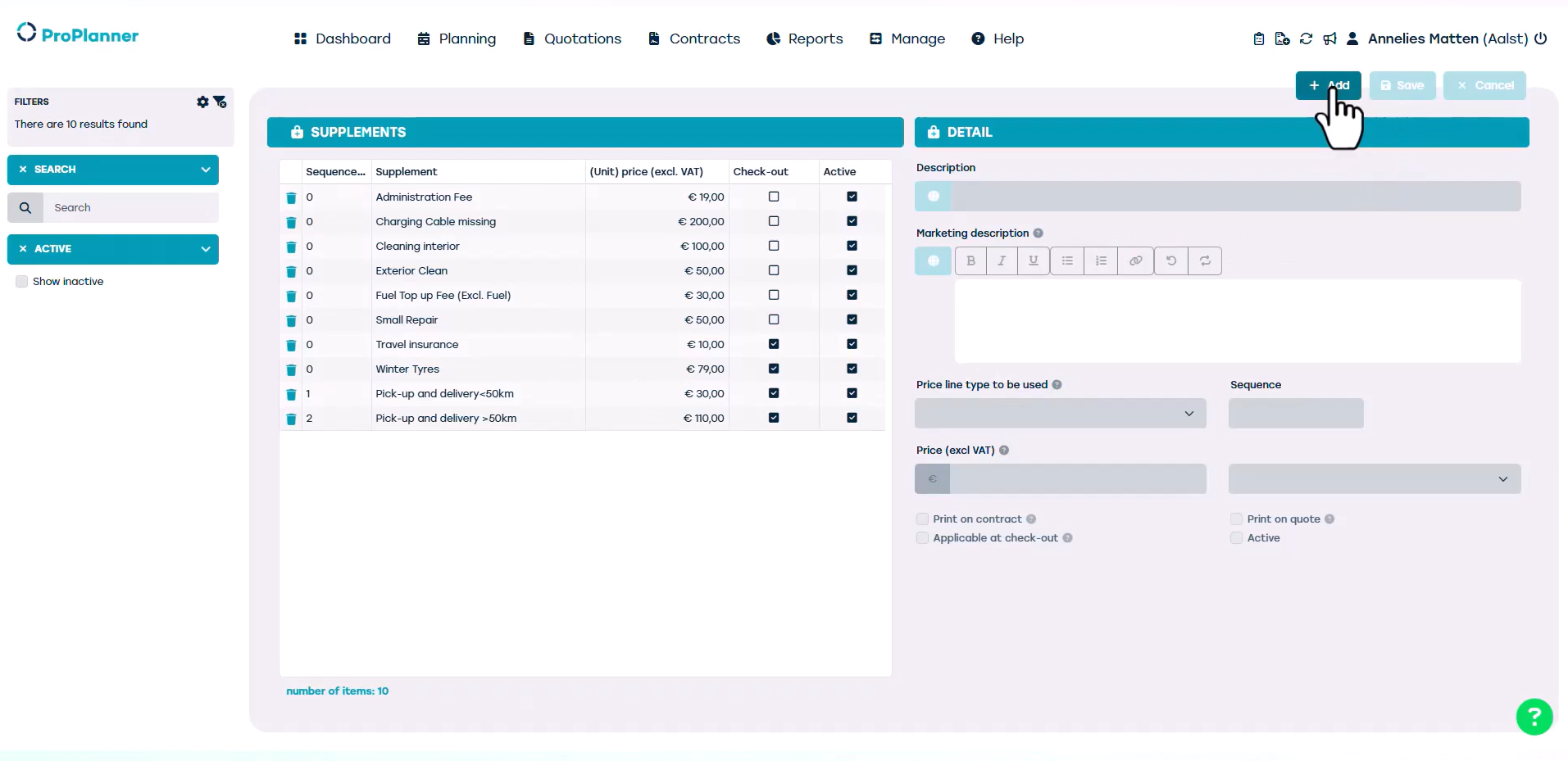
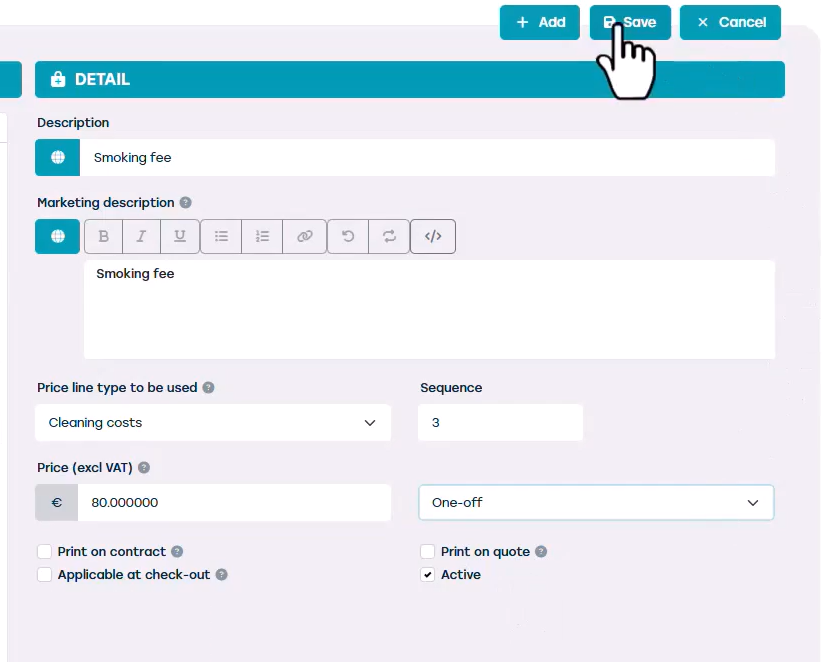
- In the 'Description' field, we give the supplement a recognizable name, such as 'Smoking fee'.
- We also have to give it a 'Marketing description'. This field only applies for organisations that show supplements on their website, but it’s a mandatory field.
- It is important that you add the supplement to the correct price line type for correct processing. These price line types are predefined by your organization. Ours is an example of cleaning costs.
- The sequence determines the order of appearance in the overview on the left.
- Then we can add the cost of an interior cleaning at your local CARWASH provider.
- Then we can specify whether it’s a one-time supplement. It could be charged per day that the contract was running, or we could choose 'per number entered'. For example, if we wanted to add an 'excess trash fee', we could charge a supplement for each item left behind. We choose for one-off.
- Lastly there are four boxes at the bottom that we can tick.
- Print on contract: when we want it to appear on the contract.
- Print on quote: when we want it to appear on the quote. This might not be very commercially interesting.
- We can select 'Applicable at check-out' if a supplement can be charged at check-out, such as travel insurance that the customer wants to add.
- We can also activate and deactivate this supplement. When we're done, we click save, and now it appears in our overview.
Now that we have organized our supplements, let's see how this can be added to a contract. Let's open a contract and go to the pricing section.
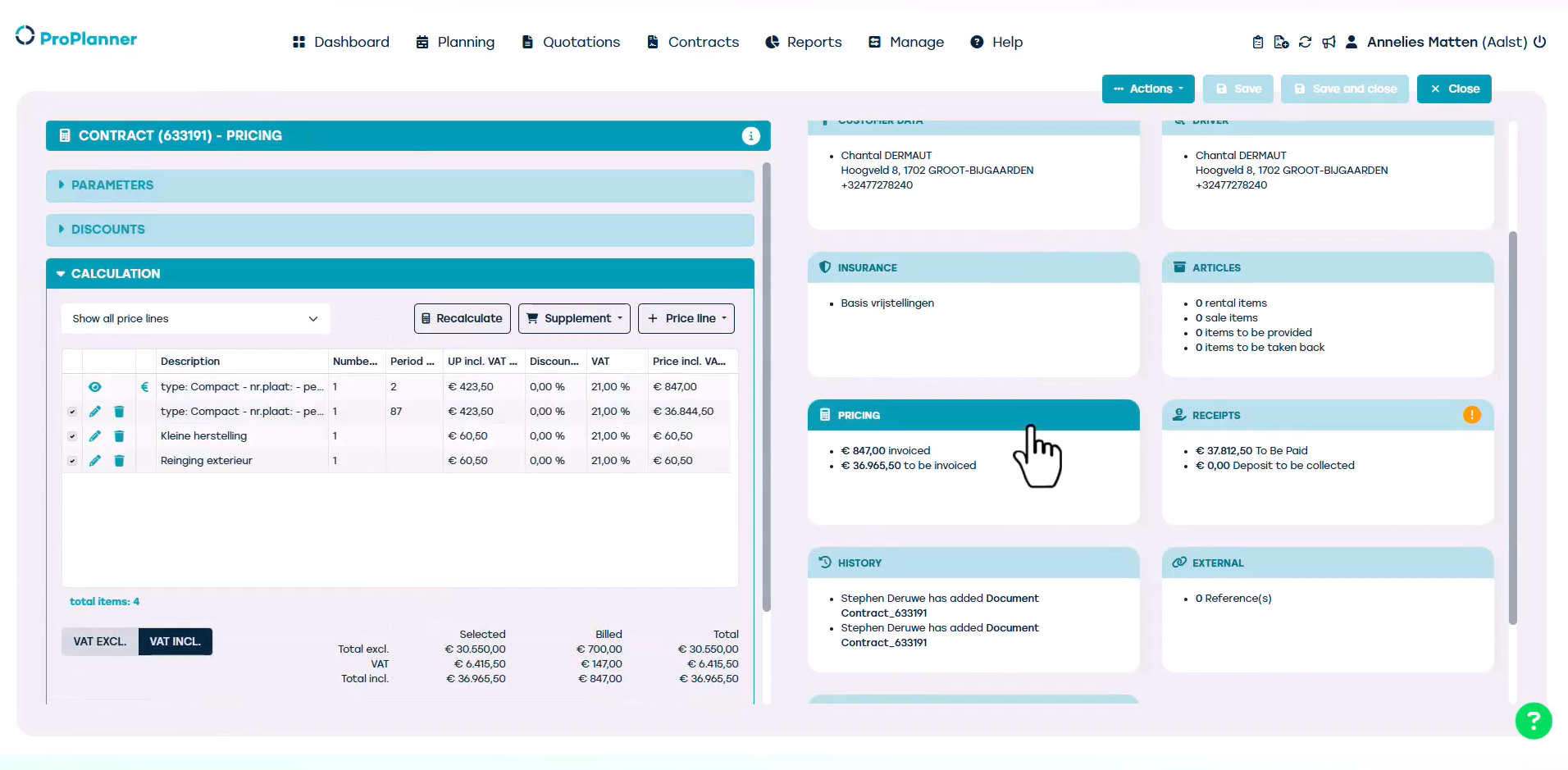
We can then click on the 'Supplement' button to add the supplement of our choice.
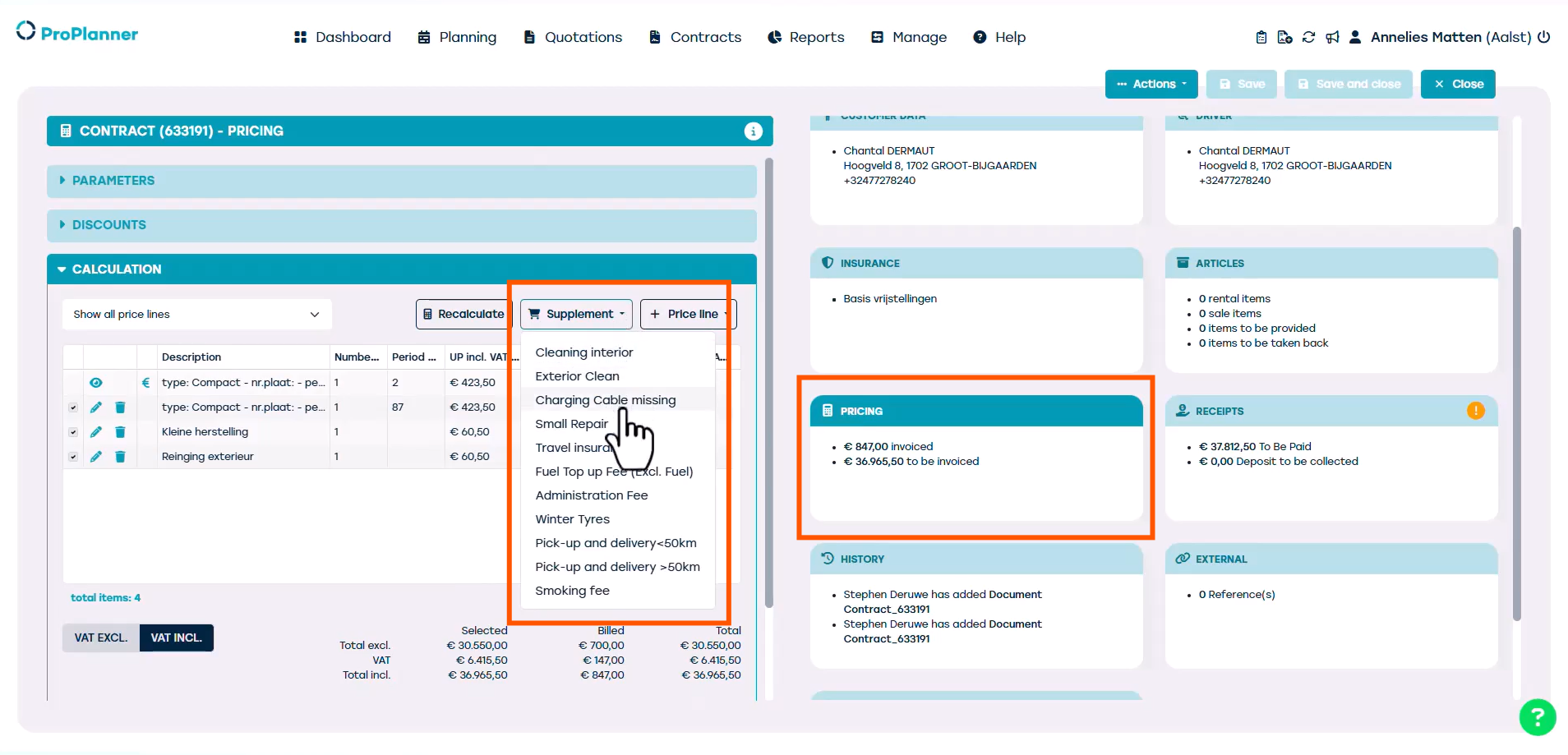
We can easily add supplements to our invoice during the check-in procedure.
When we perform a check-out or a check-in on the tablet, there is a departure and an arrival checklist we must go through. If any items on the checklist are not checked upon arrival, supplements can be charged automatically. We can also add supplements manually via the supplements button.
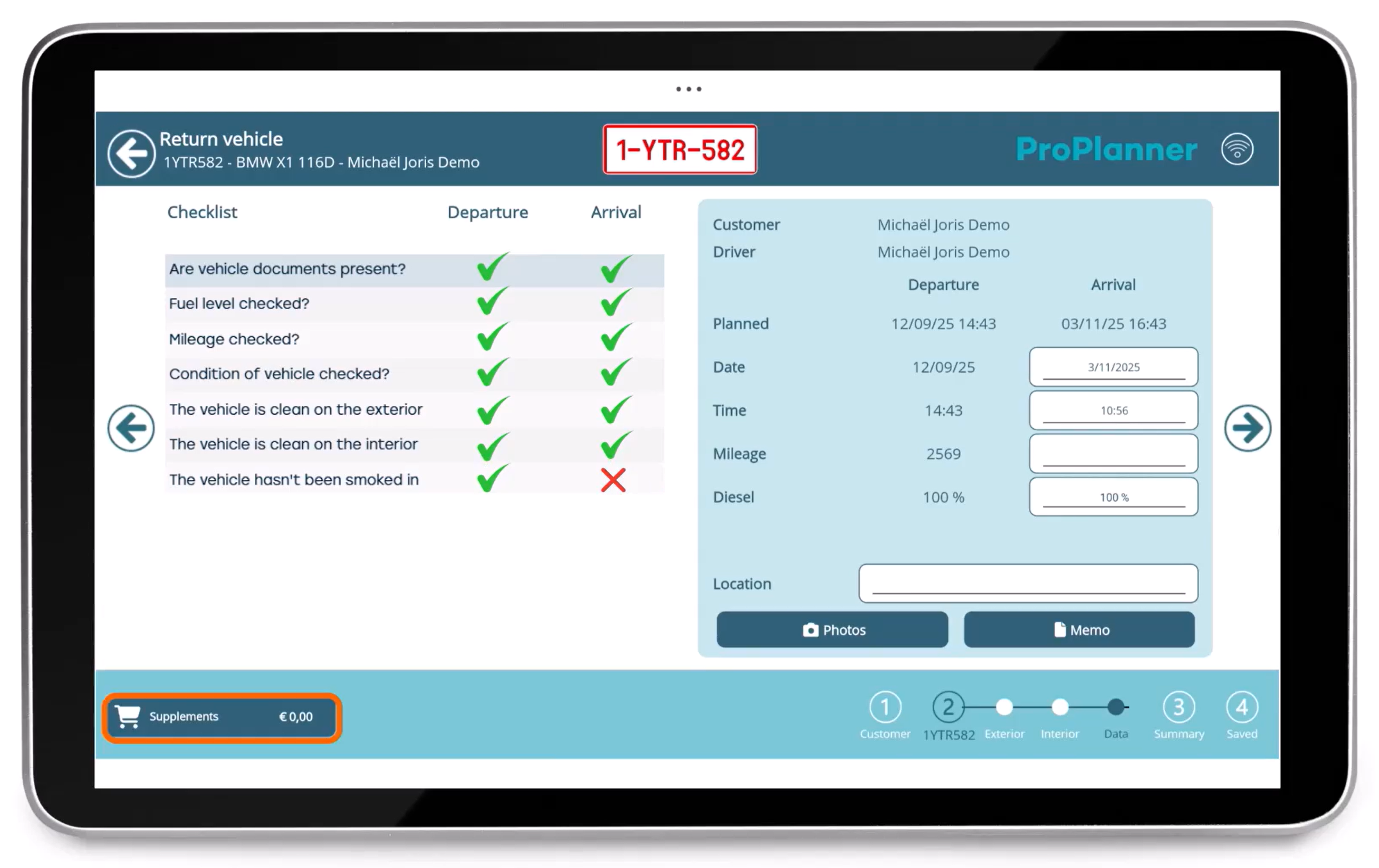
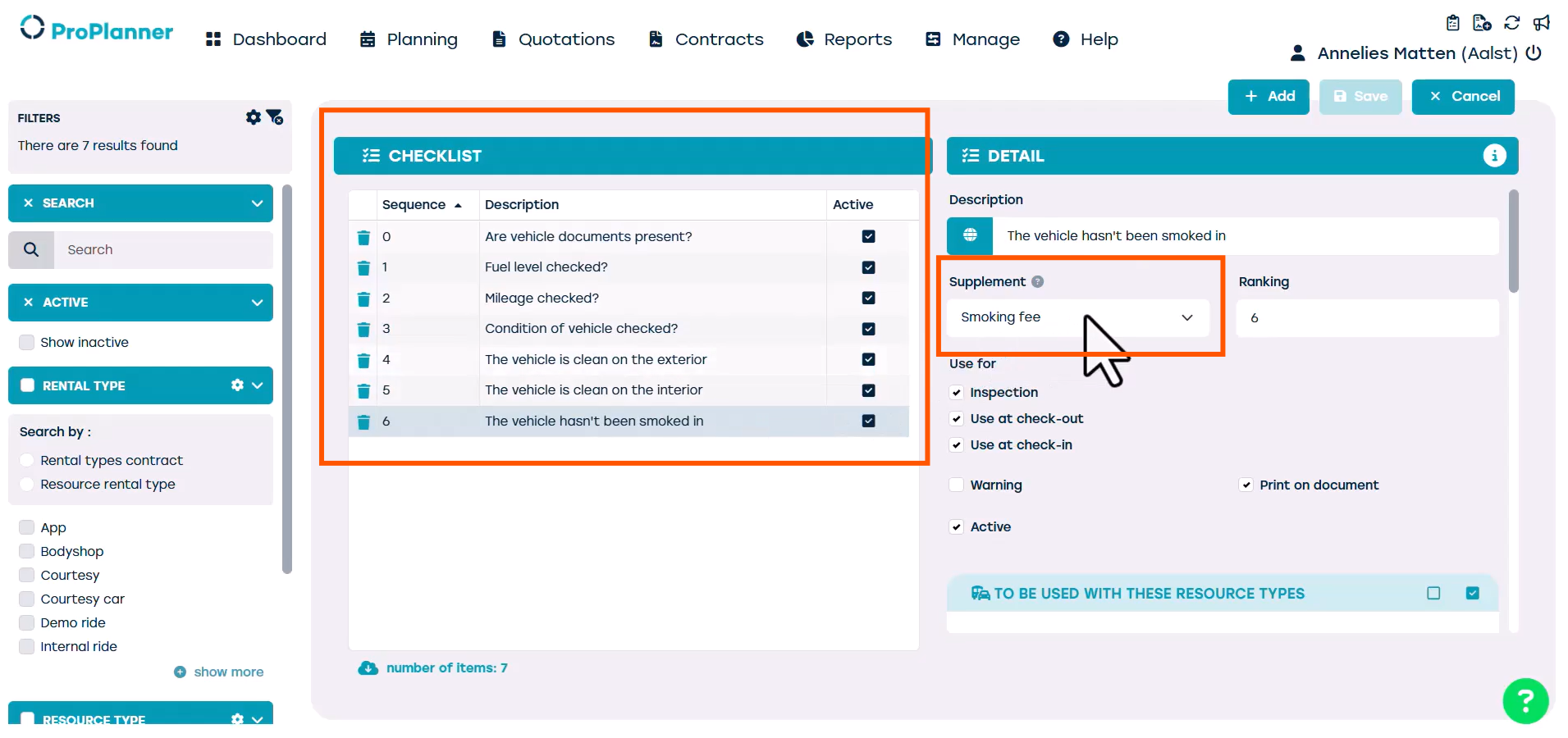
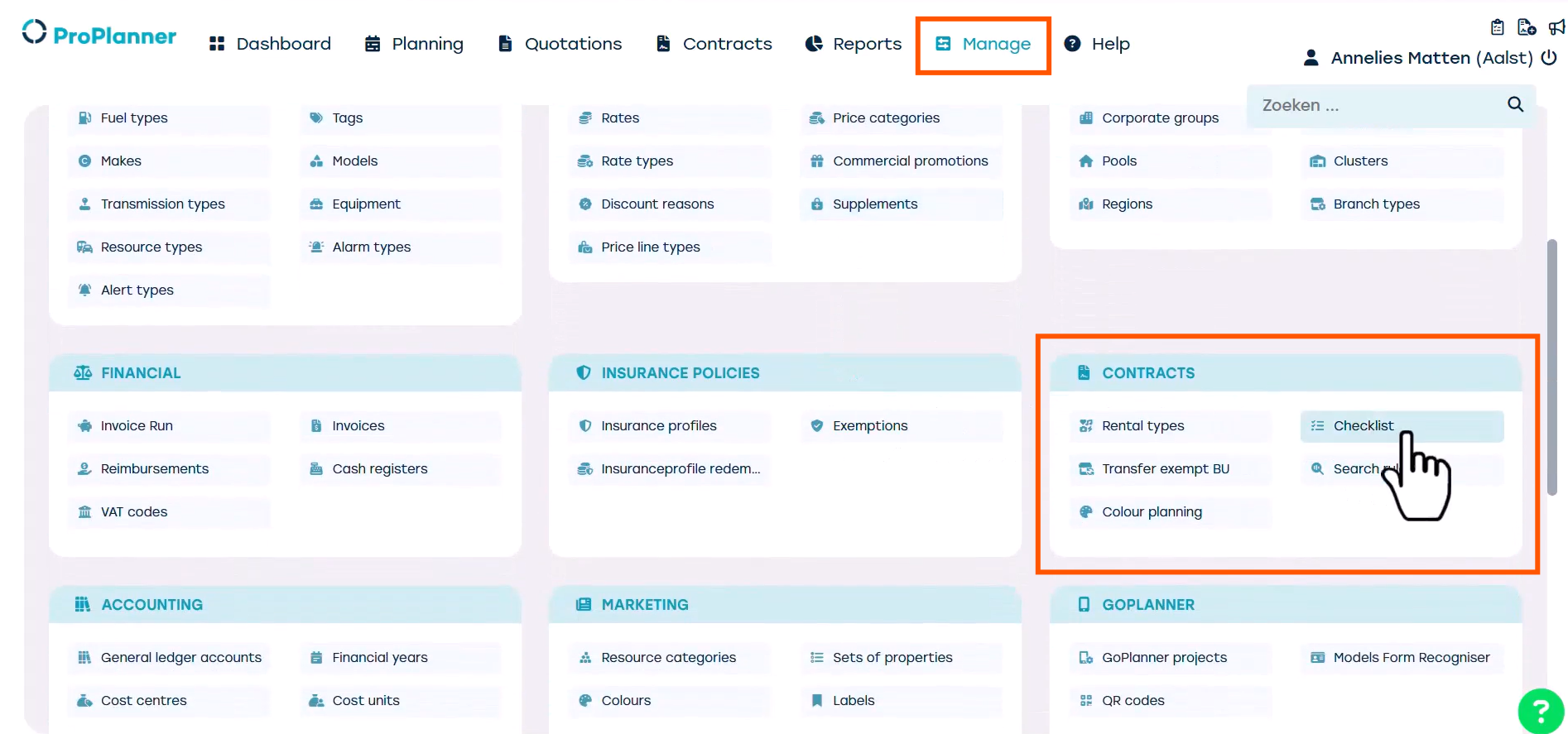
We can manage the checklist items and link them to supplements via ‘Manage’. We look for the tile ‘Contracts’ and click ‘Checklist’.
If we open one of the checklist items it allows us to view or add a linked supplement.