Don\'t lose track of contracts without resource anymore!
Contracts without resource have been possible in ProPlanner for some time now. A contract without resource can be created when initiating or performing an action that removes the resource from the contract, resulting in a ‘contract without resource’.
These contracts can be made visually visible on the schedule under the strip ‘contracts without resource’.
There is a risk that these contracts will not be rescheduled in a timely manner. This requires a vigilant eye and rescheduling must be performed manually. ProPlanner provides automatic rescheduling of contracts without resource according to the availability in the planning.
A contract without resource occurs in the following situations:
- When creating a contract: Contracts are manually created without resource
- When moving contracts in bulk: Contracts are moved in bulk (via the action 'move future contracts'), which removes the linked resource for these contracts and makes them contracts without resource
- When switching contracts: Contract with resource A is moved to resource B. The contract on resource A is then assigned resource B. The contract on resource B no longer has a resource assigned and becomes a contract without resource.
When ProPlanner is granted the right to automatically reschedule resources, it searches for a similar resource that matches the criteria present on the original contract (e.g., tag, price range, resource type,…)
This process is triggered when changes in ProPlanner result in additional availability within the pool, these include:
- Actions described above where a contract without resource is created
- Adjusting times in the resource planning
- Deleting a resource planning
- Adding a new resource
- Adjusting the 'active from' date on the resource
When any of the above actions are performed, ProPlanner will immediately attempt to reschedule the contracts without resource.
Once the contract has been rescheduled on a new resource, it will be displayed as follows on the contract:
- When you hover over the contract on the planning:

- In the contract on the resource tile:
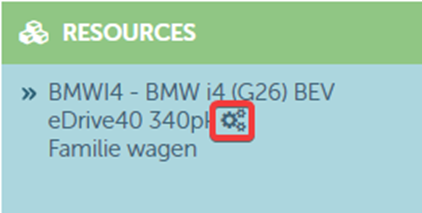
- On the microtile planning in the contract via the following dropdown:
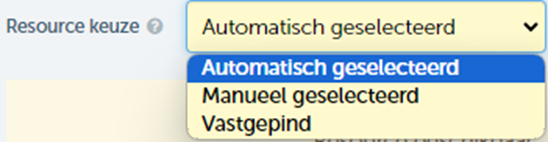
- When the resource planning has been automatically rescheduled, the dropdown will display 'automatically selected'. This planning was not specifically chosen by a user and can therefore be modified without any issues
- When the resource 'manually selected' is, it will have been specifically chosen by a user. The resource can be changed as it was not pinned
- If the third option 'pinned' was chosen, a user indicated that the resource on the resource planning must not be modified under any circumstances.
Note:
- When automatic scheduling for a contract does not find a matching resource, no resource is assigned and this remains a contract without resource. Each night the planning is reviewed and, if possible, the contract is assigned to a resource.
- Rescheduling will never occur on a resource where the contract was originally assigned.
- Please contact us to activate automatic rescheduling on your ProPlanner environment.
- Please allow for a waiting time when automatically rescheduling the contracts. Due to performance priorities, it may take some time before the contract is assigned to the resource.