This report provides an overview of the occupancy of a selected part of the fleet for a period you specify (by default, set to the current month). Additionally, you can choose to consult the occupancy:
- Based on calendar hours, with a day totaling 24 hours. An occupancy of 100% in this case means the car is booked for 24 hours.
- Based on office hours, with a day totaling 10 hours (from 08:00 to 18:00). In this case, 100% occupancy means the car is booked for 10 hours.
- Based on day parts, where a day is divided into 3 parts (morning, afternoon, and evening). A full occupancy (100%) means that the car is booked for 2 out of 3 day parts.
- Based on days. In this last case, the occupancy for a particular day will be 100% if the car is used at least once during that day.
The report is divided into 3 different parts:
- a summary
- a graph
- a table with details
The summary shows both the planned and the actual occupancy for each selected occupancy rate. For the planned occupancy, the planned contracts are considered. For contracts that have already been completed, their planned duration is considered. Regarding the actual occupancy, the effective duration of a contract is considered. Contracts that have not yet started are not included.

The graph can be configured flexibly as desired. The values on the X-axis are determined by the filter "Group by" while the values on the Y-axis are determined by the selection in the dropdown above the graph. There are thus many different possibilities for configuring this graph.
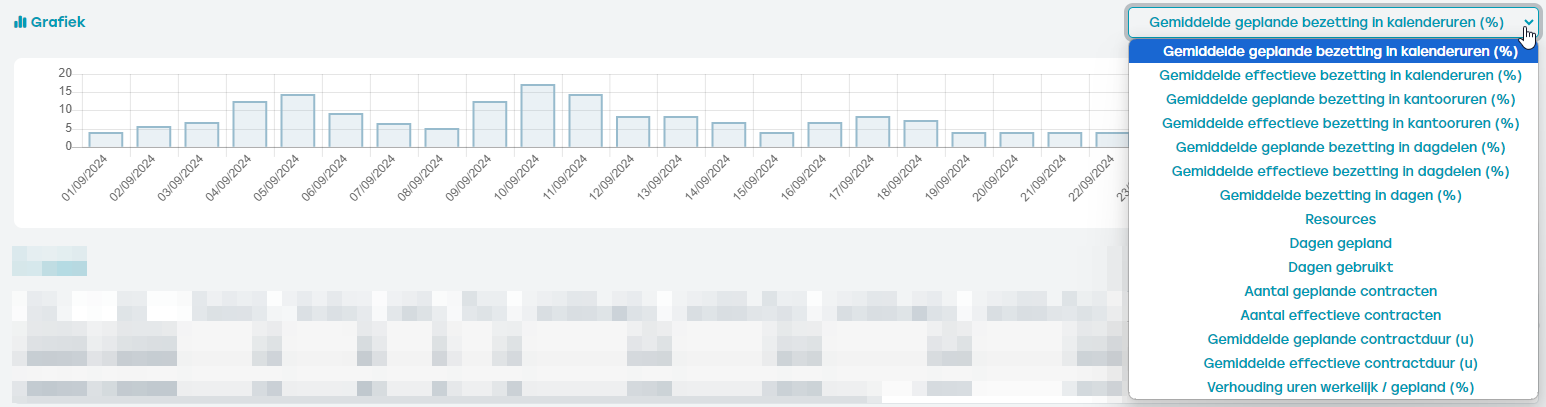
Also the table with details will be determined by the filter "Group by". This table shows in figures what is visualized in the graph. The table can be exported via the export icon, after which you can further analyze the data using Excel.

Using the filter bar on the left side of the screen, you can keep the report as broad or as limited as you wish. This way you can request the occupancy for a specific resource type, or for a particular selection of pools, etc.