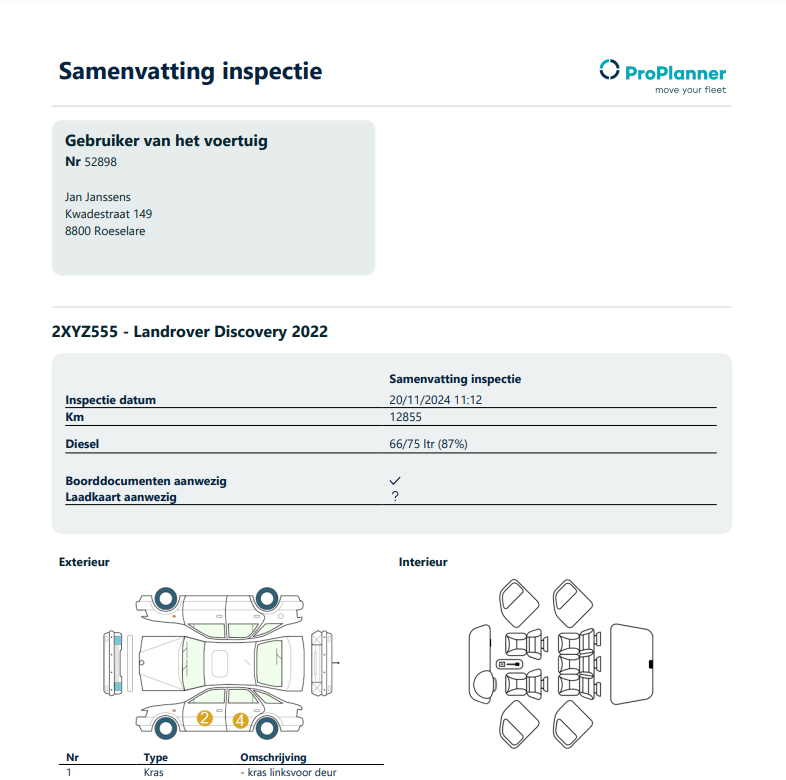
Default drivers who are linked to a resource without a contract, can also cause damage when they use the resource. In the context of a history with multiple default drivers, it's important to be able to indicate which default driver caused which damage. There can therefore be a kind of check-out and check-in executed when a default driver takes the resource into use and releases it again. In this way, default drivers can digitally sign the condition of the vehicle at departure/arrival.
We optimized this flow for tablets by extending the existing inspection functionality on a resource so it can act as a check-out/check-in.
Where previously in the inspection screen you could enter the mileage, fuel level (primary & secondary) and the location, this has now been extended with a checklist analogous to the check-out/check-in procedure. More info on setting up the checklist can be found here.
There are 3 different situations possible:
1. Open contract on resource:
When you perform an inspection on a resource with an open contract, at the bottom right you will see the message ‘open contract in the name of [driver x]’. Damages will then be added to this contract.
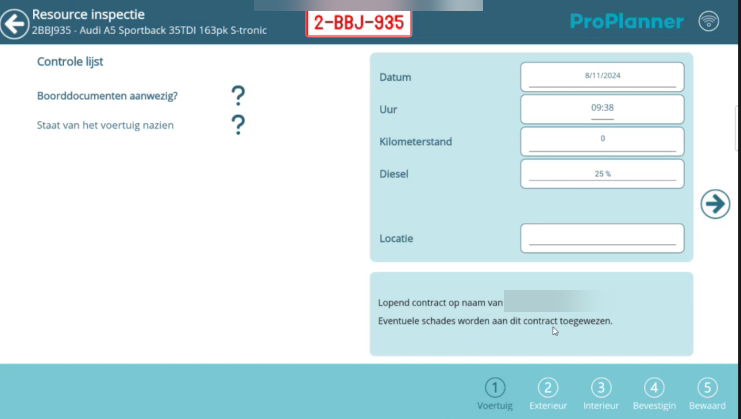
2. Default driver on resource:
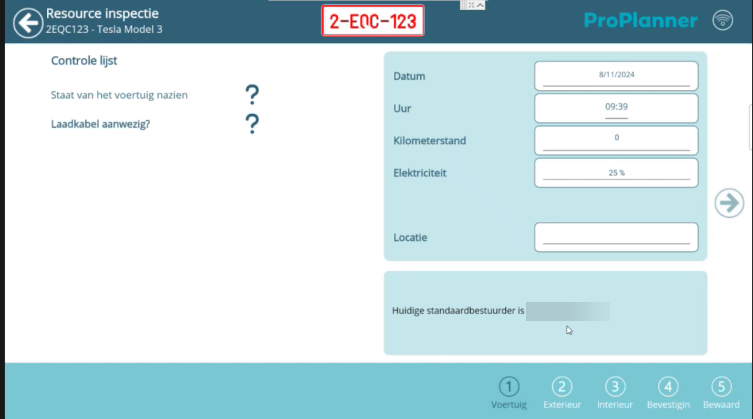
If it concerns a default driver on the resource, this will also be mentioned in the box at the bottom right.
After entering damages (interior/exterior) in steps 2 and 3, in step 4 you will see a summary of how many damages were added and where.
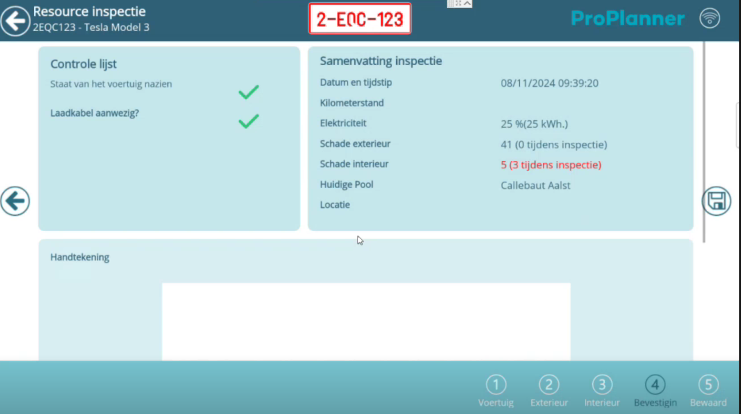
The default driver can sign this overview. If you then want to save via the button on the right, the following alert will appear: ‘End period default driver?’.
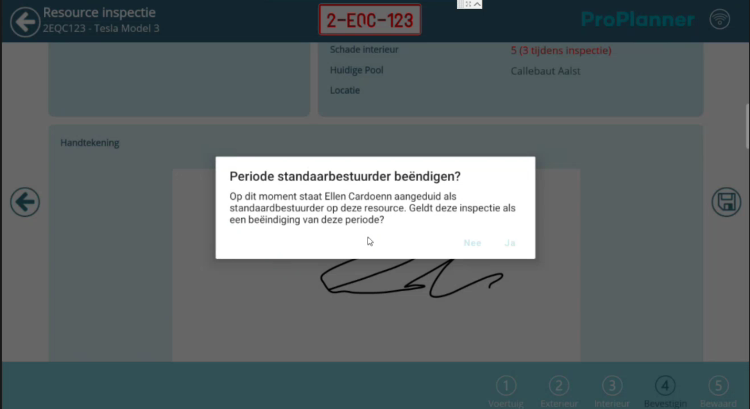
If ‘YES’ is selected, the current default driver in the default driver history will receive an end date (= the date on which he selects ‘YES’). After that date, he will no longer be set as the default driver. If he chooses ‘NO’, the inspection will simply be saved.
3. No open contract, no (default) driver – loose claims registration:
Here you can choose to add a customer or not. For example, if you leave the car somewhere and want to do a final inspection, here you can enter the name of the person to whom you are handing it over. If you choose not to enter a name, you also can't sign.
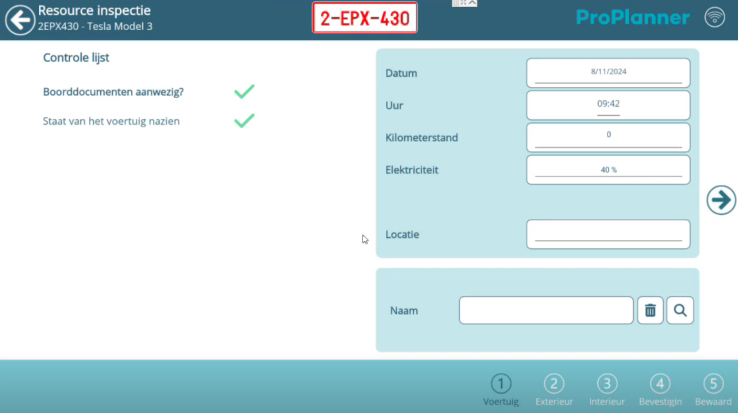
If the inspection is linked to a default driver, contract or customer, an email will be sent with the inspection report.
You can also print this inspection report on the resource sheet itself under the tile 'inspections' where you will find all inspections carried out.