Email templates usually consist of a header, a body, and a footer. Since the header and footer often need to be uniform in all communications, ProPlanner allows you to provide the header, the footer, and possibly other uniform data in a 'wrapper'. This acts as a shell around the email communication in which you can adapt the content (the body) each time to match the purpose of your email. The main advantage of this is that when you want to make a change, you make it in the wrapper, thereby avoiding the need to edit every single email document individually.
How do I create a wrapper ?
Navigate to Management > Parameters and settings > Email templates.
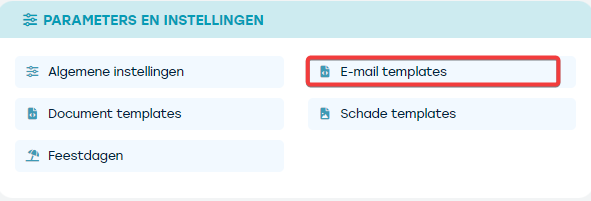
You will again see an overview of the already existing email templates
Click '+ add' and choose 'email wrapper'
In the field editor, choose 'email editor'
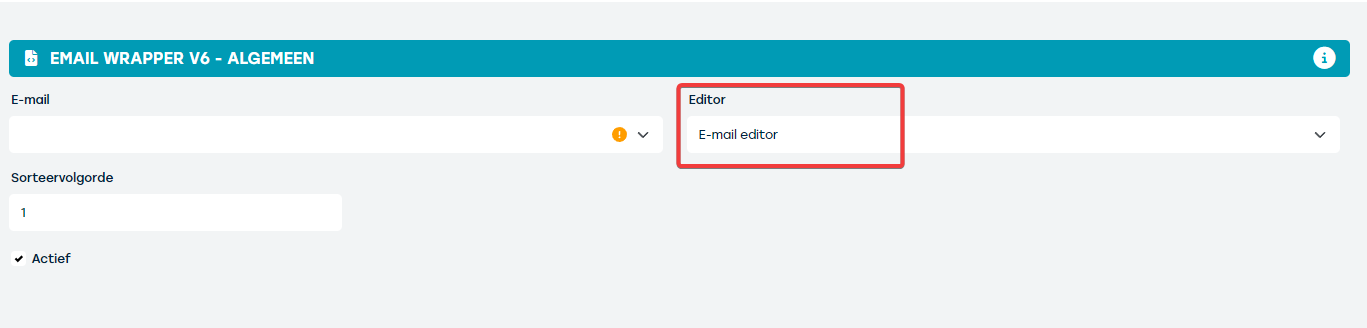
Next, go to the 'content' tile and provide the wrapper with a description
At the bottom, an email editor will appear where you can experiment as much as you like with the many options (columns, button, divider, section, text…).
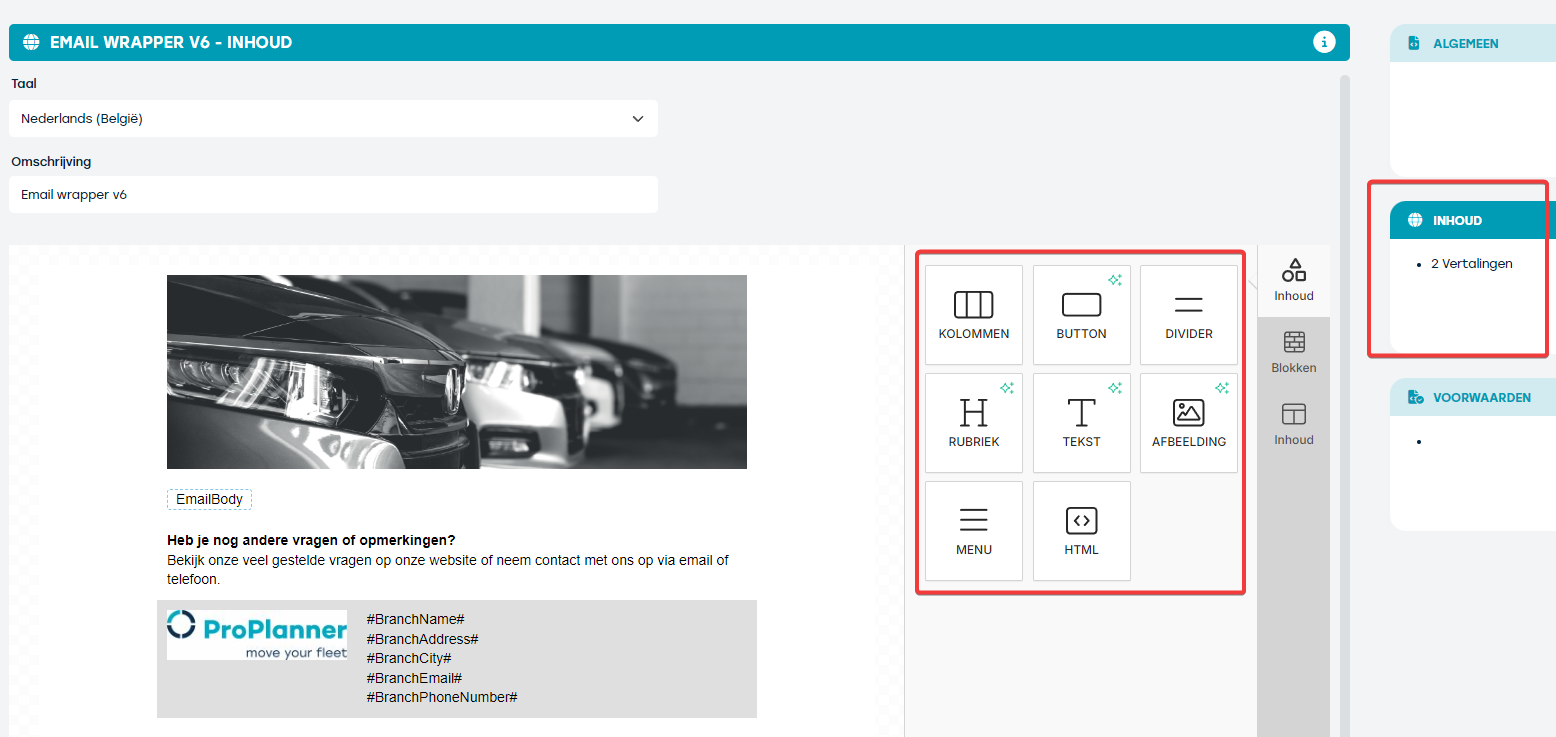
You can add dynamic HTML tags or blocks and reuse existing HTML tags from previous templates, with tags being suggested as you type.
Then save this wrapper so it can be used in all email templates.
How do you provide a body for your email?
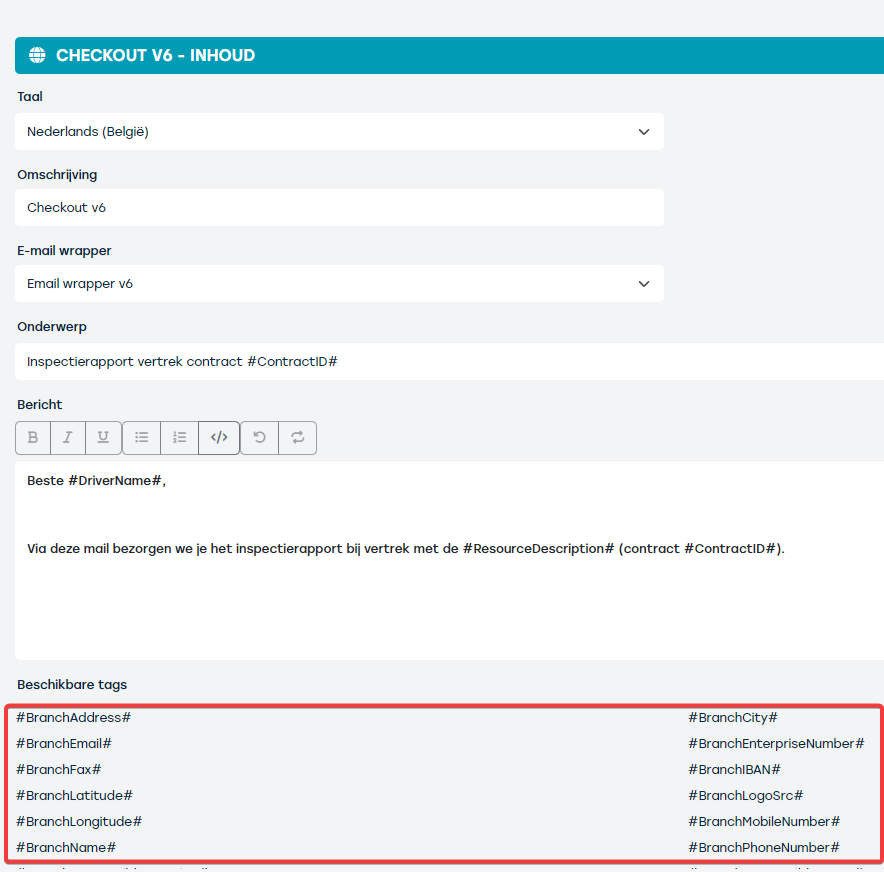
Again, choose to add an email template via the '+ add' button and select the desired template (for example email check-out). In the editor, choose 'HTML'
On the 'content' tile you will have the option to select a wrapper, choose the wrapper you just created.
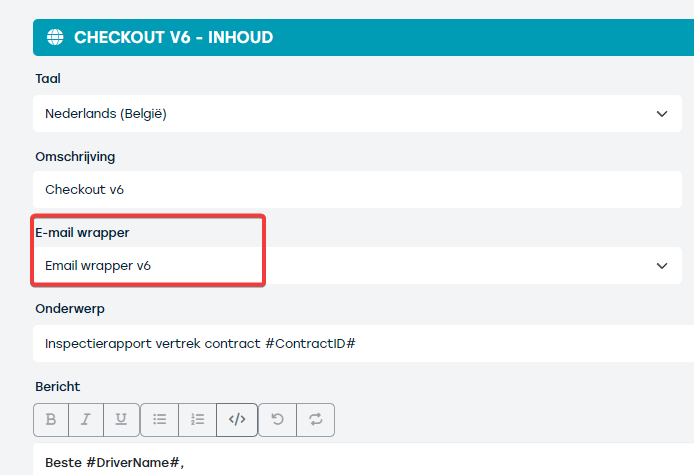
In the editor you can now provide the body of your template. At the bottom, tags are displayed which you can use in your body as variables.
If you do not wish to work with a wrapper and body, on the 'General' tile you can select the 'Email editor' option in the editor and compose your own email. Here you also have the option to add variables (similar to the tags).
How does this work in practice?
When you want to send an email from ProPlanner, you will first see a pop-up screen where you can review and, if necessary, edit the content of the email.
Under Template you can select the desired template (1)
If you selected a template for which a wrapper is provided, you will not see this wrapper in the pop-up. You can, however, view it by pressing 'preview' (2) .
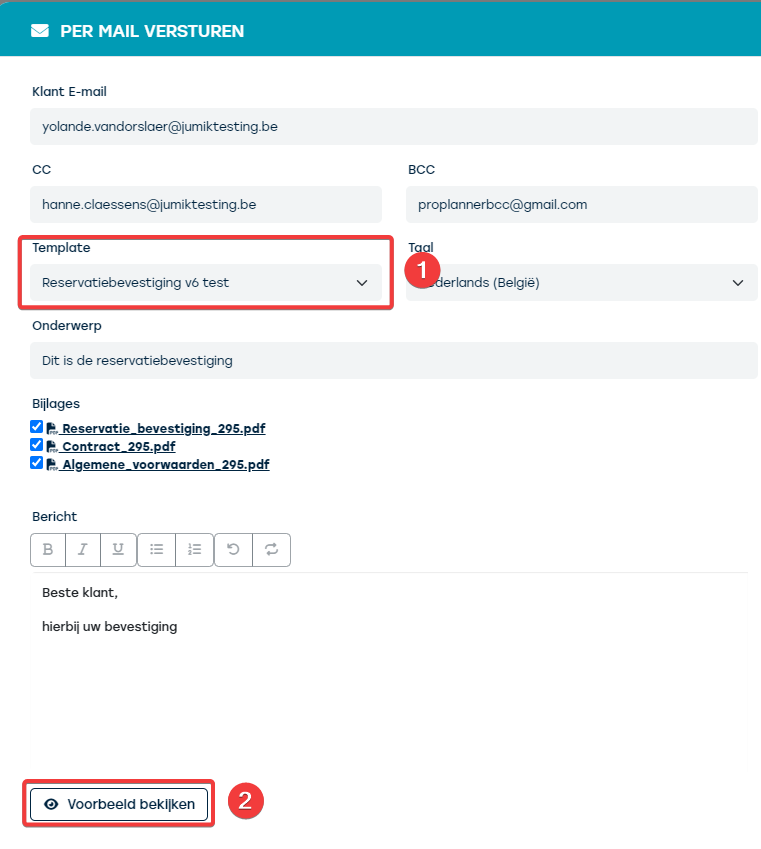
If desired, you can still edit the text in the message; when you send the mail, the wrapper will be displayed together with the message.