From now on, you can schedule a resource repeatedly. This is useful if, for example, a customer rents a specific van every Saturday, or when a regular driver needs the car several days a week, making the car unavailable for rental on those days.Full English manual:
Dutch language manual
When you want to set that a resource must be scheduled on a specific day or time span, you can schedule recurrently. Below, we describe how this works.
How to schedule repeatedly?
When creating a contract, you can check the option ‘repeated scheduling’ (1) . Once you have checked this, the tile ‘recurrence’ will appear on the right. (2).
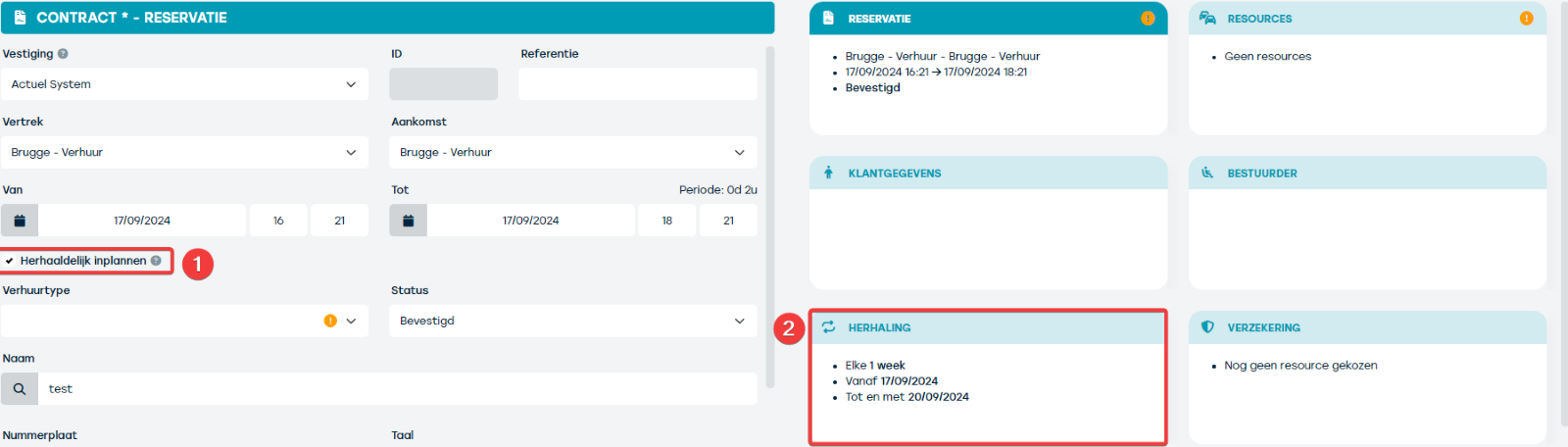
Here you can set how often and when the recurrence should appear in the planning.
You can set the frequency of the repeated planning to weekly or monthly. You can also indicate until which date this recurrence should continue.
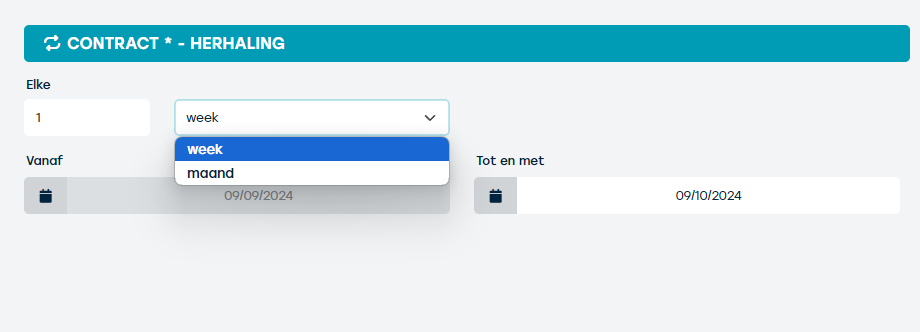
After this is set, ProPlanner will automatically add the repeated contracts to the planning. It may take a few minutes before all contracts are visible.
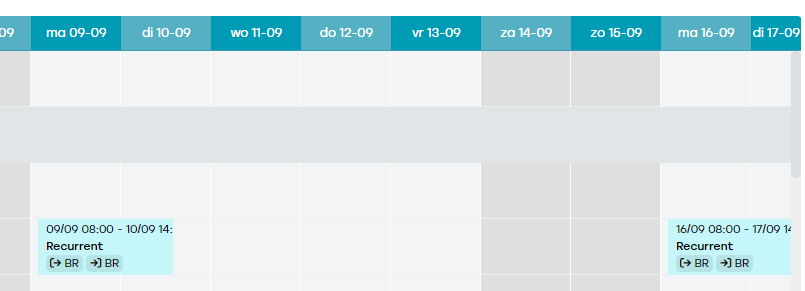
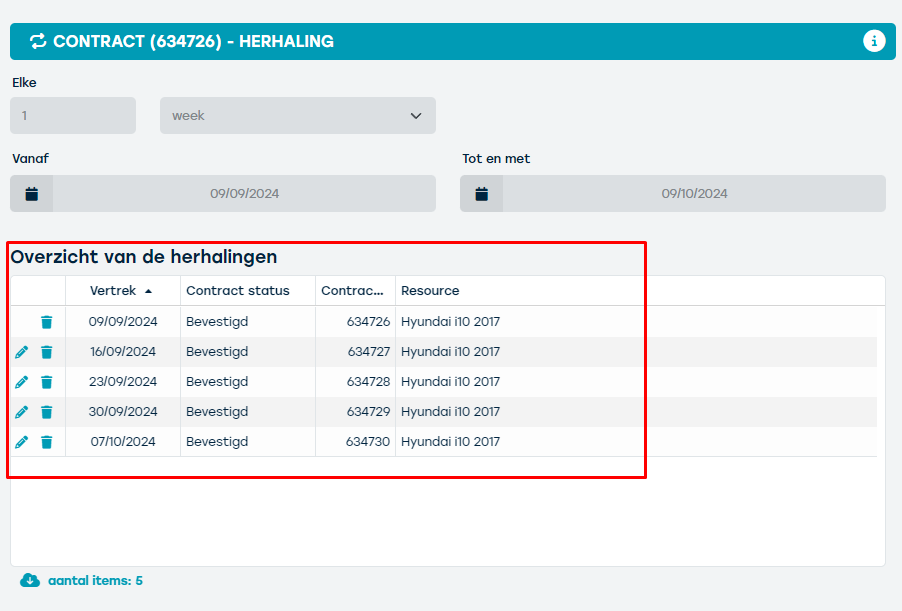
After addition, you will see the contracts on the planning and also get an overview of recurrences on the contract itself.
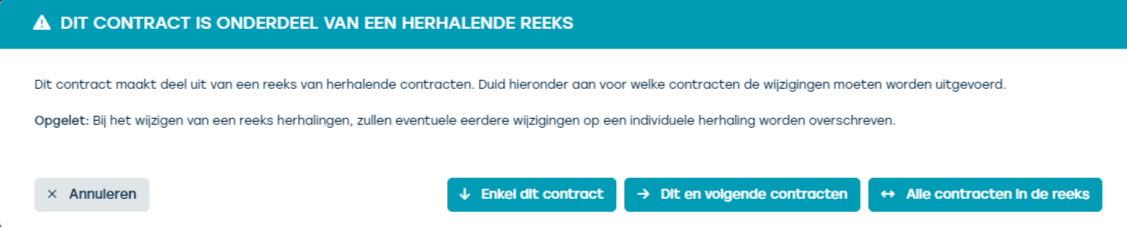
Note: If you want to make changes to the recurring contracts, a notification will automatically appear where you can specify to which contracts this change applies:
- Only this contract
- This and subsequent contracts
- All contracts in the series
Note: This feature must be activated. Please contact us for this.