Before you can create a user, you are required to have the  'manage users' right. If you have the role of 'Fleet Manager' at the general level or company group within ProPlanner, you generally have the authority to register a user.

If you do not have this right or only have the Fleet Manager role at the pool level, it is not possible to create a user. In such a case, you should contact your Fleet Manager(s). They can create a user for you or grant you the necessary right.
HOW DO I CREATE A USER?
Creating a user takes place in several steps:
- Register the information of the new user
- Assign the correct role, rights, and preferences to the user
- Invite the new user
1. Register the information of the new user
Navigate to Management > Users and rights > Users and then press '+ Add user'

Then the following input screen will appear:
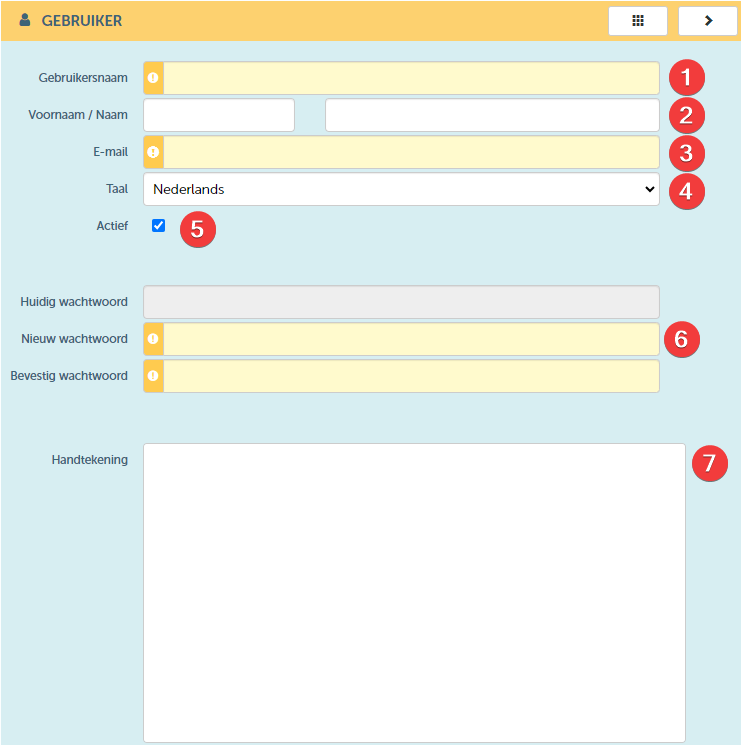
Filling in this information goes as follows:
| NR | DESCRIPTION | REQUIRED | REMARK |
| 1 | Enter the username for the user you wish to create here. We recommend using the email address of the user for this. NOTE: The user will need to log in to ProPlanner with this name. Furthermore, this name will also be used within ProPlanner to refer to this user. Therefore, it is important that it is unique within ProPlanner. | NO | This name cannot be changed after saving the user. |
| 2 | Enter the first and last name of the user here | No | |
| 3 | Enter the email address of the user here. The user will receive emails from ProPlanner at this email address (such as emails regarding password (re)setting). | No | This email address can be changed at any time. |
| 4 | Specify the user's language here. This is also the language in which ProPlanner will open when this user logs in. | No | The user can always change this language. |
| 5 | With the 'active' option you can always deactivate an existing user, which will deny this user access to ProPlanner. | CHECK OR UNCHECK | |
| 6 | Here you can set a temporary password for the user. Then, when you invite the user (see step 3), the user will receive an email with a prompt to change the password and set a password of their choice. | No | |
| 7 | Here the user can fill in their signature. This will be shown on the check-out and check-in documents. | No | We recommend that every user sign their profile so that each contract is always signed on both sides. |
2. Assign the correct role, rights, and preferences to the user
2.1. The pyramid structure
The allocation of rights within ProPlanner follows a pyramid model, in which a hierarchical structure is used to assign rights across various levels. At the top of this structure are the most general and extensive rights. At the lower levels, rights decrease as you go down to lower, more specific levels.
With each step down the pyramid, the number of users with assigned rights increases, although these rights are more limited compared to the higher levels. This creates a broad base at the bottom of the pyramid, which is characteristic of the larger group of users with specific but more limited rights.
Within ProPlanner, the pyramid structure looks as follows:
- TOP: Instance level (Authorized to manage all general parameters across company groups and associated pools)
- MIDDLE: Company group level (Manage one or more company group(s) and all pools within the company group(s) to which rights have been granted)
- BASE: Pool level (manage one or more pools within one or more company groups to which rights have been granted.
2.2. Rights
Now that you understand our system is based on a pyramid structure, you have the opportunity to assign rights at different levels. ProPlanner offers by default two frequently used sets of rights, which we call 'roles'. A role represents a bundle of rights. In this case, these are specifically the roles of Fleet Manager and basic user.
- TOP: Instance level
This level mainly concerns general parameters, such as viewing change history and managing roles. As a Fleet Manager/administrator, the user is authorized to change these general items. As a basic user, these rights are missing. We recommend assigning every user the role of basic user by default, unless the user is authorized to make changes that affect all underlying levels, which is often the case for admin users. - MIDDLE: Company group level
This level includes all possible rights within a company group. Here you have the option to grant extensive rights (Fleet Manager) or restrict to basic rights only (basic user) - BASE: Pool level
At the most detailed level, rights are assigned specific to the management of the pool for which the user has rights. This includes, among others, managing items, planning, contracts, and resources within the pool. For daily users, basic rights are usually sufficient. However, if the user is responsible for creating resources, tags, alerts, documents, memos, etc., it is possible to receive the more comprehensive rights of a Fleet Manager.
Because the general roles in ProPlanner can be adjusted by admin Fleet Managers, it is not possible to provide a universal list showing the differences between these roles. For a detailed overview of the different roles and their corresponding rights, please refer to the reports module. If you are a Fleet Manager at the instance or company group level, you will find a report there that provides a clear overview. This overview can be found under the 'reports' module at 'permission assignment to roles'.
We therefore recommend creating each user as a basic user at the highest level (i.e. general role) and then expanding their rights as desired at the company group or pool level.
If you have the most extensive rights at the highest level, these rights also automatically apply to the levels below. Rights therefore filter downwards. This means that it is not possible to restrict rights at lower levels if the user already has all the possible rights at a higher level. Expanding rights at a lower level is possible, but restricting them is not.
Specifically, this means that a user cannot have fewer rights at lower levels: User A, as a Fleet Manager at the highest level, has the ability to register new users, a competence that extends to the lower levels. This means that A, even with only basic rights at the company group level, still has the ability to create new users thanks to the overarching rights.

On the other hand, a role can be expanded: If User B initially only has basic rights at instance level and thus cannot create new users, but is subsequently assigned the role of Fleet Manager at company group level, B can then add new users, but only within the company groups for which they have that role.
Setting the rights is as follows:
Navigate to the 'Roles' tile
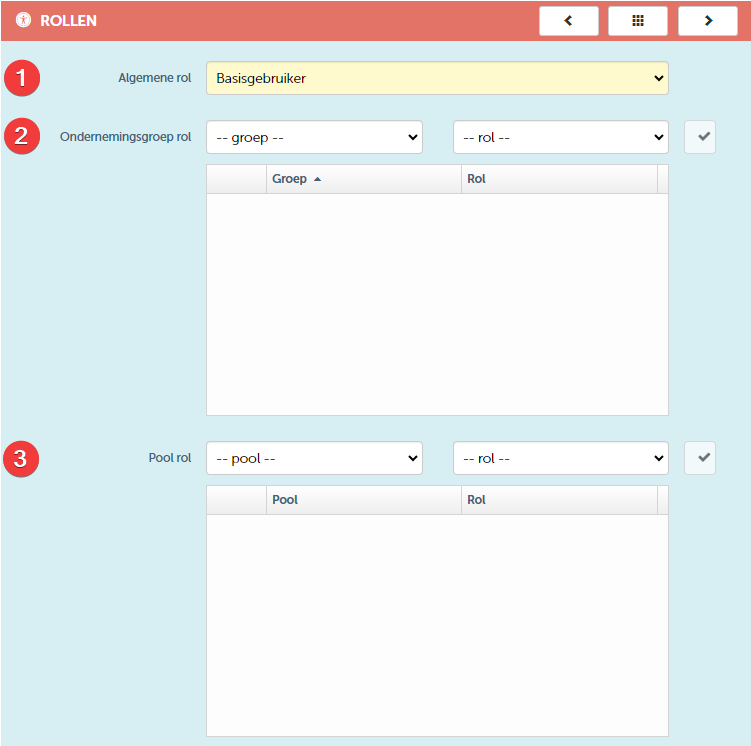
Assigning roles is as follows:
| NR | DESCRIPTION | REQUIRED |
| 1 | Specify the general role the user should have. If the user will have the rights of a Fleet Manager, it is necessary to add all company groups to which this user is entitled (see above, point 2) with the role 'Fleet Manager'. point 2) with the role 'Fleet Manager' | No |
| 2 | Here you can determine for each company group which role the user should have in that company group. | No |
| 3 | Here you can determine for the underlying pools whether the assigned rights at company group level should be expanded for one or more pools. | No |
Besides the roles of Fleet Manager and basic user, ProPlanner offers additional roles. If you have the necessary rights, you can also create additional roles. More information can be found here
If you want to rank the pools on the planning by your own preference, it is advisable to add all pools at the pool level, even if you have fleet rights at a higher level. This makes it possible to adjust the order of the pools on the planning as you wish (see above, point 2.3.) point 2.3.)
2.3. User preferences
After roles are set at the intended levels, the person who created the user, or the user themselves, can adjust preferences. To do this, go to the 'Preferences' tile
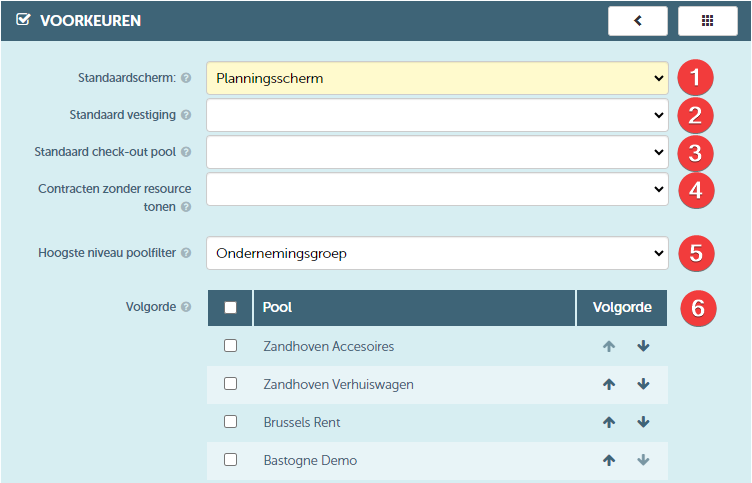
Setting goes as follows:
| NR | DESCRIPTION | REQUIRED | REMARK |
| 1 | Here you decide which screen (Planning or Home) opens at log in | No | |
| 2 | This business unit is selected by default upon login | No | |
| 3 | Here you define the pool that is selected as the default check-out pool when checking out a resource. | No | We advise NOT to use this field as it is only used in the API module where the technical user creates bookings via the API. |
| 4 | Set here whether contracts without a resource should be shown on the planning, and if so, at which location they should be displayed. | No | The empty option follows the general settings for contracts without a resource at the highest level |
| 5 | Here you define the highest level in the tree structure of the pool filter: • Pool: Only the pools are shown in the filter bar • Business unit: Pools are grouped by business unit • Company: Pools are grouped by business unit and then by company • Company group: Pools are grouped by business unit, then by company, and finally by company group | No | Example Pools: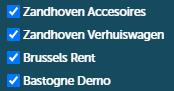 Example Company group: Example Company group: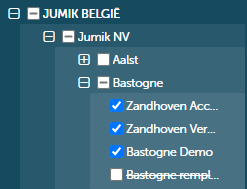 |
| 6 | Here the sequence is defined in which the different pools are shown on the planning. You can also specify here which pools should be selected by default in the pool filter on the different screens. | No |
3. Invite the new user
Once all settings have been configured as desired, you can complete the creation of the new user by saving their details using the 'Save' or 'Save and close' button (1).
The 'Invite user'(2) option only becomes active after the user's details have been successfully saved.

By pressing the 'Invite user' button, the respective user will receive an email allowing them to change their password. The following notification appears when the email has been successfully sent to the user

The content of the invitation looks as follows:
(The name of the new user is filled in under 'New user in ProPlanner')
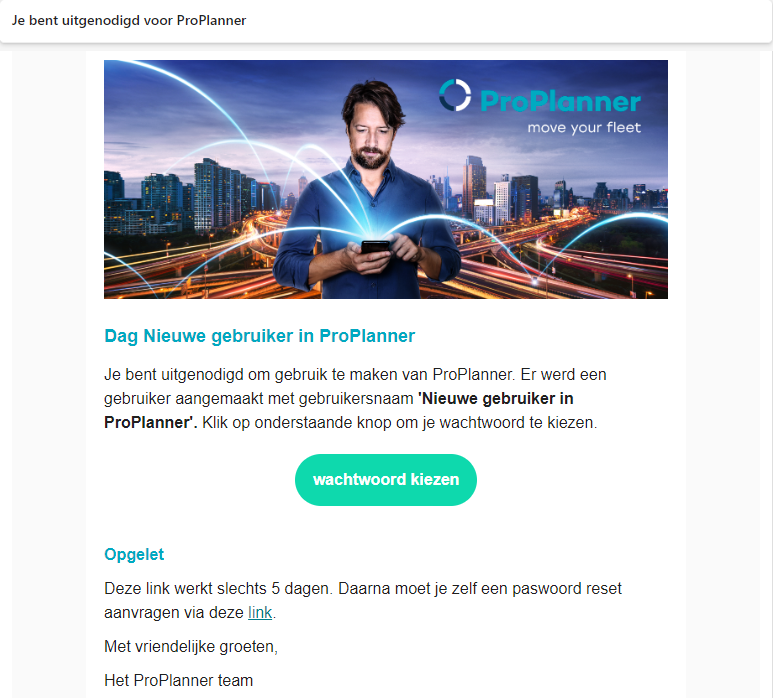
The new user can then choose their password by clicking the green button. The user is then directed to the following input screen where the user can set a password:
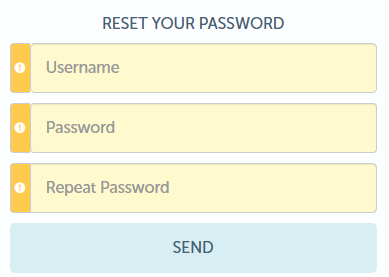
It is important to know that the invitation email is only valid for 5 days. It is therefore advisable to send this email at a time when the user can take action in the short term.