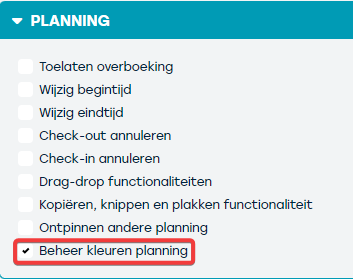
From now on, you can set the colours of the contracts on the planning yourself. You can assign colours based on contract status, rental type, and pool. You determine which criteria have priority and which conditions you want to combine, for example, a combination between rental type and contract status.
Full English video:
Dutch manual:
An overview of all used colours can be found under ‘Management' > ‘Contracts’ > ‘Colour planning’
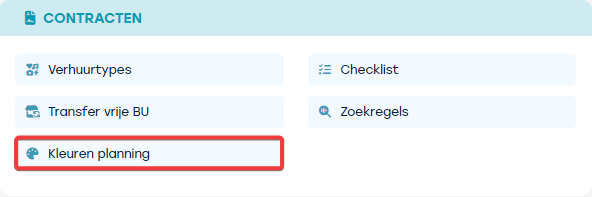
The following overview appears:
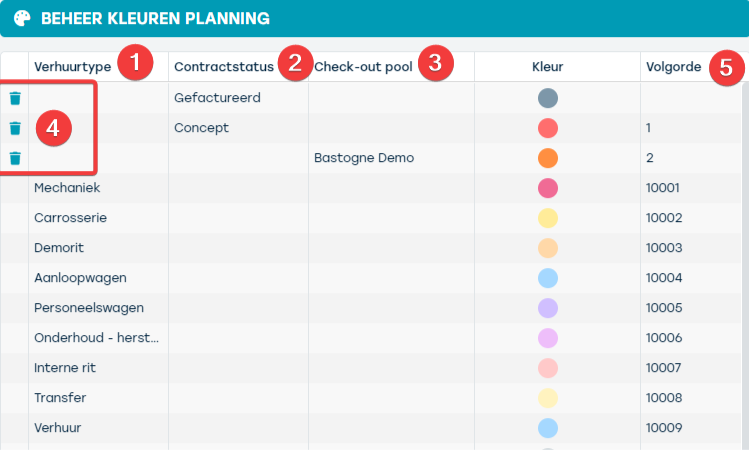
You can assign colours based on rental type (1), contract status (2), check-out pool (3) or a combination thereof. In this overview you quickly see which conditions have been chosen to add colours to the planning. Note: only the first 3 colours in this scheme can be removed (4). Colours based solely on rental type are set on the rental type itself, not in this screen. This overview gives a complete view of all used colours. If you want to set a colour for a rental type, you must do so directly on the rental type. New conditions or combinations (apart from solely the rental type) can be added via this screen.
How do you add a new colour?
Press ‘+ add’, the following screen will appear:
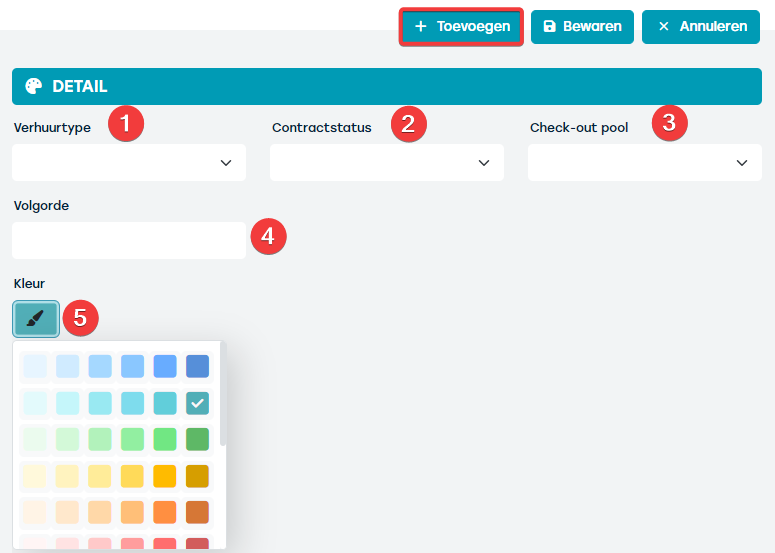
Choose a condition or a combination of conditions (1 to 3). If you leave a condition empty, it will be ignored. For example, if you want to display all invoiced contracts in dark grey, choose ‘invoiced’ at contract status (2).
Note that the sequence (4) is important. If you want all invoiced contracts to be shown in grey, regardless of rental type, you must give this rule a high priority. You do this by placing it first, for instance with value 1. ProPlanner goes through the sequence and will first make invoiced contracts grey, after which other contract statuses are given the assigned colours.
Next you can choose the desired colour (5) for your condition.
Setting colours for a rental type is done via the rental type itself.
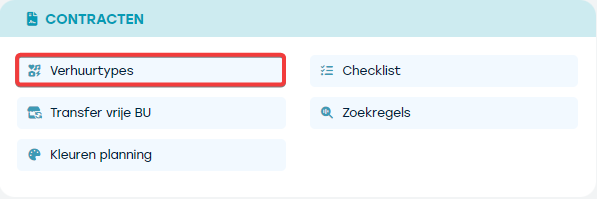
To do this, go to ‘Management’ > ‘Contracts’ > ‘Rental types’ and select the rental type for which you want to set or adjust the colour.
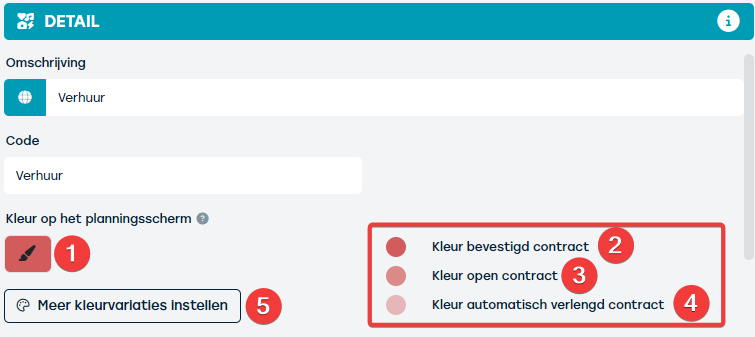
Via the paintbrush icon (1) you can choose the desired colour. Then a gradient scheme appears based on the status and automatic renewal of the contract.
- For a confirmed contract (2) the chosen colour is displayed fully.
- For a departed contract (3) (status = open) the colour will be faded by 70%.
- When the contract is automatically renewed (4), the chosen colour will have a transparency of 40%.
Afterwards, by choosing ‘set more colour variations’ (5), you will be guided to the colours overview as discussed above.
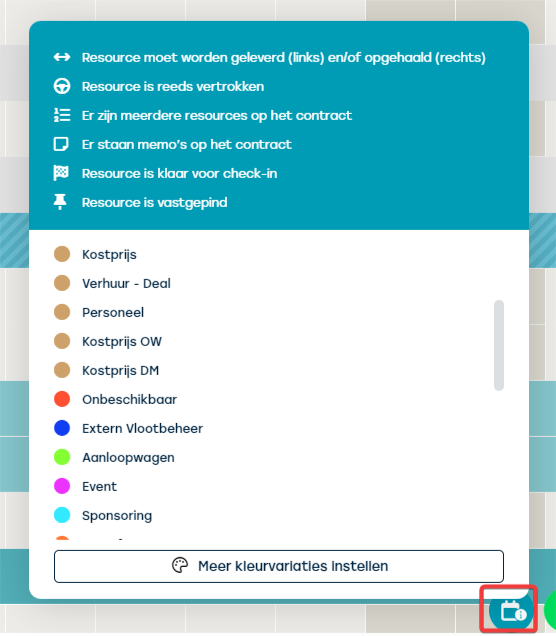
On the planning you will find a legend under the ‘legend icon’ at the bottom right. This legend offers an overview of your chosen colours and explains the symbols used on the planning at the top. Here too, via the 'set more colour variations' button, you are taken to the colour overview.
Note: Already existing colours will be retained during the migration. If you choose a new colour, it will replace the old one, and all contracts that were linked to the old colour will be changed to the new colour once the synchronization is complete.
Note: to use this feature, the user must have the right ‘management colour planning’.