Set permissions for contract-specific prices and select rates
You can determine who within your organization has access to manage and select contract-specific prices and rates. This provides more control and prevents mistakes when preparing quotations or contracts.
What does this involve?
- You can assign permissions per role for managing prices linked to specific contracts.
- When creating or editing a contract, you can select rates from a pre-set list, depending on access rights.
How do you set permissions?
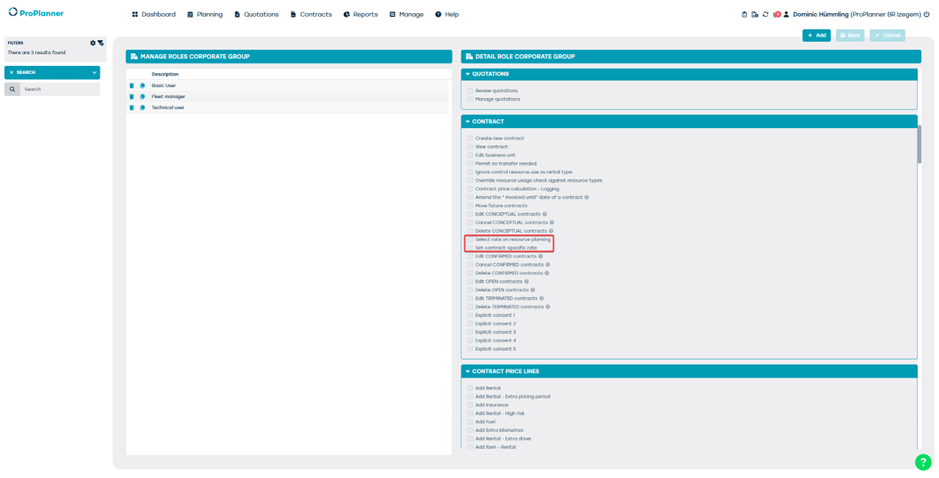
- Go to Management > Roles Company group.
- Select the role for which you want to adjust permissions.
- Scroll to the Contract section.
- Check or uncheck:
- Select rate on resource planning
- Edit contract-specific rate
- Click Save.
Select rates on a contract
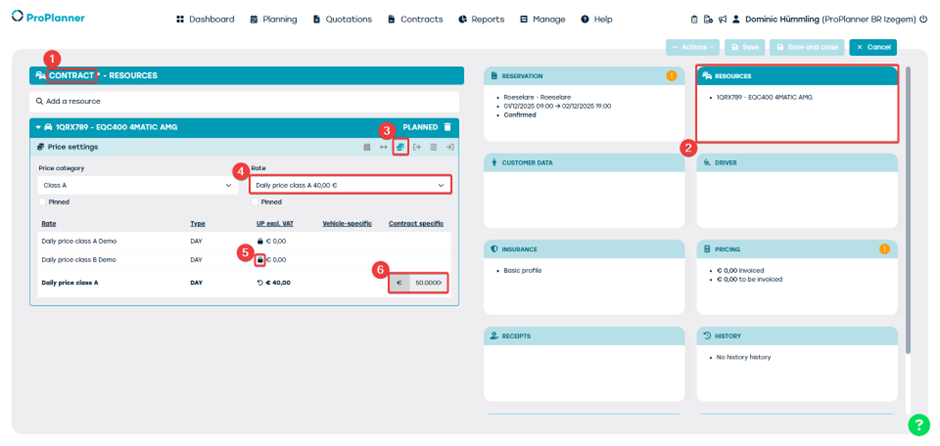
- Open an existing contract or create a new contract.
- Go to the Resources (2) tab.
- Click the Price settings (3) icon.
- Choose from the available rates:
- Standard rates (if permission granted) (4).
- Add a contract-specific rate via the padlock (if permission granted) (5 & 6).
- Click Save to confirm your selection.
FAQ
What happens if a user does not have permission to change rates?
That user can view the rates (if this permission is granted), but not edit them. The edit buttons are then disabled.
Can I set rates per customer group?
Yes, this is possible via the Price management module. There you can link rates to customer groups, contract types, or individual customers.
Are rate changes logged?
Yes, all changes are logged in the Audit log, visible to administrators.