When sending an email to the customer, it is not only important to send it to the correct recipient, but also that it originates from the correct sender. After all, it is important that the customer immediately knows who the sender of a particular email is. We are not just talking about the sender’s name here, but certainly also about the email address used. If the customer replies to the email, it is crucial that the reply arrives at the right place.
Therefore, at the business unit level, you can set the name and email address to be used for emails to the customer. Here we even distinguish between:
- Financial emails (such as invoicing, for example)
- Non-financial emails (such as reservation confirmation, for example)
If you want to use this option, go to the detail screen of a business unit (via the company detail screen which you access as follows: Management > Companies > Select the desired company) where you then open the "Email settings" tile. The following screen will be opened:
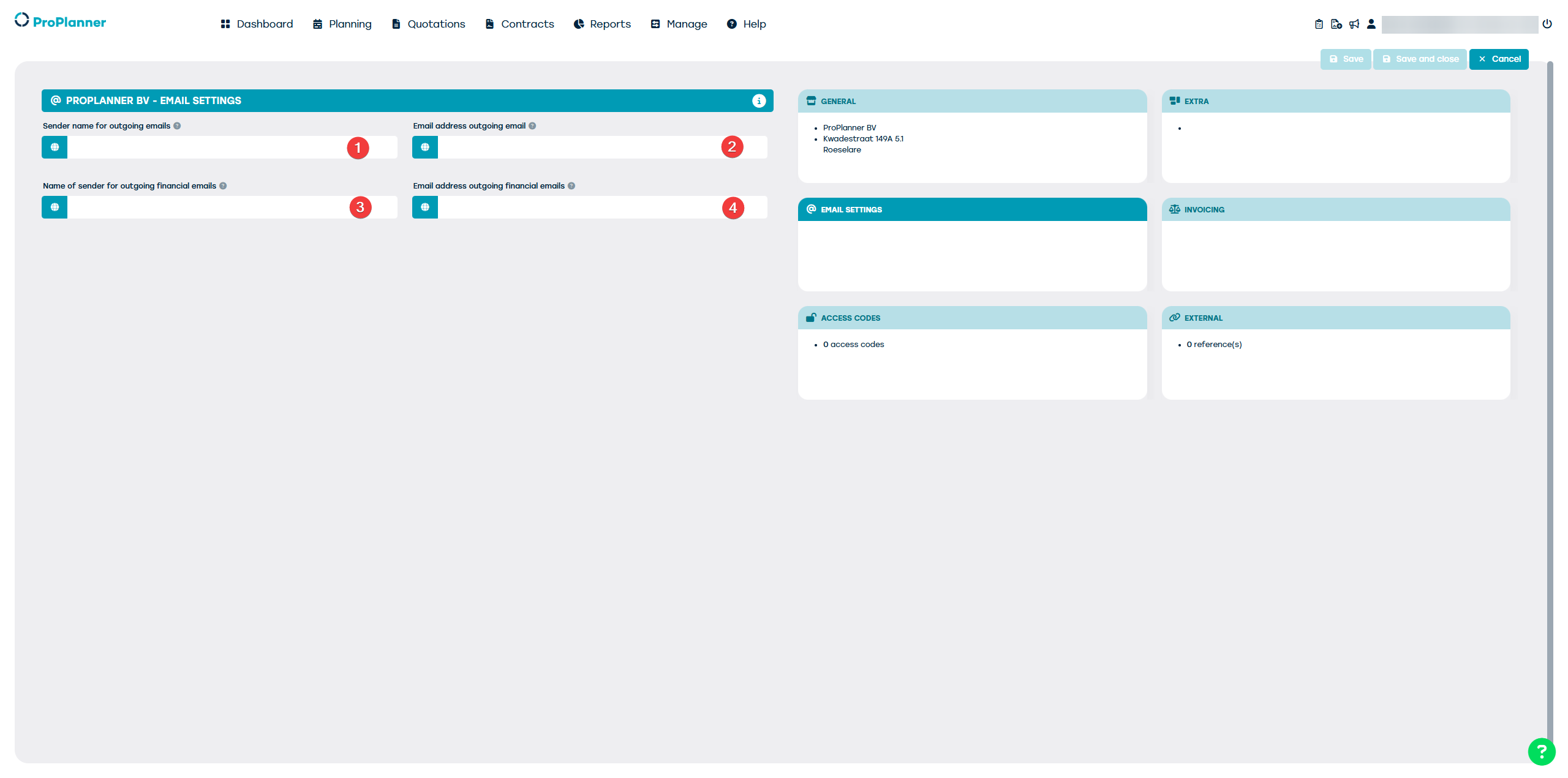
As shown, you have the option here to:
- Enter a name for the business unit as it will appear in communication to customers (non-financial emails)
- Enter an email address for all outgoing non-financial communication
- Enter a name for the business unit as it will appear in outgoing financial communication
- Enter an email address for all outgoing financial communication
For each of these fields, you have the option to add translations for all languages supported by ProPlanner:
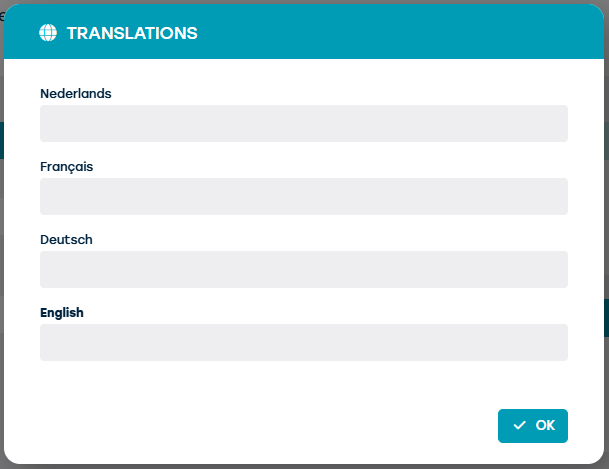
This way, the displayed information can be customized according to the customer’s language.
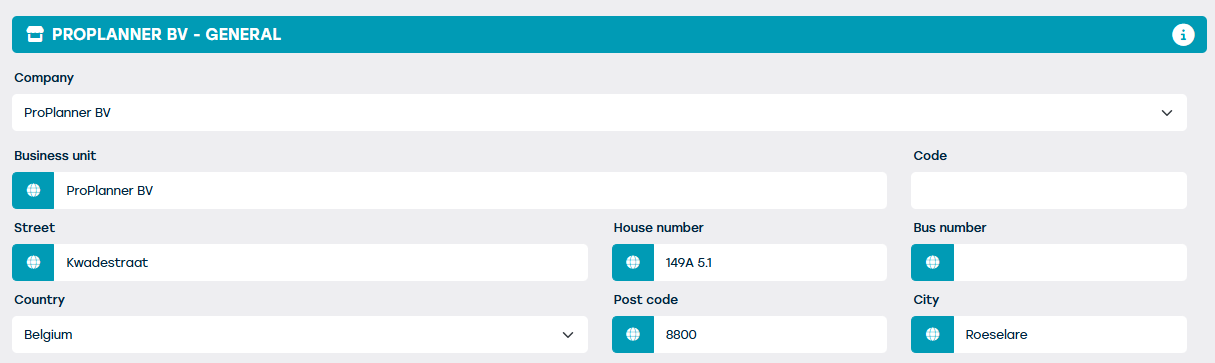
If these details are not filled in, it will fall back on the general email address and the general naming of the business unit, as defined in the "General" tile in the detail screen of the business unit.
The address details of the business unit can also be provided in the various languages. In this way, they are always shown in the customer’s language: