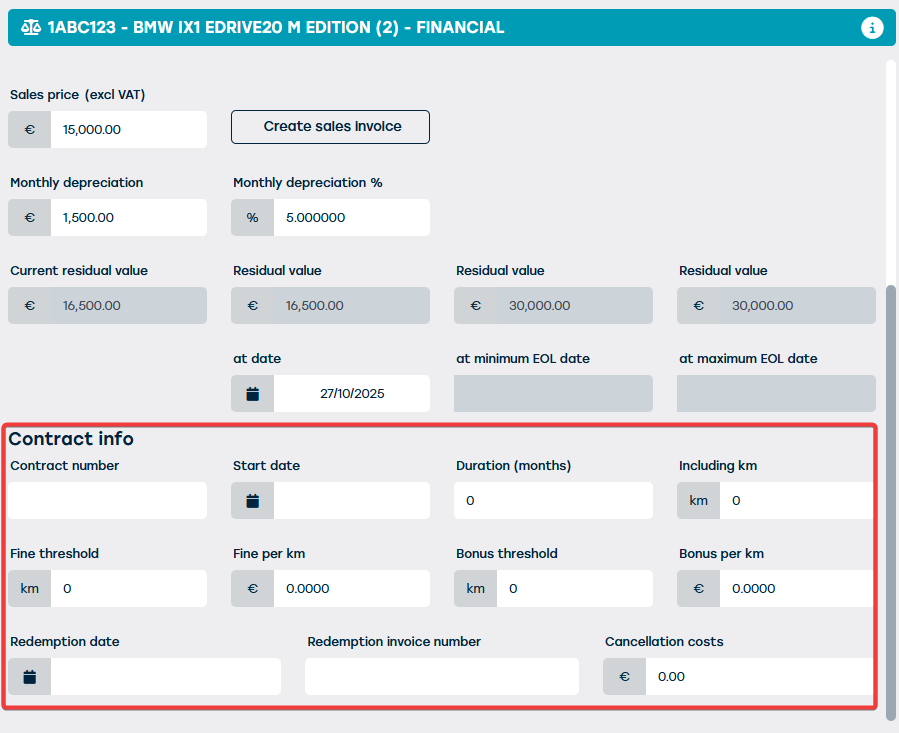
The 'Financial' tile on the resource sheet gives you a clear overview of the purchase or lease details of each car in your fleet.
In this item, we explain exactly what information you can find here. The focus is on the financial parameters such as catalog price, options, sales price and residual value — so not on total cost of ownership, which is managed on the TCO tile. More explanation about the TCO tile can be found in this item.
Information about the purchase value of the resource
The fields below contain information about the purchase of the vehicle. These are optional fields and are intended purely to display additional information on the resource.
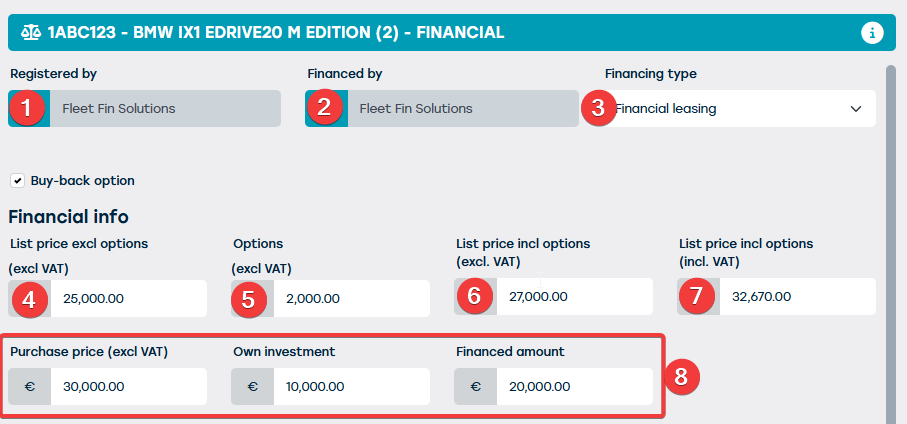
- Registered by: in this field you can display the registrant of the vehicle. This field will search among all business customers who were designated as suppliers.
- Financed by:in this field you can display the financier of the vehicle. Just like for the registrant, you can also search among all business customers who were designated as suppliers for this
- Type of financing, here you have a choice of
- Purchase with own funds
- Bank financing
- Financial hire
- Financial leasing
- Operational leasing
- Catalog price excluding options (excluding VAT)
- Options: here you can enter the total amount for options
- Catalog price including options (excluding VAT): this field can be calculated automatically using the next field (7).
- Catalog price including options (including VAT): this field can be calculated automatically using the previous field (6).
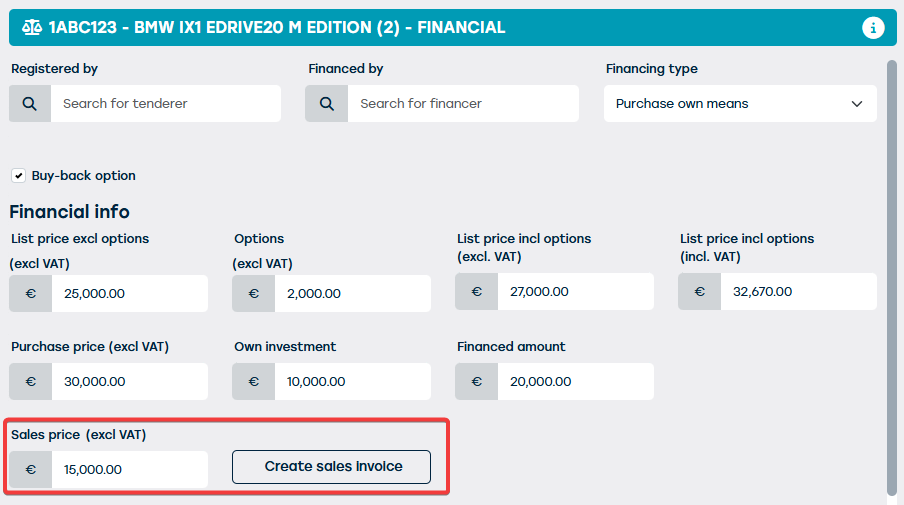
Create invoice for a resource
When you want to sell a resource from the fleet, you can generate a sales invoice from this tile, in which the required details of the sold resource are automatically listed on the invoice. This information therefore does not need to be entered manually, meaning the creation of this sales invoice can happen efficiently while minimizing the chance of errors.
There are also other ways to create an invoice for the sale of a resource. More information can be found in this item .
The automatic calculation of the residual value of a resource
The residual value of a car is crucial information for a Fleet Manager. It helps in determining the sales price, plays a role in lease and financing contracts, and is important for insurance payments. In addition, the residual value is essential for company bookkeeping and helps in managing the total cost of ownership of a vehicle.
Automating the calculation of residual value provides accurate and up-to-date data.
To automatically calculate the residual value, two things must be configured:
- Which value is used as a basis to calculate the amount
- The monthly depreciation rate to be taken into account
The residual value can be calculated based on:
- The purchase price of the vehicle
- The catalog price of the vehicle (with or without options)
- The financed amount
A standard depreciation rate can be entered here, which is used for every new resource. However, you can deviate per resource here.
These values must be set in the general settings. Contact support@proplanner.eu.
Once this is set up, you can find the calculation on the resource sheet under the 'Financial' tile. There you will find the following fields:
- Monthly depreciation amount (1)
- Monthly depreciation rate (2)
- Current residual value (3)
- Current residual value (4) on a specific date (5)
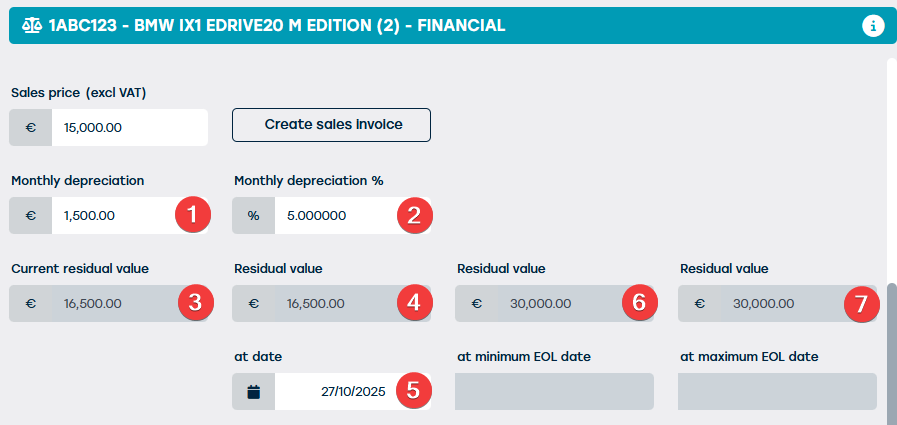
The field with the monthly depreciation rate is filled in by default with the value set in the general settings. The field with the monthly depreciation amount is calculated automatically based on this percentage. Both fields can be overwritten. ProPlanner will then calculate the corresponding value in the other field itself.
The 'Current residual value' field (3) is the residual value of the vehicle today. This field is automatically updated every night.
The residual value field (4) gives the residual value on the date (5) that was entered in the 'On date' field.
If a value is entered on the lifecycle tile for end date 'at the earliest' and end date 'at the latest', you will also find the residual value for these dates (6) (7)
Contract information
At the very bottom of this tile you also have the possibility to enter additional data from the leasing contract, such as the number of included kilometres, the additional price per extra driven kilometre, ...