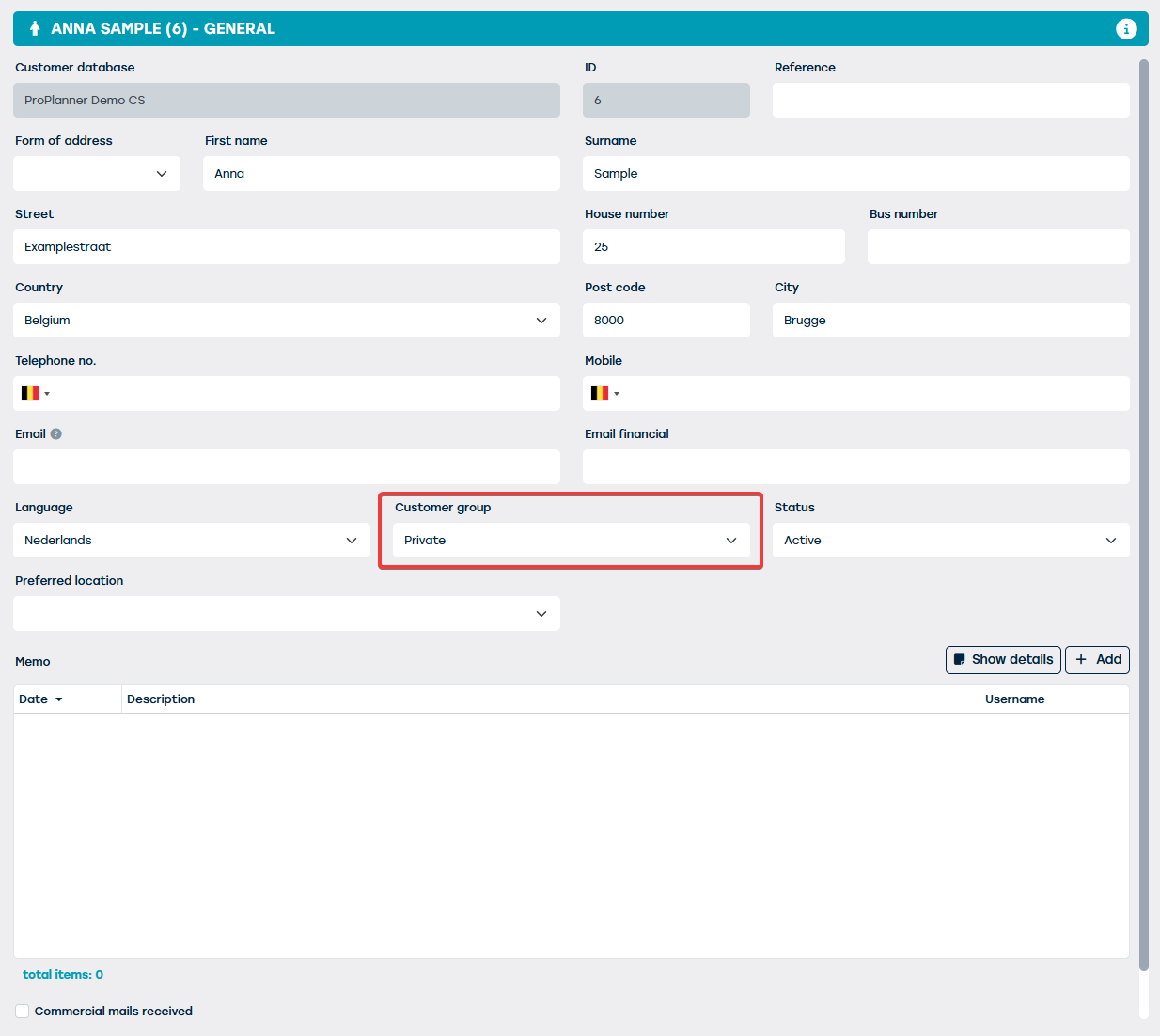
When creating (or modifying) a customer, you can change the customer group to which the relevant customer belongs on the "General" tile of the customer record:
You can completely determine the list of customer groups shown here thanks to the customer groups management screen. You can access this management screen via the "Management" screen, where you will find the "Customer Groups" button on the "Customers" tile:
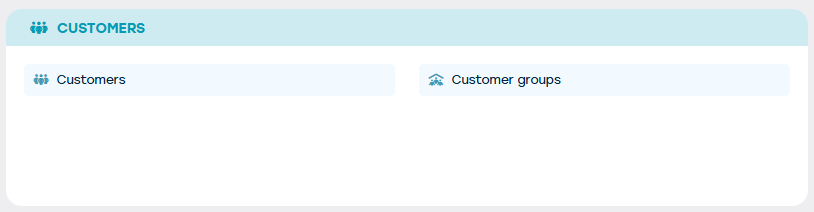
By clicking this button, you will enter the respective management screen where you can:
- Edit an existing customer group
- Create a new customer group
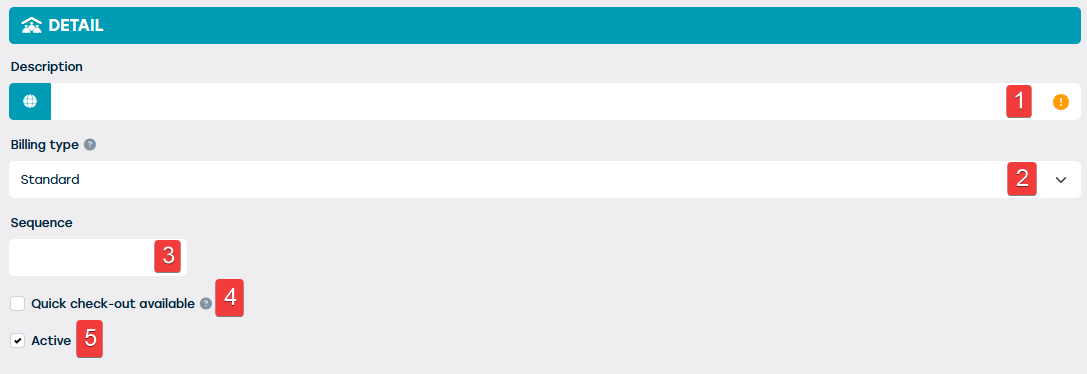
When creating (or modifying) a customer group, you can provide the following information (mandatory or optional):
| No. | Field name | Description | Required? |
| 1 | Description | The name you wish to assign to the customer group. You can set this in all languages supported by ProPlanner. | Yes |
| 2 | Invoice type | Standard or internal. In the latter case you can specify cost centres and cost accounts. | Yes |
| 3 | Sequence | This allows you to indicate in which position this customer group should be displayed in the list | No |
| 4 | Quick check-out available | This indicates whether customers from this group can be designated as drivers during a fast check-out. | Not applicable |
| 5 | Active | This indicates whether this customer group can be used actively or not. | Not applicable |