This method is most recommended for creating / editing just 1 or a few rates. For creating / editing a large number of rates, we recommend the automatic method.
To manually create a rate, go to the overview of rates (Management > Rates) and then click the "Add" button (1). If you wish to edit an existing rate, you can click on the pencil icon for the relevant rate (2), or double-click on the relevant rate (3).

In all these cases, you will end up in the detail screen of the rate to be created or edited, where you can set the necessary items. This screen has several tiles which are each discussed separately below:
- Tile "General"
- Tile "Surcharges"
- Tile "Website" (only if the module "Website integration" is enabled)
- Tile "Self Service App" (only if the module "Self Service App" is enabled)
With the slider "VAT excl / VAT incl" in the title bar of the screen, you can indicate whether you want to specify the prices excluding or including VAT.

Tile "General"
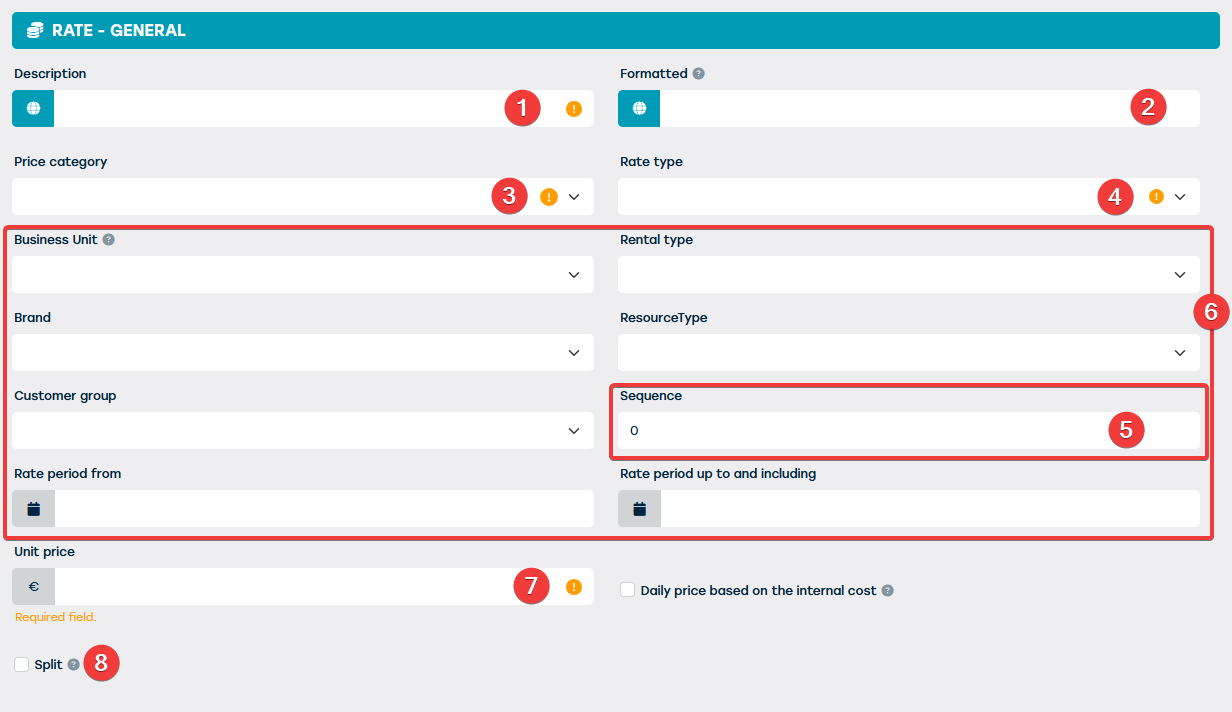
As everywhere in ProPlanner, the yellow fields are also mandatory to fill out here. Via this tile you can set the following items regarding the rate to be created:
| 1 | Determine the name of the rate to be created here. This name can be chosen completely freely. With the globe button, you can specify the translation of the name for each of the languages supported by ProPlanner. |
| 2 | Here you can decide the name of the rate as it will appear on invoices where this rate applies. You can use several variables here as shown in the tooltip at the information icon. This way, the name will be dynamically adjusted according to the situation in which the rate is used. Here, too, you can specify the different translations by using the globe button. |
| 3 | Here you indicate the price range that the rate to be created is part of. Here you can choose from all price ranges that have already been created within the company group to which you are logged in. You can create new price ranges via the relevant management screen. |
| 4 | Here you indicate the rate type that should be used within the rate to be created. Here you can choose from all rate types that have already been created within the company group to which you are logged in. You can create new rate types via the relevant management screen. |
| 5 | In this field, you can set the sequence for the rate to be created in the list of rates. This is important in the context of automatically assigning a rate to a contract (when checking the rate to apply, ProPlanner takes the first rate in the list that satisfies all conditions). |
| 6 | With these fields, you can specify several criteria for using the rate to be created. |
| 7 | Here you specify the unit price of the rate. Via the checkbox, you can let this depend on the internal cost of the resource, which is calculated based on the registered costs on the resource. |
| 8 | When a rate is assigned to a contract, depending on certain settings, either the start or creation date of that contract and the rate period on the rate will be considered. If this date falls within the rate period, then the rate will be used for the entire duration of the contract (even if the contract ends outside the rate period). If you check this checkbox, another rate will be used for the remainder of the contract's duration after the rate period ends. |
Tile "Surcharges"
Via this tile you can specify any surcharges that need to be charged if this rate applies. The tile appears as follows:
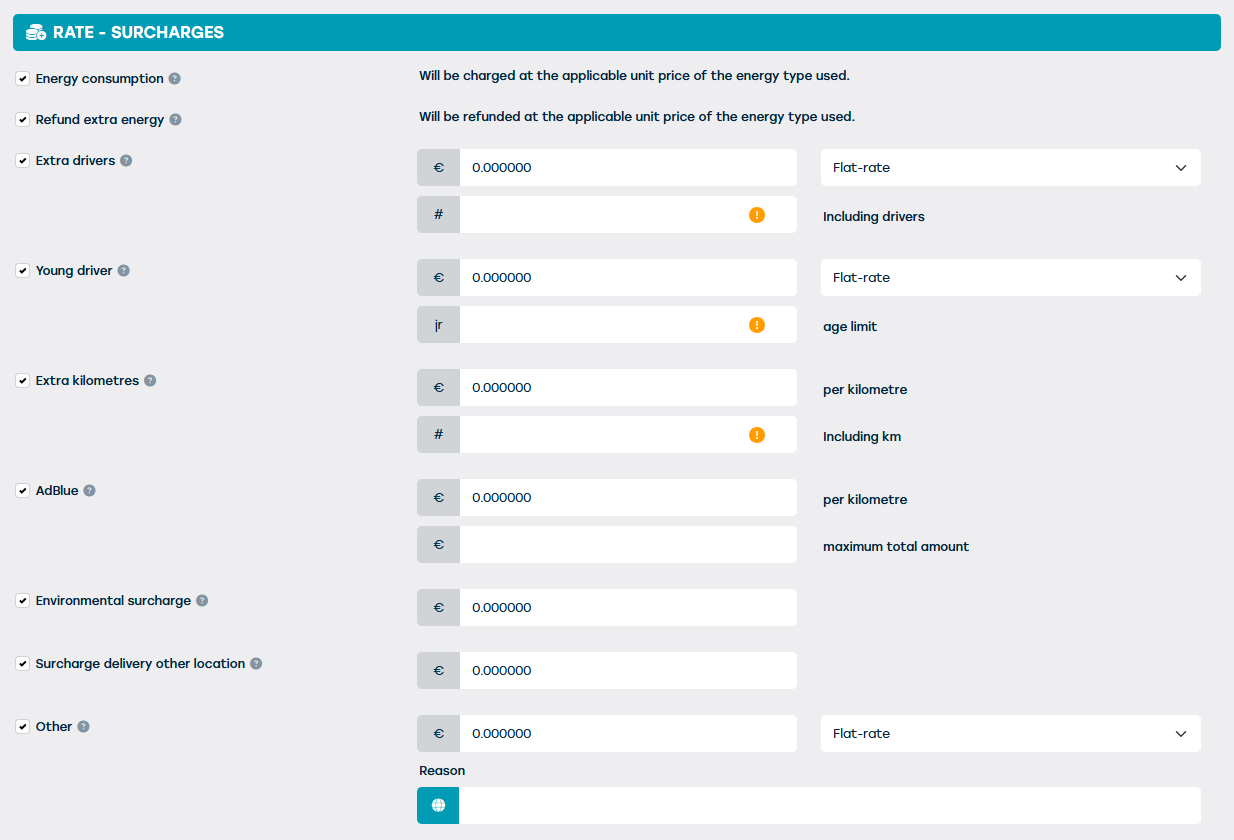
When opening this tile, the checkboxes will be unchecked by default. The relevant fields will only be displayed when the checkboxes are checked.
The following surcharges can be added to the rate:
| Energy consumption | With this, you determine whether fuel consumption needs to be charged on top of the rate. This is the only surcharge that will be selected by default. |
| Refund extra energy | With this, you determine whether the customer will be refunded for extra refueled fuel (or extra charged electricity). |
| Extra drivers | This is a surcharge that must be paid per extra driver. The number of drivers included in the rate must be specified. In addition, you must specify the price per extra driver and indicate whether this is a flat fee or rather a price to be charged per period unit. With this last option, you can specify a maximum amount to be charged. |
| Young driver | This surcharge is charged for a driver who is younger than a set age. Here too, you specify the price per young driver and indicate whether it is a flat amount or not (as with extra drivers). |
| Extra kilometres | This surcharge will be determined per kilometre driven above the number of included kilometres. The unit price and the number of included kilometres must be specified. |
| AdBlue | This AdBlue surcharge (which is only charged if the relevant vehicle uses AdBlue) is calculated per kilometre driven. It is possible to determine a maximum amount for this surcharge. |
| Environmental surcharge | This is a flat surcharge for the preservation of the environment. |
| Surcharge delivery other location | This flat surcharge is charged if the vehicle is returned to a different pool than the pool from which it departed (check-in pool ≠ check-out pool). |
| Other | Here you can add a custom surcharge. The reason you state here will be shown on the invoice where this surcharge is charged. Here too, you can decide if the given price is a flat or unit price. |
Tiles "Website" and "Self Service App"
On these tiles, you can specify if the rate to be created should also be available for reservations via the website or the self service app (if applicable).