This method is most recommended if a large number of rates need to be created or modified. For creating or modifying only 1 or a few rates, we recommend the manual method.
When you want to create a large number of rates, you can use the rates overview to automatically generate the desired rates. Next, you can easily modify the generated rates using an advanced export of the rates, which you then adjust and finally upload again in ProPlanner.
You can also use the export-import feature to modify existing rates.
The following paragraphs describe in detail how these functionalities work.
Automatically generate rates
In the rates overview (Management > Rates), you will find an "Actions" button. When you click this button, you can, among other things, choose the action "Automatically generate rates".

When you select this action, you will be taken to the following screen:
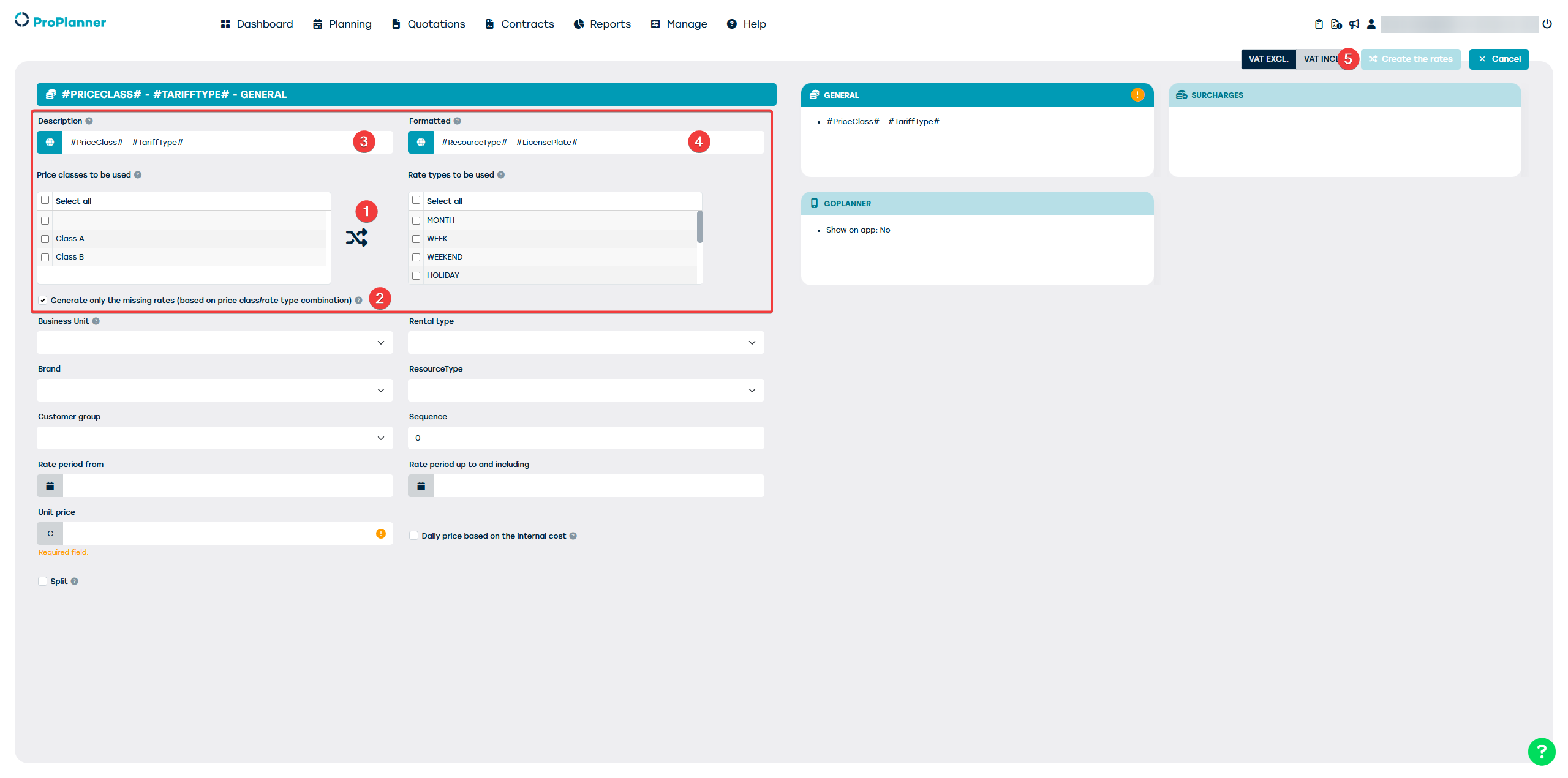
This screen is largely similar to the details screen of the rates, except for the red frame. In this frame, you can indicate which price ranges need to be combined with which rate types (1). Additionally, you can specify whether already existing combinations between price range and rate type should be regenerated or not (2). Finally, you enter the description that should be given to the rates to be generated (in the different languages) (3) and optionally a formatted description (4).
The other fields on the tile "General" and on the other tiles are exactly the same as the fields in the rates detail screen.
When, after setting everything correctly, you click the button "Create the rates" (5), the rates will be created and a notification will be displayed confirming how many new rates have been created.
Export rates
After generating the desired combinations of price range and rate type according to the desired settings, you can export these newly generated rates into an Excel file. You can also work this way to adjust rates that already exist.
First you filter by the rates you want to modify (e.g., certain price range or rate type) and then click the download icon at the bottom of the rates overview. Then you select the "Advanced export" option.

Modify and upload rates
Now you can open the downloaded Excel file and adjust the necessary fields as desired. It is important to take the following matters into account:
- Removing or adding a line has no effect. This change will not be applied in ProPlanner when re-uploading the file.
- The columns in gray must not be adjusted.
After making the necessary adjustments in the Excel file, save this file on your computer. Next, return to the rates overview in ProPlanner where you use the "Actions" button to select the option "Edit current rates via import Excel":

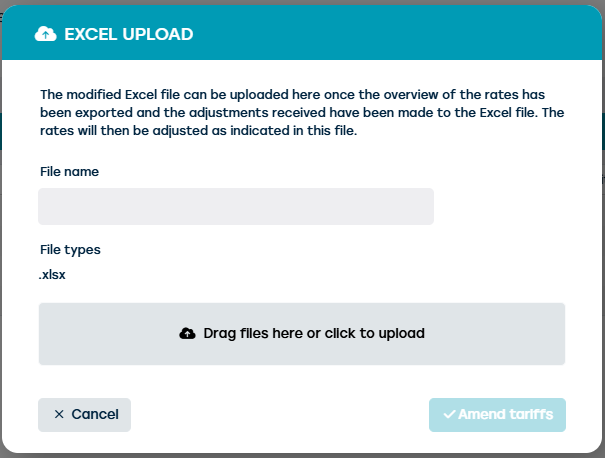
When you do this, you will reach the following screen, where you can upload the Excel file you just saved into ProPlanner. When you then click the "Edit rates" button, the changes you made in the Excel file will be applied to the respective rates in ProPlanner.