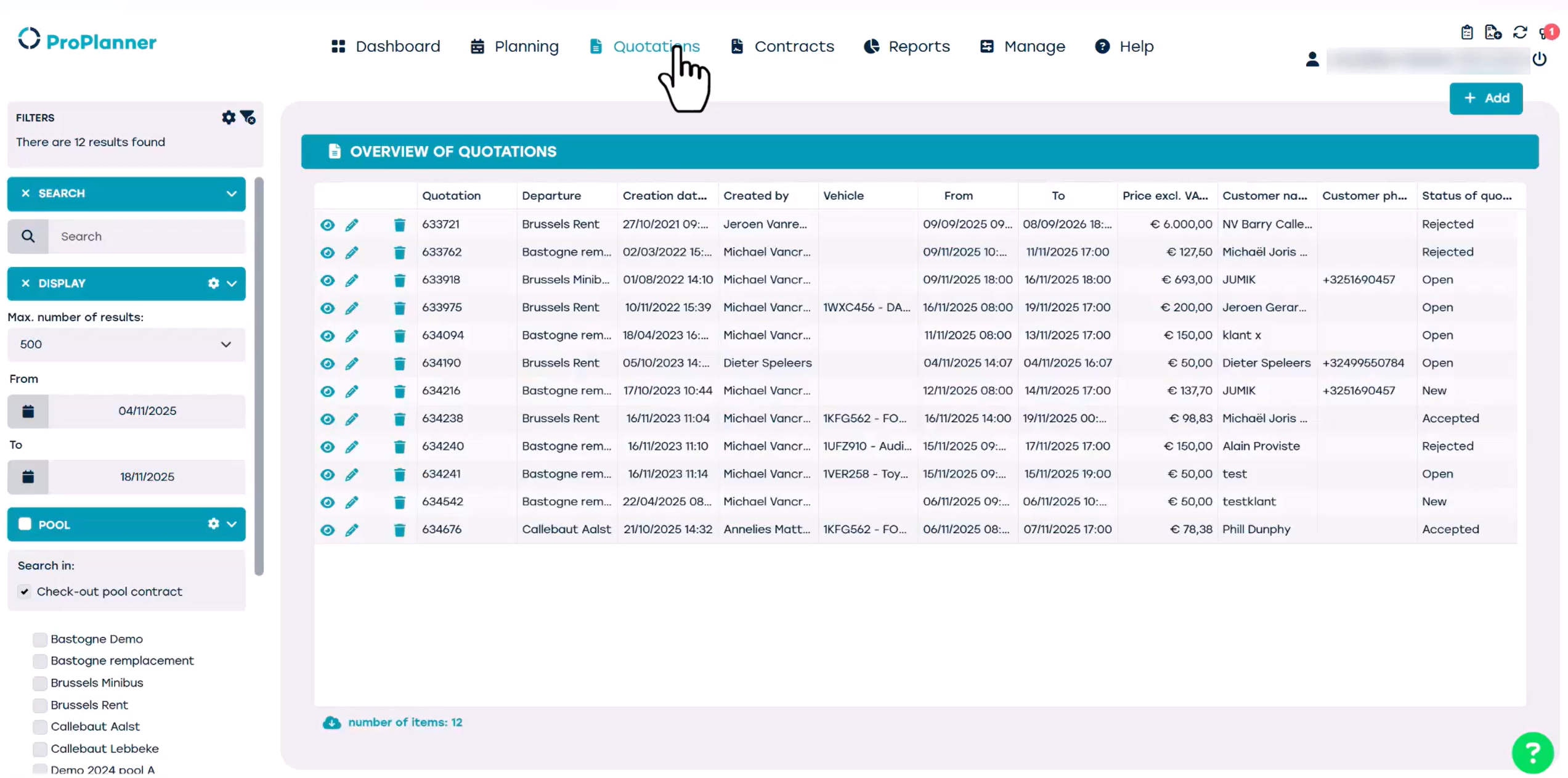
In this video:
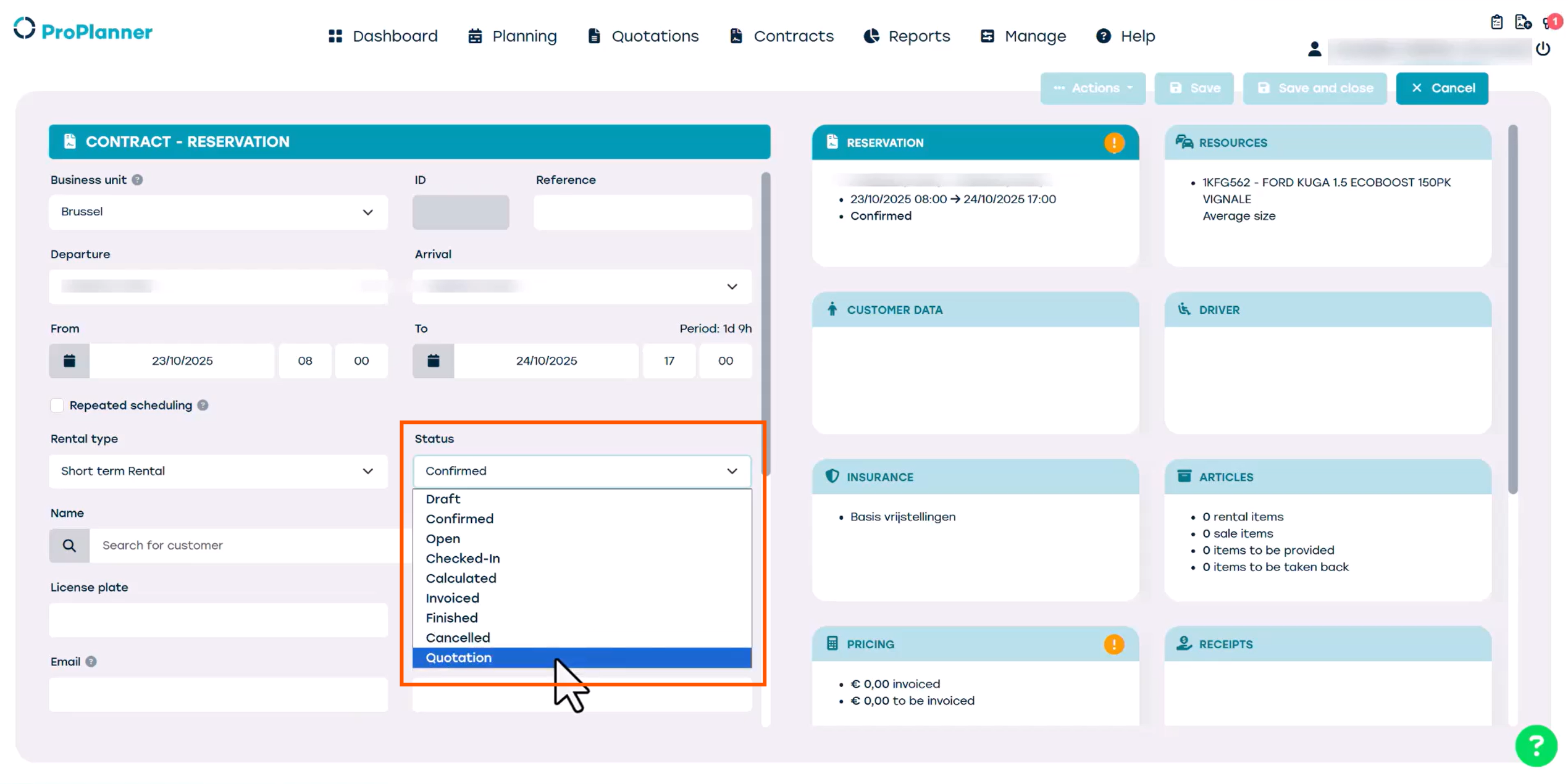
A quotation is a Contract to which we assign an alternative Status.
So let’s create a new Contract that we want to send out as a quotation. First, we change the Status to ‘quotation’.
When we do this, several new buttons appear at the top of the screen.
Once we save the quotation, we will be able to use these buttons.
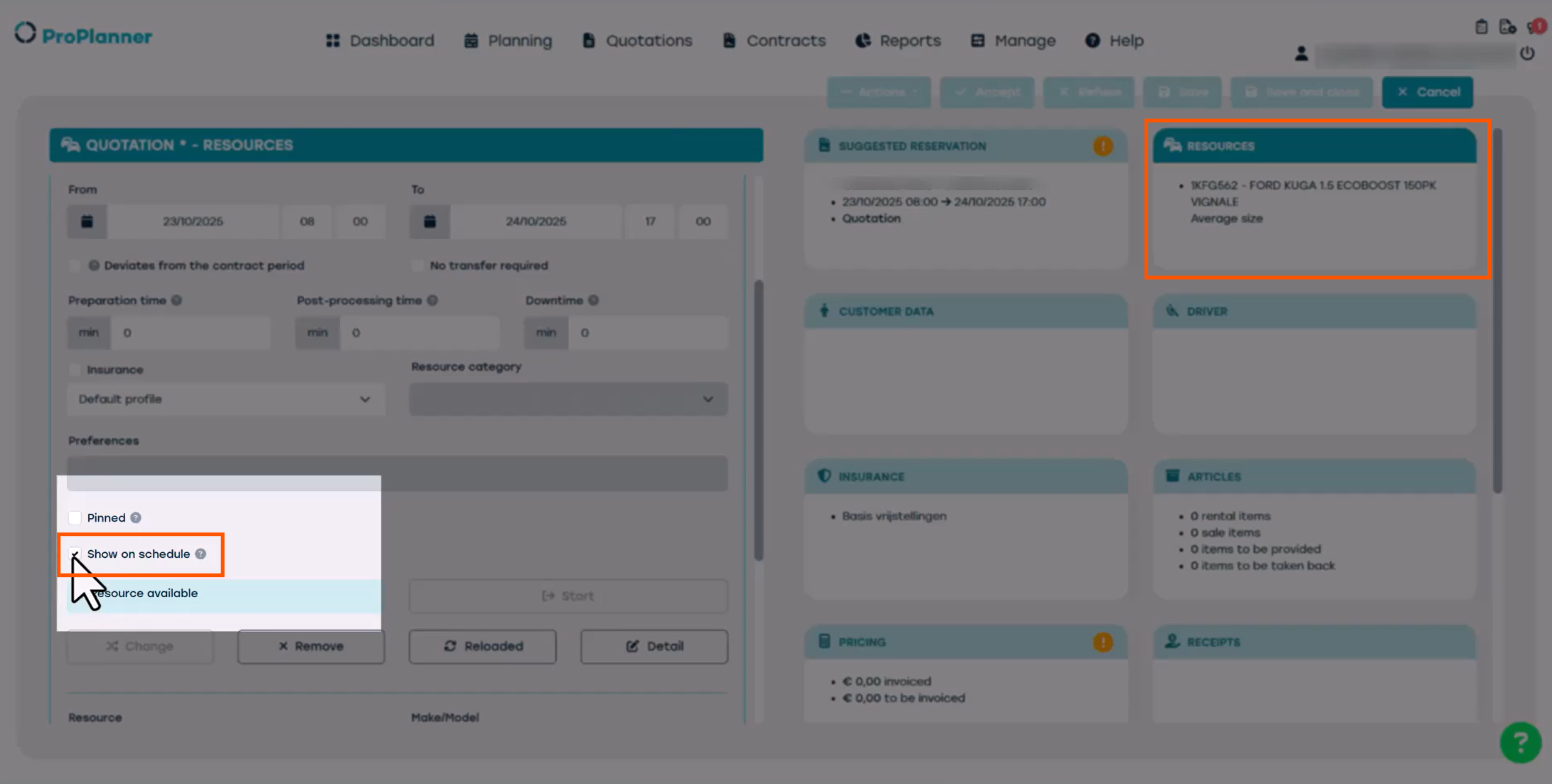
In the Tile ‘Resources’ we can make the quotation visible in the Planning by ticking the box 'visible on schedule'.
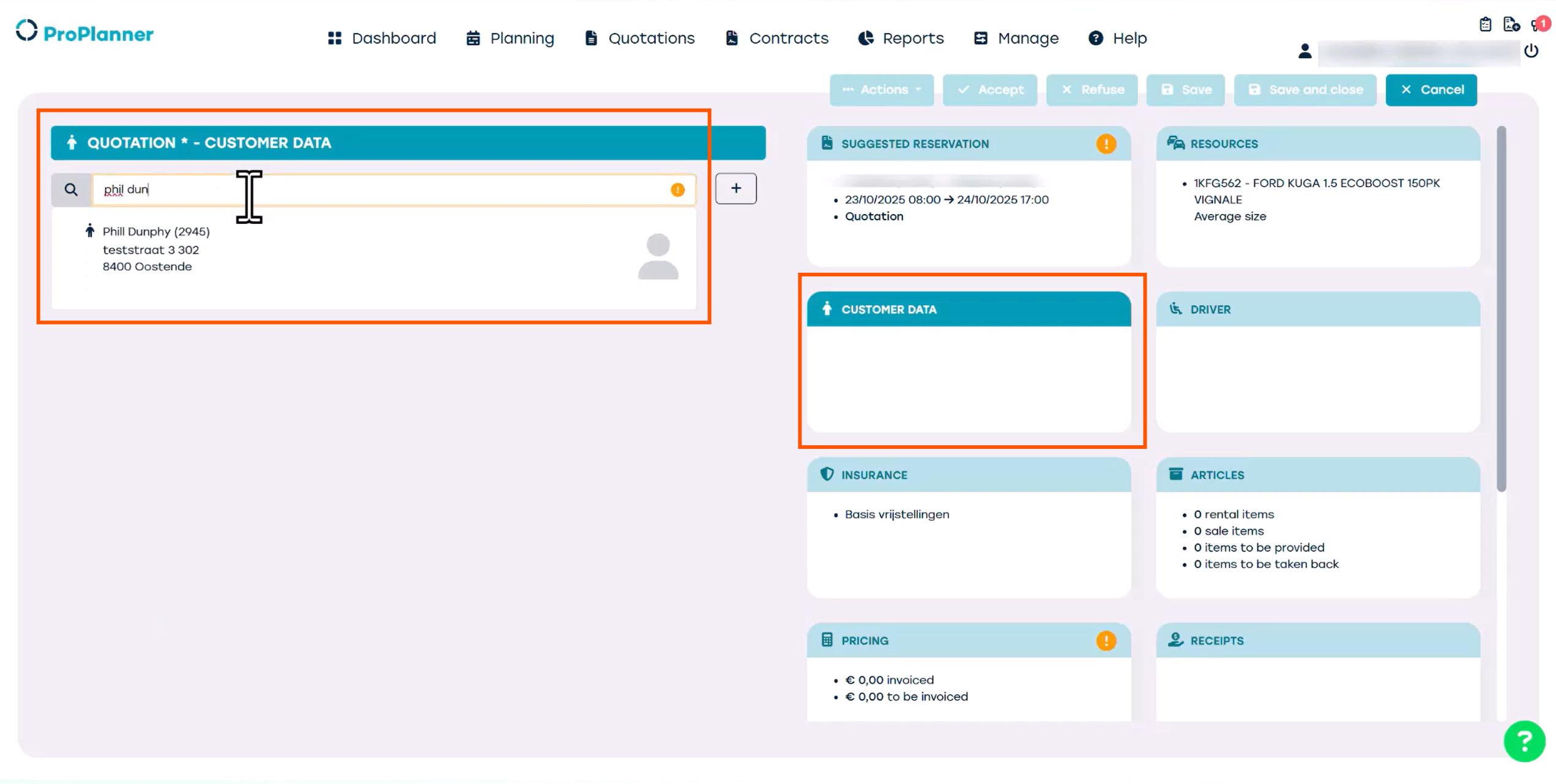
We can then add our customer information in the Tile 'customer data'.
Finally, we can save.
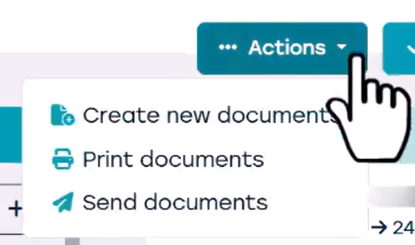
We can now perform several actions.
We can export the quotation as a Document, we can print it as a Document or we can Email it to the customer.
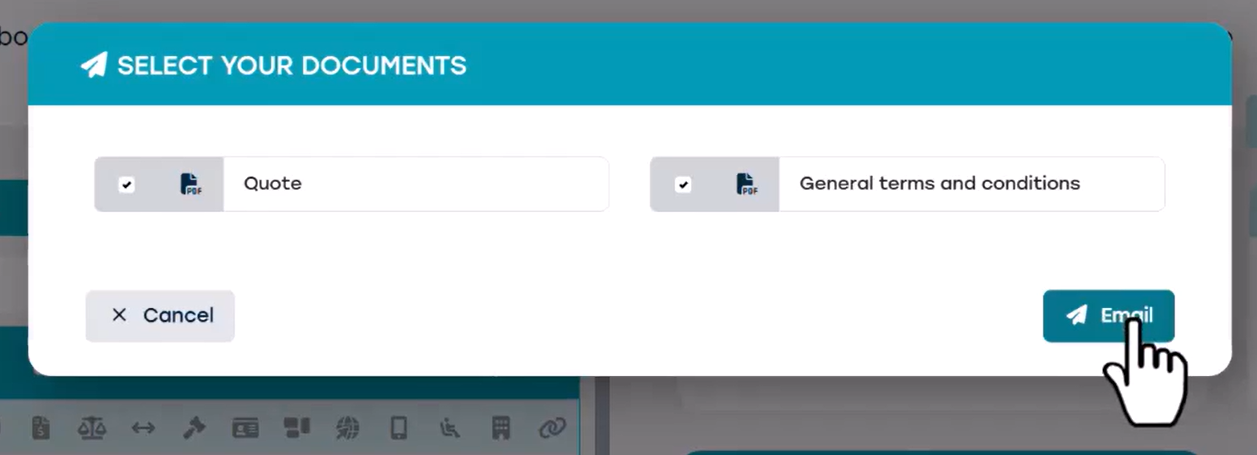
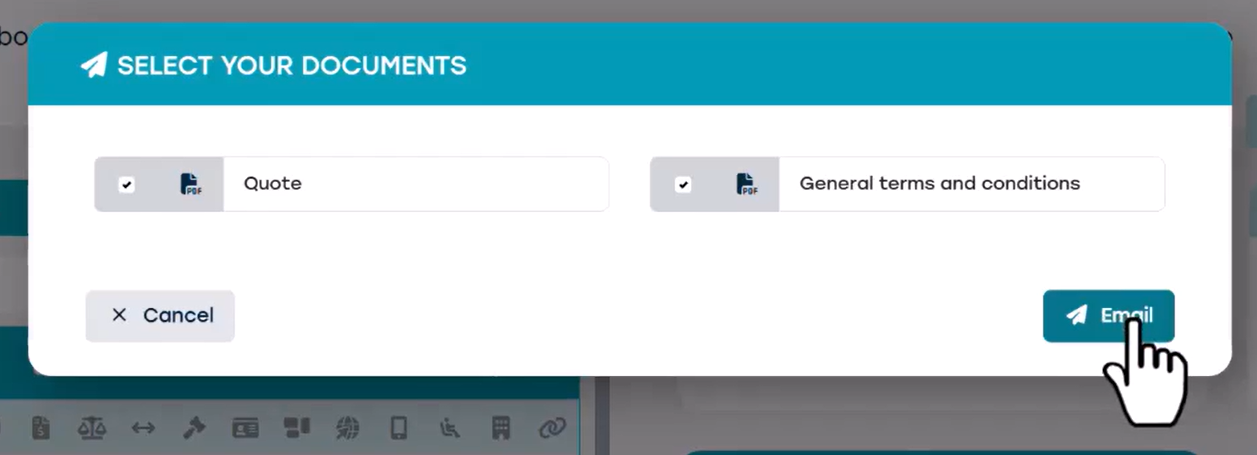
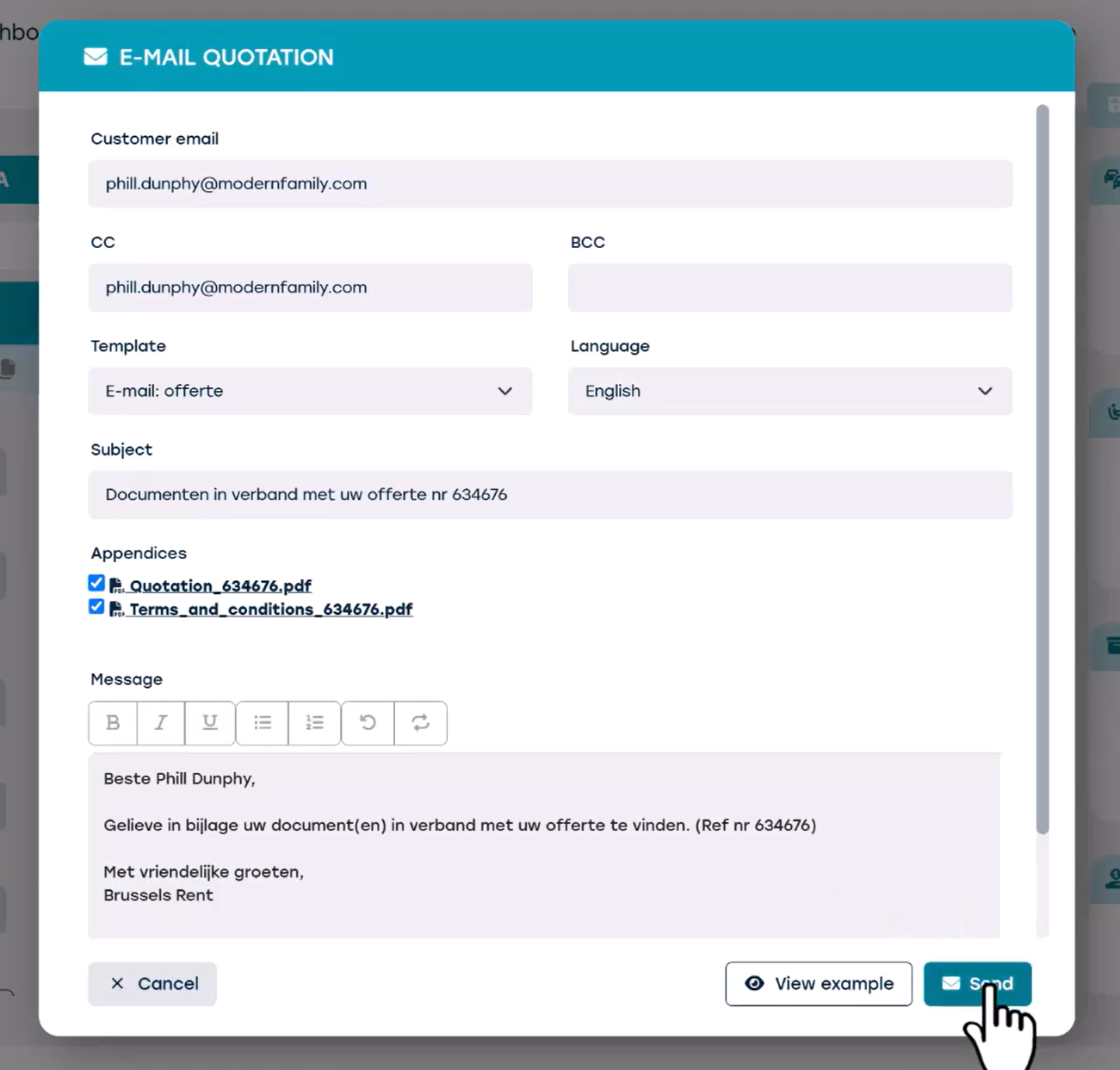
Let’s create an Email with a quotation and the terms and conditions. All the information will be filled out automatically, so we just have to check it and click 'Send'.
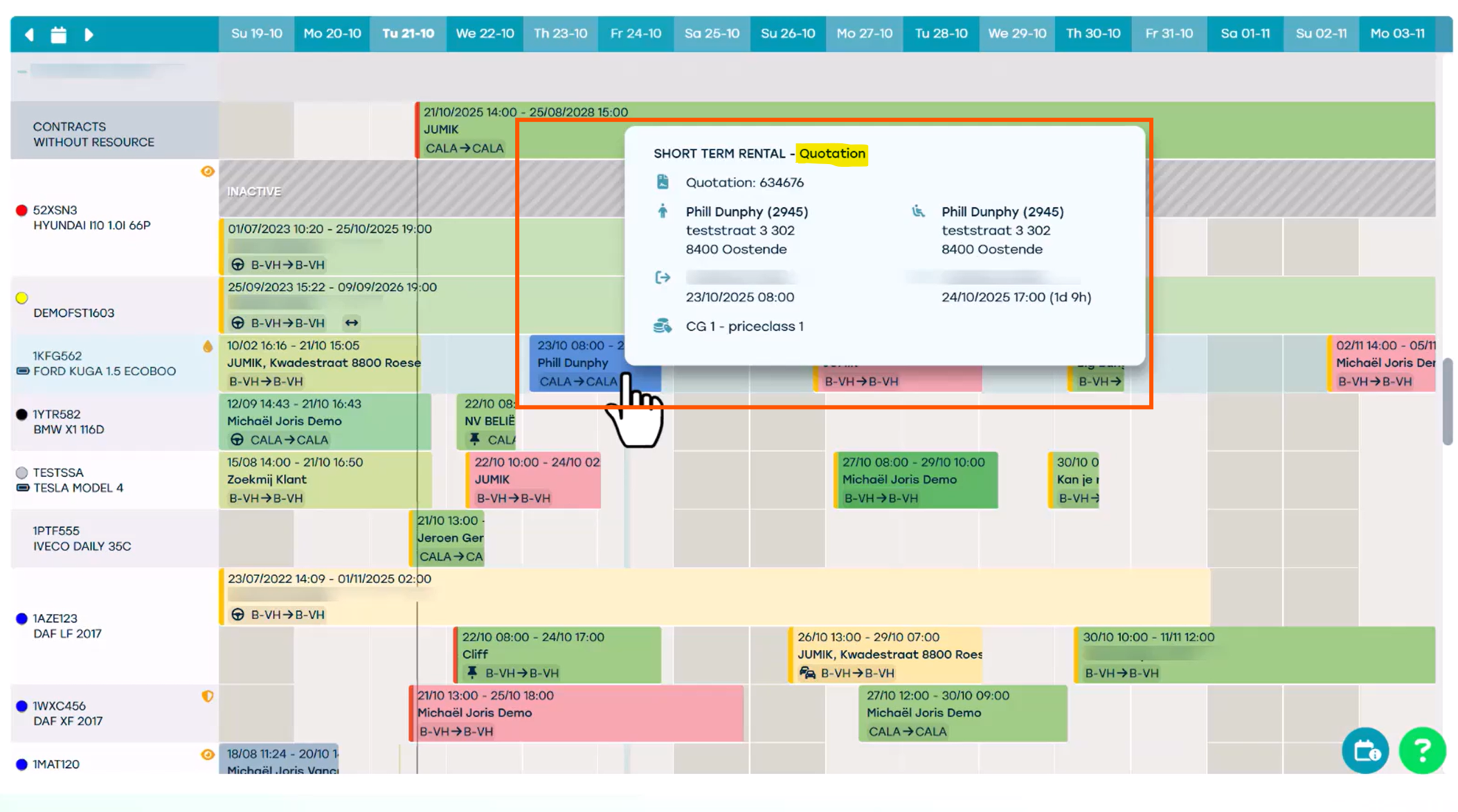
Now let's take a look at the Planning screen. Because we ticked the visibility box, the quotation now appears. It is displayed in a different colour to indicate that it has not yet been confirmed.
---
What if our customer confirms the quotation? We can then open the quotation and click 'Accept'.
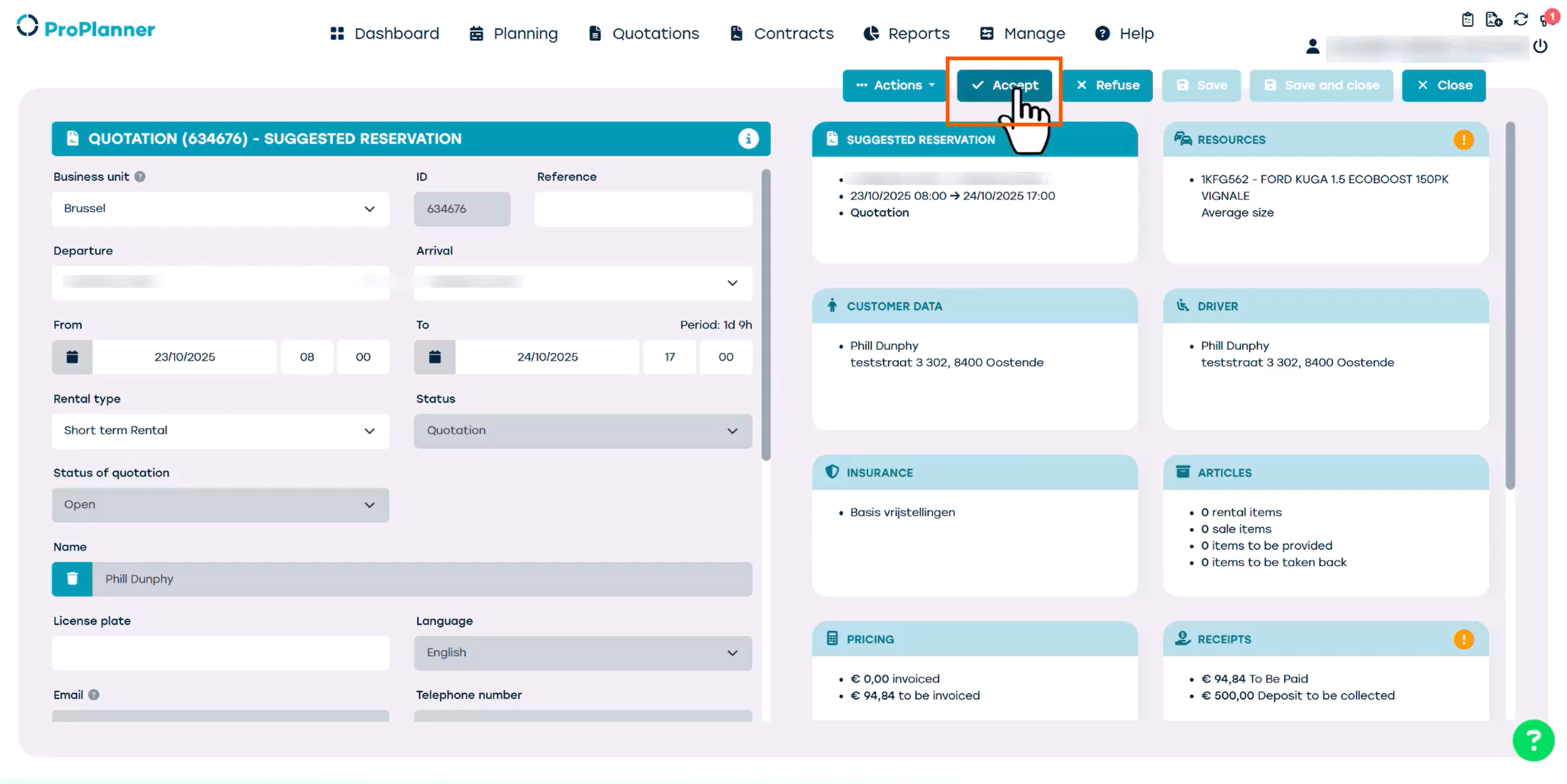
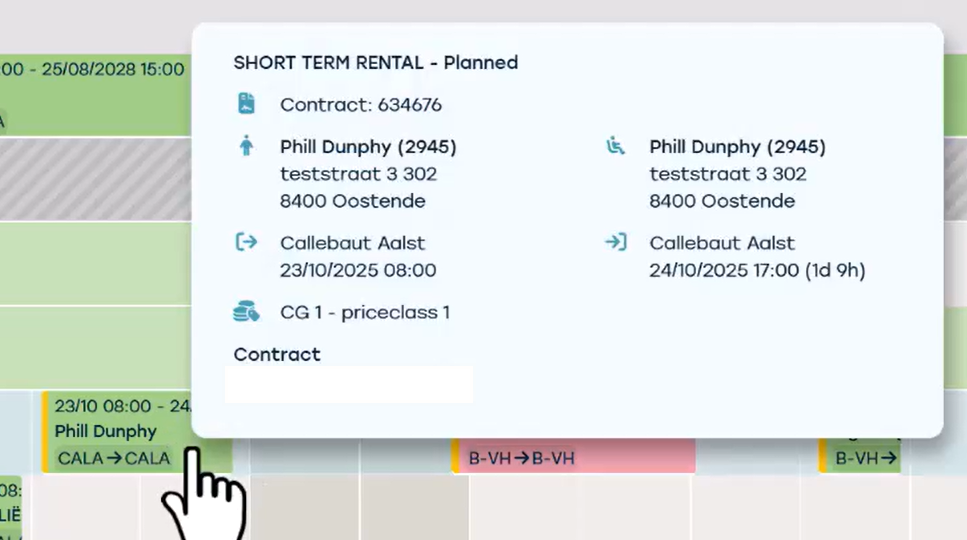
If there are no issues, the Contract will be created exactly as planned. However, if there are any issues — for example, if the selected Resource is no longer available during this period — we will be provided with alternatives before being able to save the Contract.
If you want to see the full overview of all quotations, go to the top menu and click 'quotations'. Using the filters it's easy to find the quotation you're looking for.