The tablet and the web version of ProPlanner work closely together. Photographs taken with the tablet (for example, of damage) are sent directly to the relevant file in the web version of ProPlanner. Sometimes, due to connection issues or if the tablet shuts down, there may be delays in sending these photographs. ProPlanner tries to resend the photographs multiple times. If this repeatedly fails, we will send you an email to inform you that some photographs have not been uploaded.
In that case, we ask you to take the following steps:
- Take hold of the relevant tablet. It is important to know that this process is only possible on the tablet where the photographs were originally taken. An upload icon appears at the top. This icon displays a number if there are photographs in the queue.

- When you have found the correct tablet, click on the upload icon. You will then see a list with the following information:
- Time of the photograph
- Creator of the photograph
- Contract number
- License plate of the resource
- Number of attempts made to send the photograph to the ProPlanner web version
- Date and time of the last attempt
For each photograph, you will also see four icons that offer the following options respectively: view, delete, save in the gallery of this tablet, and lastly, manually send this photograph to ProPlanner.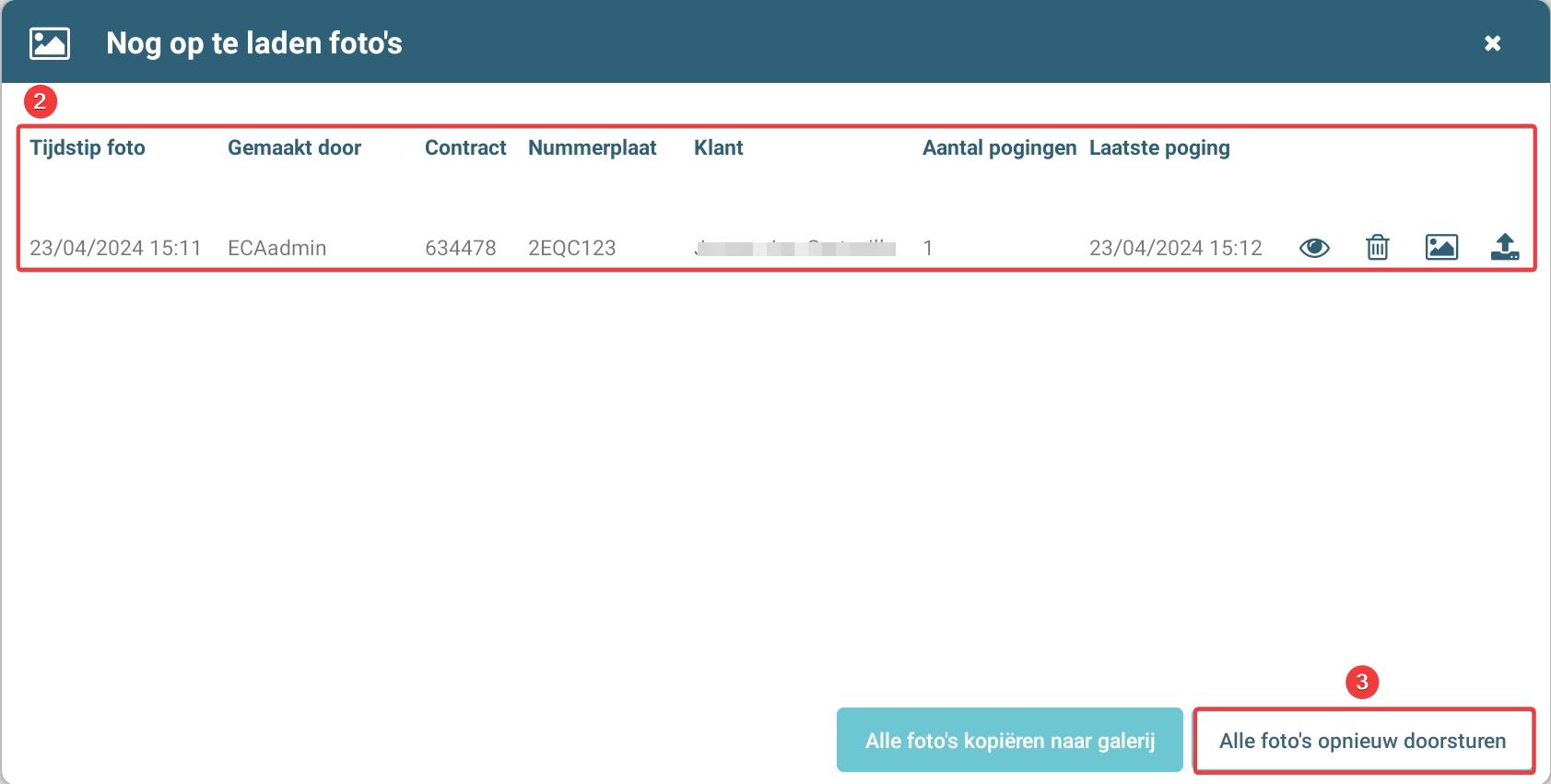
- At the bottom of the list of photographs, you will find the option to send all photographs simultaneously (in bulk) to ProPlanner. If you prefer a more efficient method than sending photographs individually, you can choose this option to send all photographs at once to ProPlanner.
Pay attention to the upload icon, which indicates with a red number how many photographs are still in the queue to be sent. In an ideal situation, no number is displayed, meaning that all photographs have been successfully sent to ProPlanner.
Please pay attention to photographs that concern damage. Check the damage document to ensure that all relevant photographs have been correctly sent to the customer. Should any photographs be missing, we recommend that, after uploading the missing photographs, you manually resend the damage document to the customer.