There are situations in which a resource can be checked in, but it is not possible to complete the check-in at that time. Some examples:
- The contract runs until a certain date and the car had to be picked up from the customer afterwards. However, the customer informs before the end of the contract that the car can already be picked up. At that moment, a complete check-in is not yet possible, but it can be useful to indicate in ProPlanner that it is ready for check-in.
- During a busy moment, a large number of customers return the resource they are using at the same time. If there is only one employee available to perform the check-ins at that time, this quickly leads to a significant waiting time for these customers, as a single check-in takes a few minutes. Here too, it would be useful to quickly mark the returned vehicles as ready for check-in, after which the actual check-in can be performed at a quieter time.
To tackle these situations, you can designate a resource as "Ready for check-in" in ProPlanner.
If you wish to use the functionalities described below, please contact us via support@proplanner.eu.
There are several ways to designate a resource as "Ready for check-in":
Through the planning
When a resource is driving (i.e. When checked out, you can right-click on the relevant contract in the planning screen to select the option "Ready for check-in":
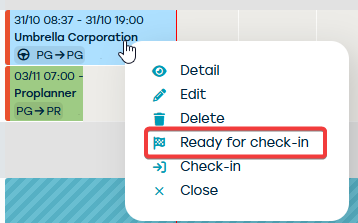
After confirming this action, the relevant contract will be marked as "Ready for check-in". What this exactly means will be discussed later in this article.
If the "Pick-up and delivery" module has been enabled, you will now be able to confirm or adjust the pick-up address.
Via the contract form
When you open the contract form of a checked-out contract, you can on the "Resources" tile, in the "Check-in" sub-tile, tick the checkbox "Ready for check-in":
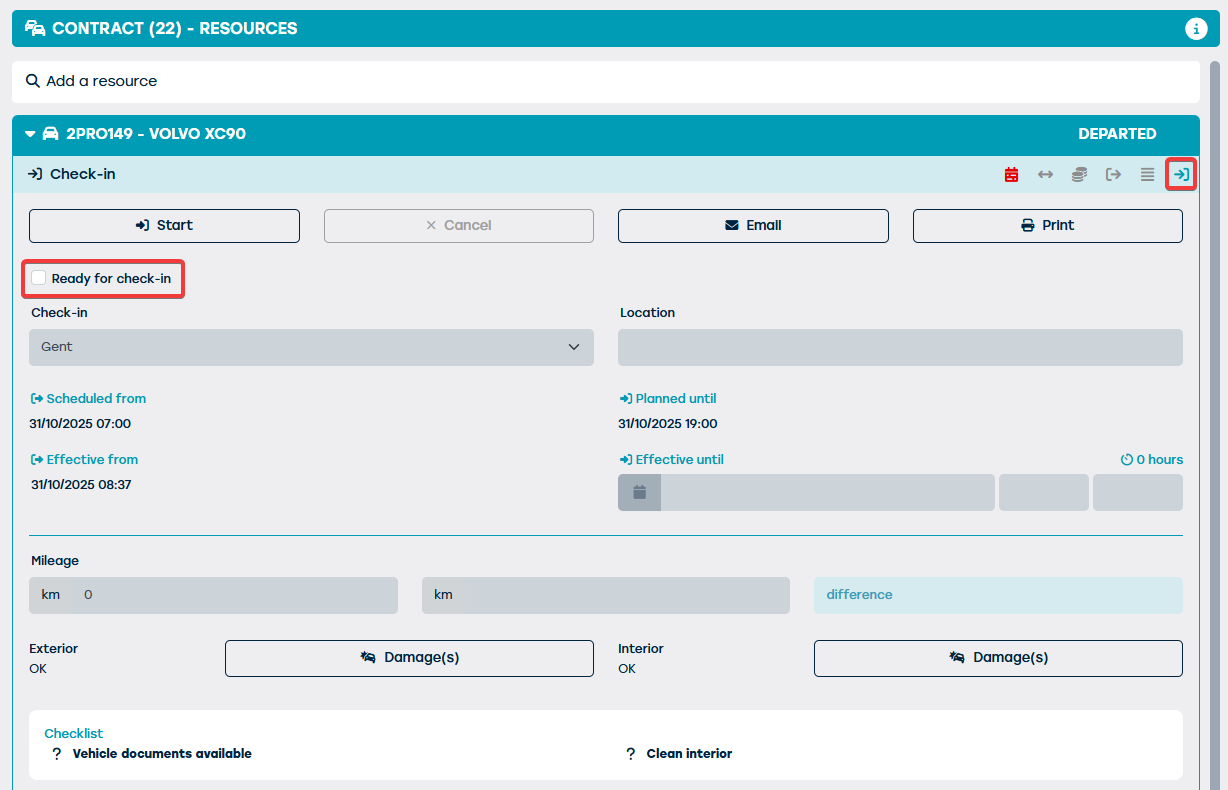
The moment you tick this checkbox, your username will be displayed as well as the time at which the vehicle was marked as "Ready for check-in". Only when saving the contract will it be marked as "Ready for check-in". The exact meaning of this will be discussed later in this article.
Via the tablet
Also via the ProPlanner app on tablet, you can indicate that the resource for a specific contract is ready to be checked in. You do this via the button "Vehicle is ready for check-in" on the start screen of the check-in.
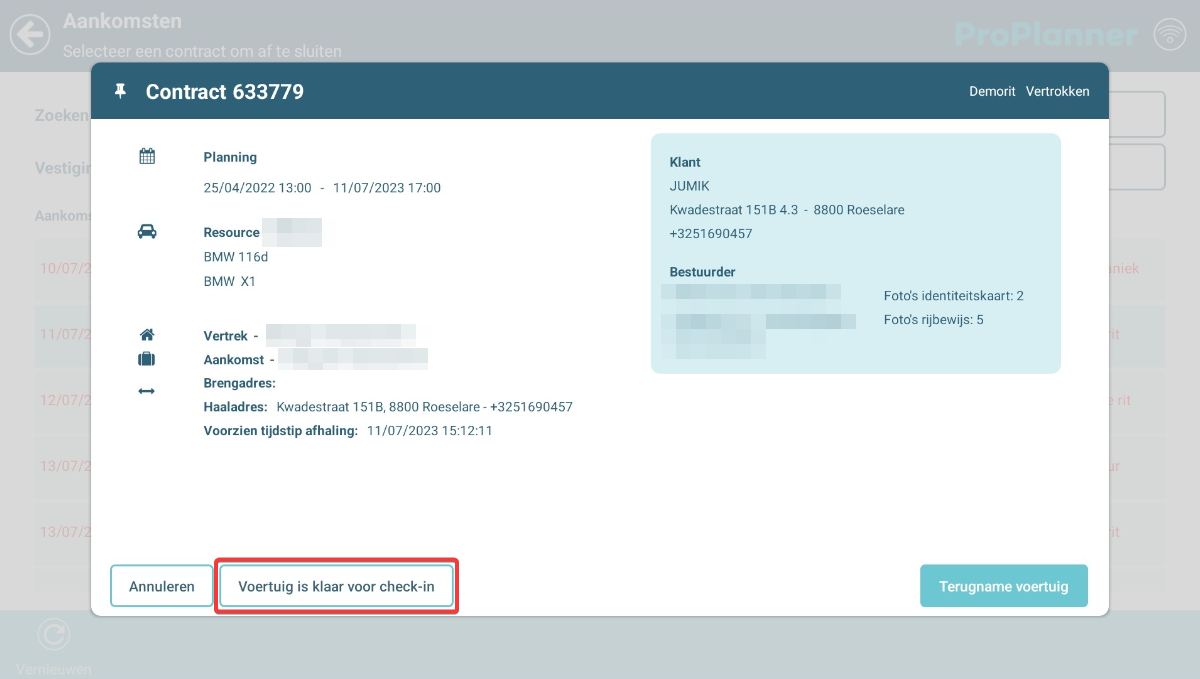
If you click on this, the contract will be marked as "Ready for check-in". The exact meaning of this will be discussed later in this article.
Via ProPlanner Mobile
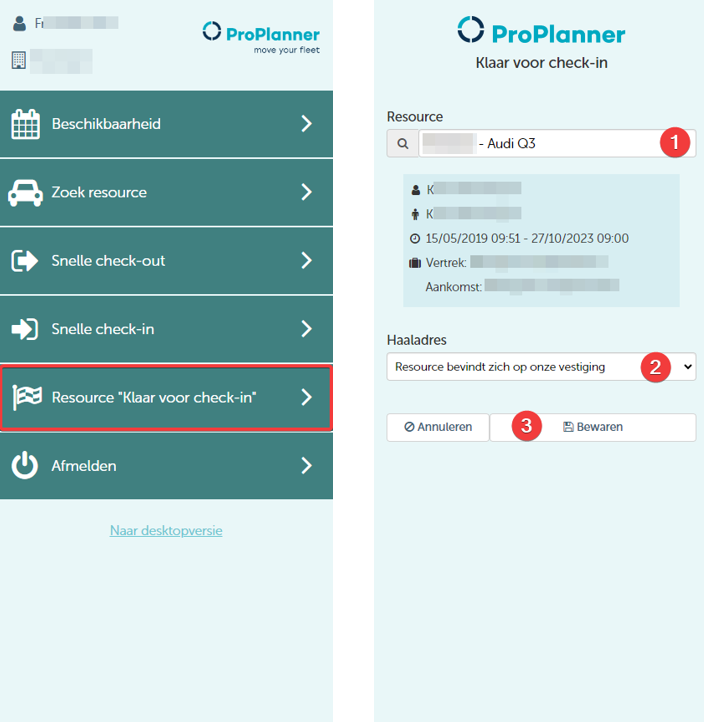
If configured, you can also use ProPlanner Mobile (i.e. the ProPlanner web version for smartphone) to mark a resource as "Ready for check-in". Here as well, after searching for the resource (1) you can adjust the pick-up address (2) if necessary. When you then click the "Save" button (3), the contract will be marked as "Ready for check-in". The exact meaning of this will be discussed later in this article.
What does it mean when a contract is marked as "Ready for check-in"
Within ProPlanner, there are several ways to see that a particular contract has been marked as "Ready for check-in":
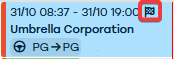
- In the planning there will be an extra icon shown on a contract indicating that the contract has been marked as "Ready for check-in":
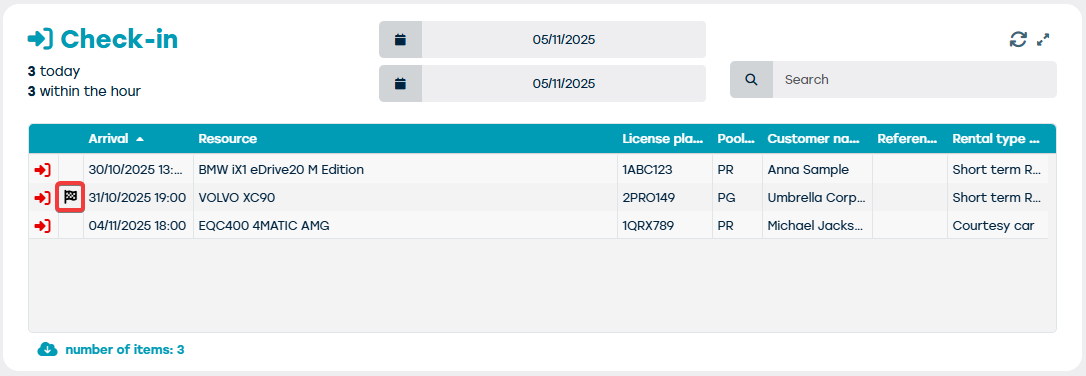
- On the home screen that same icon will be shown in the check-in tile for contracts that have already been marked as "Ready for check-in":
- Also on the "Pick-up and delivery" report (if the module has been activated), this icon will be shown:

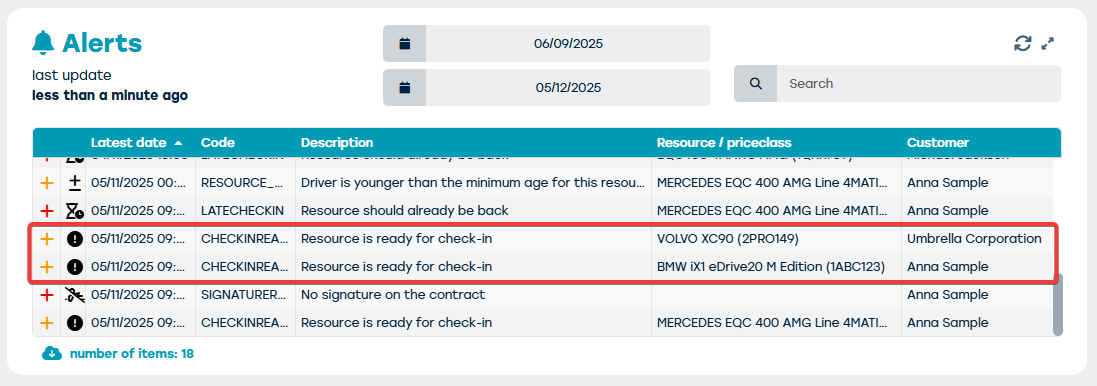
- For each contract that has been marked as "Ready for check-in", an alert will be created on the home screen. This alert will be automatically completed when the respective resource is checked in.