To answer this question, please refer to the "Transfers" report found under Reports > Fleet > Transfers.
You will only be able to consult the report if you have the appropriate right. If you don't see the report, contact your manager and request the necessary rights.
The required right is called "Transfers" and can be found in the "Reporting" group under roles at the general level and at the company group level (see Management > Roles > General roles / Company group roles).
When you call up the report, the following screen will open:
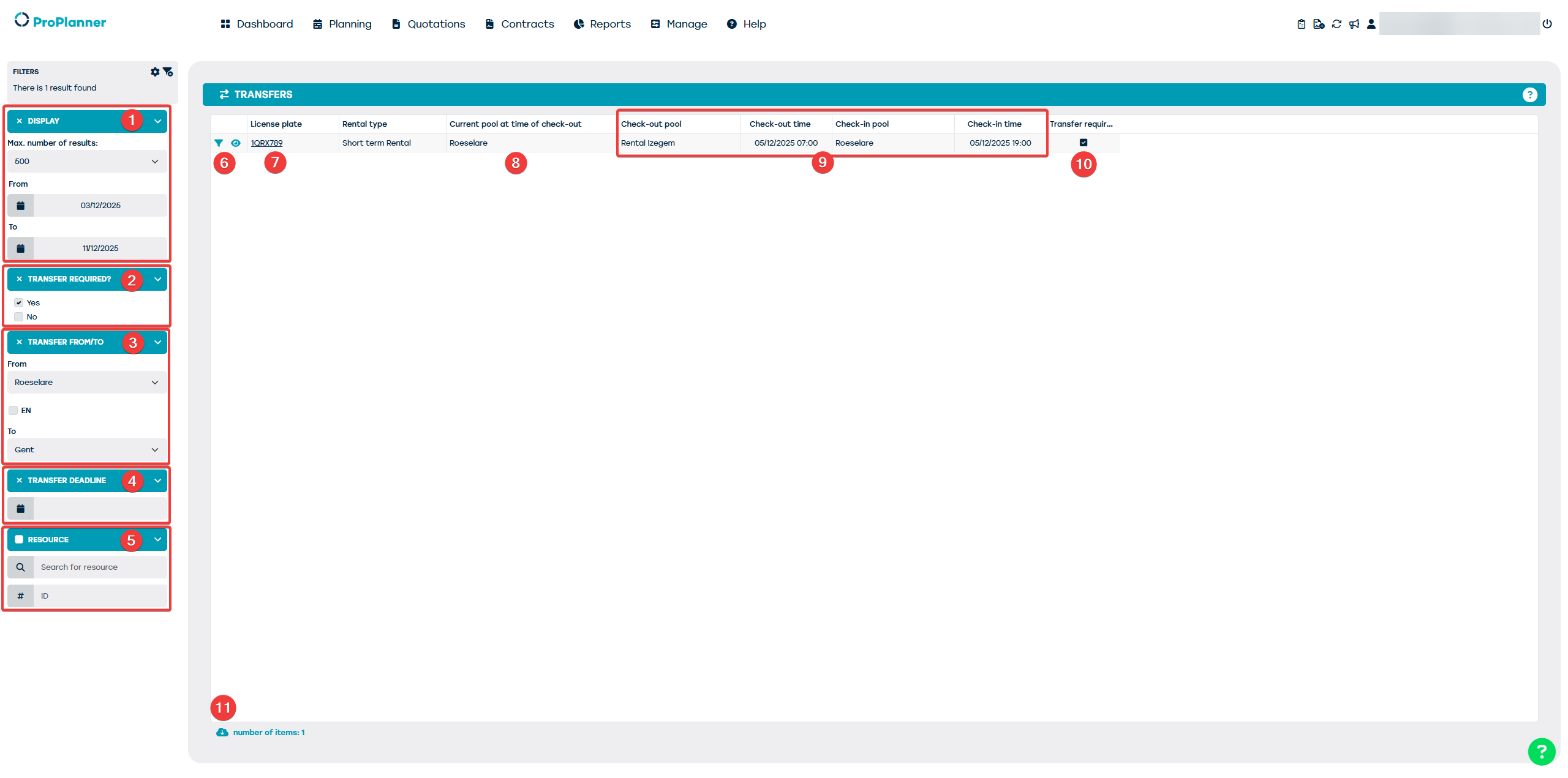
The filter bar on this screen offers you the following options:
- You can choose the period for which you want to see the necessary transfers (1). By default, this filter is set to the next 7 days. This means that the report by default shows transfers with a deadline within the next 7 days.
The deadline for a transfer is the date on which the contract for which the transfer is required will start (i.e. check-out date).- In the filter "Transfer required?" (2), you determine whether you only want to see the necessary transfers and/or the contracts that do not require a transfer. By default, this will be set so that you only see the list of necessary transfers.
- "Transfer from / to" (3) allows you to filter transfers from a specific business unit and/or to a specific business unit. By default, this filter is empty and you will see all necessary transfers.
The "AND" checkbox in this filter determines the desired behavior of this filter:
- If the checkbox is checked you will only see the transfers from the specified business unit to the specified business unit
- If the checkbox is unchecked you will see both the transfers from the specified business unit (to any other business unit) as well as the transfers to the specified business unit (from any other business unit)
- With the filter "Transfer deadline" (4) which is left empty by default, you can filter the transfers with a specific deadline. This filter will look at the "Check-out time" column in the report.
- Using the filter "Resource" (5) you can filter the report to only see the necessary transfers for a specific resource. This filter is also left empty by default.
- When you click on the funnel icon (6), the list will be filtered as follows:
- The "Transfer required" filter will be set up so that you see both the contracts that require a transfer and those contracts that do not require a transfer.
- The "Resource" filter will be populated with the ID of the resource on the line for which the funnel icon was clicked.
The result of this action is that you will see all contracts of the selected resource (within the specified period). By showing them chronologically, you have a clear overview of when this resource needs to be transferred and when it is not necessary.
- The field "License plate" (7) is clickable. When you click on this, the corresponding resource sheet will be opened in a separate tab.
- The column "Current pool at check-out" (8) shows you the location where the check-in of the previous contract is scheduled (if the check-in still needs to take place) or the current pool of the resource (if the check-in of the previous contract has already been performed).
- The following fields in the report (9) show you the data of the respective contract
- The last column of the report (10) shows you whether a transfer is required for the respective contract. If the business unit of the current pool at check-out (8) is different from the business unit of the check-out pool of the contract (9), a transfer will be necessary.
- Finally, you can export the report to an Excel file for further analysis (11).