In this video:
In order to manage insurance profiles, we first need to set up the various exemptions that we need. These allow us to 'build' our insurance profiles.
To do this, go to 'Manage', look for the 'Insurance Policies' Tile and click 'Exemptions'.
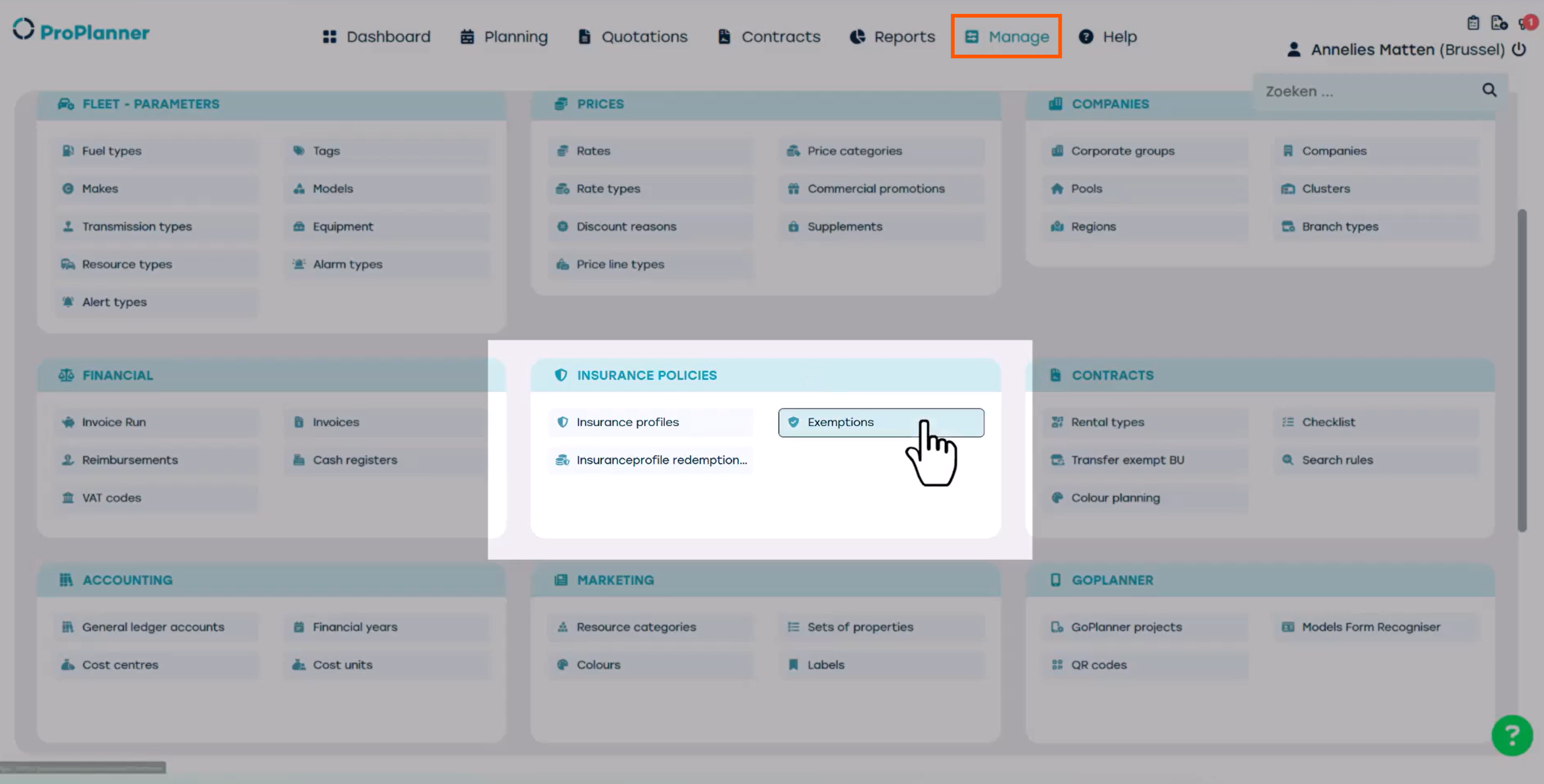
Here, you can see the existing exemptions in your company group.
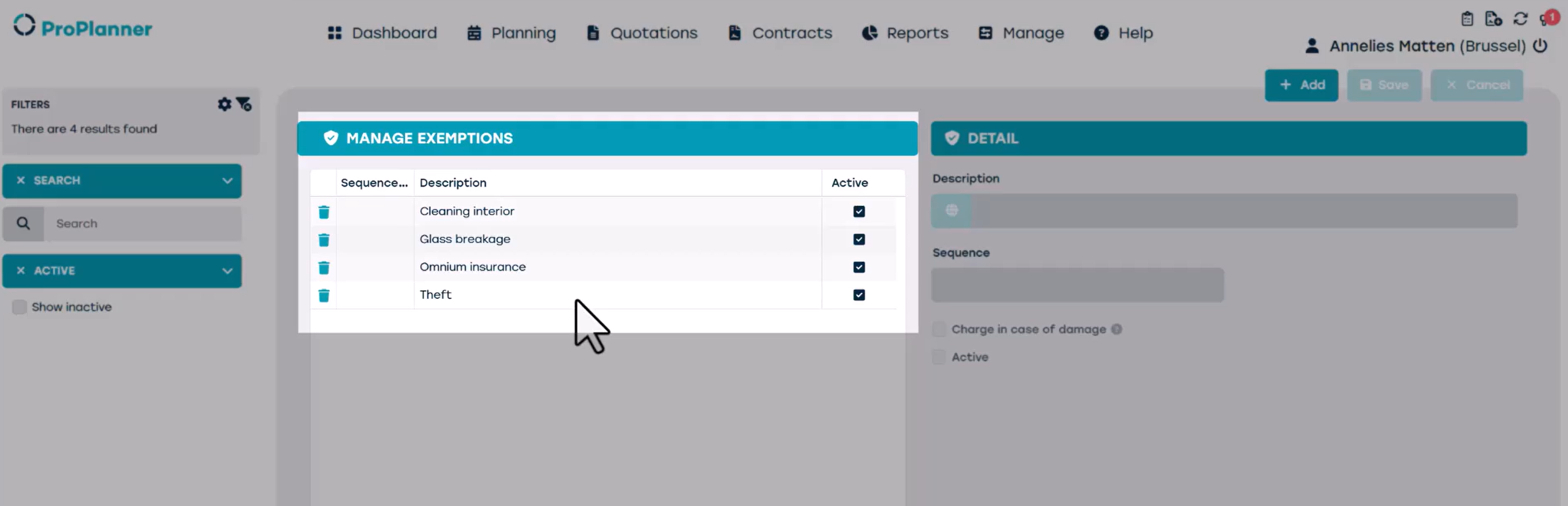
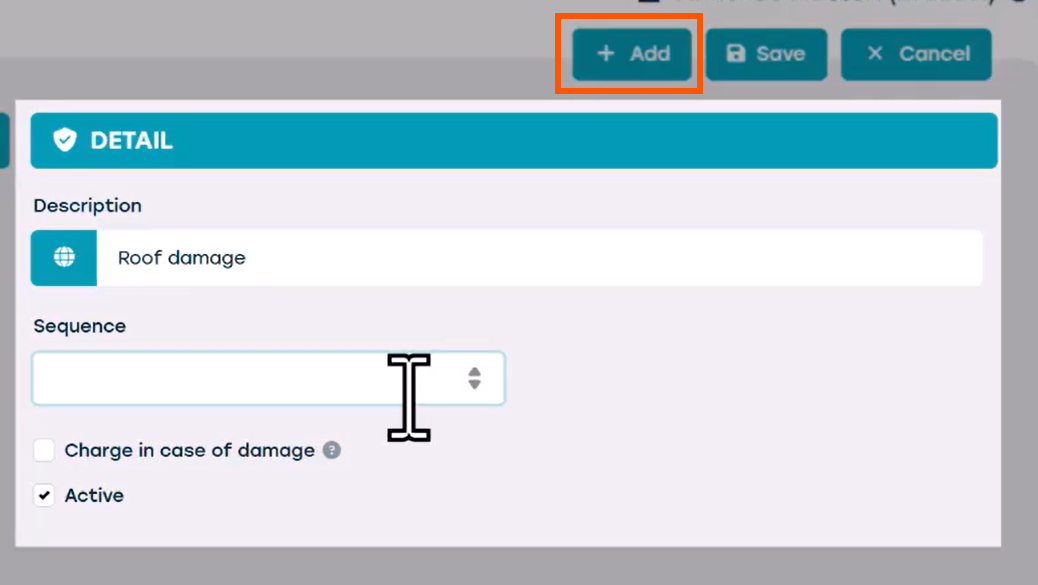
Clicking 'Add' allows you to create a new exemption. In the description field, you can give the exemption a label. Due to the legal impact of these descriptions, you may wish to check them with your legal advisor.
Let's add 'roof damage' to our list. In the 'Sequence' field, you can specify the order of appearance in the list. We click save.
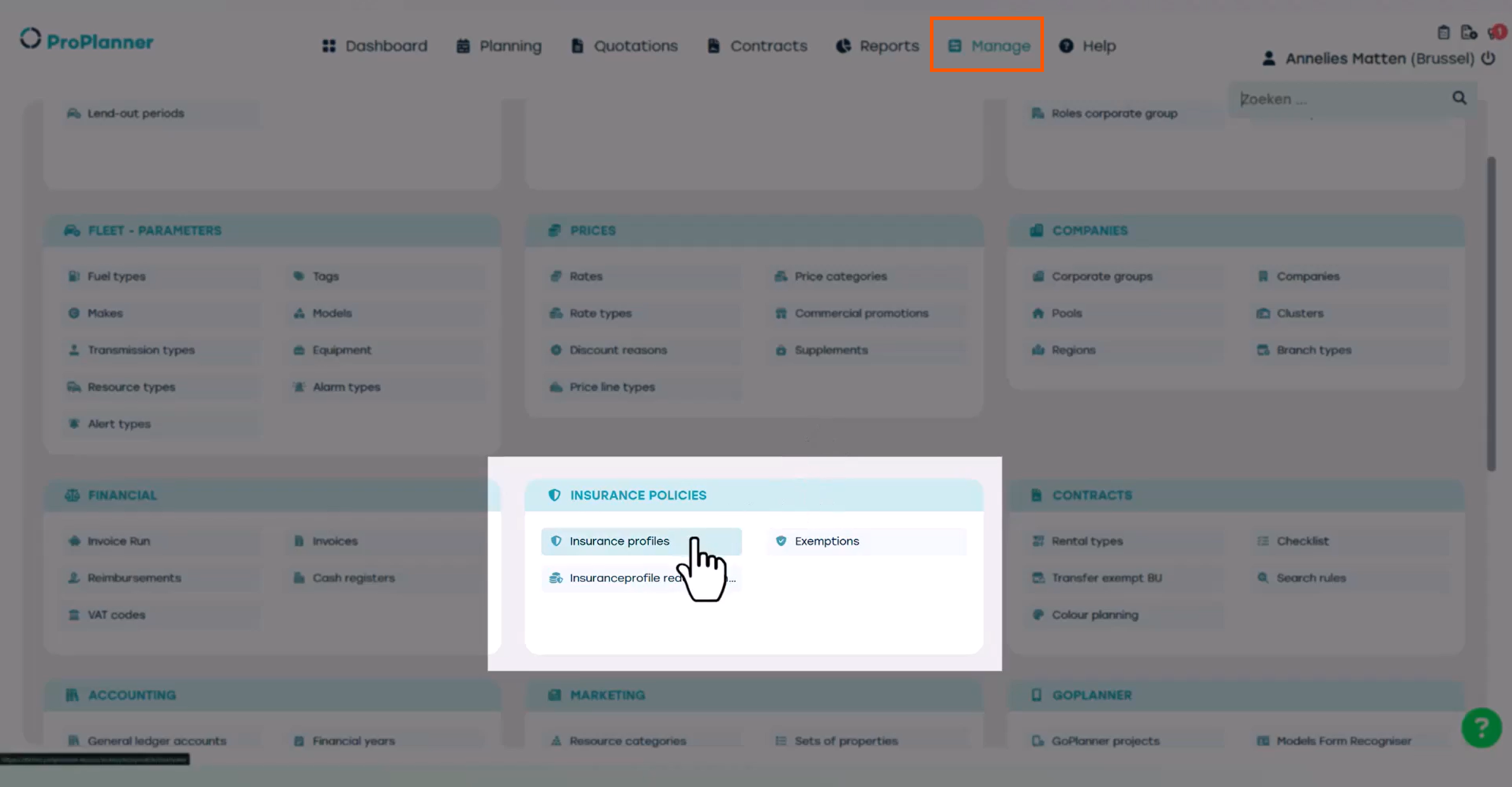
Once you have created all the necessary exemptions, you can create a new insurance profile. Go back to the main 'Manage' menu, go to the Tile 'Insurance Policies' and then click 'Insurance Profiles'.
Click 'Add' to create a new insurance profile, for example for 'Premium Cars'.
First, give the profile a recognisable name for your organisation, such as 'Premium Car'. Then select all the exemptions you want to include.
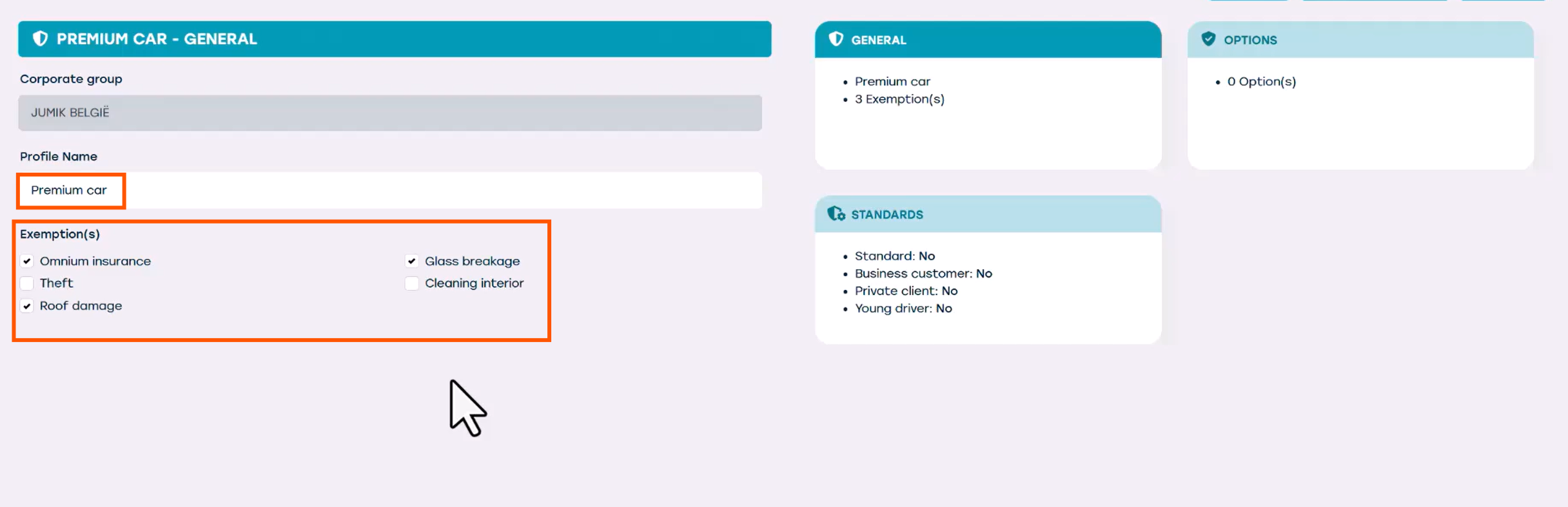
In the 'Options' Tile, you can assign values to each exemption by clicking ‘add option’. We give the option a name, such as 'Standard'.
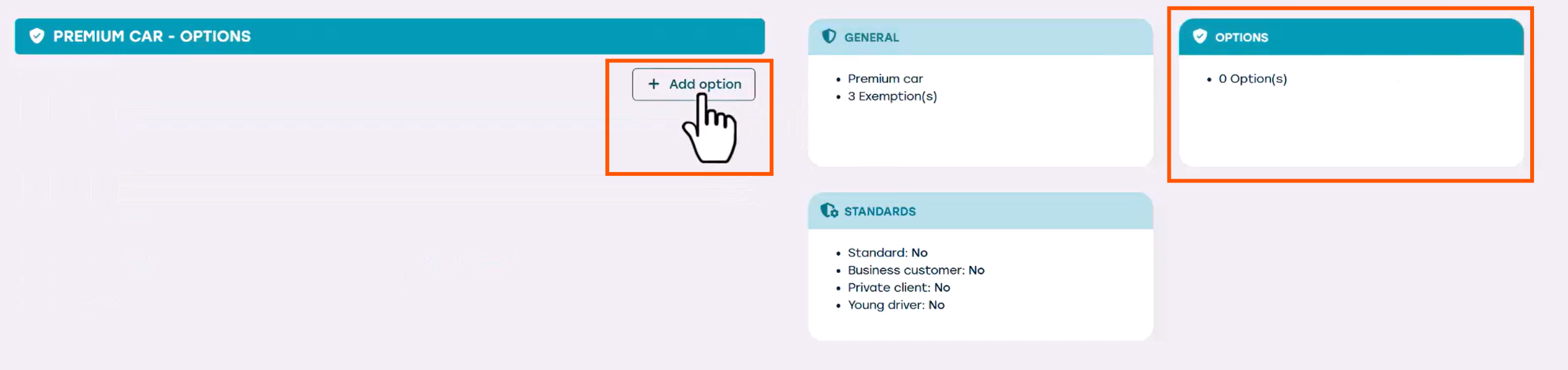
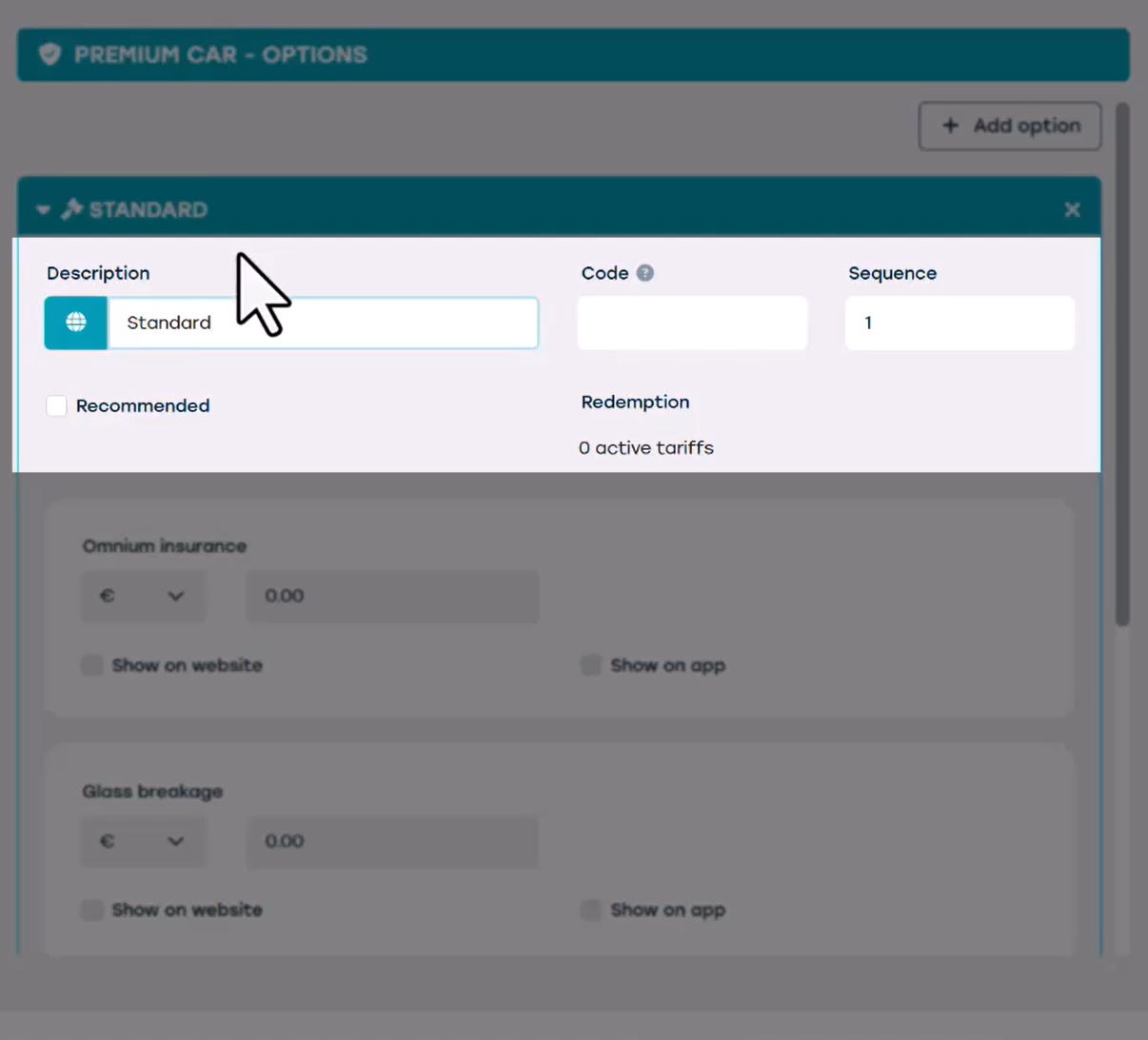
Below we see an overview of the exemptions. We can add an insurance value to each one of them.
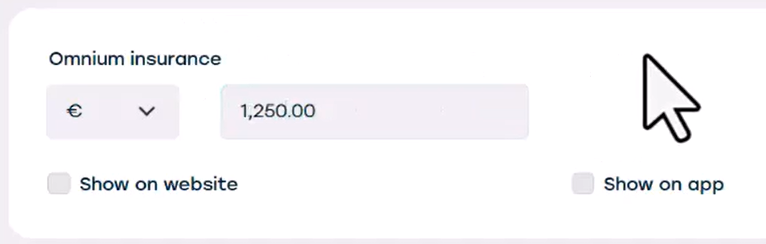
There are two ways of assigning an insurance value. We can either choose a fixed price per exemption — for example, €1,250.
Or we select a Percentage of a certain value, such as 3% of the list price. The exact amount of this exemption will be calculated and visualized on the Contract. Beware! If you select the Percentage option, a list price must be filled in on the Resource sheet. Otherwise, the value of the exemption cannot be calculated. If you're unsure, you can enter a default price to ensure there is always a value on the Contract.
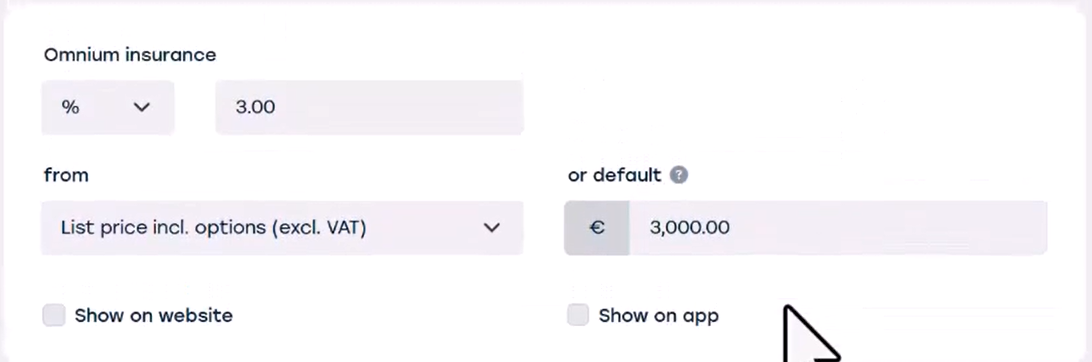
Let's give all our exemptions a value.
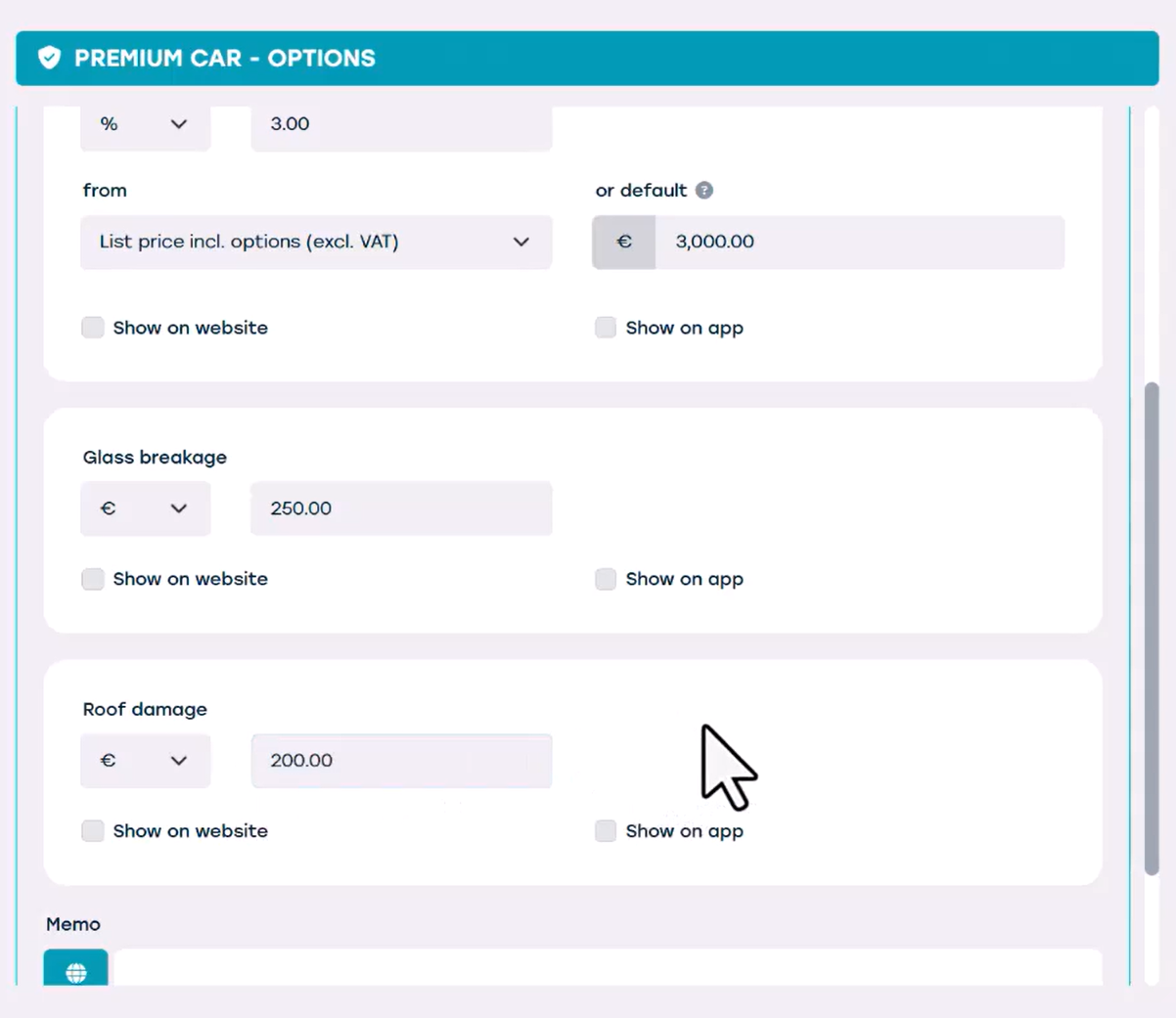
The standard option for premium cars has an omnium insurance fee of 3% of the list price.
It has a glass breakage insurance fee of €250
It has a roof damage insurance fee of €200
We can add a memo if we want to. And then we're done for the standard option.
We can create as many options as we like.
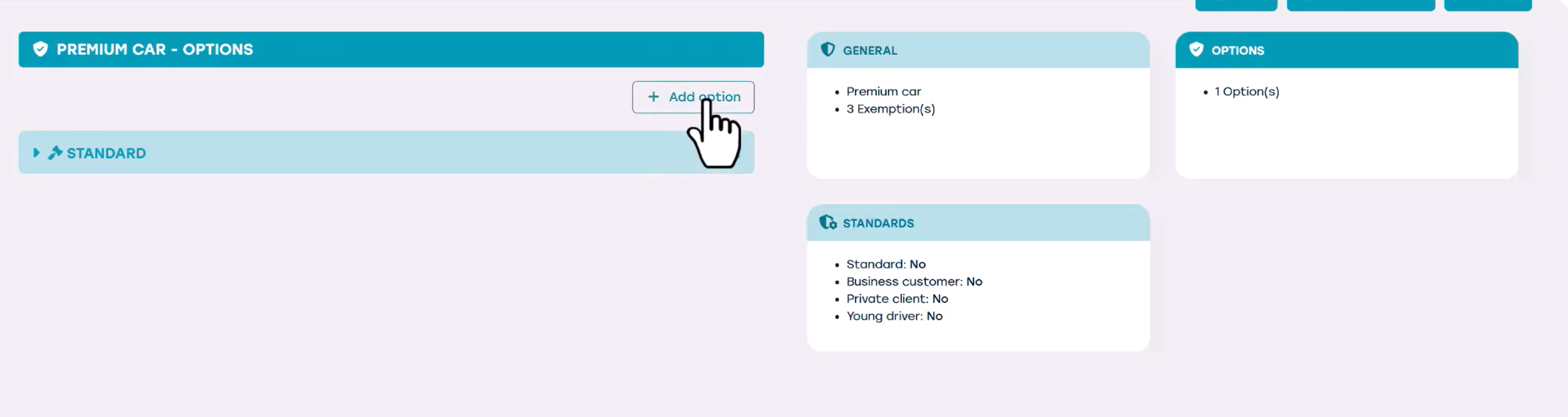
Let's create another option called 'Driver under 21' for when we have another insurance policy for drivers under 21.
We continue to allocate values to exemptions.
For young drivers, the omnium insurance fee is 6% of the list price.
The glass breakage insurance fee is €350.
The roof damage insurance fee is €300.
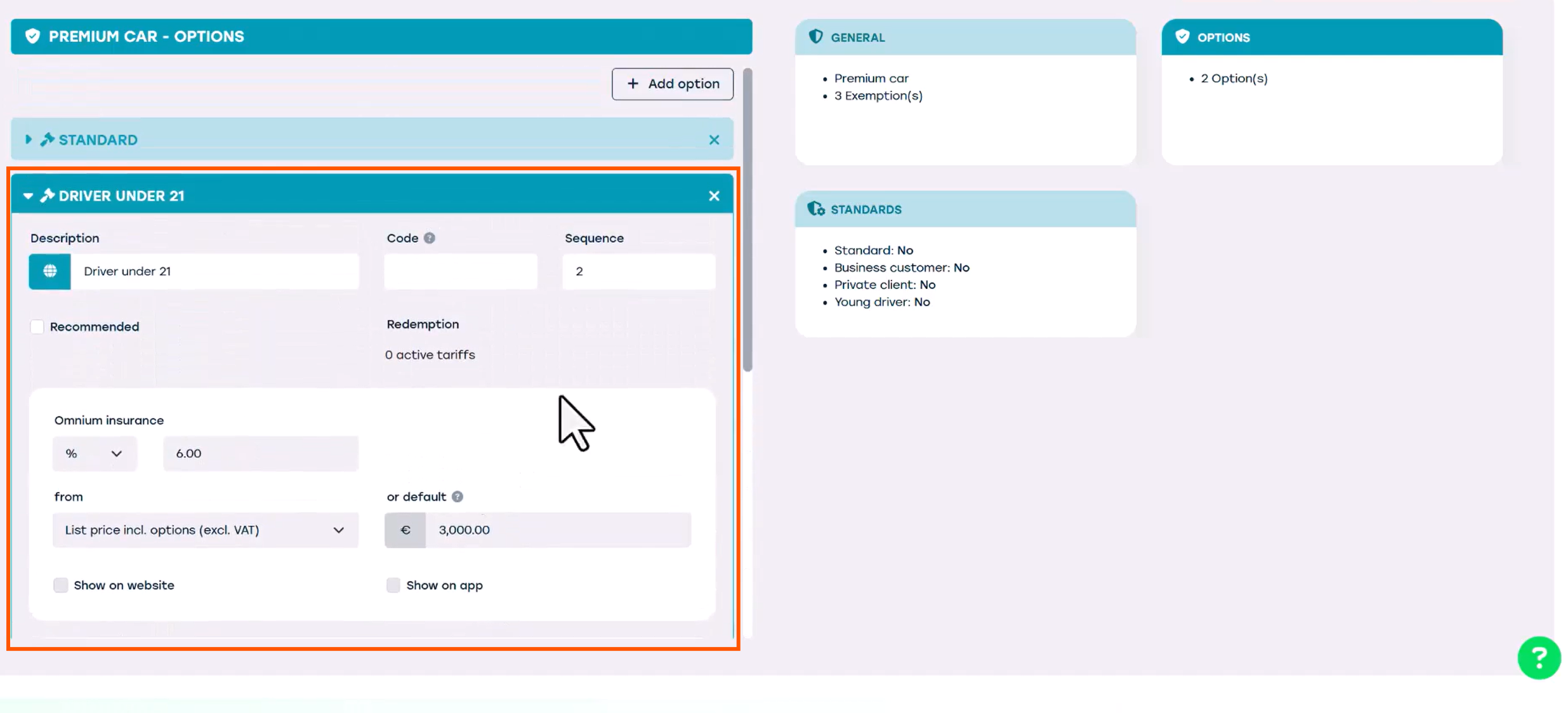
Now we have two insurance options for premium cars: standard insurance, and insurance for drivers under 21. Then we have to save to be able to go to the 'Standards' Tile, and there we can choose in which cases which option will be used.

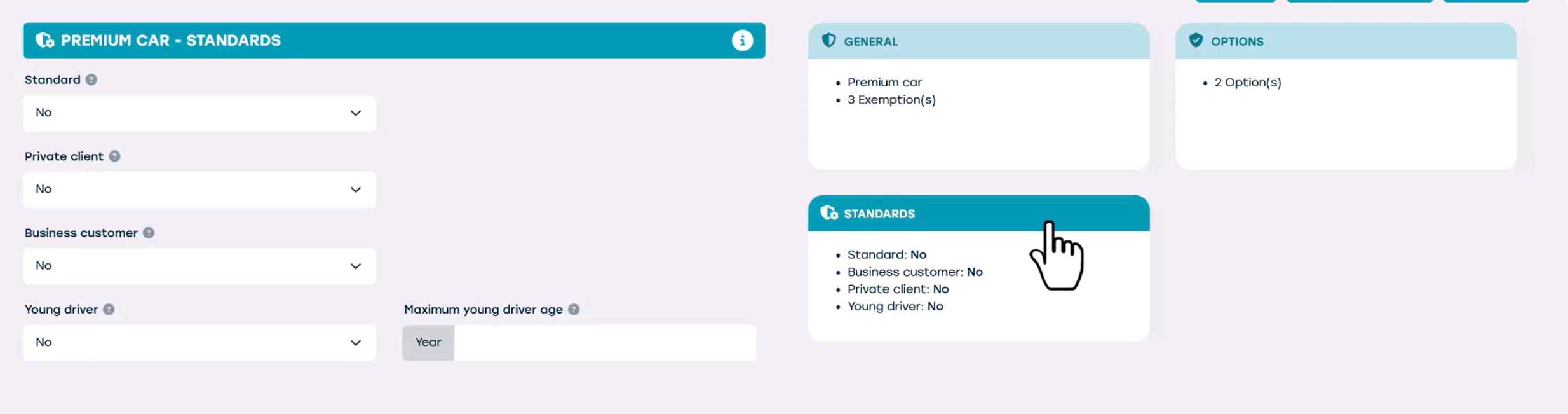
For a standard Contract, we can select the standard option that we created.
If we have different options for business or private customers, we can select those. In this case we select 'Standard'.
For young drivers, we can select our ‘driver under 21’ option and set the maximum age to 21.
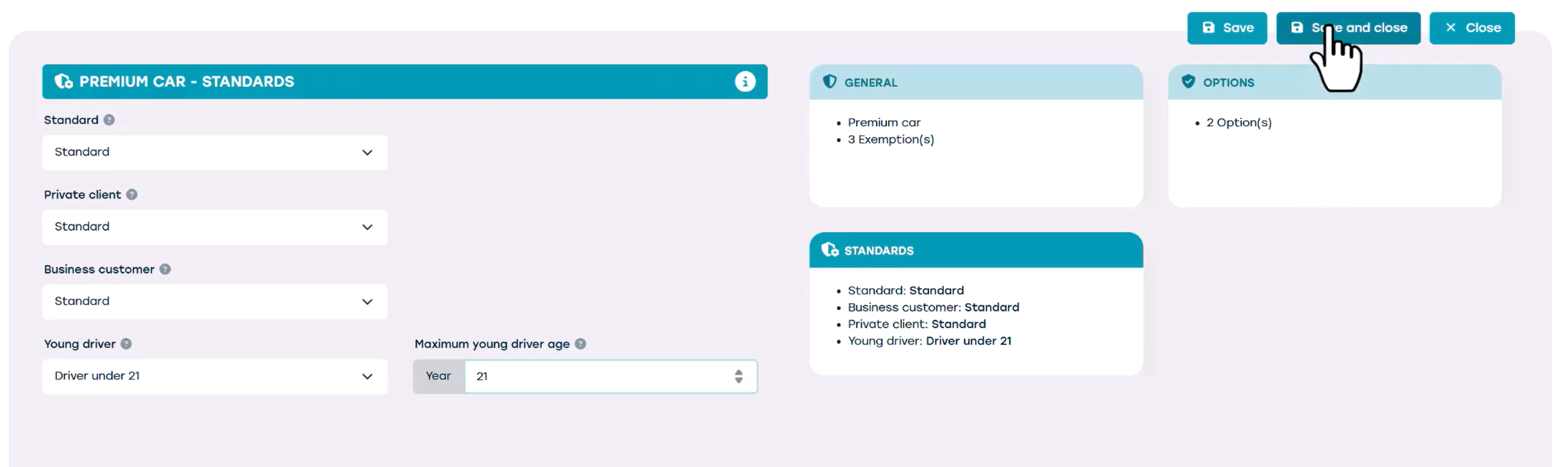
Then we can save and close.
You can link the desired insurance profiles to the Resource sheet when creating a new Resource, ensuring that the vehicle always has the correct insurance for each Contract.