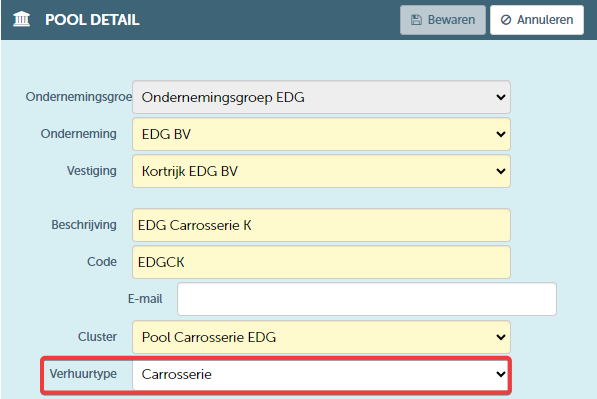
A rental type refers to the category or type of rental transaction or usage for which a resource is employed. This distinction helps manage the availability, planning, and assignment of vehicles for various purposes. Here are a few common rental types you may encounter: starter car, bodywork, test drive, internal trip (staff only, fast check-out possible), mechanics, maintenance/repair, staff car, transfer, rental, short-lease,...
You will be able to filter on a rental type, and when drawing up a contract, it is always possible to select a specific rental type. That’s why it is important to consider carefully what you want to be able to filter on later and for which cases you may want to make an exception. It is possible to use different prices, templates, and the like. If this applies to a certain category, it is best to create an extra rental type.
Creating rental types works as follows:
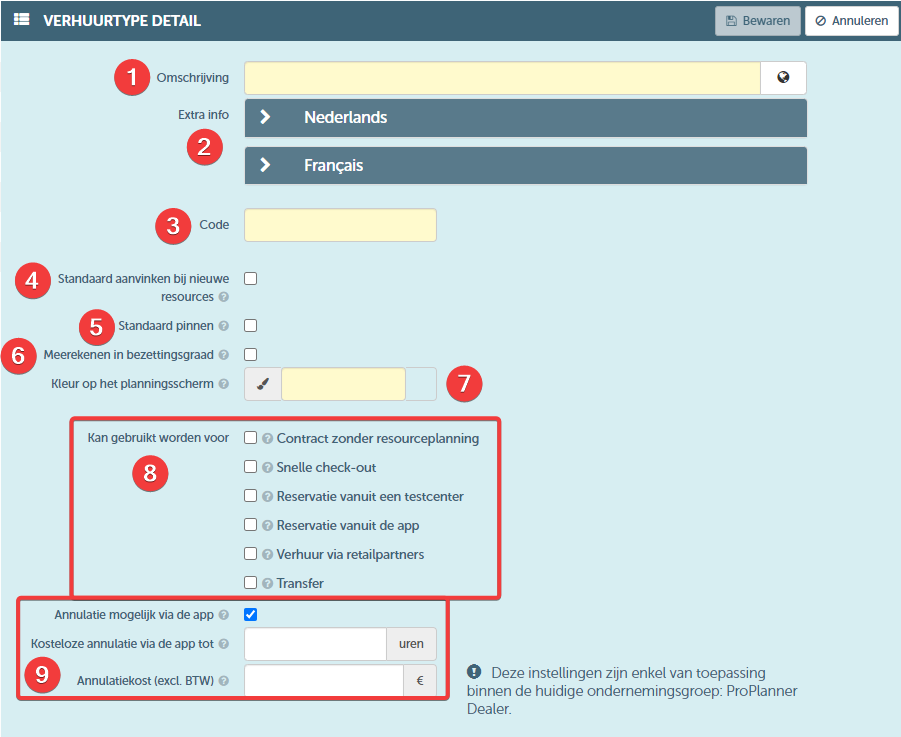
Go to Management < Contracts < Rental types and press '+ add rental type'
| NR | DESCRIPTION | REQUIRED | Remark |
| 1 | Here you can enter the name of the rental type and, if desired, provide the translations via the globe icon | ||
| 2 | Here you can provide additional information in the desired languages. This information is only visible in the app or on the website. | only on website/app | |
| 3 | This is a shortened display of this rental type that, if desired, can be included in the planning. | ||
| 4 | When creating a new resource, this rental type can be automatically selected by using this checkbox. As a result, this rental type will be listed under the 'usage' tile when creating a resource. In the user rights, this type will be selected by default, but you can of course change this at any time. | If desired, you can tick multiple rental types by default for a new resource. | |
| 5 | When you activate this checkbox, a resource of this rental type will be fixed on the planning. This is especially useful for resources that require maintenance or a transfer and therefore must be reserved on a specific day. | You can move the contract horizontally in time, but it is not possible to move it to another resource (vertically). | |
| 6 | With this checkbox you can indicate whether this rental type should be included in the occupancy report, which you can find under the 'Reports' tab | It is recommended not to include rental types such as maintenance in the occupancy calculation, as the resource was not available for customer use during these periods. | |
| 7 | Here you can choose the colour with which a reservation of this rental type will be shown on the planning screen. It is possible that the colour will be overridden by the status of the contract. | status colors contract in function of rental type. Colors in function of? look at color | |
| 8 | Can be used for:
| Option 3 requires the Testcenter module. Options 4 and 5 require the GoPlanner module. Refer to fast check out, transfer, contract without resource | |
| 9 | Cancellation possible via the app | ||
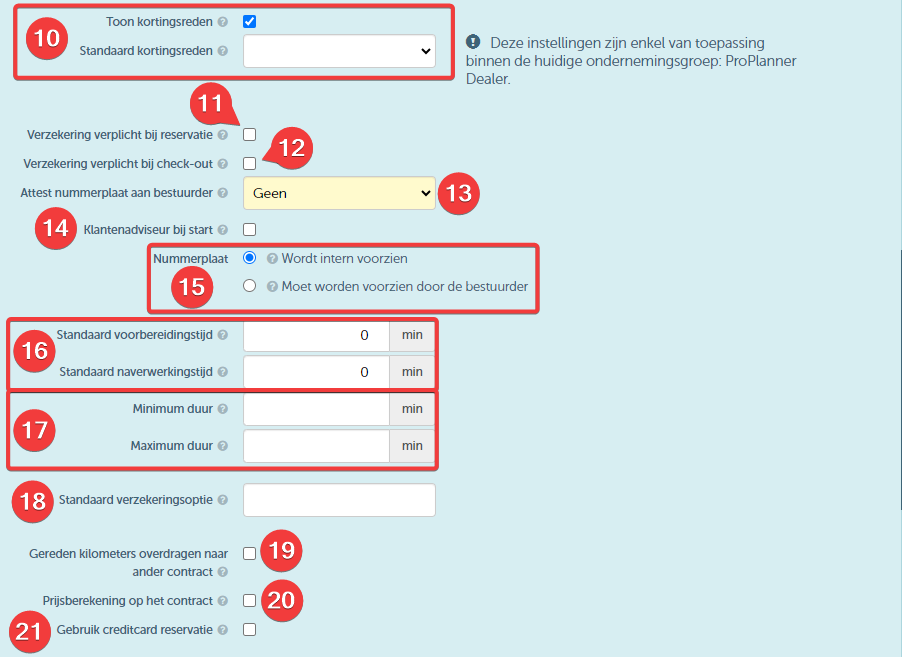
| 10 | If checked, within the company group you are currently logged in to, it will be possible to select a discount reason on the contract using this rental type. For example, if this rental type is specifically used for replacement cars needed for cars under warranty, where no payment is expected for this replacement car, the discount reason 'warranty' can be selected. | For this, the 'discount reasons' module must be activated. | |
| 11 | If this is checked, it is required to select insurance when booking the reservation for the resource under this rental type. | refer to insurance | |
| 12 | If this is checked, it is required to select insurance at the check-out of the resource under this rental type. | The GoPlanner module does not take this into account | |
| 13 | If you want an attestation for the Z-plate to be present with the driver, you can specify here which attestation will be sent if a Z-plate applies. | ||
| 14 | If this is checked, a customer advisor will automatically be scheduled at the start of the planned trip for this rental type. The customer advisor is reserved to inform the customer about the car to be used. | For this, the customer advisory availability module is required | |
| 15 | License plate | If designated AND if a Z plate must be added to the resource, the Z plate must be added to the contract. | module testcenter? |
| 16 | If filled in, this time will automatically be reserved when making a booking with this rental type.
| The pre- and post-processing time can also be set directly on the resource. It is important to note that the longest pre- and post-processing time always takes precedence, regardless of whether it is set on the rental type or on the resource itself. | |
| 17 | If required, you can specify a minimum and maximum duration that a reservation with this rental type must have. | ||
| 18 | Standard insurance option | refer to insurance and provide the explanation there | |
| 19 | If this is checked, it is possible to specify a main contract for a contract with this rental type, where the kilometres driven within that contract can be transferred to the main contract. | You can find more information in this article | |
| 20 | If this is checked, price lines will be calculated on the contract with this rental type | for example, for the rental type 'test drive', it is not desirable to charge this service to the customer | |
| 21 | If ticked, it will be possible to pay the deposit via a reservation on the credit card. | ||
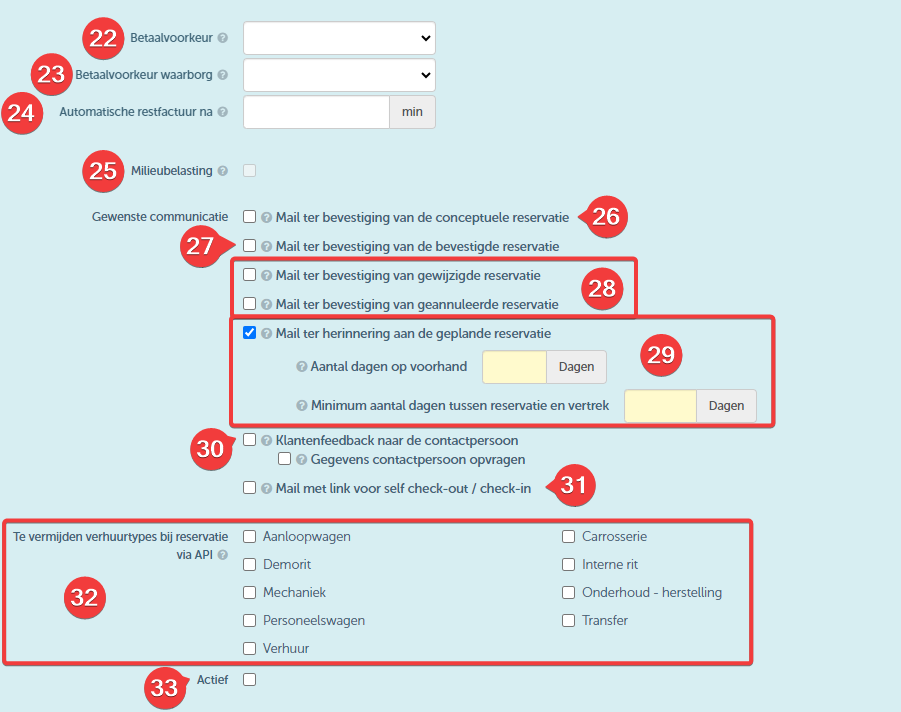
| 22 | Here you can indicate which payment preference you prefer for this rental type. There is a choice between paying at reservation, at check-out, at check-in, or on invoice. You can adjust this payment preference at any time on the contract itself. | You can also set a payment preference for the customer. It is important to know that the payment preference specified on the rental type takes precedence over the payment preference assigned to the customer. | |
| 23 | Just as you can set the payment preference for the contract price, you can also specify the payment preference for the deposit here. Options include paying at reservation, at check-out, or making this rental type exempt from the deposit. | Here too, the preference for deposit payment on the rental type takes precedence over that set for the customer. | |
| 24 | If desired, you can automatically send an invoice with the outstanding balance to the customer. Here you can specify the number of minutes of waiting time after check-in before sending the invoice. If nothing is filled in here, no invoice will be sent | ||
| If this is checked, an environmental tax will be passed on to the customer for this rental type. This is only possible if price calculation on the contract is allowed. | You set the price of the environmental tax on the rate. If the environmental tax is not active for the rental type, the price set on the rate will never be charged. | ||
| 26 | If you use a 'draft' or 'preparation' status, a confirmation email can be sent for the conceptual reservation. This is mainly used in combination with web rental or external software. | If the driver is not known at that time or has not provided an e-mail address, the e-mail will be sent to the e-mail address provided at the reservation. If this e-mail address is also unknown, no e-mail will be sent. | |
| 27 | If checked, the driver (not the customer) will receive an email as soon as the reservation is accepted (or saved) with this rental type in ProPlanner. | If the driver is not known at that time or has not provided an e-mail address, the e-mail will be sent to the e-mail address provided at the reservation. If this e-mail address is also unknown, no e-mail will be sent. | |
| 28 | If this is checked, the driver will receive an email when the reservation with this rental type is modified or cancelled in ProPlanner. | If the driver is not known at that time or has not provided an e-mail address, the e-mail will be sent to the e-mail address provided at the reservation. If this e-mail address is also unknown, no e-mail will be sent. | |
| 29 | If this is checked, a reminder email will be sent when this rental type is used. With a few extra settings, you can specify on which day this e-mail should be sent. The e-mail will always be sent at 6:00 PM.
| ||
| 30 | If you tick the 'customer feedback to contact person' box, the staff member who booked or arranged the reservation for the customer, for this rental type, will receive an e-mail:
If the 'request contact person’s details' box was ticked, the staff member can specify the contact person’s details for the reservation when booking a contract with this rental type. | staff member, user, contact person?? please usecase | The following fields will appear when you tick the 'request contact person’s details' box: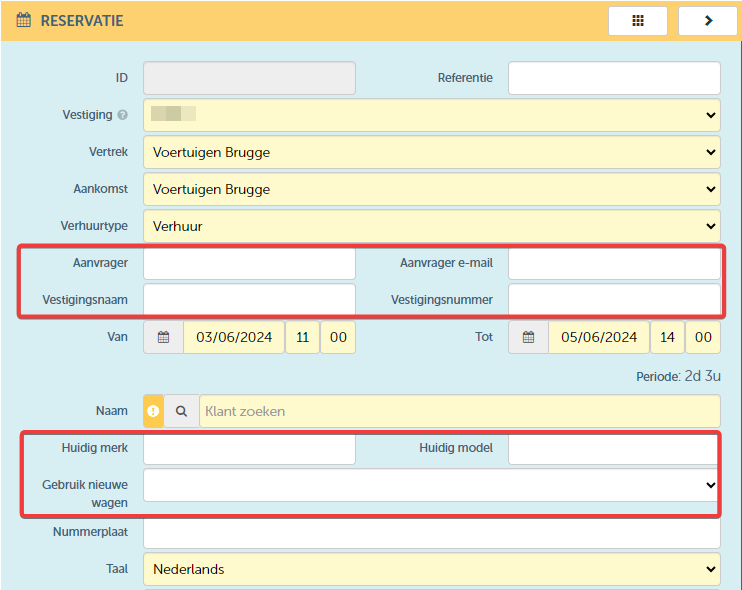 |
| 31 | If ticked, the reservation confirmation email will contain a deep link (and a temporary password if necessary), allowing the customer to independently carry out the check-out and check-in of the vehicle via the app. | This option is only available when using the 'GoPlanner' module | |
| 32 | For a reservation for the relevant rental type via the API, ProPlanner will attempt to select a resource that is not set up for use with the rental types ticked here. These rental types are regarded as options to avoid and are only chosen as a last resort. | This option is only available when using the API integration | |
| 33 | Active |
Contract
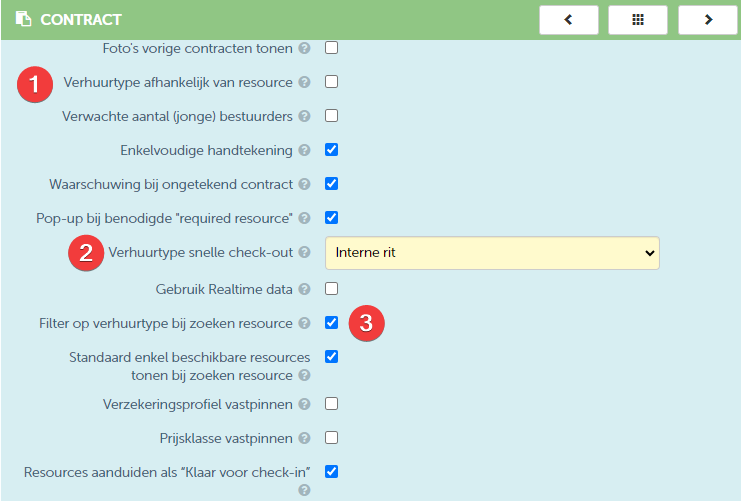
On the resource itself, you can indicate which rental types apply. These settings can always be overridden via the contract. You can also choose to limit the selection to the rental types specified on the resource. You do this by enabling the 'rental type depending on resource' checkbox (1).
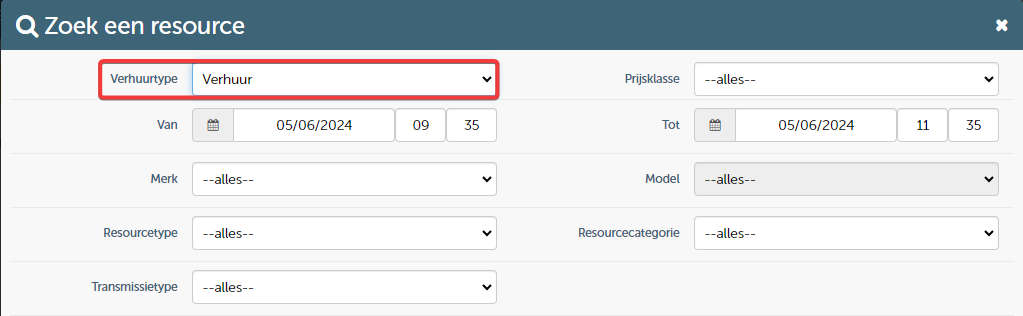
Finally, (3) when adding a resource to a contract, you have the option to limit the search to the rental type already selected on the contract. When searching for a resource, this rental type will automatically be pre-selected. Of course, you can always change this.
In the pool, you can specify what the standard rental type is for this pool. This can, of course, still be changed on the contract.