From now on, you can assign an icon to each energy type. For example, you can choose a battery icon for an electric car, which will be displayed by default on the resource in the planning.Full English video:
Dutch manual:
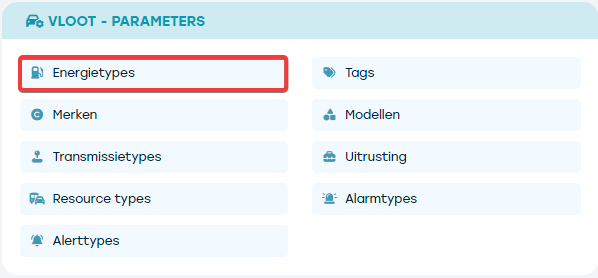
To do this, go to Management > Fleet-parameters > Fuel types
Next, you can assign an icon set to each energy type.
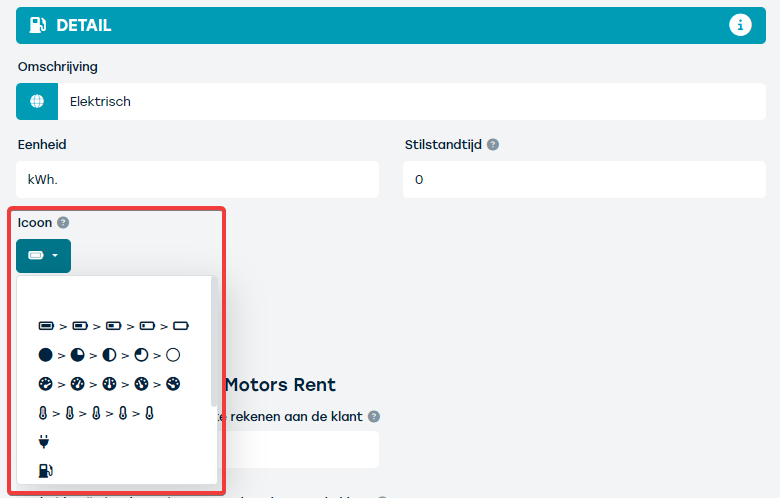
What is extra convenient is that these icons are interactive: the battery level automatically adjusts based on the most up-to-date data from the car.
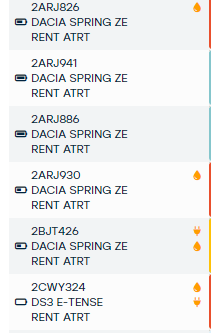
This way, when you filter for electric cars, you get an instant overview of the charge level of all vehicles.
Additionally, you can set alerts for each energy type, where you can define a minimum level. You receive a warning when the energy level drops below this set value. For example, you can receive an alert if the energy level of a car drops below 40%. 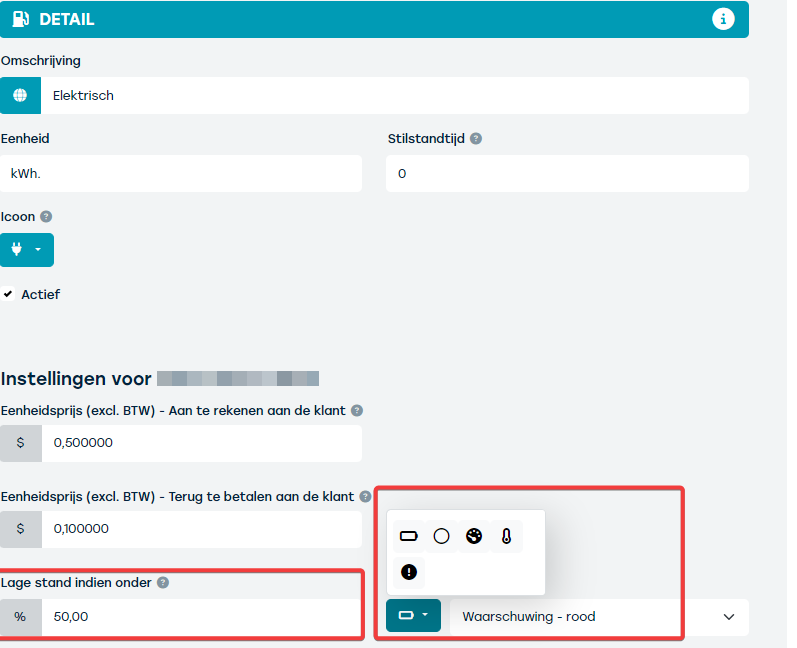
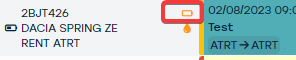
These alerts are also displayed on the dashboard under the tile ‘Alerts’. 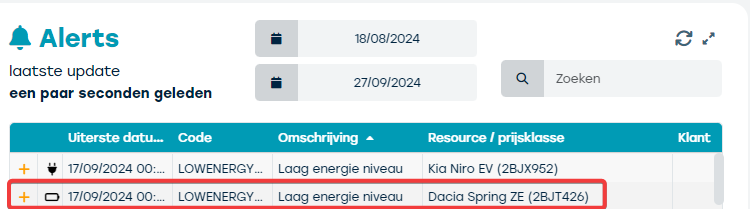
Note
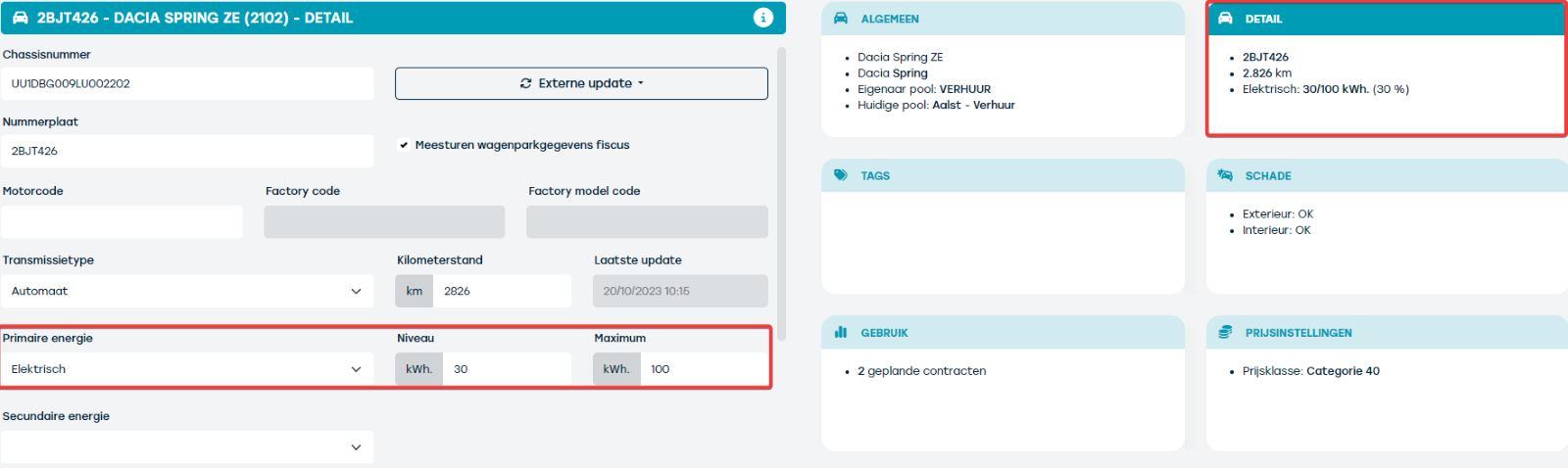
- that these alerts are tailored based on the values available on the resource.
You can find these on the tile ‘Detail’ of the selected resource.
Here, the current level and the maximum level are displayed.
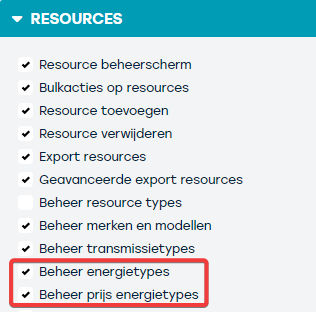
- To be able to make these changes, your user must have the permission ‘manage fuel types’