Sometimes certain demo or replacement cars are also used by personnel. In that case, it is convenient for the staff member to be notified when a trip is booked on the car.
Where previously you could assign one standard driver to a specific car, you can now add multiple. If a standard driver is assigned to a particular car, they will receive a confirmation email when a contract is created for the car.
How does this work?
When selecting a specific resource (Management > Fleet > Resources), you can use the tile Usage to start adding multiple standard drivers.
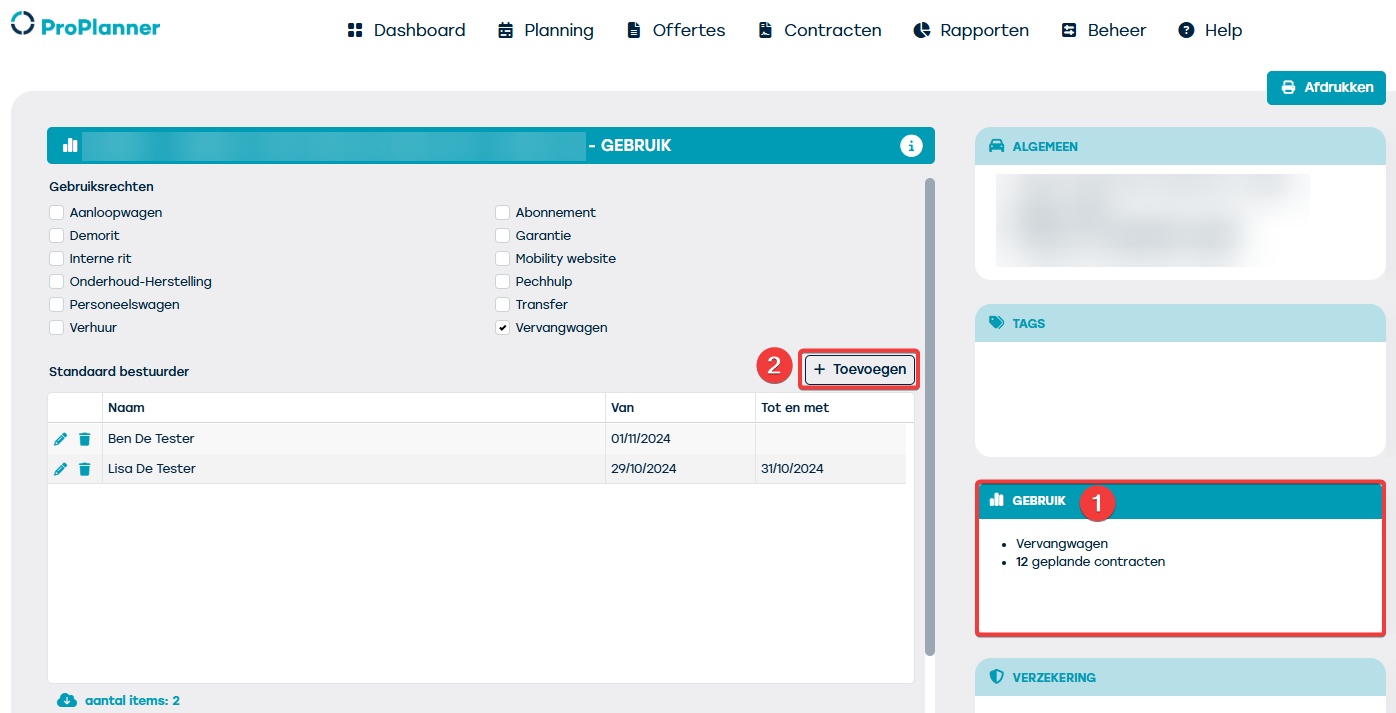
Once you have clicked the '+ add' button, you will have the option to set a standard driver for a specific usage period.
Note: 'name' and 'from' are required fields here.
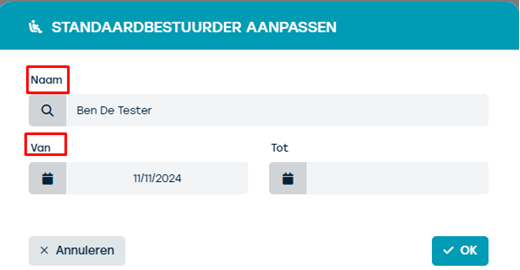
If you only enter the 'from' date, the entered standard driver drives from this date for an indefinite period. If you also enter the 'until' date, then you set a defined period.
If you enter a date that has already been selected for another driver, you will see the following error message:
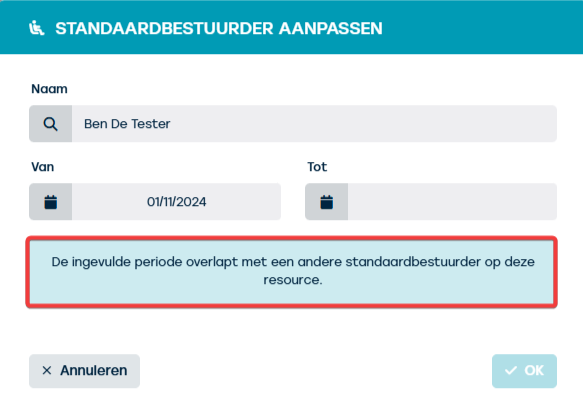
You will then be required to enter a different date to register this standard driver.
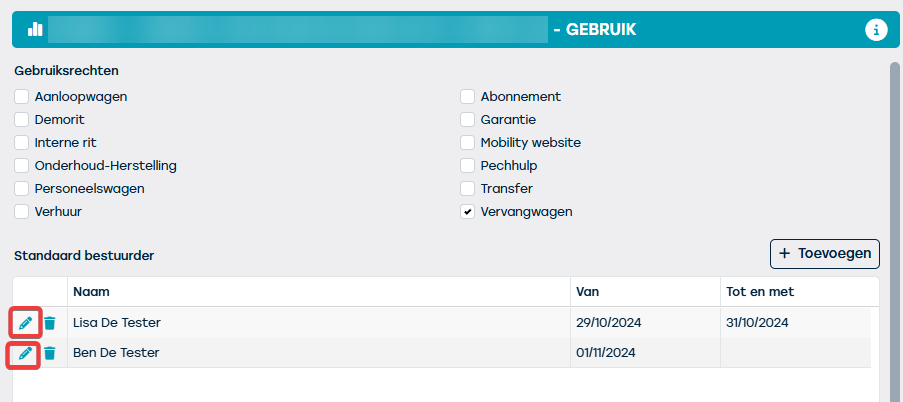
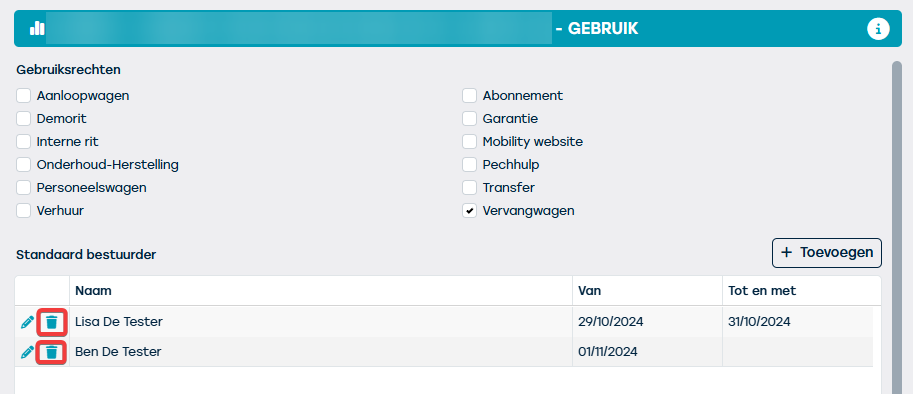
If you want to edit the standard driver, you can do this by clicking the pencil next to the name of the primary driver:
In the following screen that appears, you will notice that it is not possible to change the primary driver. You can only adjust the dates:
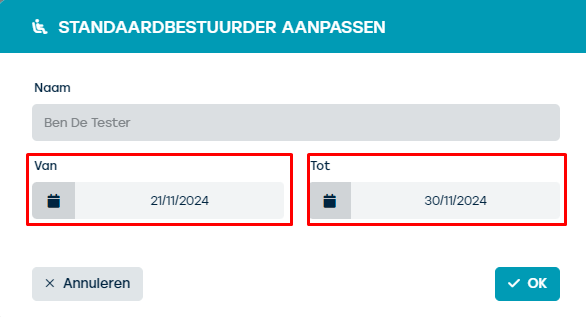
If you want to change the primary driver name, you must first remove it using the 'trash can icon' and then re-create it via the '+ add' button.
Did you know: the ProPlanner Fine Management module takes this functionality into account to determine who drove which vehicle and when.