ProPlanner offers extensive capabilities for managing damages, with specific permissions that determine who can perform which actions. Depending on your permissions, you can delete damages with or without reason, at the individual level and/or in bulk. Thanks to the permissions, you can efficiently manage damages on a contract or resource sheet.
General permissions on resource - detail screen level are the following:
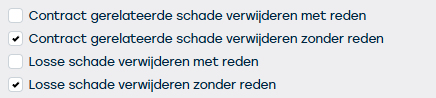
General permissions at the resource level are as follows:

Delete contract related damages:
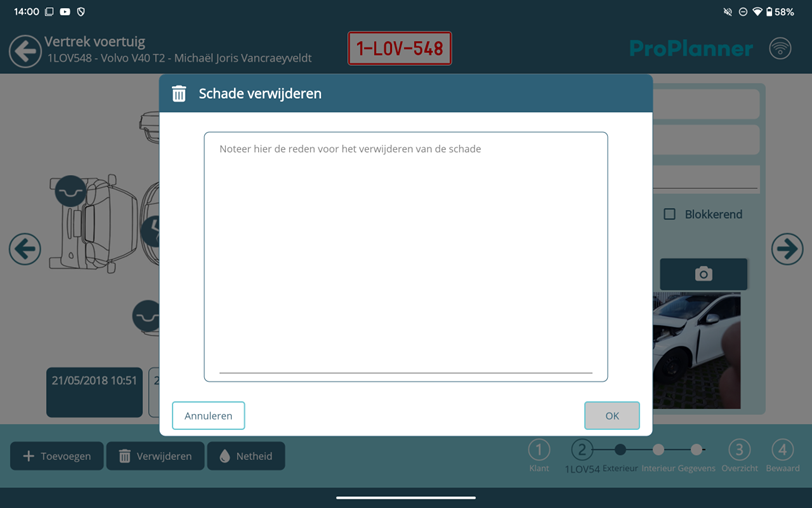
When you open a contract during check-in/check-out and click on an existing damage, the 'delete' button becomes visible. If the permissions with and without reason to delete contract related damages are active, you will by default be asked to enter a reason.
Note: it is not possible to delete damages on an open contract. Contract related damages can be deleted via both the tablet and the web.
Deleting contract related damages via the web:
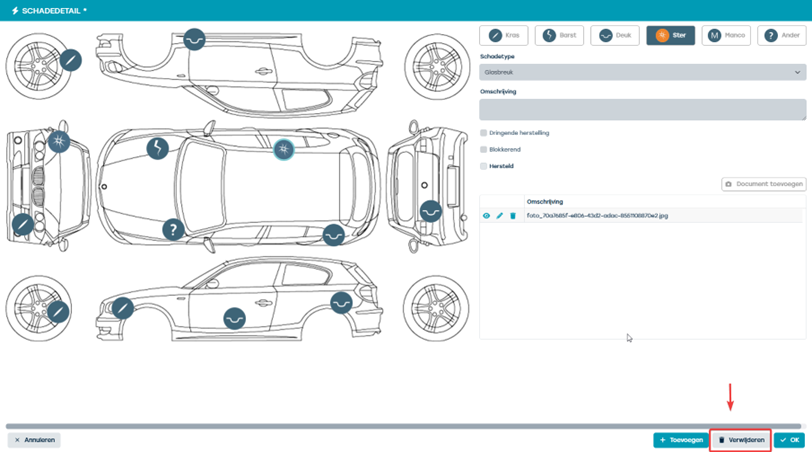
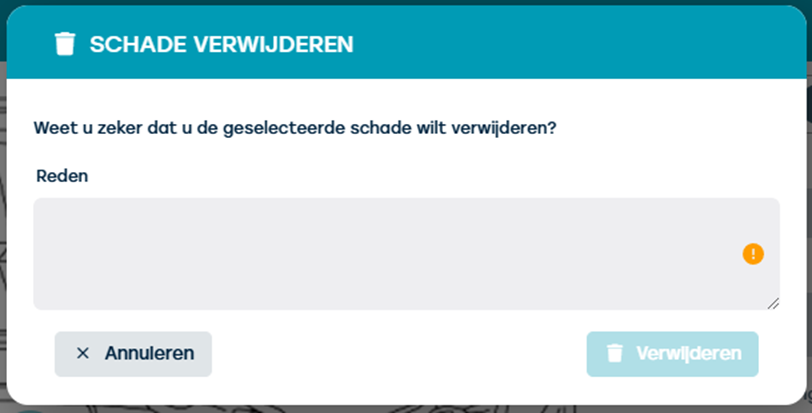
Once you have entered a reason, you can actually delete the damage by clicking the 'delete' button. The reason entered is stored in the memo field, preceded by the text 'damage removed'; for full documentation of the action.
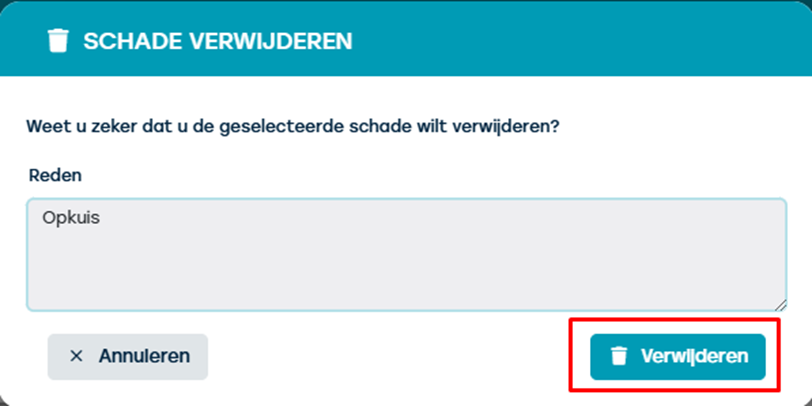
Memo:

Remove contract related damages on the tablet:
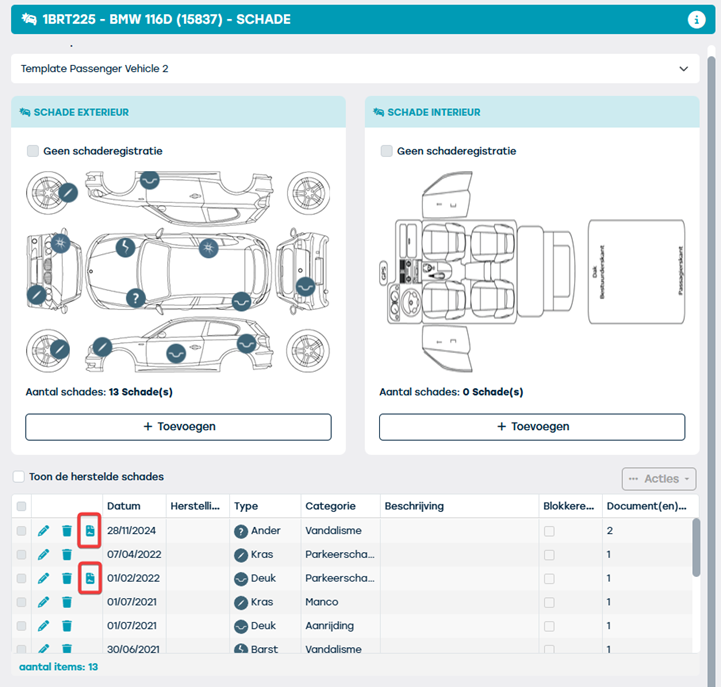
Delete and restore damages on the resource sheet:
On the resource sheet you can see which damages are contract related and which are not thanks to the 'contract icon'. You can remove an individual damage there using the trash can icon.
Note: once you have deleted the damage, this does not mean the action is saved yet. To save, click 'save' at the top right corner of the resource sheet. If you click on 'cancel', the damage will be restored.
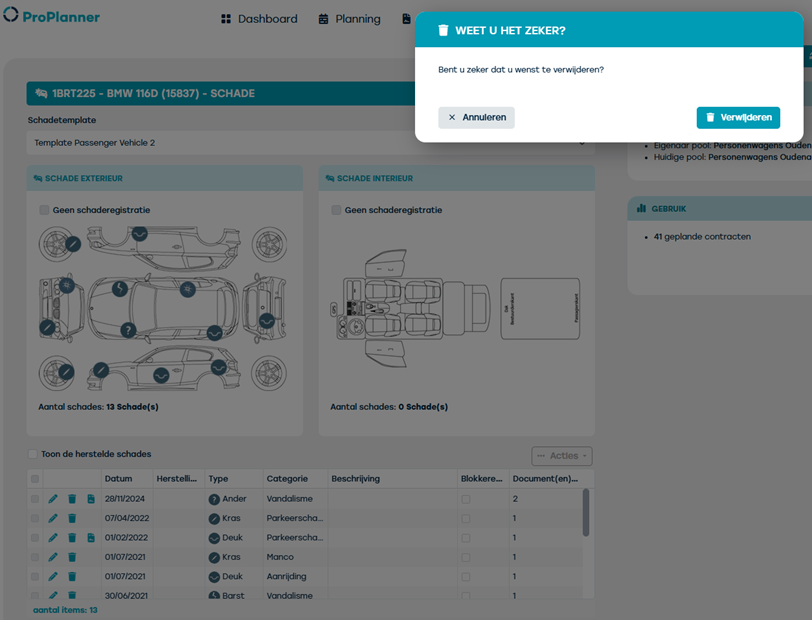
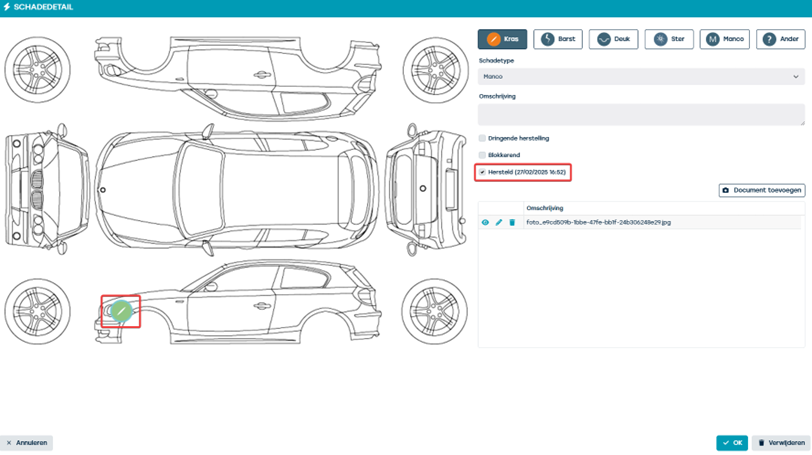
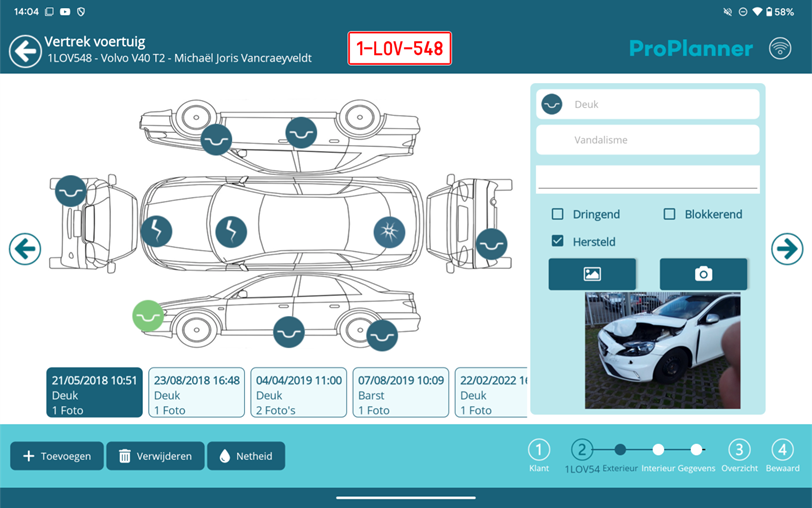
You can also mark a damage as repaired when you open the damage with the pencil icon. It will then be marked in green and stored in the database.
The same applies on the tablet:
Bulk damage removal can only be done on the resource sheet on the web (not on the tablet). Only the permissions without reason apply for bulk deletion (if you have permissions with reason enabled, you cannot delete in bulk and will have to do it one by one). If you select multiple damages, depending on your permissions, you may or may not be able to select the 'delete' and 'mark as repaired' options from the 'actions' menu.
Note: also here, when deleting in bulk, nothing is saved until you click the 'save' button at the top right in the resource sheet.
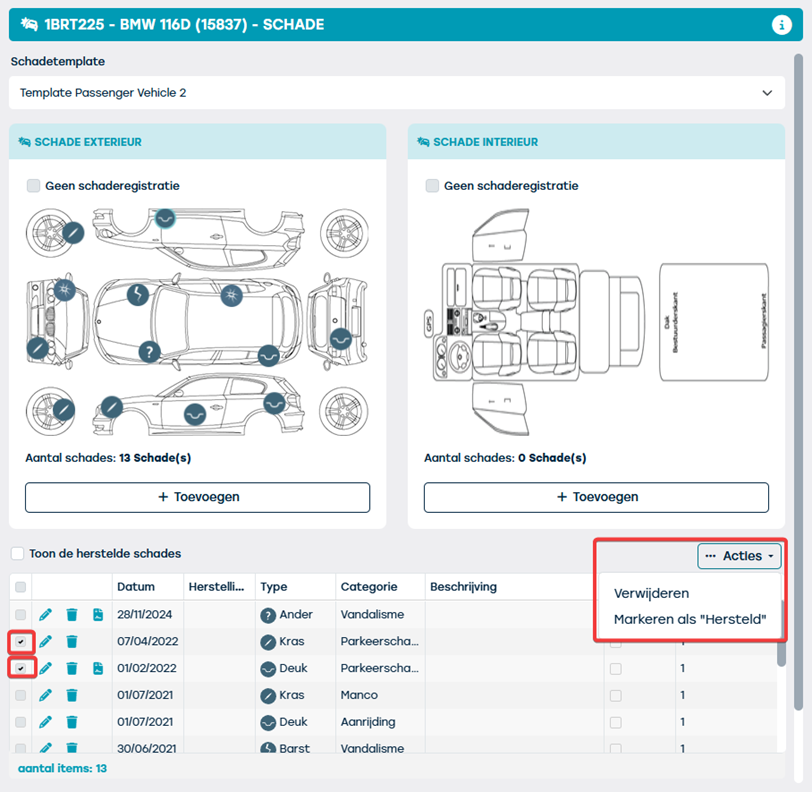
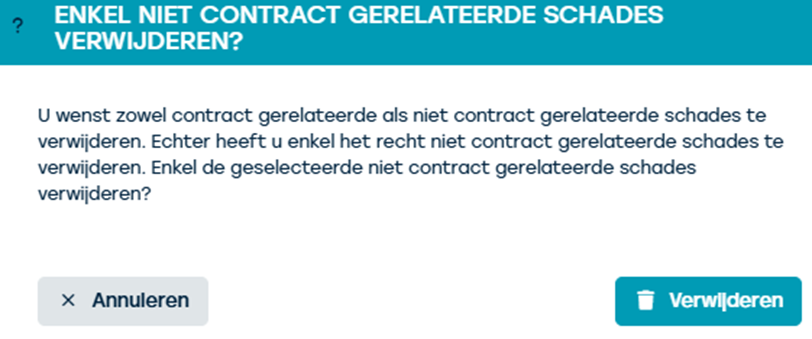
If you only have the rights to delete single damages here and you also select contract related damages, the message 'Delete only non-contract related damages?' will be shown. Only the damages for which you have permissions will be deleted in this case.