In this video:
On the Planning screen in ProPlanner:
Filter options
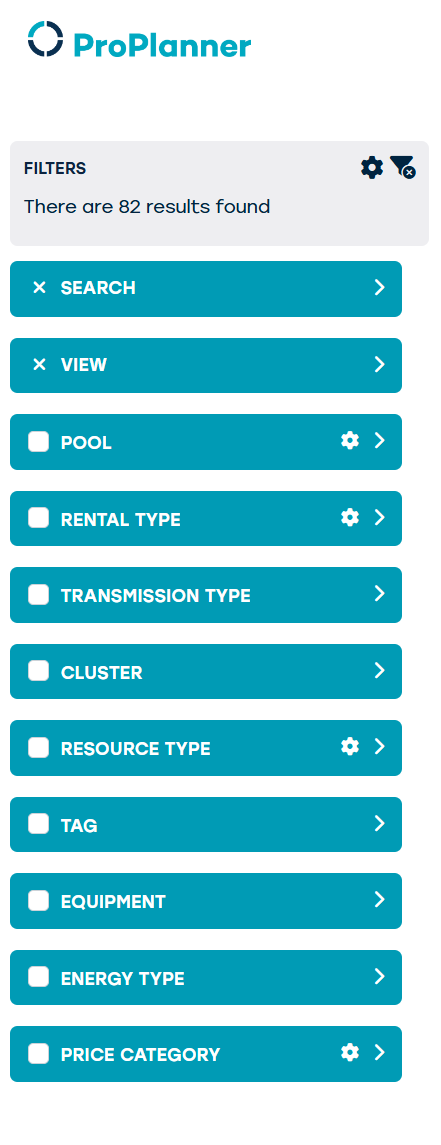
On the left you can see many filter options to find the resources you’re looking for.
1. In the search bar you can look for a specific vehicle based on...
- the license plate.
- the customer's license plate
- the name of the resource (e.g. Passat)
- the VIN number
- the client's name
- And more
2. In the view bar, you can adjust how you want to view the results. You can select a specific date or group the results by pool or by price range. You can change the view per hour, per day, per week and per month.
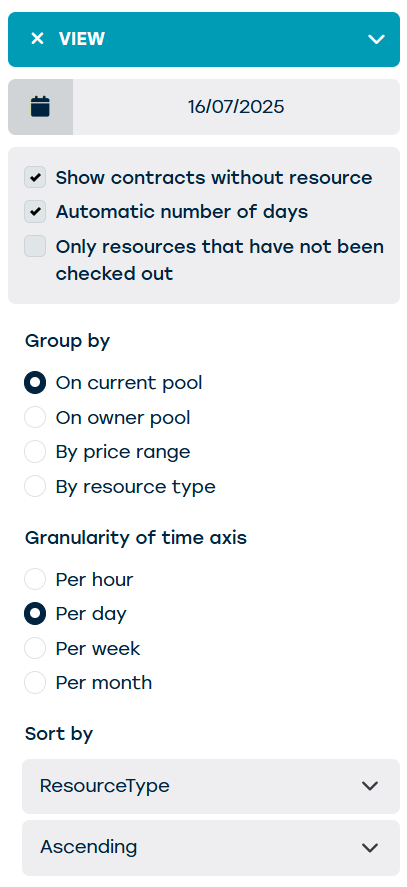
If you click on a specific day on top of the screen, the view changes to view per hour on that particular day.
3. You'll find several other filters where you can make certain selections.
Resource overview
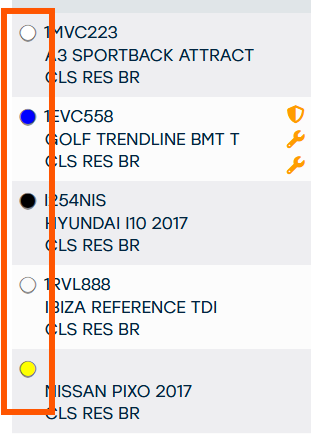
Next to the filter bar, you see the resources that match your filters.
We see the license plate, the name of the resource, and the colored circles indicate the color of the resource.
Contract overview with color code
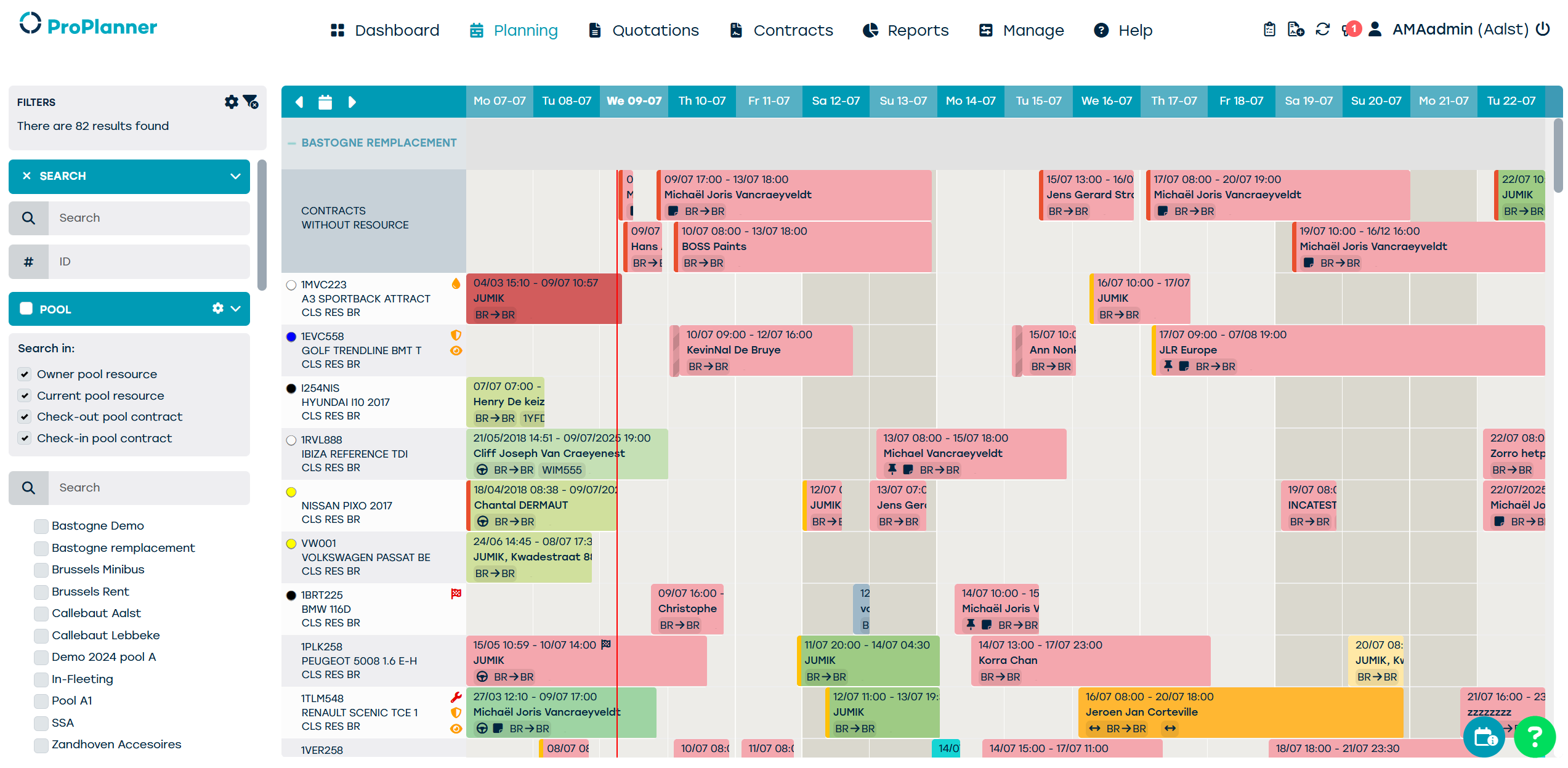
The colored blocks on the right represent the contracts and their duration.
Color variations for rental types
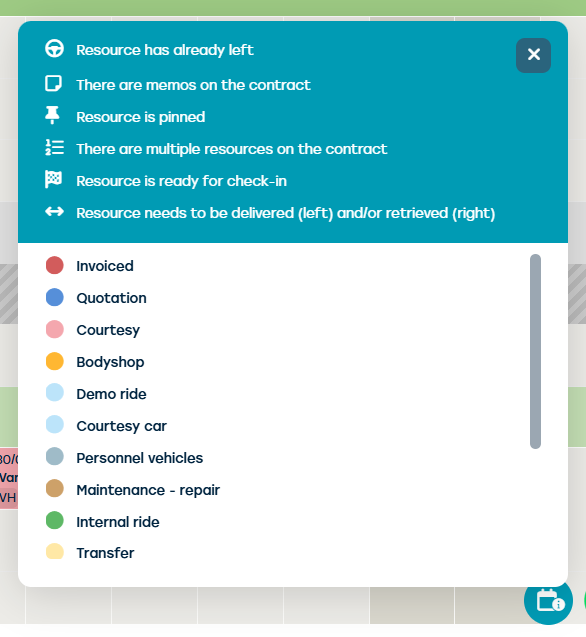
You can find the legend of colors via the blue button at the bottom of the screen.
These colors are preset by your organisation.
In this case the colors vary according to the rental type and the contract status.
Color variations for contract status
The colors also vary according to the status of the contract.
In this example we see 3 shades of green:

- The one on the left is a contract that has been returned.
- The middle one is a contract that has been checked-out.
- The one on the right is a planned contract.