In this video:
Let's create a new contract and a new customer in ProPlanner.
You can make a contract in your DMS, which will automatically be synchronized with ProPlanner.
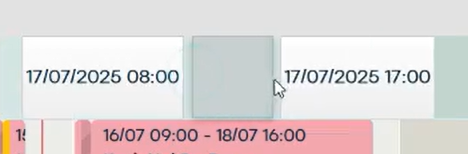
You can also make a new contract in ProPlanner by clicking and dragging an empty space in the planning.
A new contract will open up. On the right you will find different tiles we can complete and consult.
Reservation tile
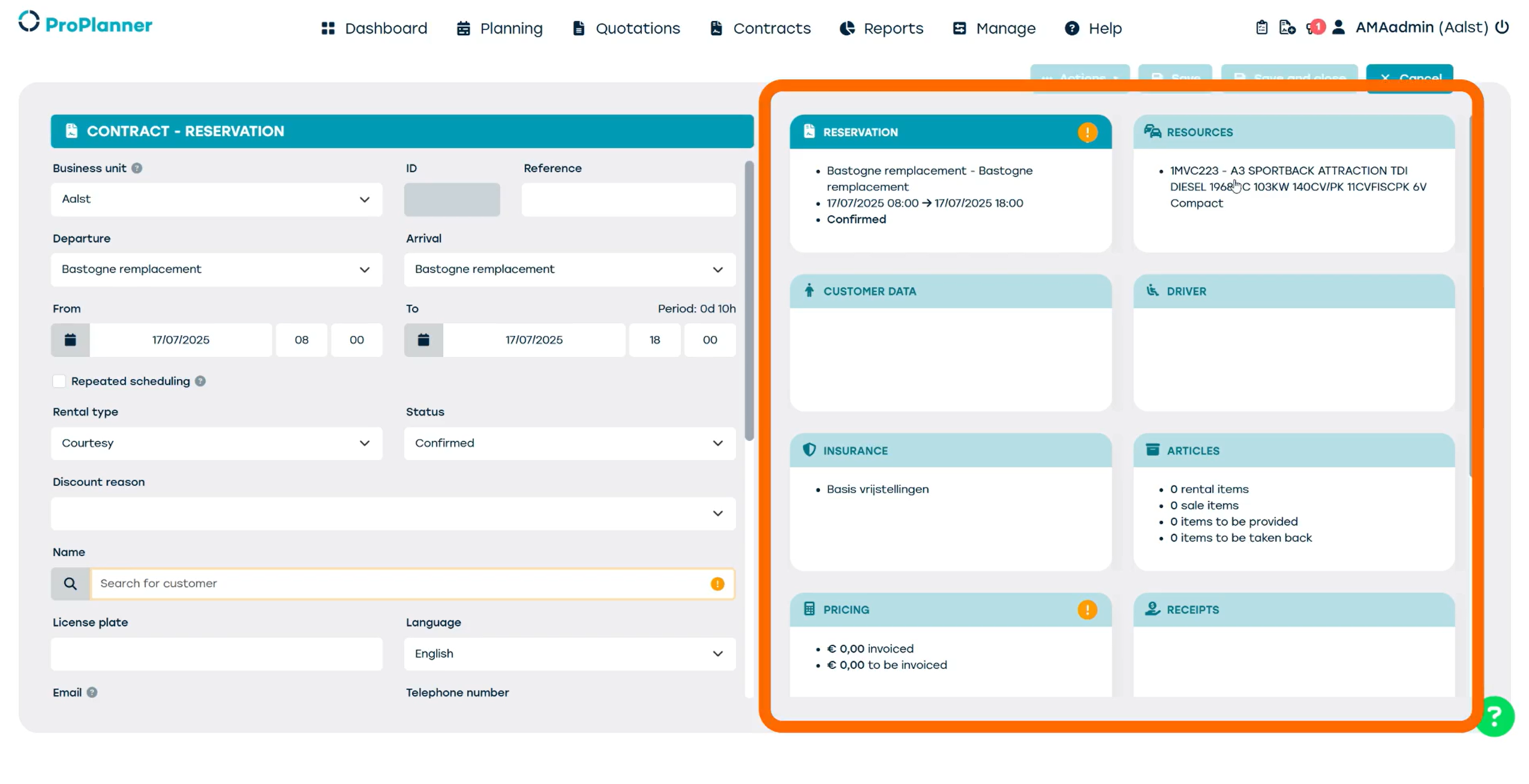 Standard fields will already be completed, like the departure and arrival location and the rental type, since this is matched to our resource and the pool it belongs to.
Make sure to check the date and time, and adjust if necessary.
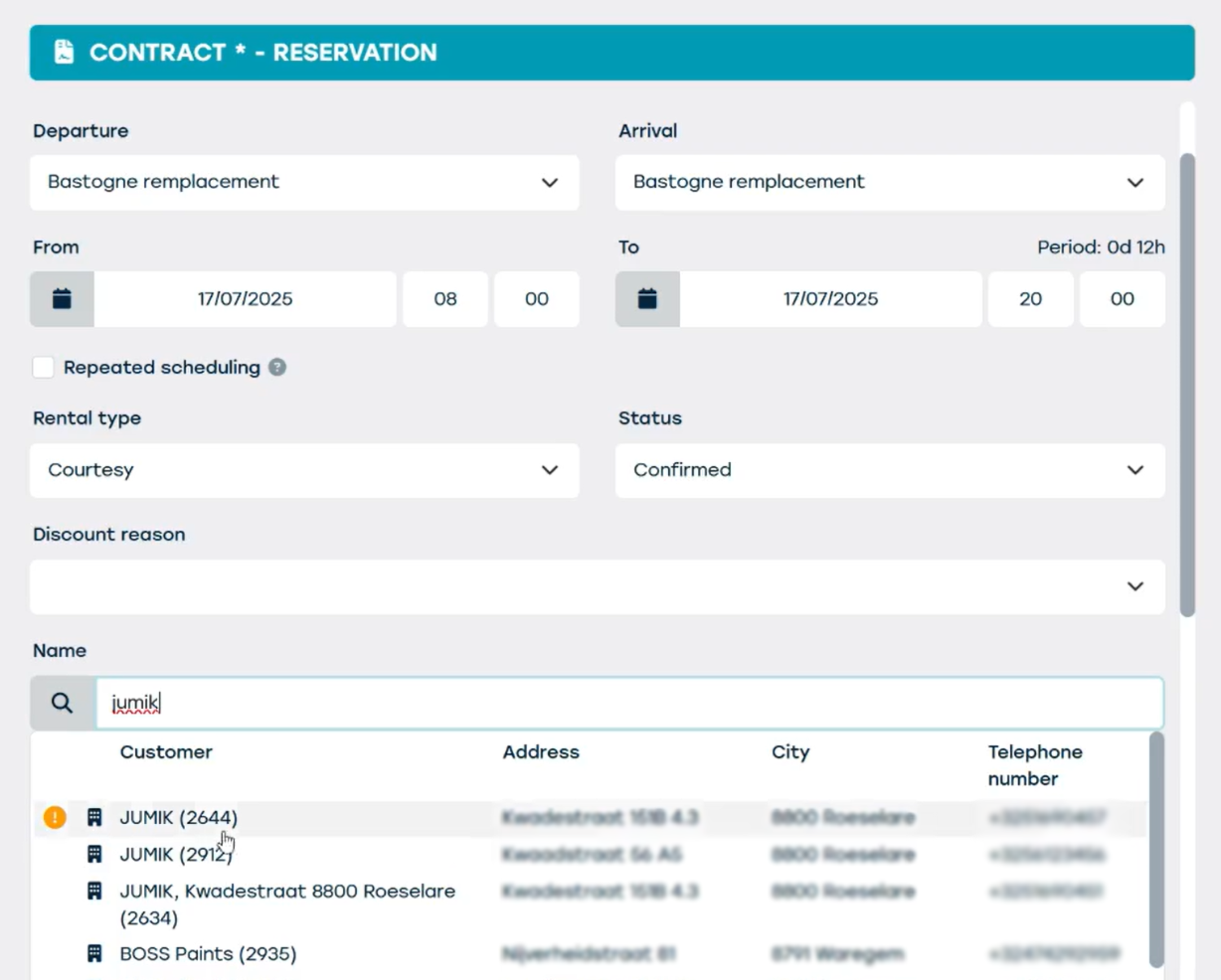
Add Customer
Then add a customer. If you add an existing customer, their data will automatically be completed. If it’s a new customer, you can complete the fields manually. When the customer is a company, you should add additional driver's info in the driver's tile.
Driver tile
If we add a driver to the contract, a lot of information will be available (if it's an existing customer).
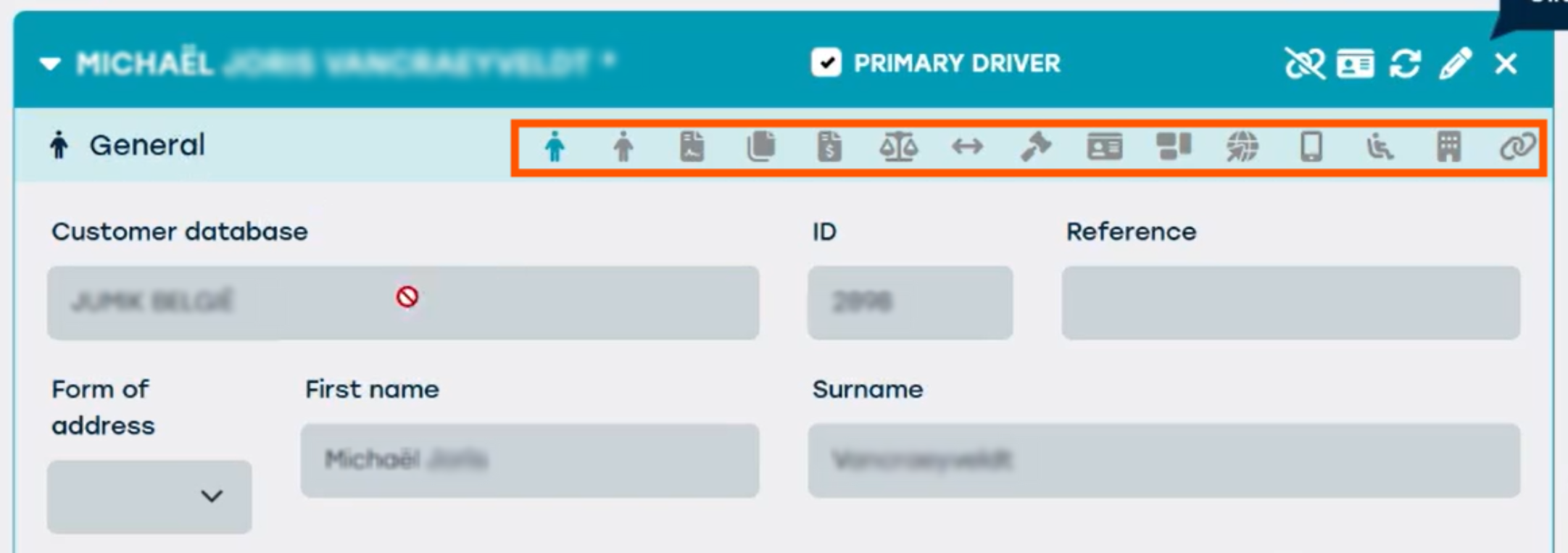
A driver sheet opens up with several icons that contain information.
- General
Basic information: name, address, contact info...
- General
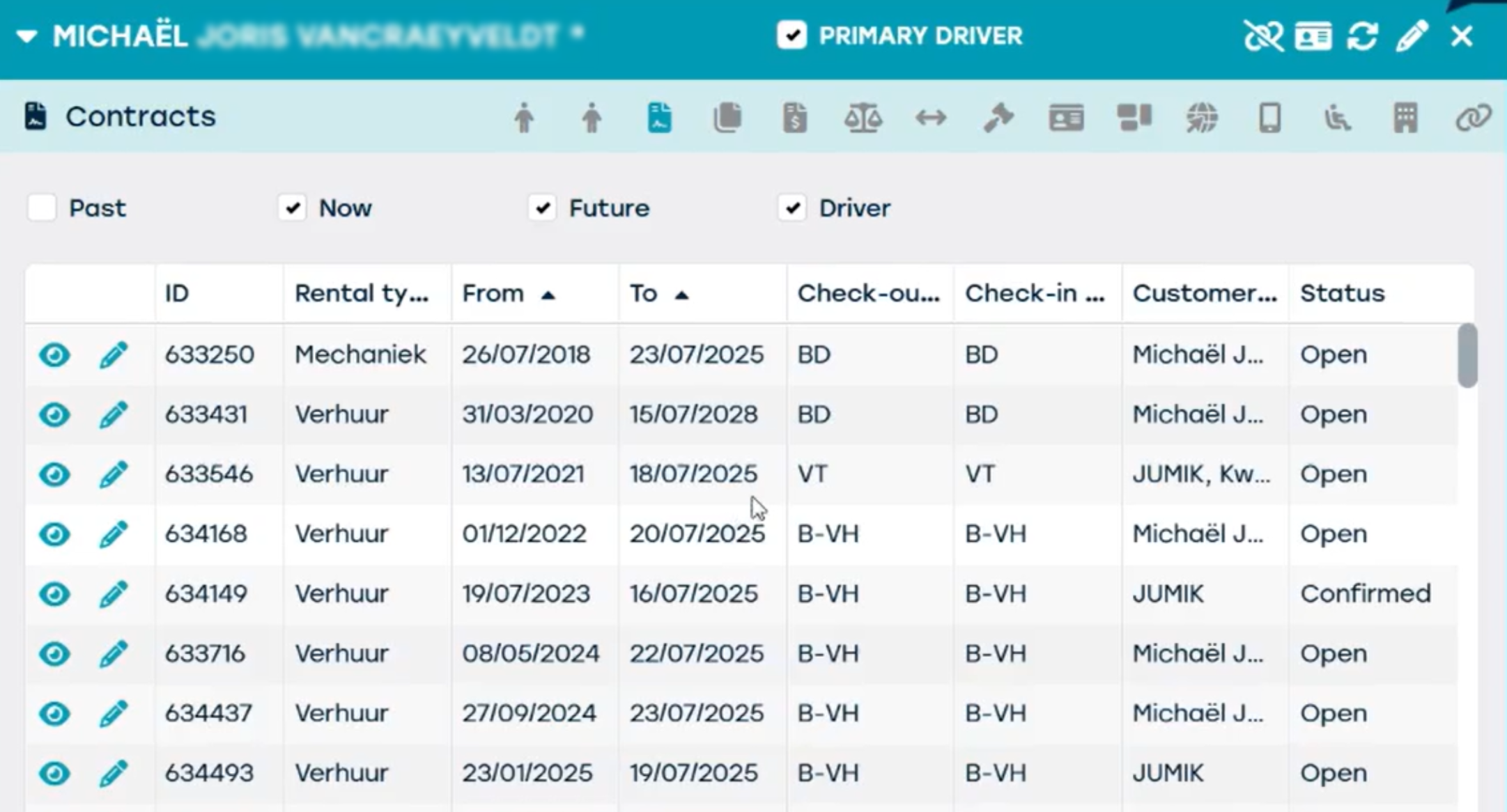
- Contracts
All contracts from past and future with this customer/driver
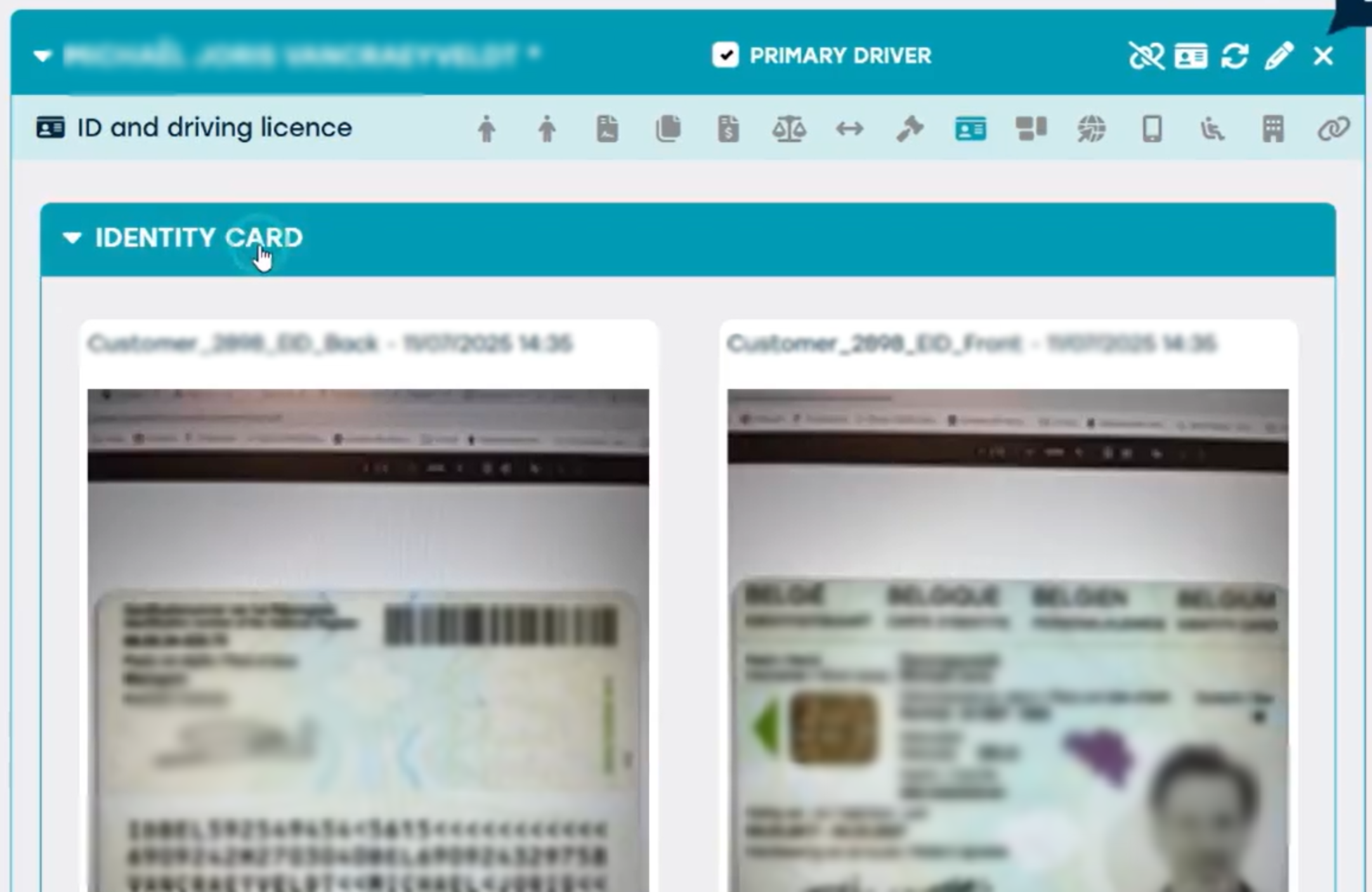
- ID and driving license
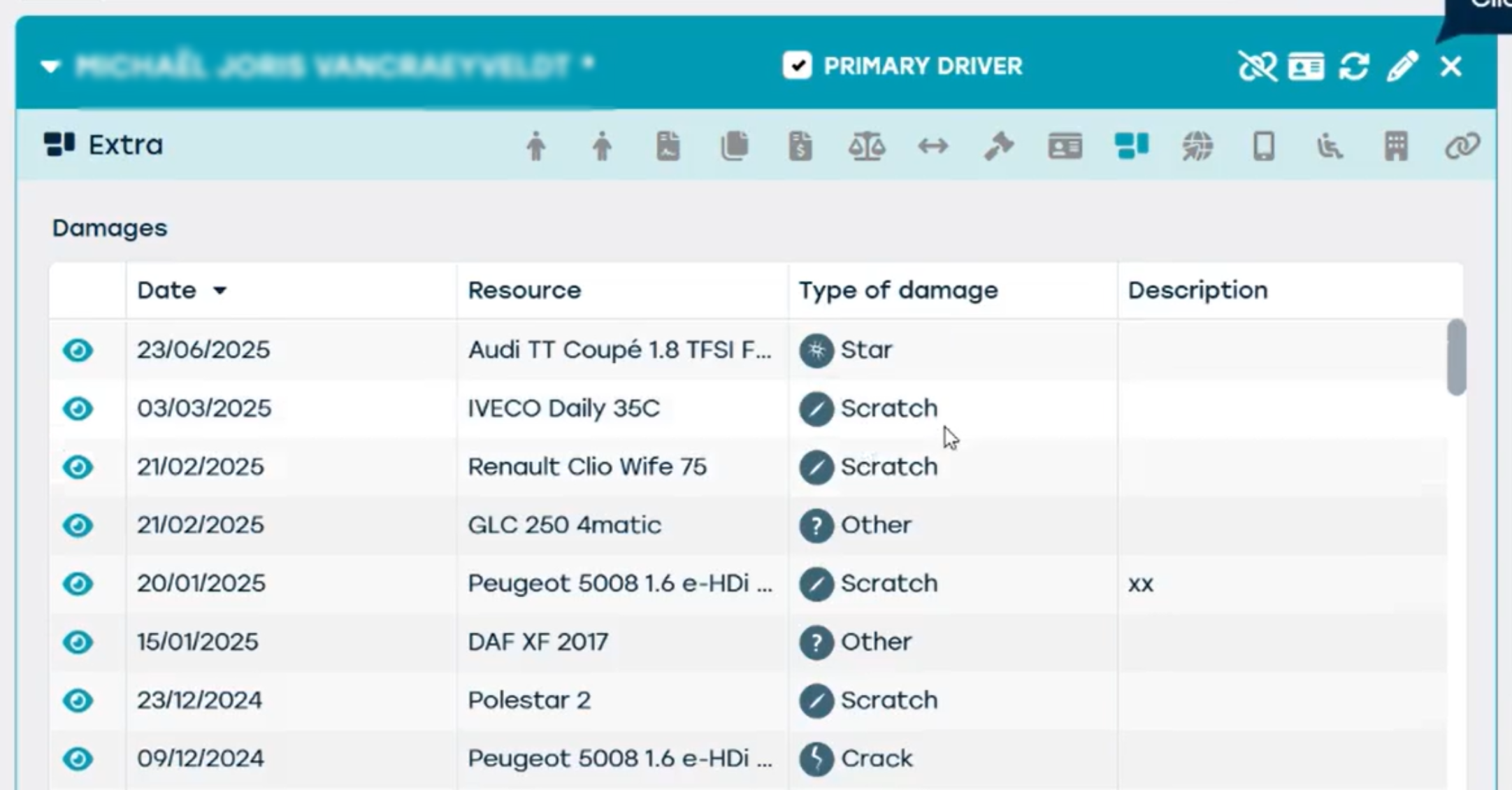
- Extra (caused damages)
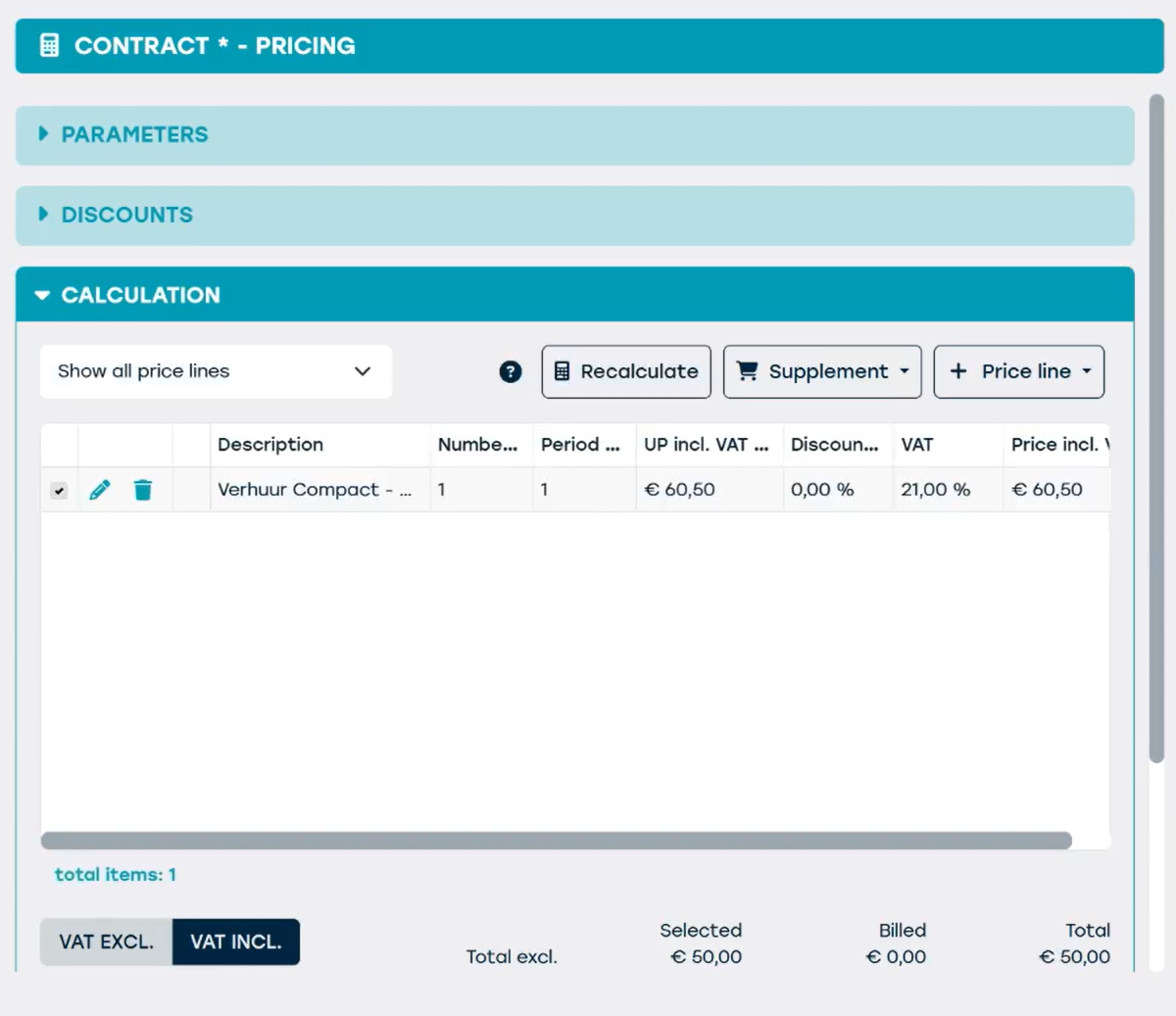
Pricing and insurance
Pricing and insurance will automatically be linked to the resource category of the resource. This information will be preset.
When you click save and close, you will immediately see the contract in the planning and in your DMS. If you want to make a change, you can open the contract by double clicking on it.