In this video:
A customer has arrived and wants to leave with the vehicle he made a reservation for. Let's perform the check-out!
In ProPlanner web
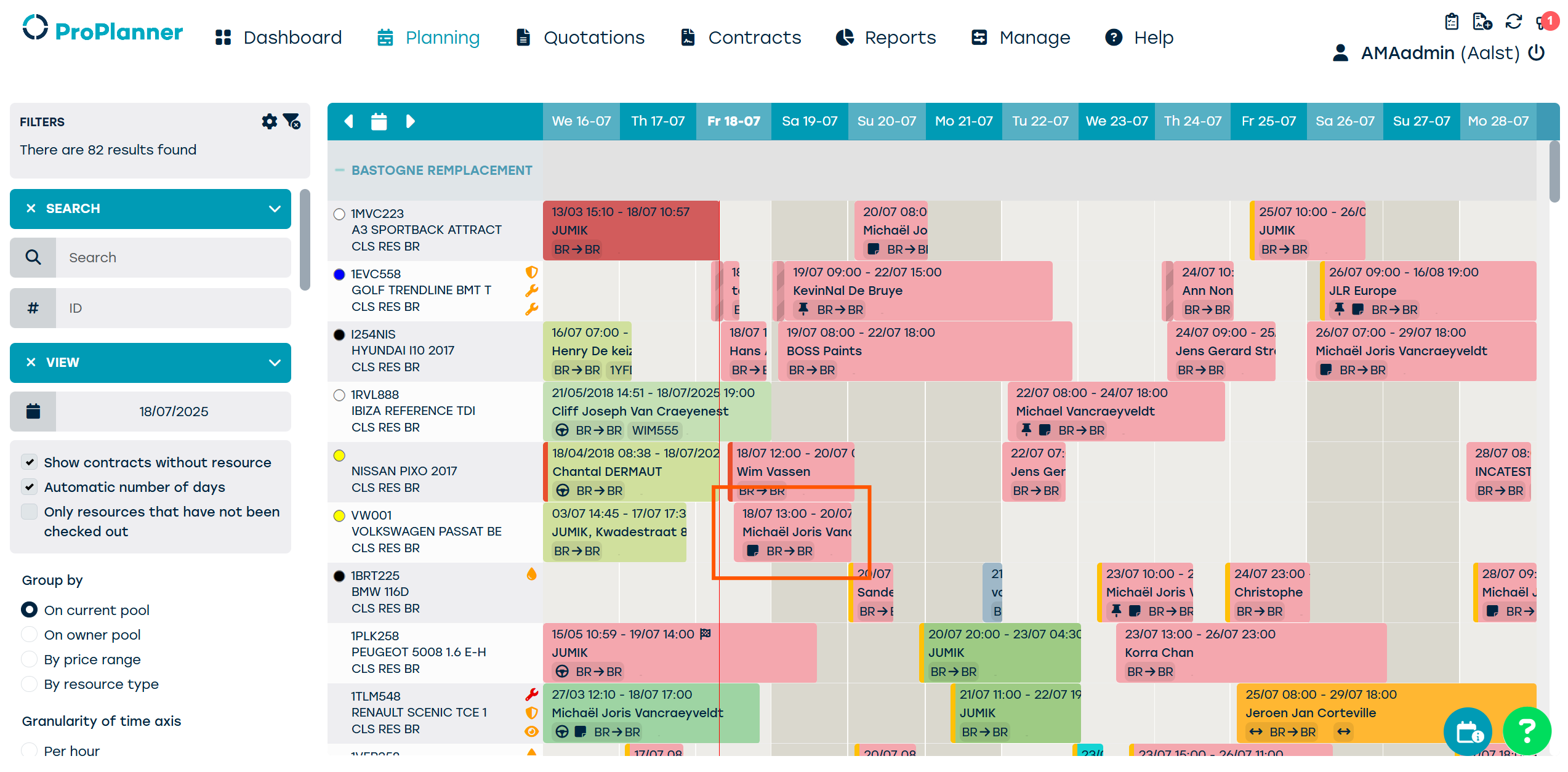
We see the contract in the planning.
The customer is early for pick-up, but no problem, the timing will be adjusted automatically.
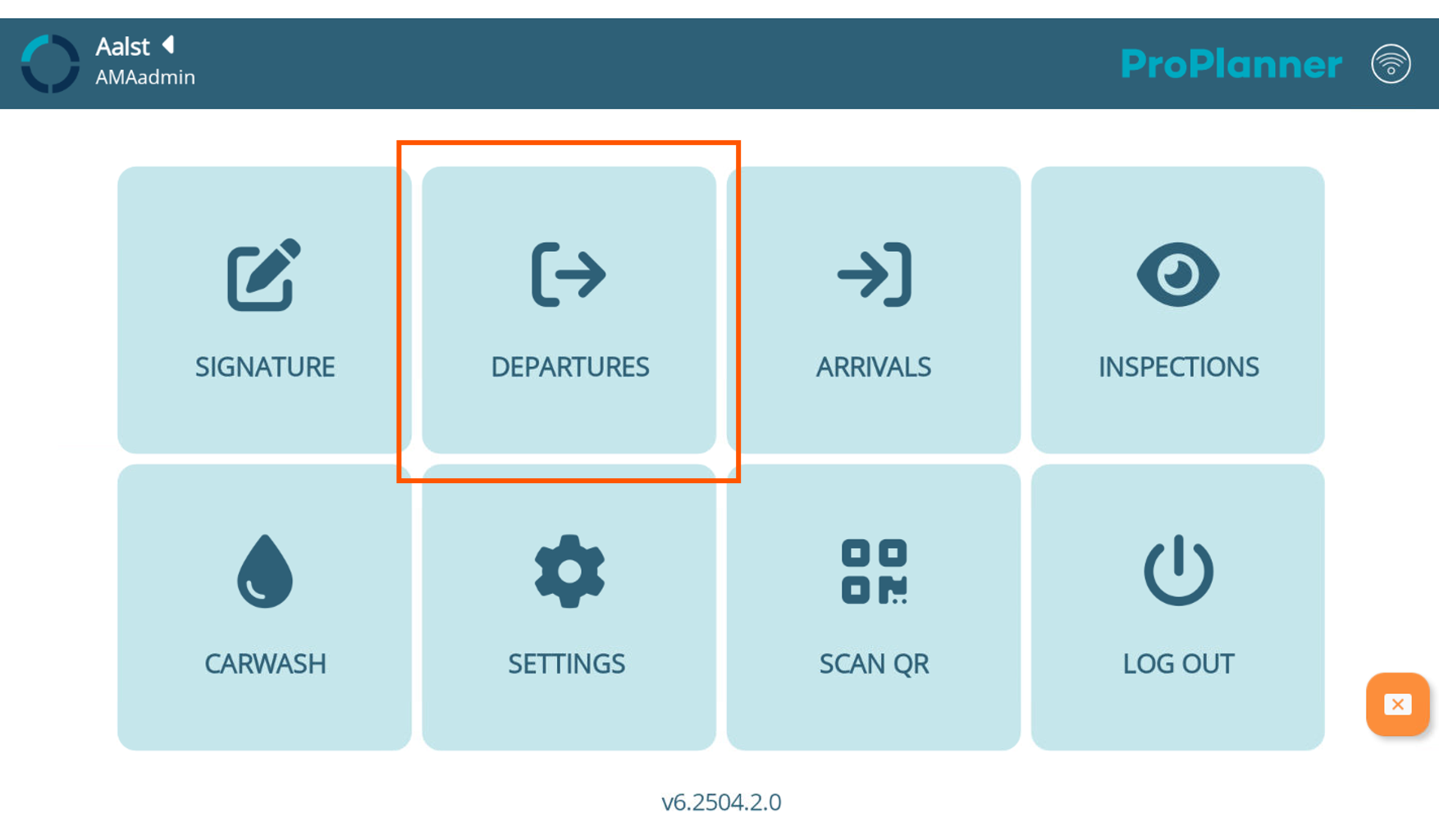
On tablet application
Let's open the ProPlanner App on our tablet and click 'departures'.
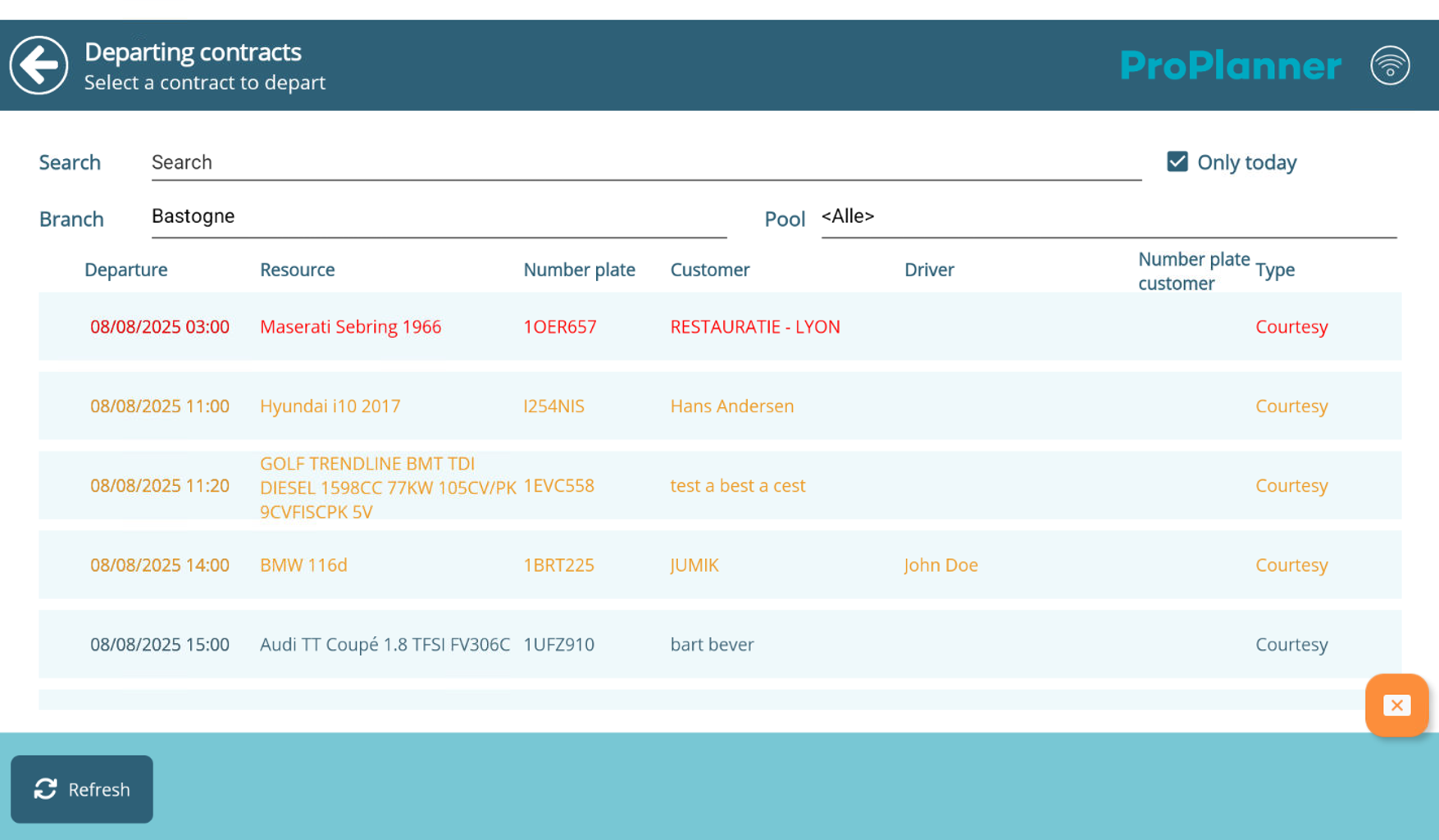
In the following screen we see the contracts that are supposed to leave. By default the checkbox 'only today' is ticked off, but you can deselect it to view contracts further in the future. Then we select our customer's contract.
In the next screen we see the contract details. We move on by clicking departure vehicle.
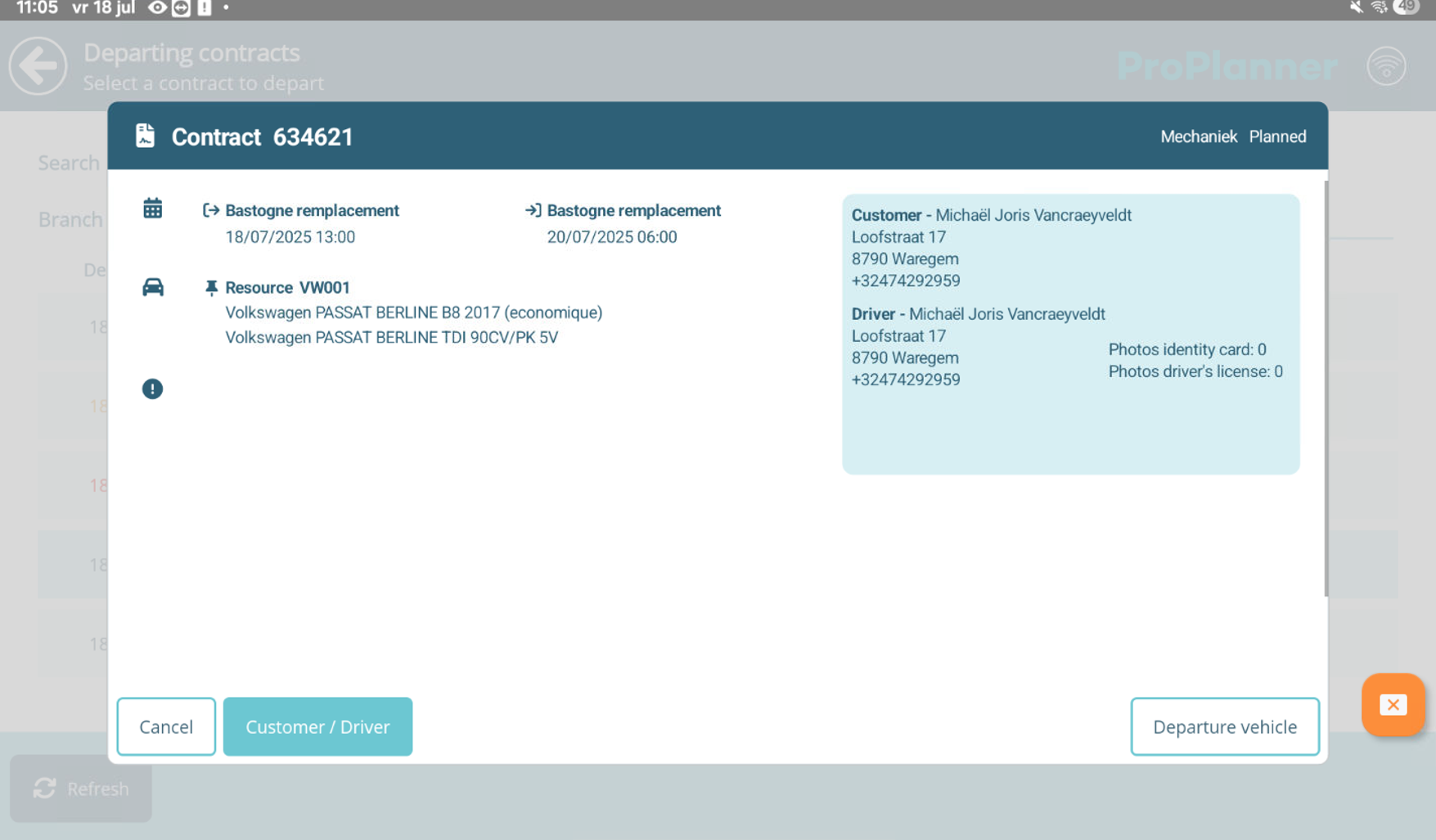
Check-out procedure
Now we entered the check-out procedure. You can see the steps on the bottom of the screen:

- Customer
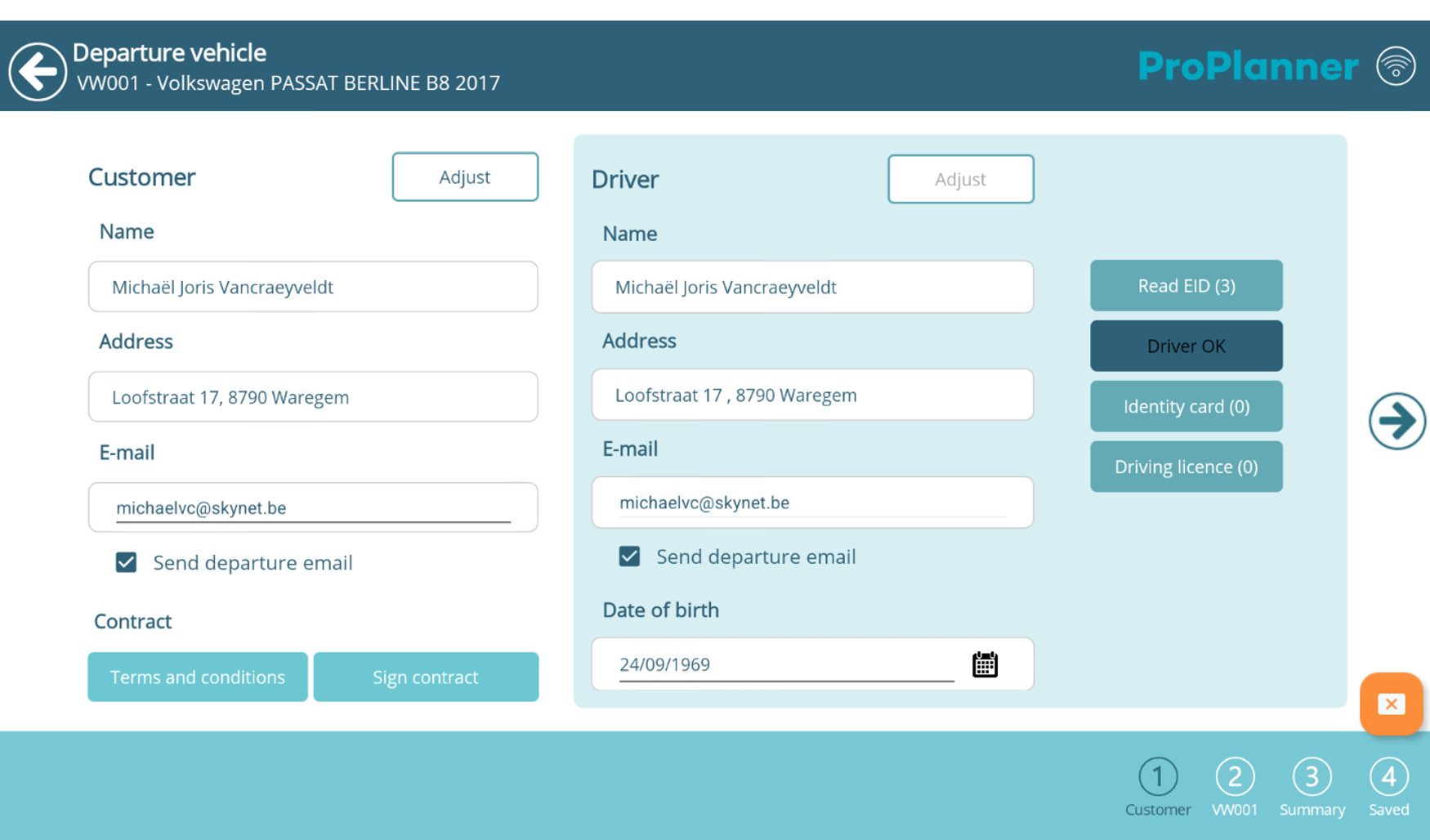
Here we can check customer's information and add an EID or pictures of his documentation if we want to - Resource (licence plate)
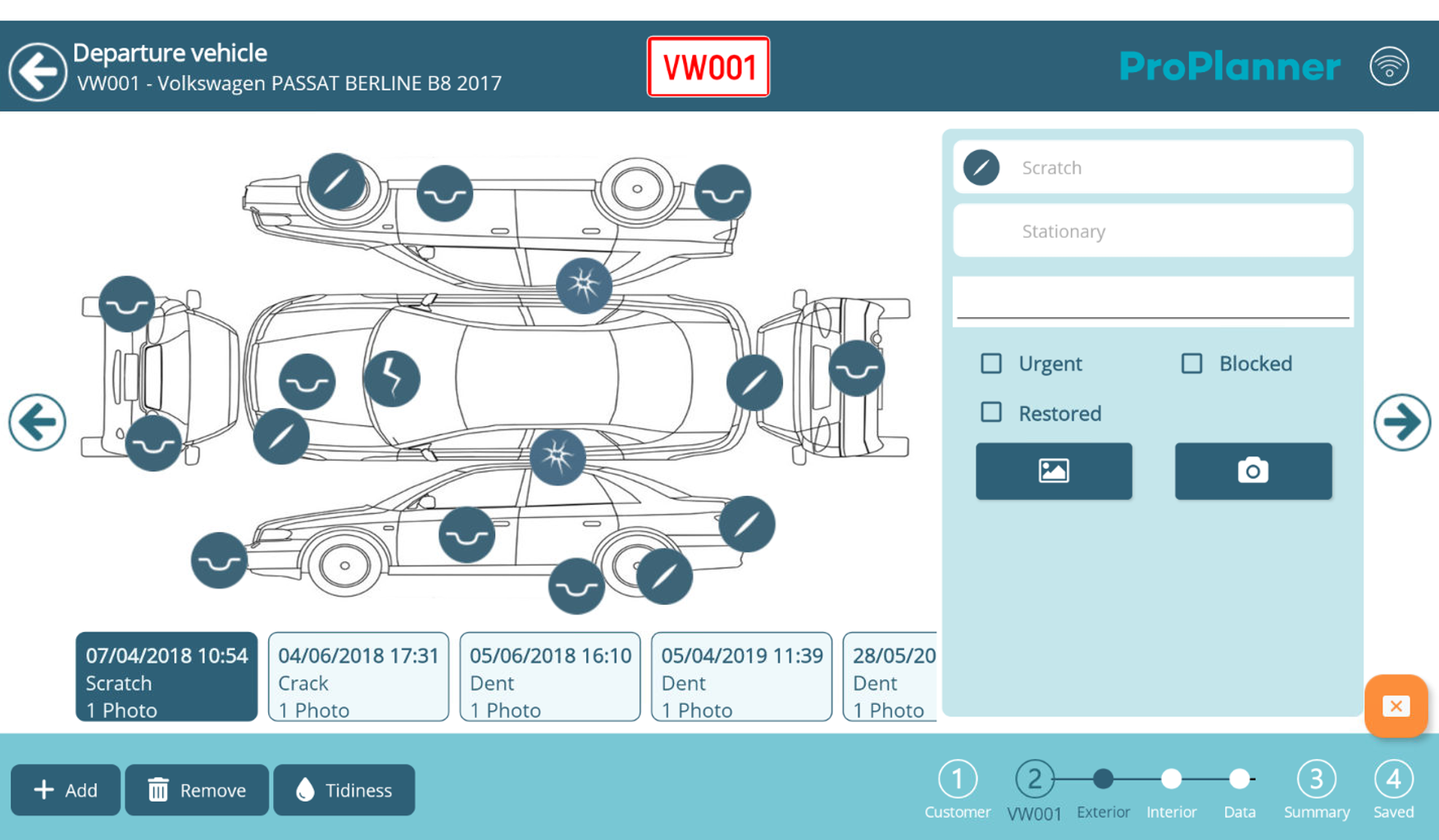
Here we can perform a quick inspection of the car and review the current state of the car with the customer - Summary
- Save
- Customer
1. Customer
By default the checkboxes 'send departure email' are ticked off. If you don't want the driver or customer to receive an email you can deselect the checkbox.
2. Resource
In the resource step, we can review current damages on the exterior and the interior and add extra damages if necessary.
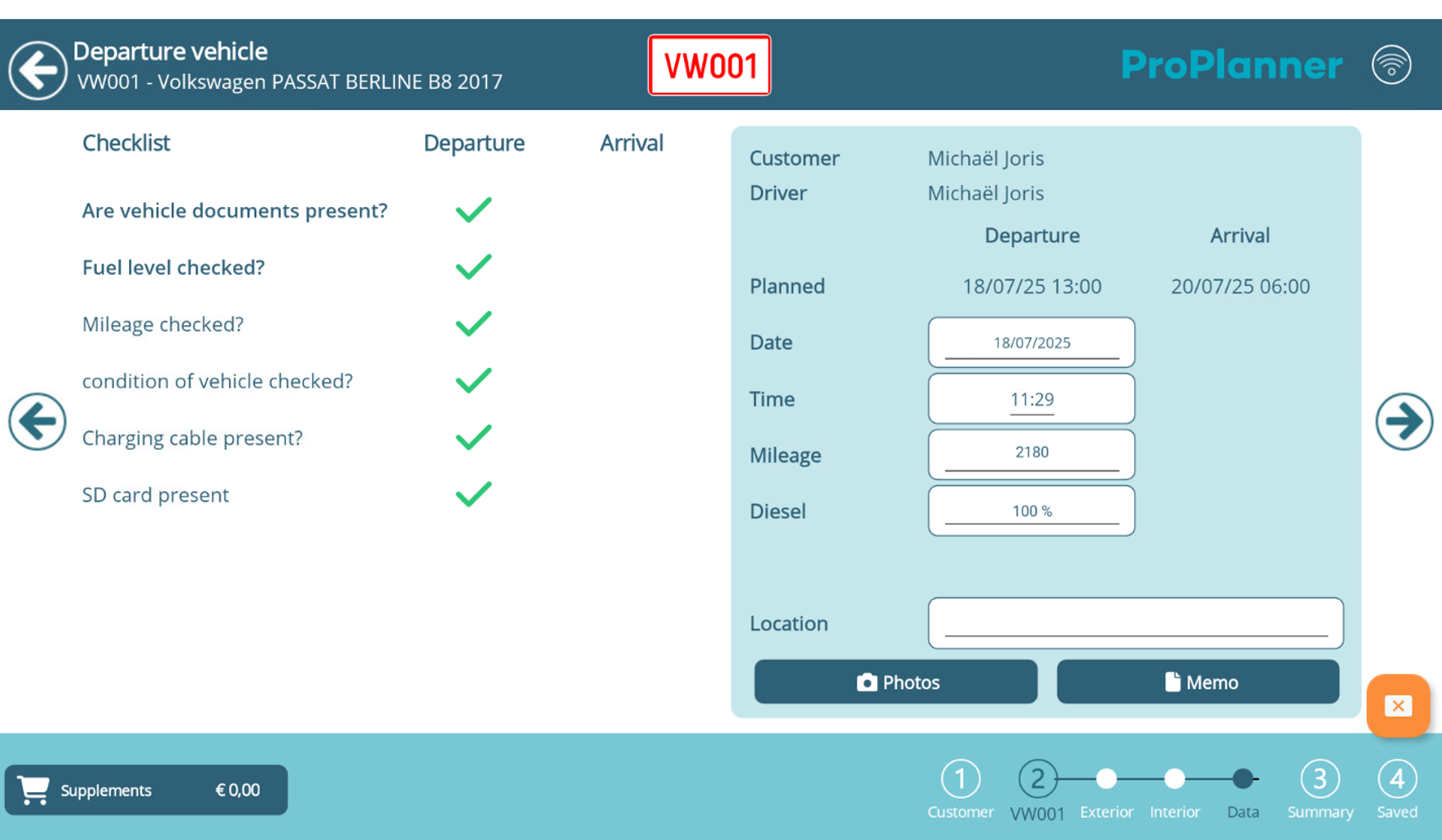
The last page of the resource step is a checklist before departure.
Date, time, mileage and fuel level will automatically be synchronized with the latest information in ProPlanner, but you can adjust if it isn't correct. 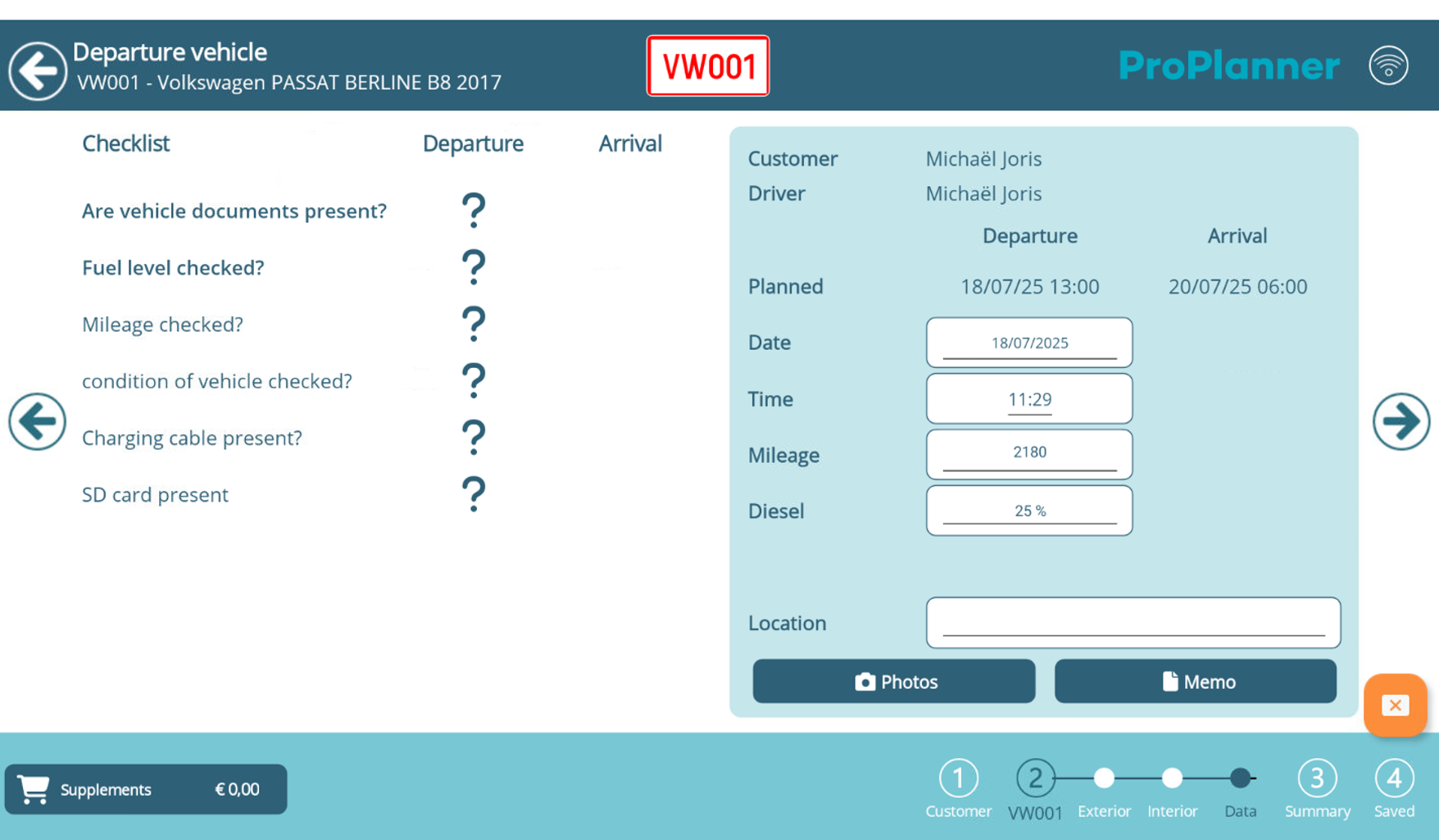
After checking everything we have updated the fuel level.
When we're ready, we can move on to the final step.
3. Summary
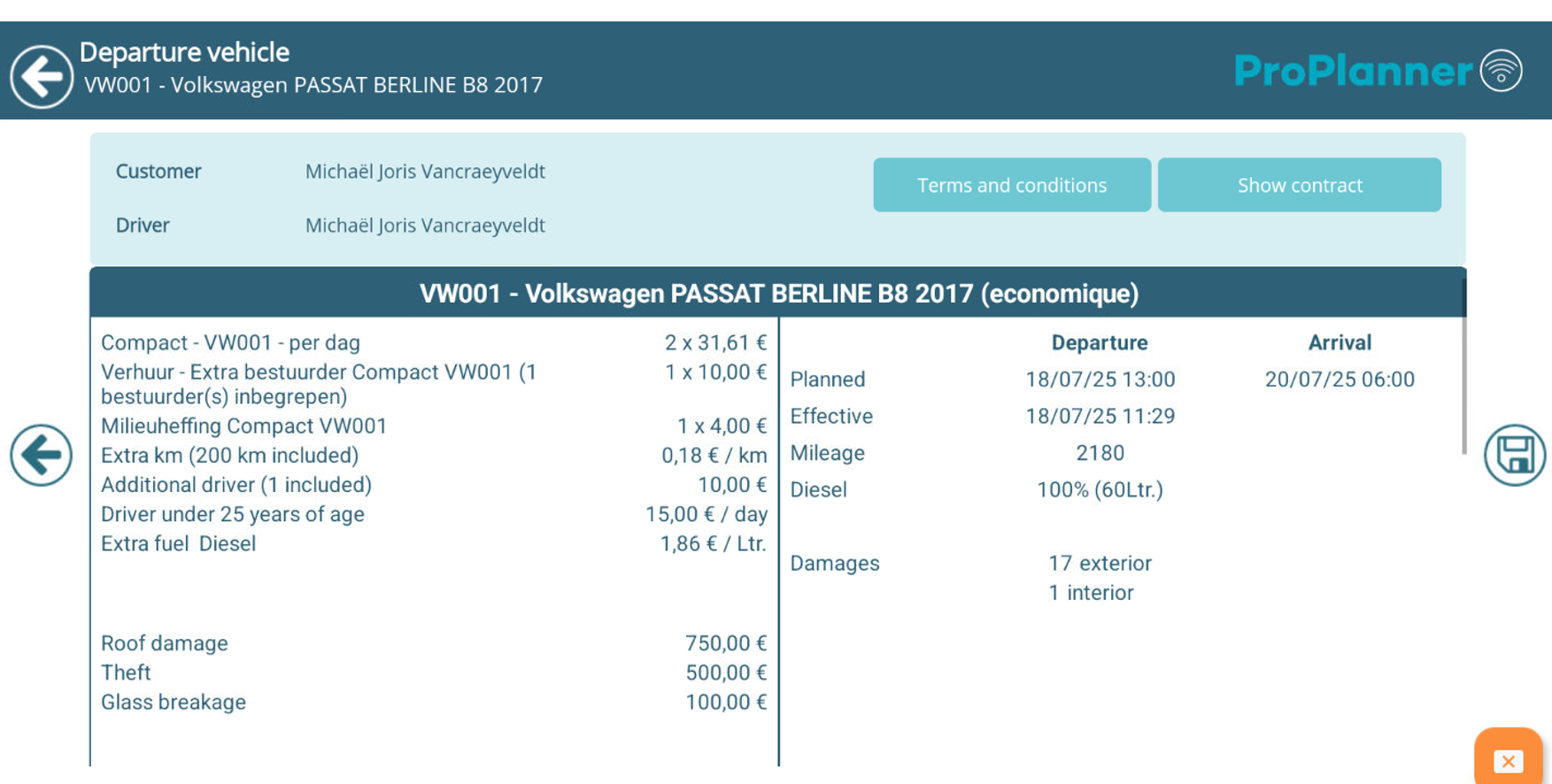
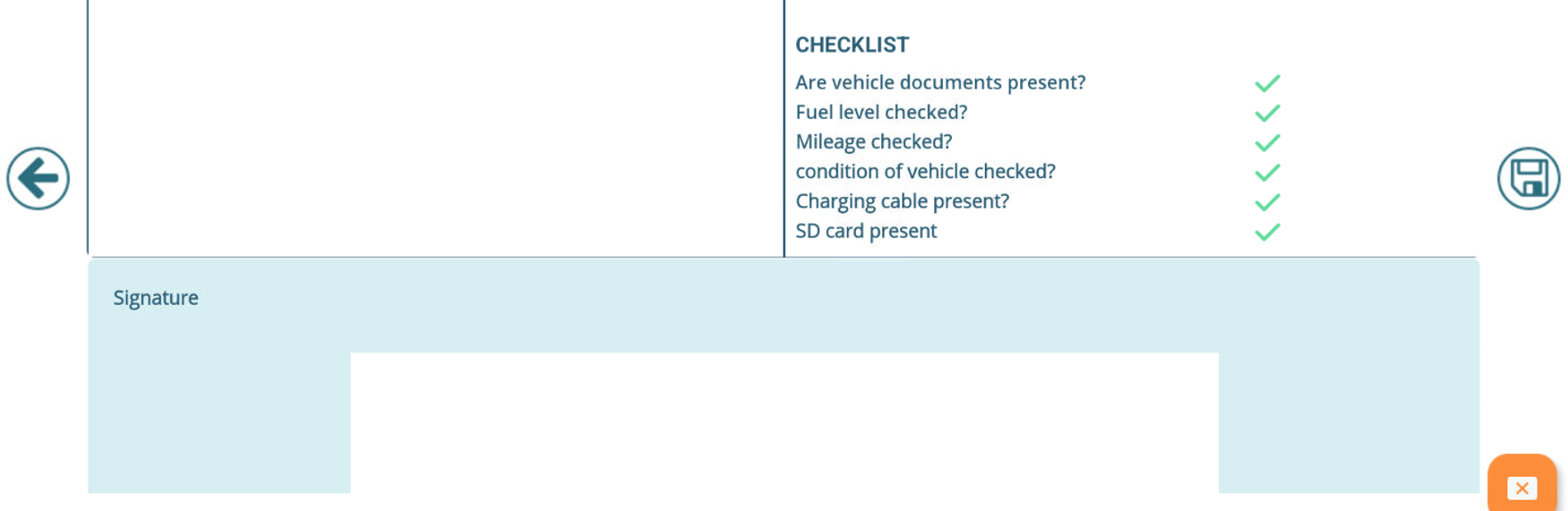
Here we find the full summary of the contract, with the reviewed damages and the checklist.
On the bottom, the customer can digitally sign the contract.
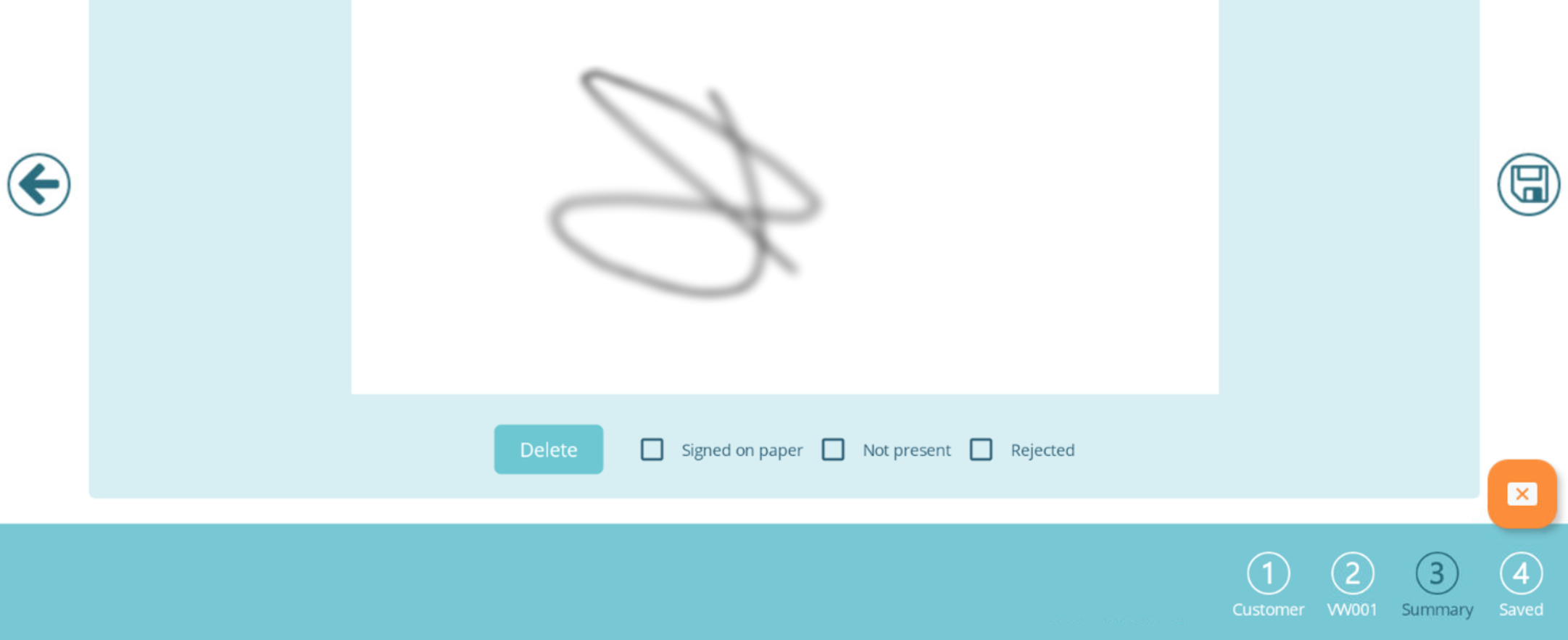
When we click on the floppy disk icon, the check-out is done!
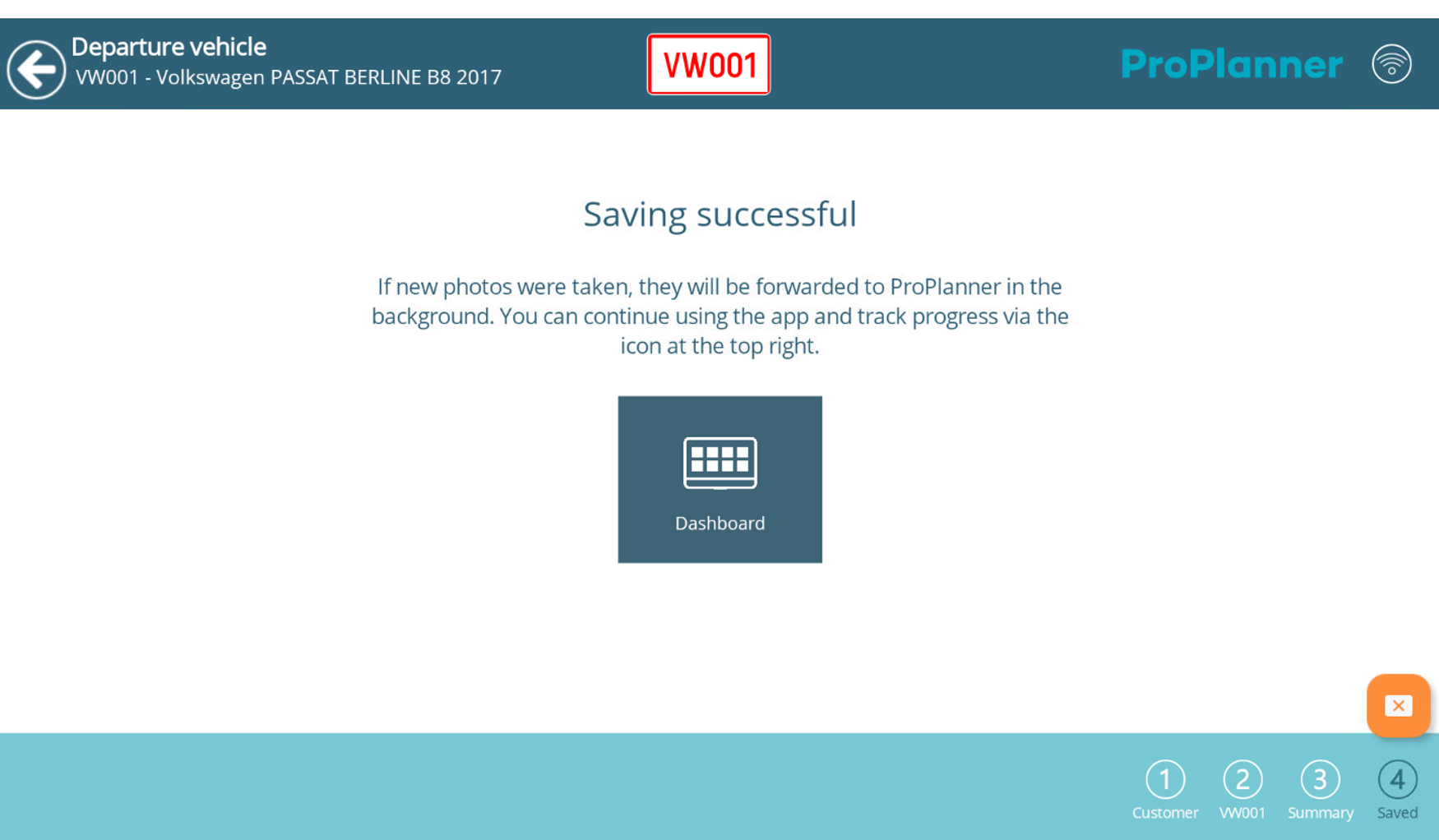
Back in ProPlanner
Back in the planning we now see that the contract's timing is adjusted to the true check-out time.
The contract is now a lighter color, because the resource has successfully left the fleet.
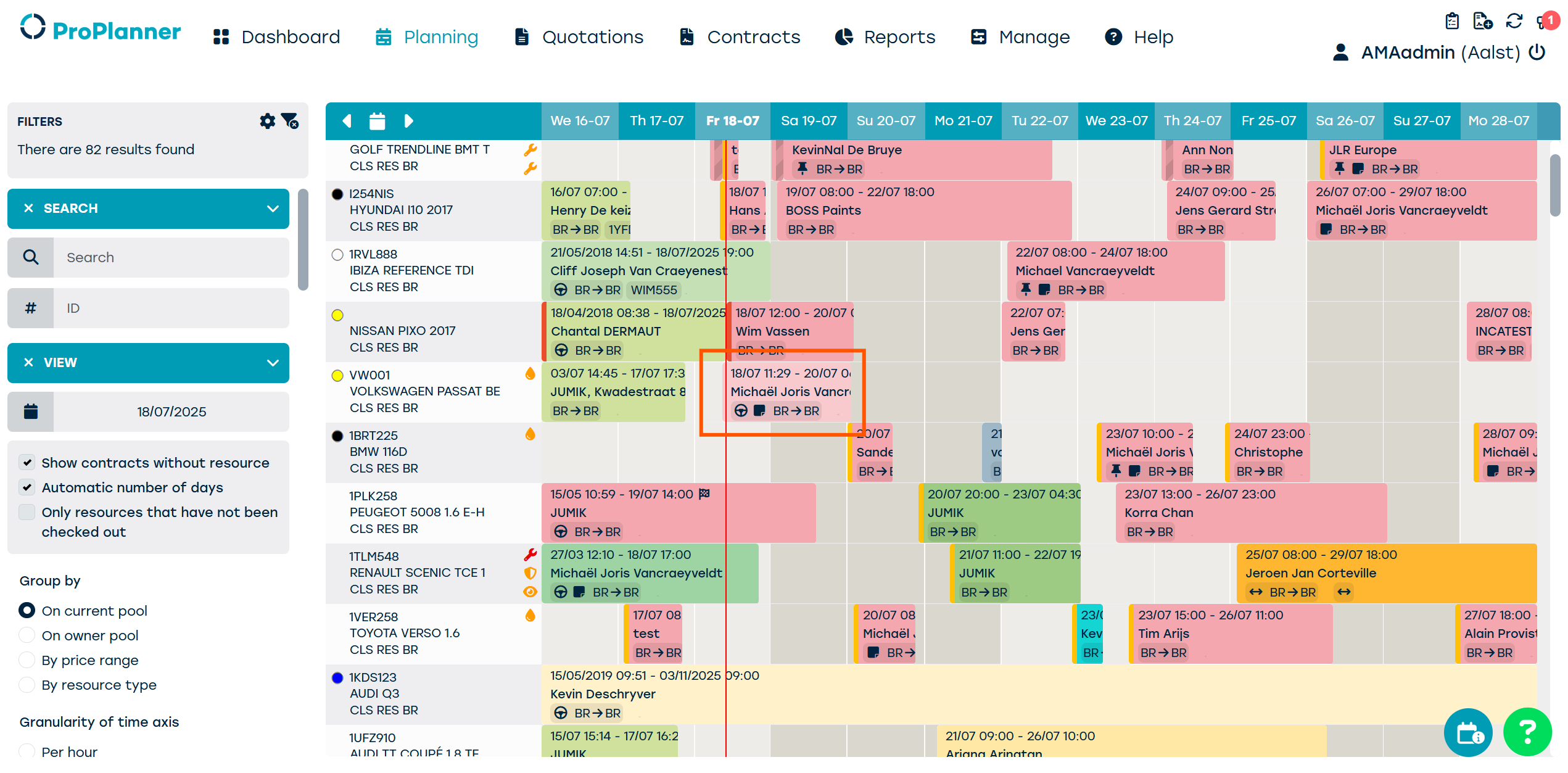
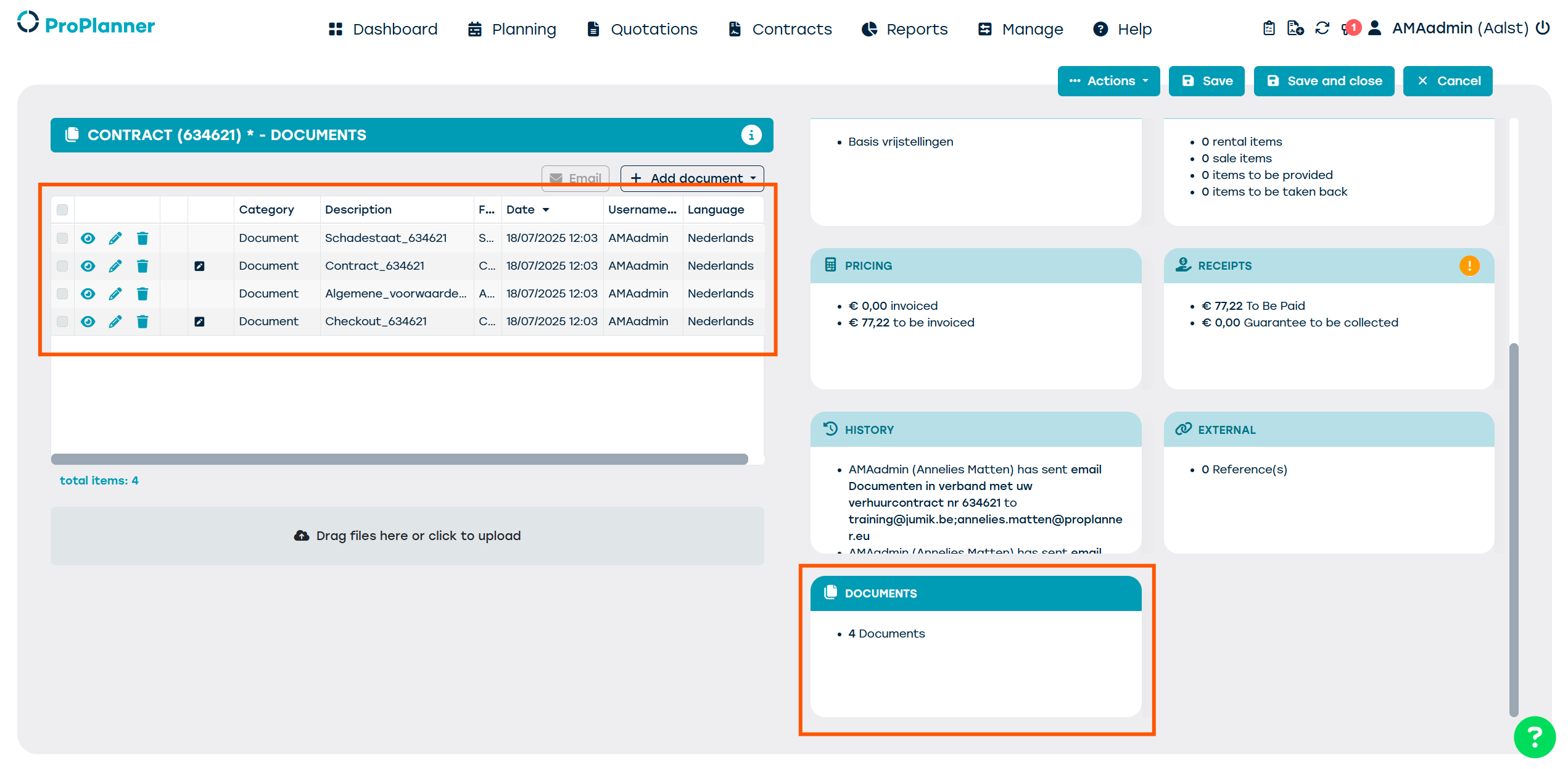
If we open the contract by double clicking we can now consult the signed check-out documents in the tile 'documents'.
We can find:
- The detailed damage report
- The signed contract
- The terms and conditions
- The signed check-out document