In this video:
When a staff member wants to use a resource it's not always necessary to go through the full check-in or check-out process.
In that case, we can do a fast check-out or check-in.
On the computer:
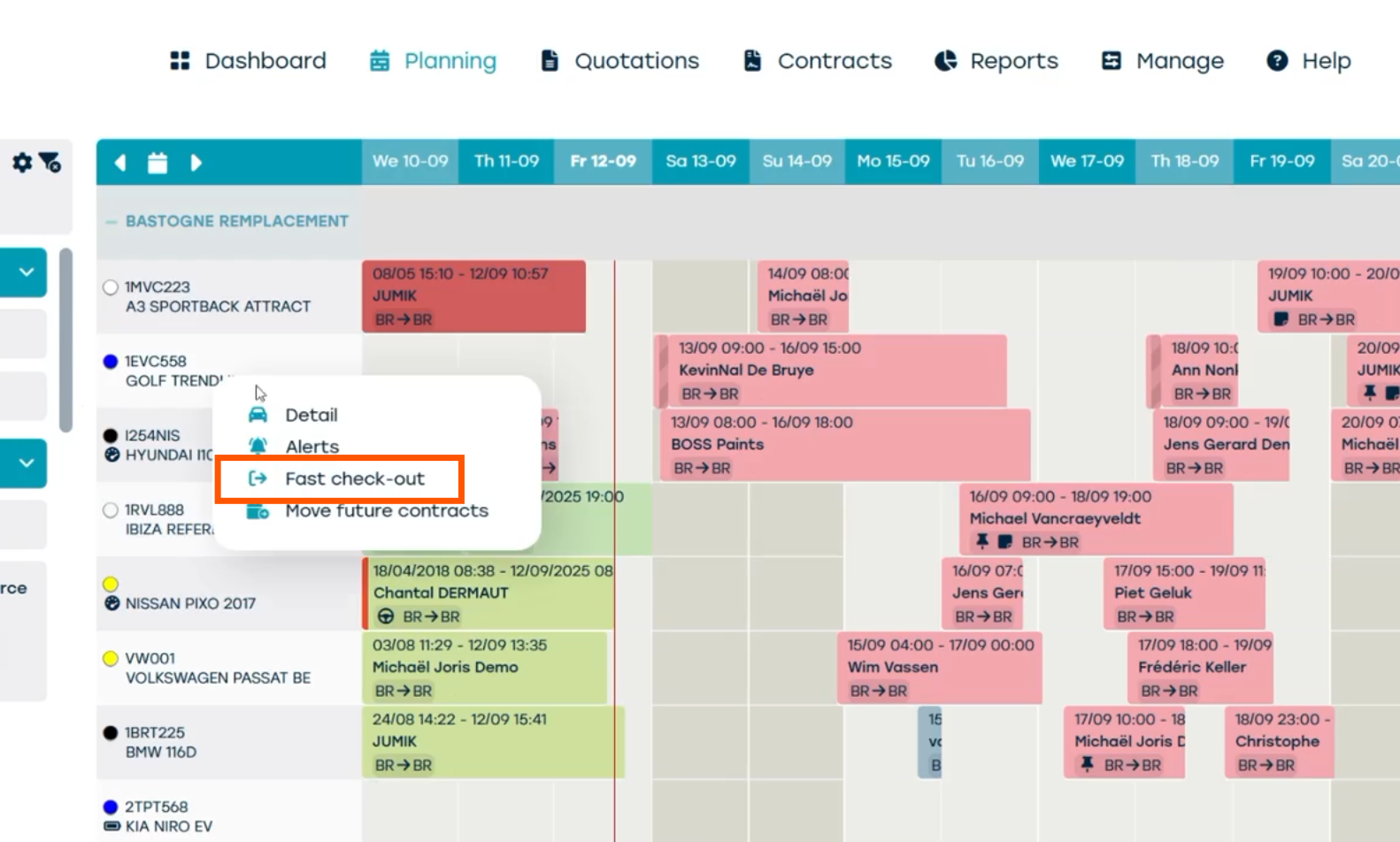
Go to the planning screen, right-click on the vehicle of your choice and select fast check-out:
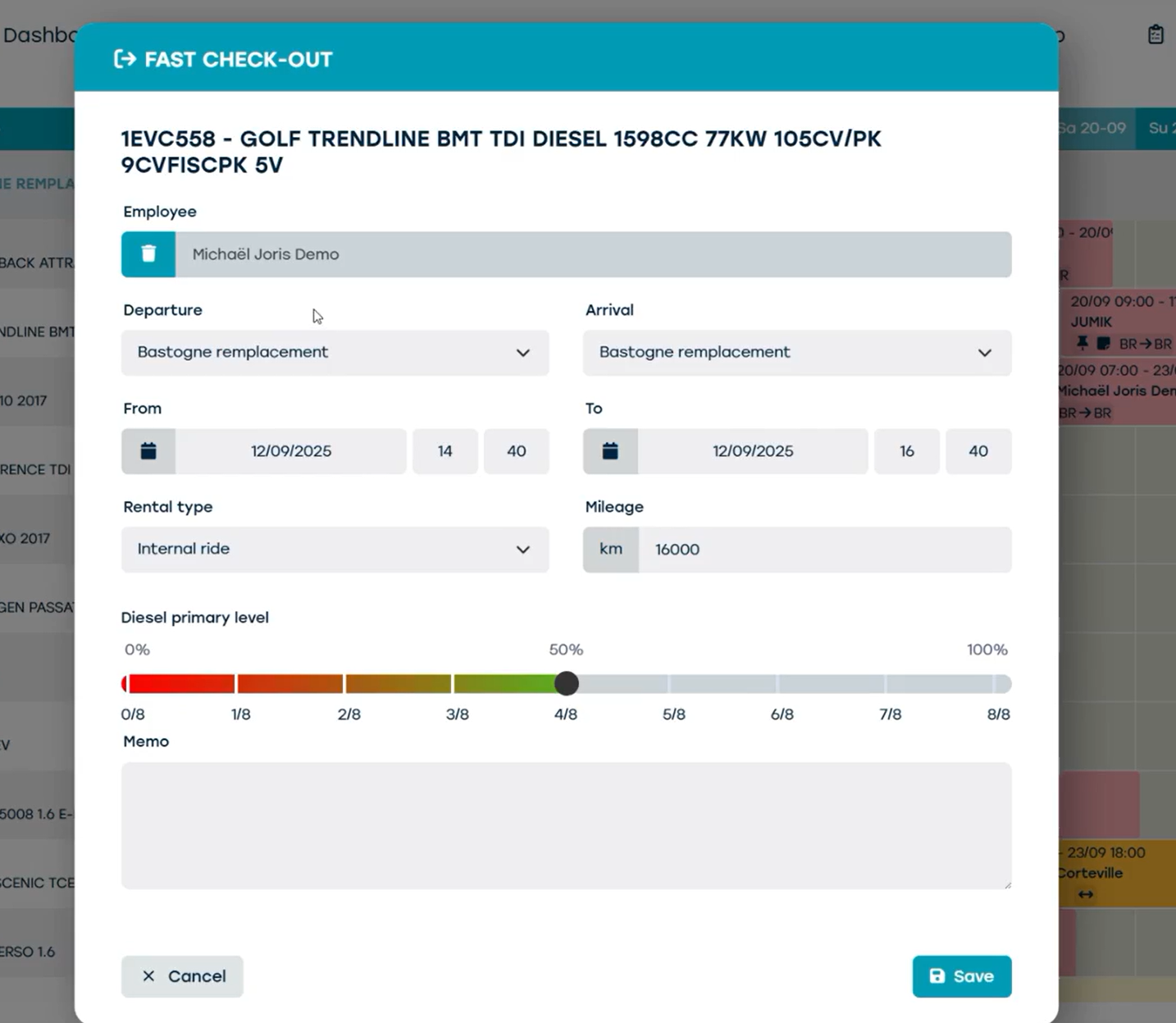
Then complete the fields. Keep in mind: we can only select drivers from the customer database who are listed as staff members.
On your phone (via browser app)
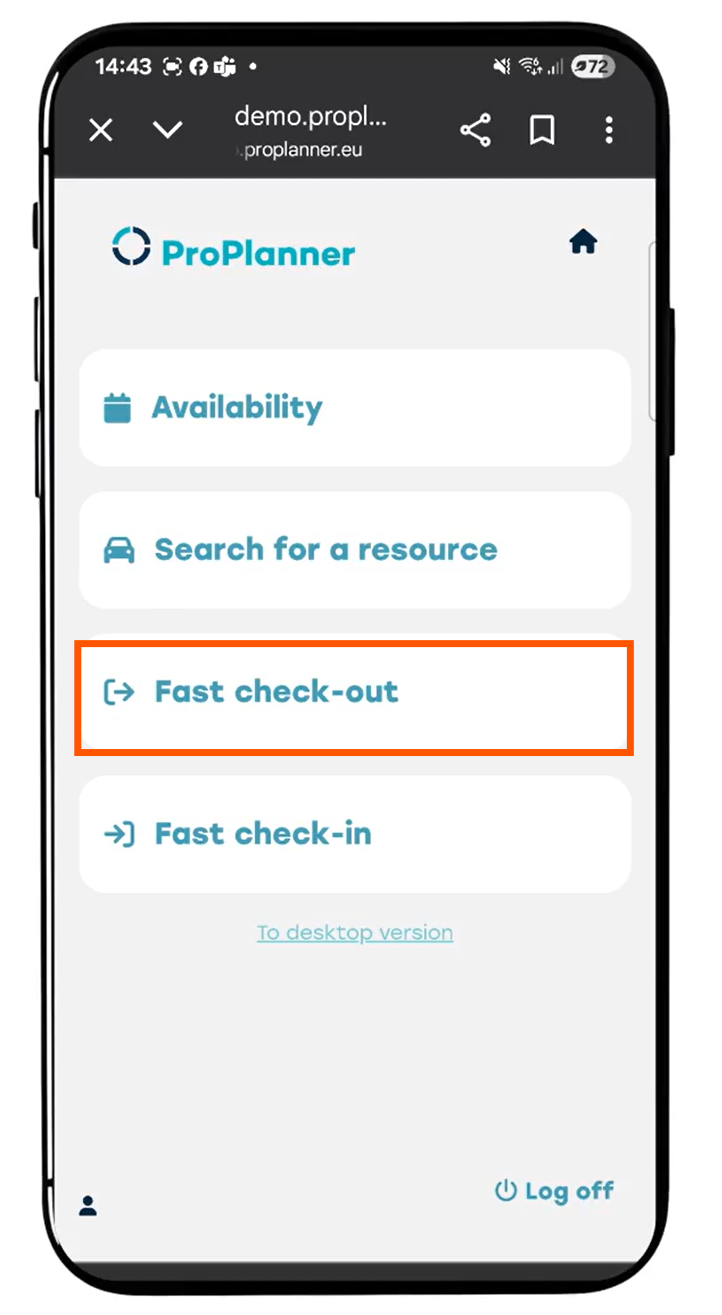
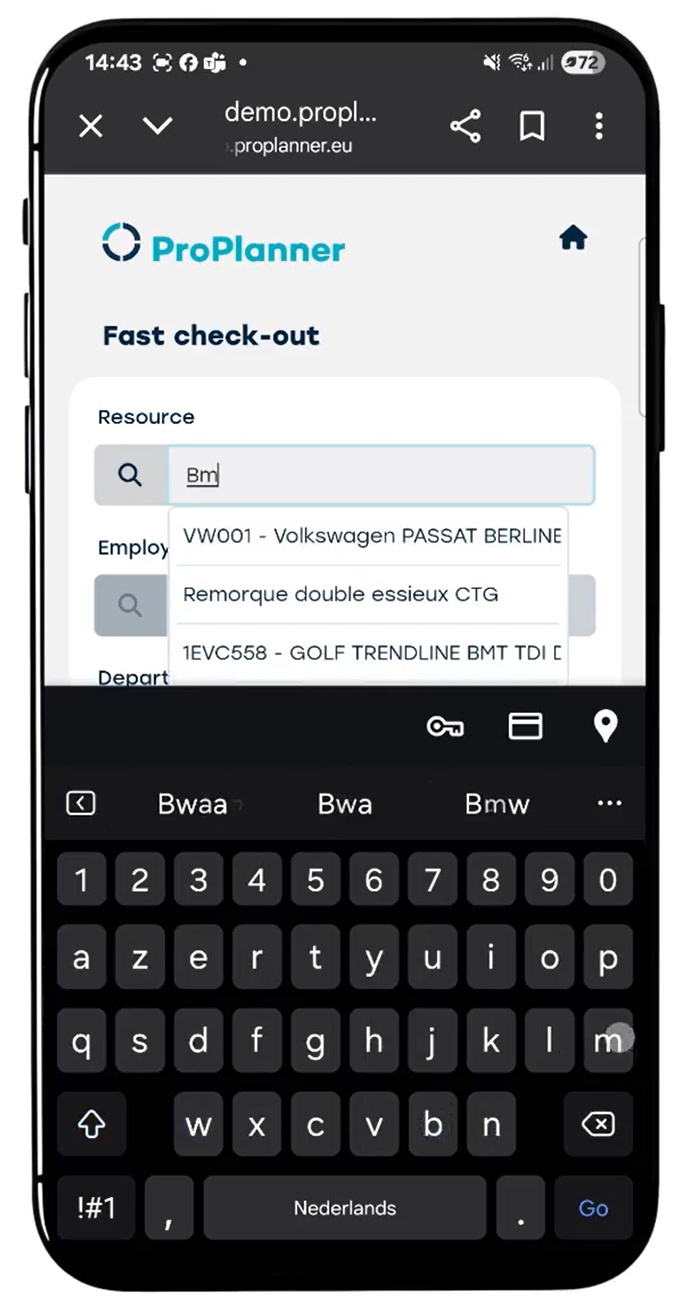
Select 'Fast check-out' and complete the same fields as you would on your computer. The only difference is that we also need to enter the resource name, because on our smartphone we can't select a resource from the planning screen.
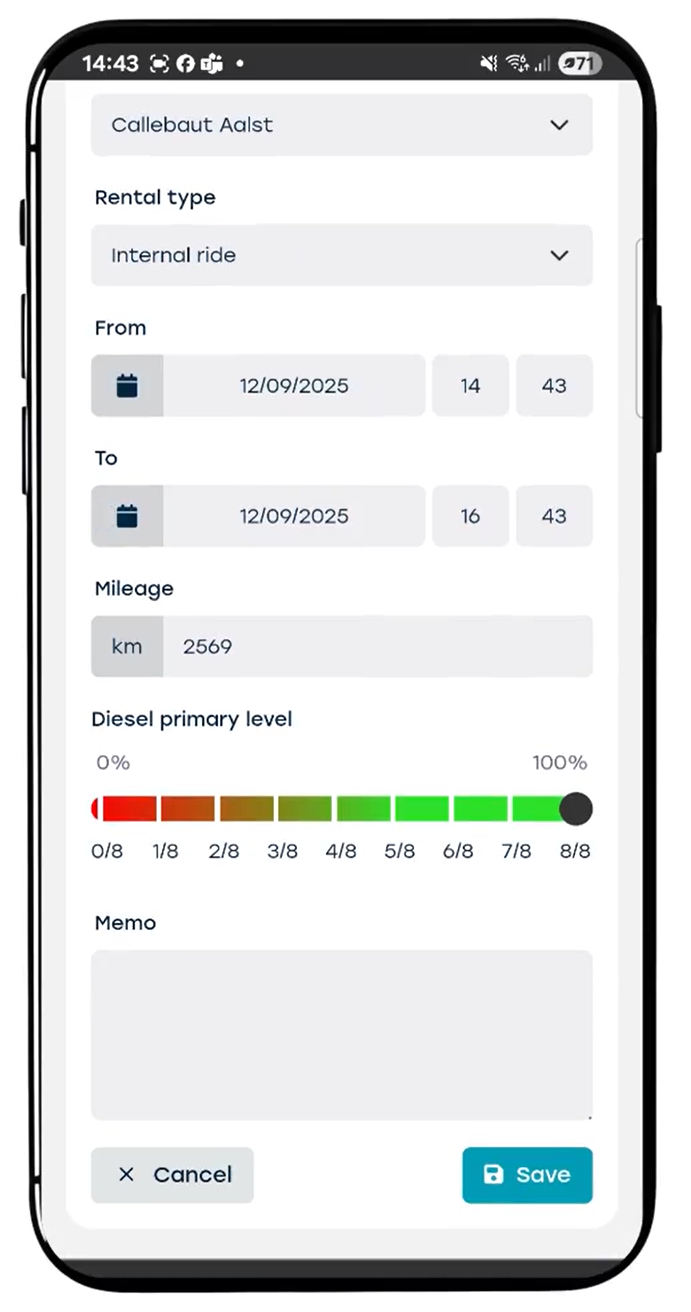
And then we save. To return the vehicle, repeat the same process, but select fast check-in.