In this video:
When we receive or have received a payment, we can indicate this on the contract. To do so, we open up the contract and go to the tile ‘receipts’.
There are two types of receipts: Payments and Security deposits.
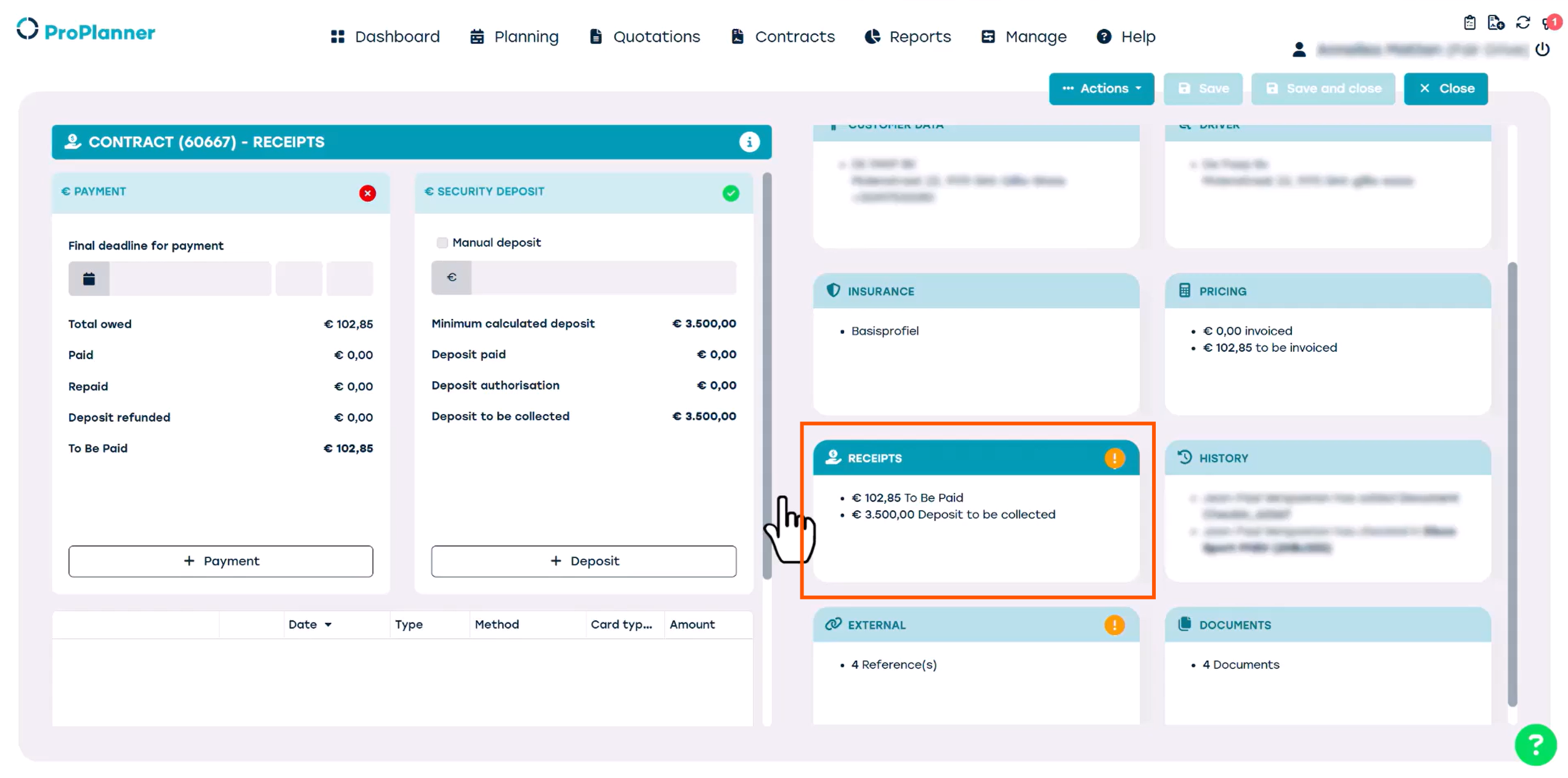
When you create a contract for a certain vehicle, the price and deposit will be proposed automatically, as can be seen here. The amount of the deposit is defined in the resource sheet of the vehicle.
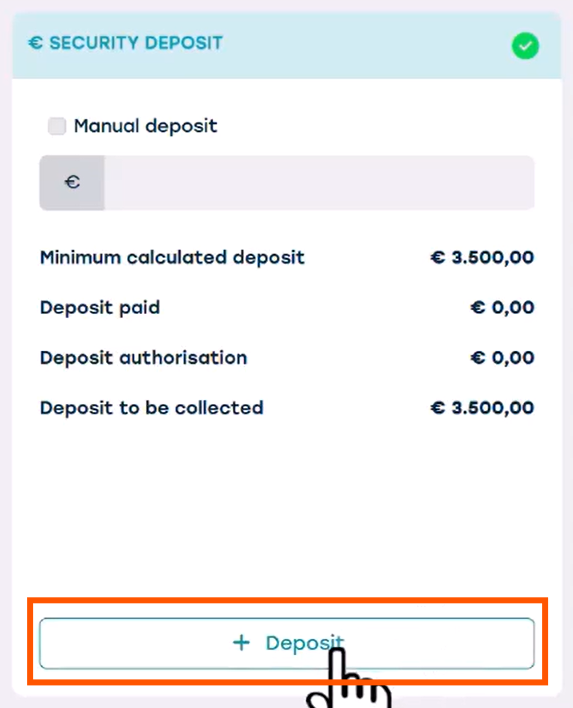
Let’s say the customer has just paid the deposit on our terminal, we can add a receipt by clicking ‘+Deposit’.
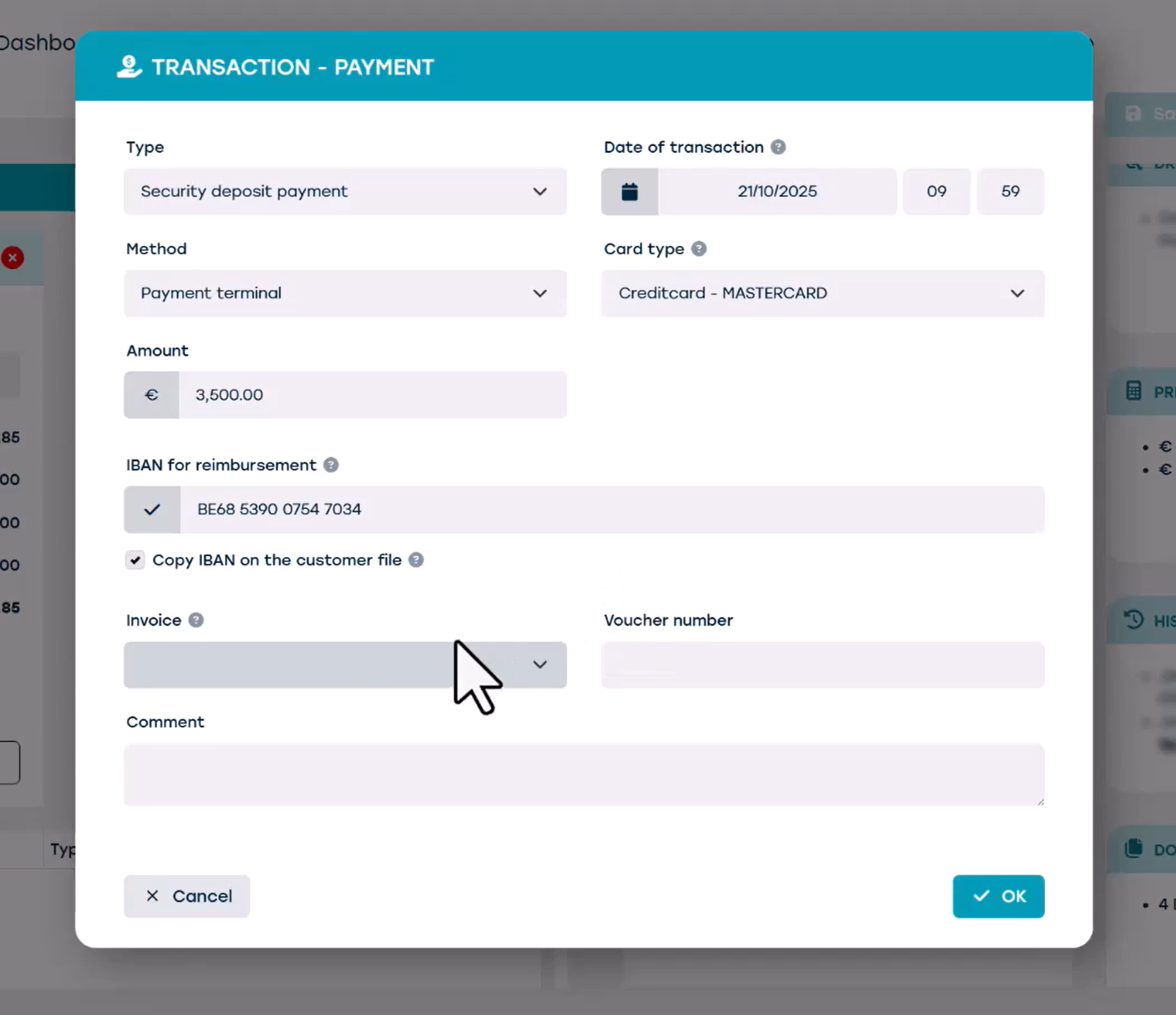
We select a deposit type, such as ‘security deposit payment’.
We select a payment method, such as ‘Payment terminal’ and we can select a card type, such as ‘mastercard’.
We can then enter the amount; this will usually be the deposit amount linked to the vehicle. If it is filled in on the resource sheet, it will automatically be filled in here, but we can also change it manually.
If the customer is already in our system, their IBAN number will be linked automatically. If we have to enter it manually, we can select the 'Copy IBAN to customer file' option, and it will be saved to their profile in ProPlanner.
We don't normally invoice the deposit to avoid credit notes.
When we save, a new line appears in the receipts overview at the bottom of the screen.
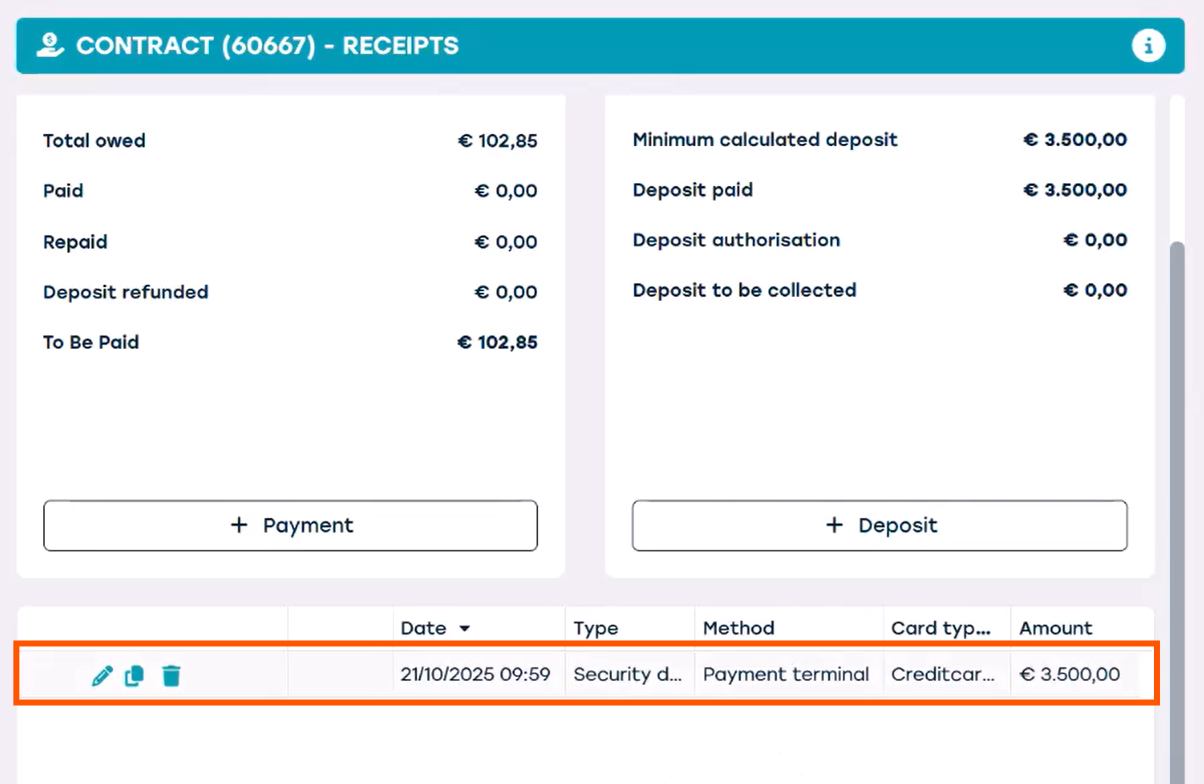
If we have received the payment for the use of a resource, we can add this receipt via the tile 'payment'. We click on ‘+payment’
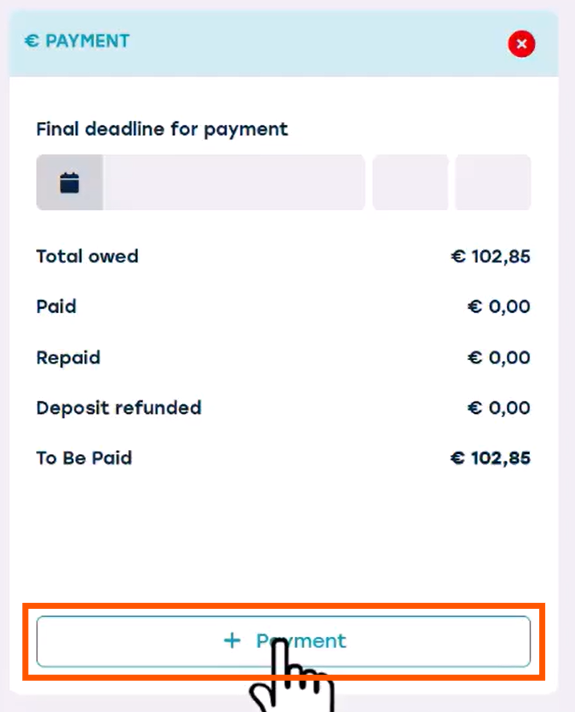
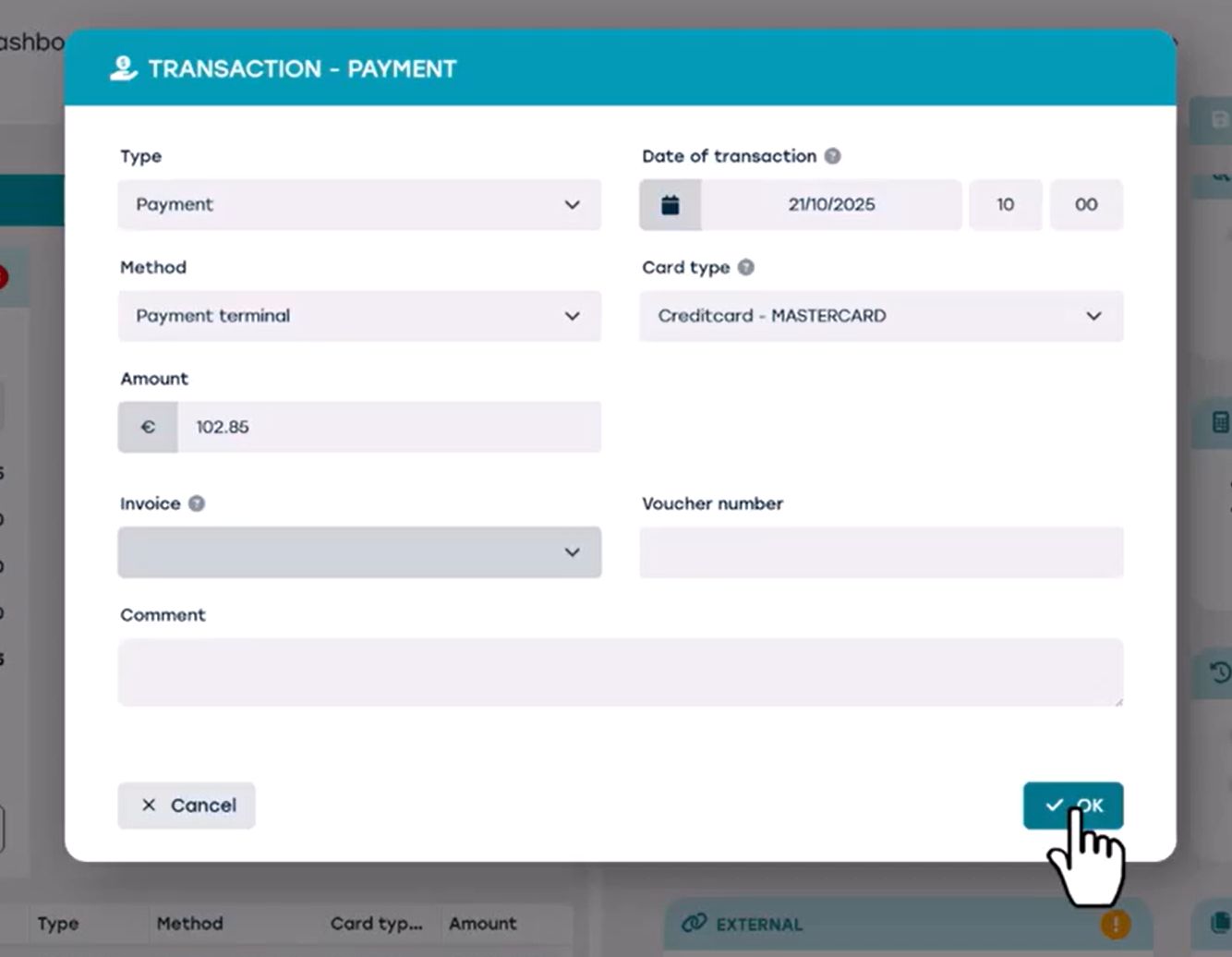
In the next screen we select the payment type and method, and so on. Again, all data will automatically be pre-filled and transferred from the customer sheet and the tariff calculation of the contract.
We see a new line has appeared.
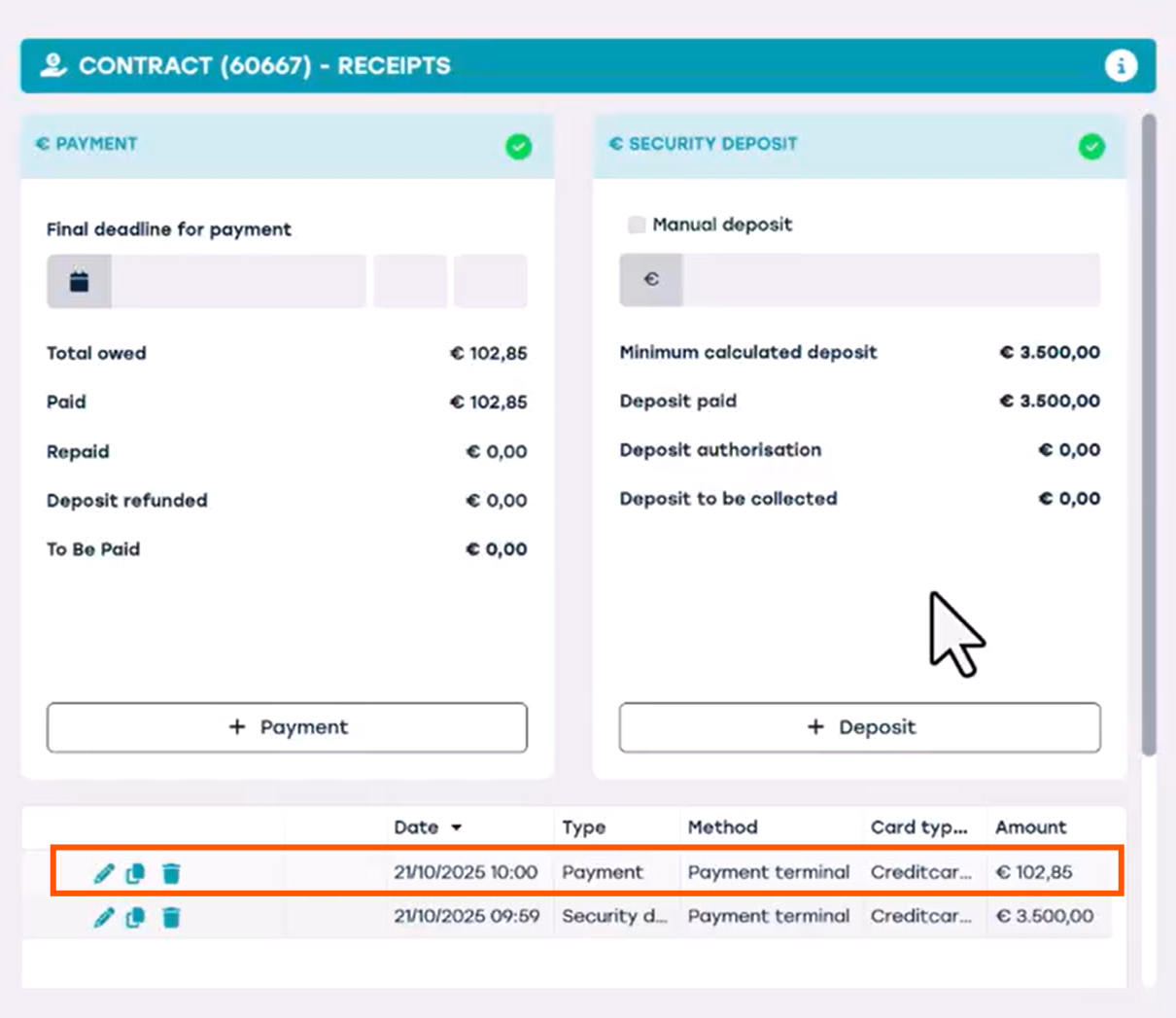
Once the customer has returned the vehicle and everything is in order, we can refund the deposit. We can add another receipt for the refund in the contract.
We do this by clicking '+ payment'. We select 'request for refund' and enter the IBAN number if it's not already entered.
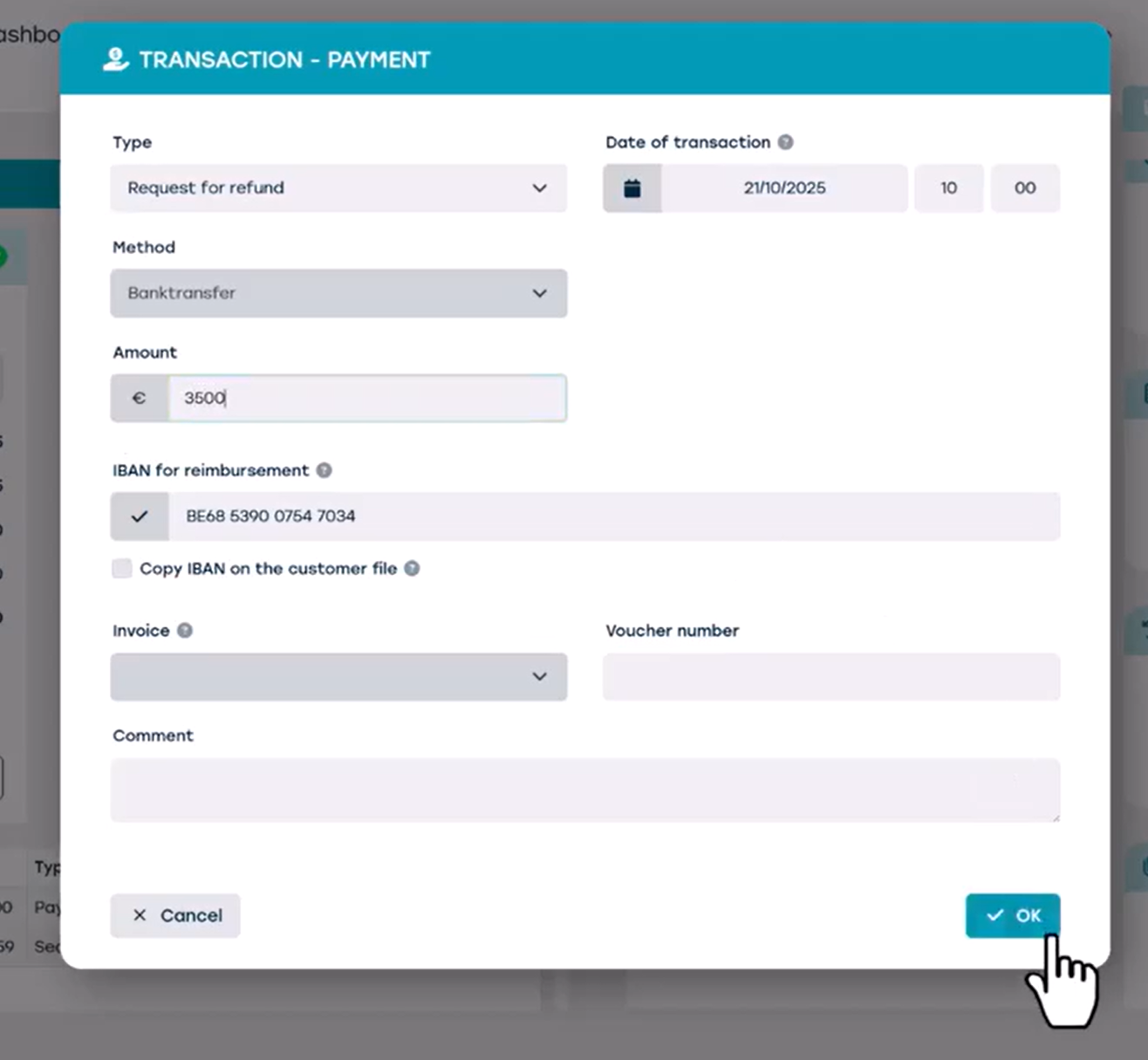
Now, another line has been added. All of these receipt lines will also be visible on the contract.

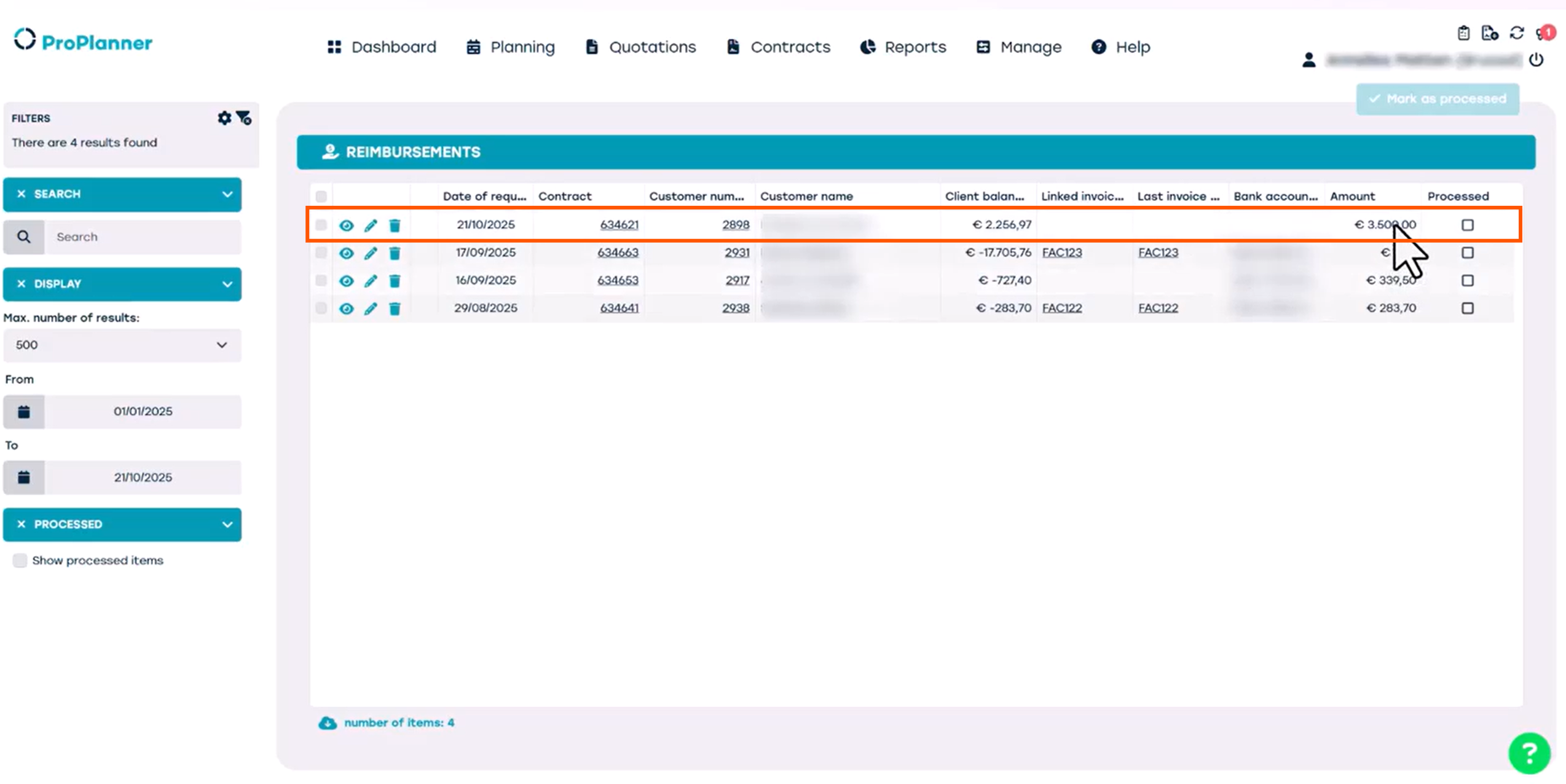
When your accounting department wants to manage the refunds they can find these requests by going to the 'Manage' page, go to the tile 'Financial' and click 'Reimbursements'.
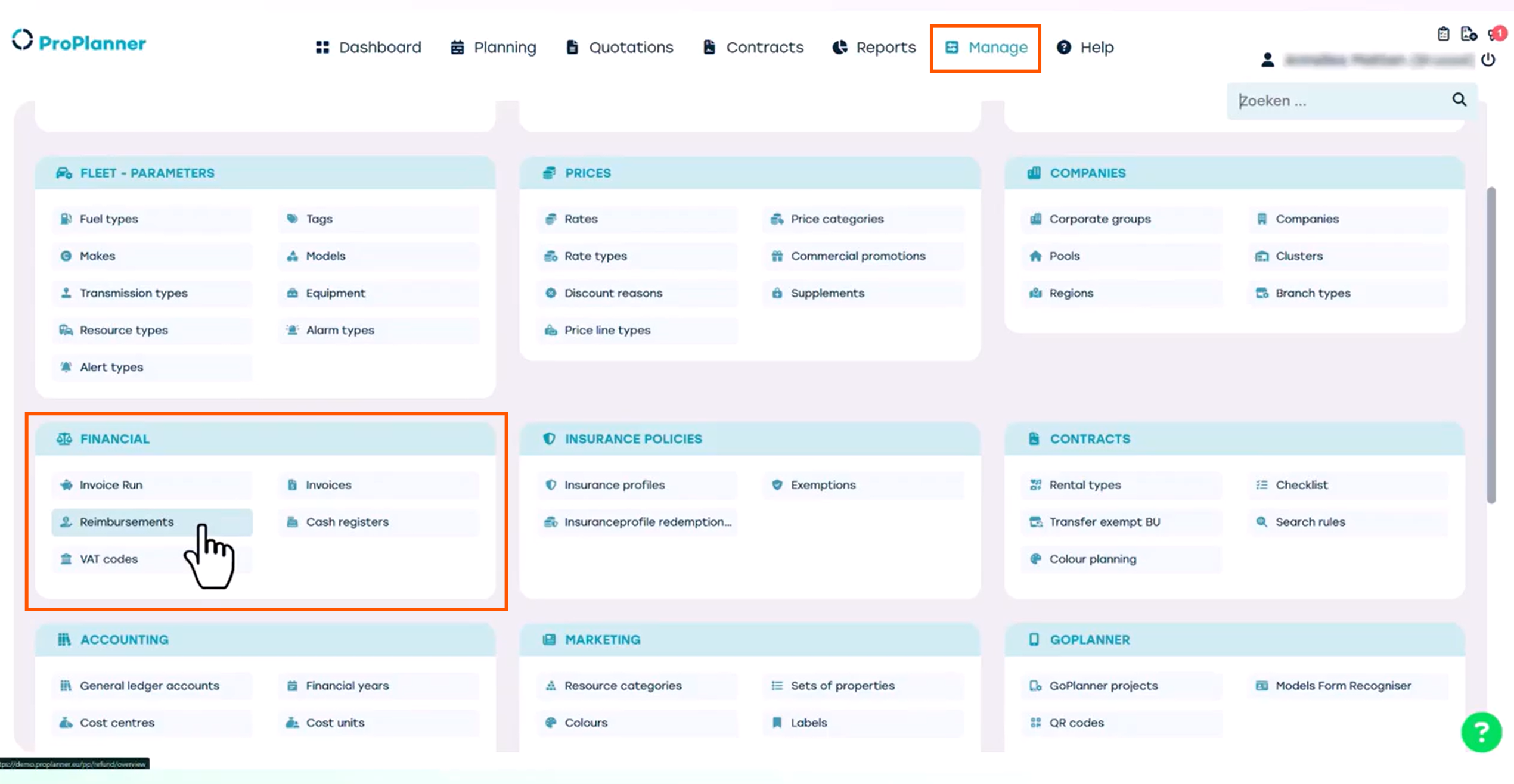
There they can manage the refunds that need to be processed. When this is done, they simply select the reimbursed requests and mark them as processed.