In this video:
Invoicing can be time-consuming. That’s why ProPlanner offers an efficient solution: the Invoice Run. This feature allows you to generate invoices in bulk, significantly speeding up and simplifying the invoicing process.
The Invoice Run feature in ProPlanner provides users with a convenient overview of all contracts that still need to be invoiced. Instead of checking each contract individually for outstanding balances, this feature displays all relevant invoicing items in a single view. This reduces the risk of errors and increases the efficiency of the invoicing process.
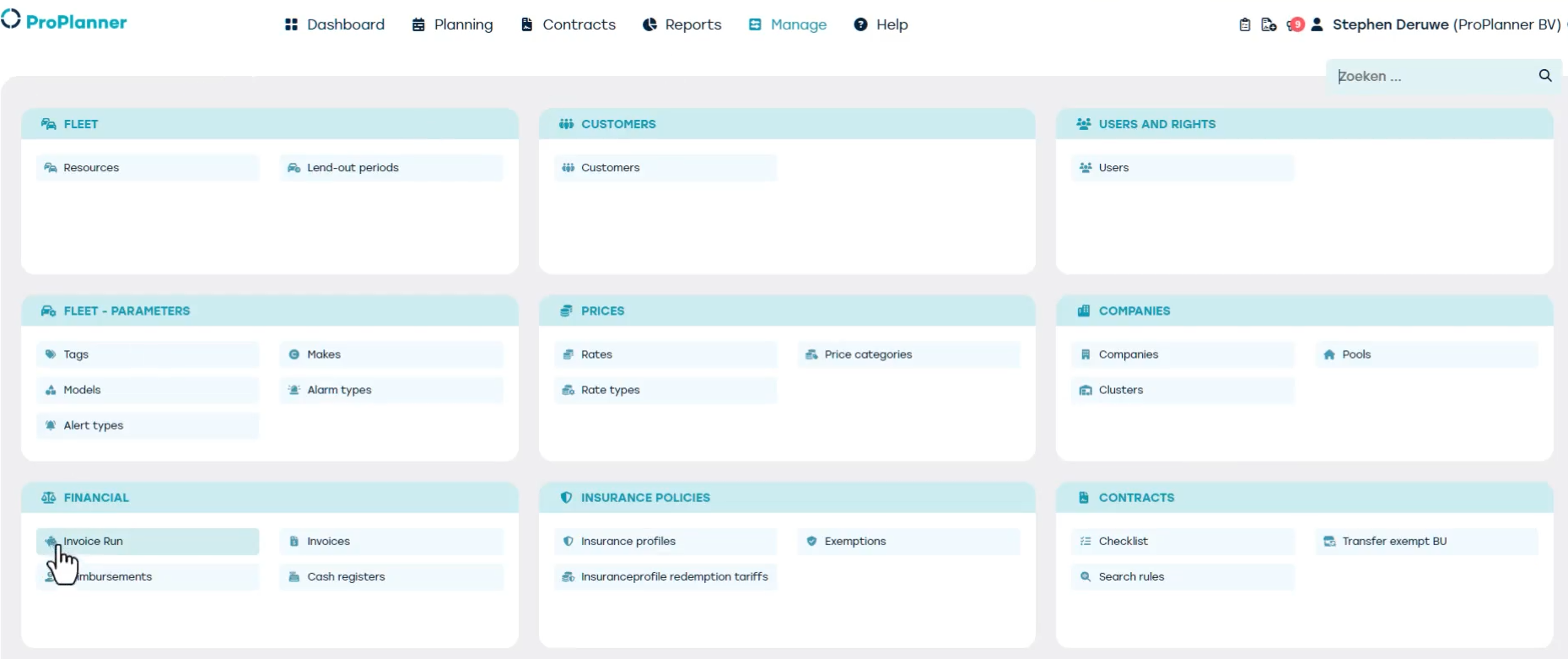
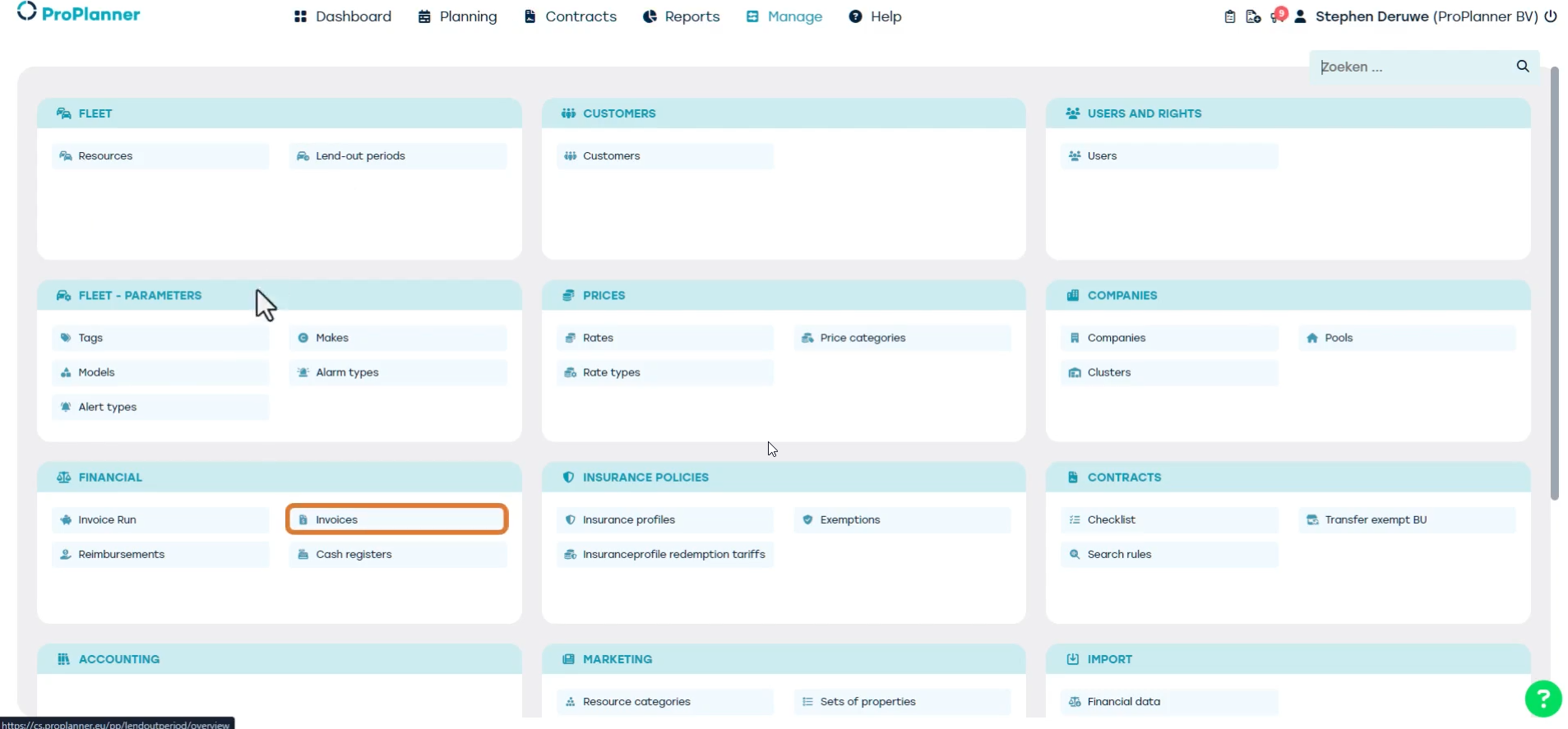
To use the Invoice Run, navigate to Manage > Financial > Invoice Run.
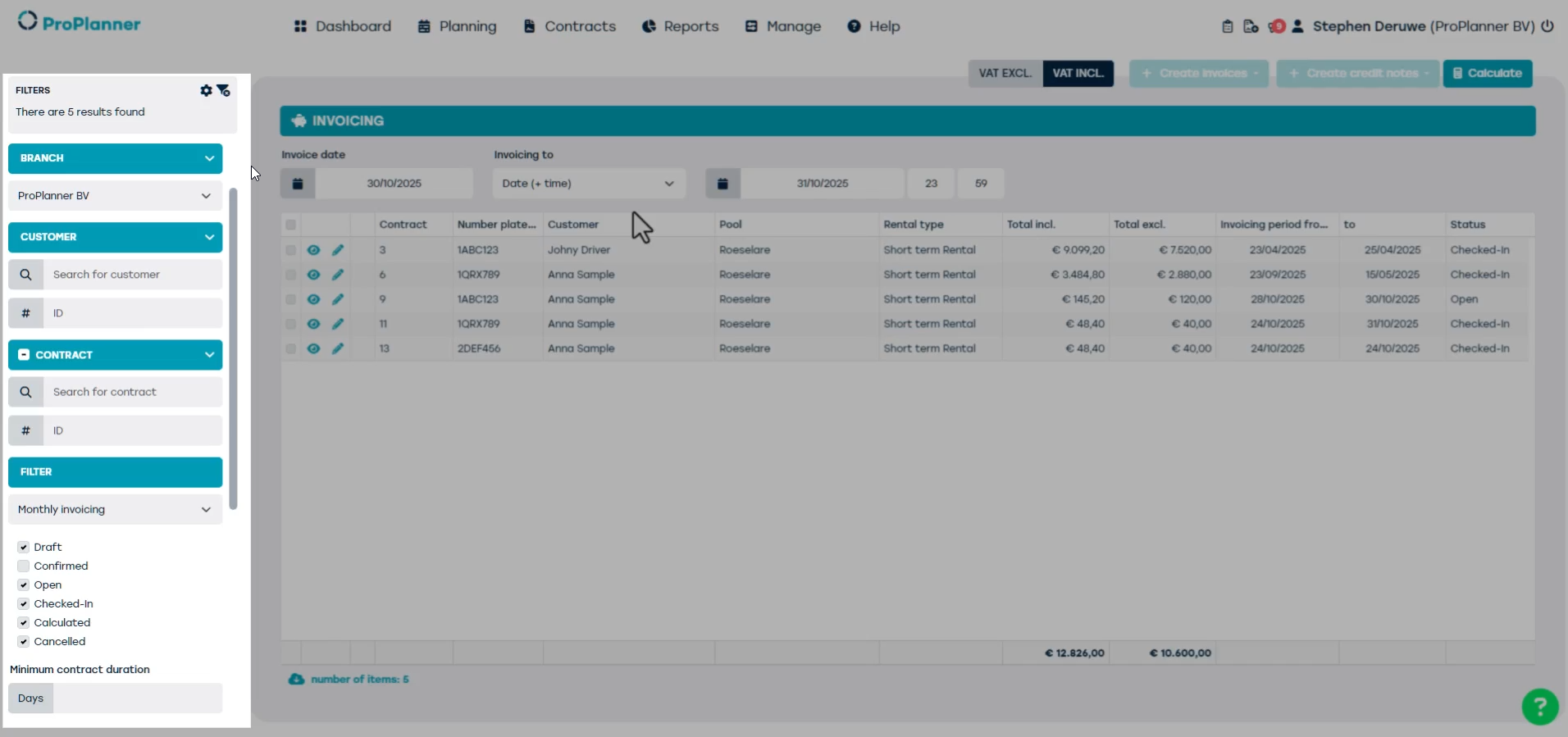
After clicking on calculate you'll see a list of all contracts with an outstanding balance that match the filters set on the left side of the screen.
These filters include the selected business unit, and the date range indicated on the right. The business unit can be adjusted by the user, which changes the visible overview.
By double-clicking a contract, you’ll get a detailed view of all price lines still to be invoiced, as well as the lines that have already been invoiced within that contract.

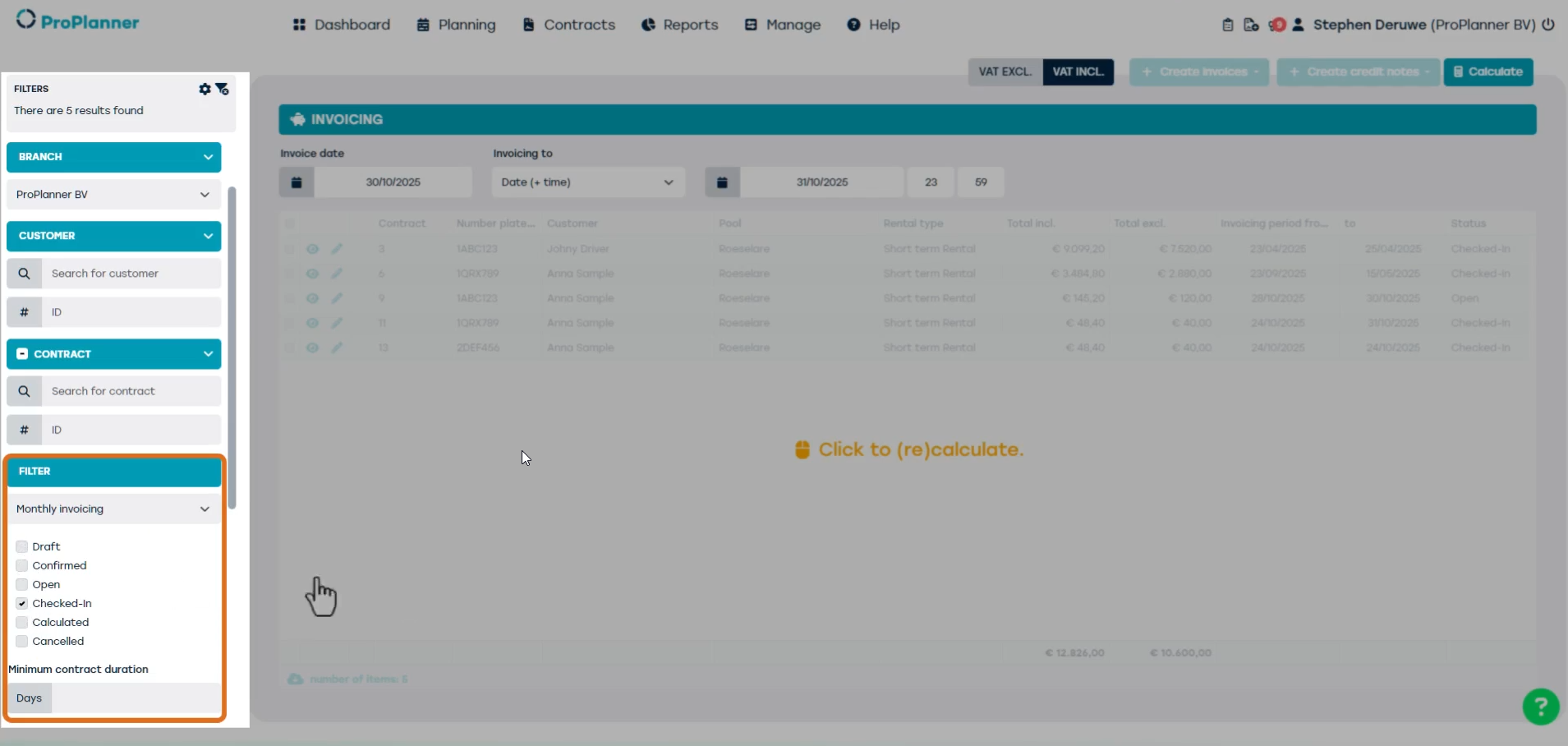
Thanks to the extensive filtering options, you can approach the invoicing process in a highly targeted way. For example, you can choose to invoice only checked-in contracts or split long-term contracts and invoice them month by month. This makes it possible to generate invoices swiftly and accurately, with the flexibility to match your individual needs.
Once you've generated a list of contracts to be invoiced via the Invoice Run, you can tick the checkbox at the top left to select all contracts at once.
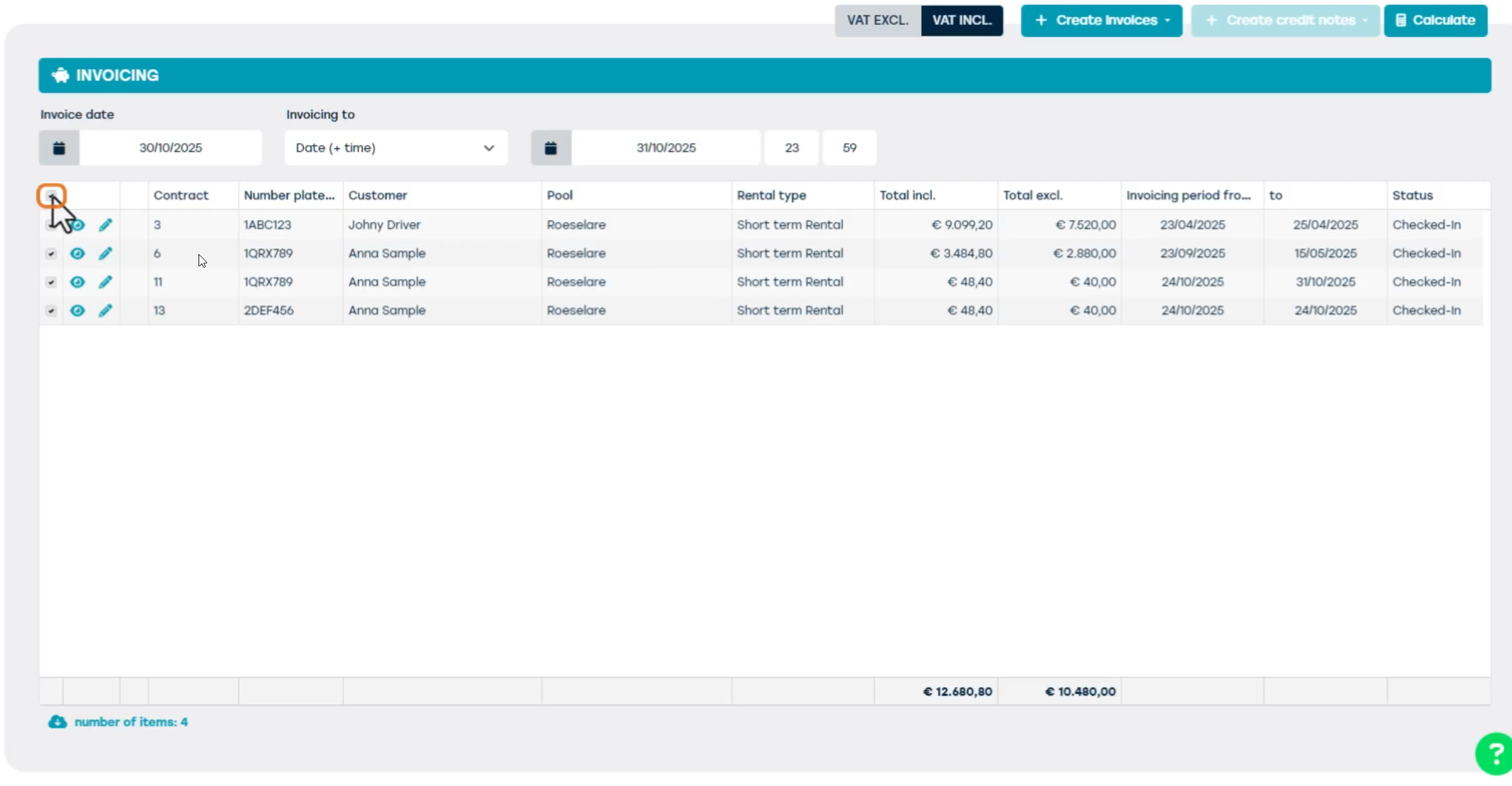
Then, click the ‘+ Create Invoices’ button in the top right corner and choose the ‘Confirmed invoices’ option.
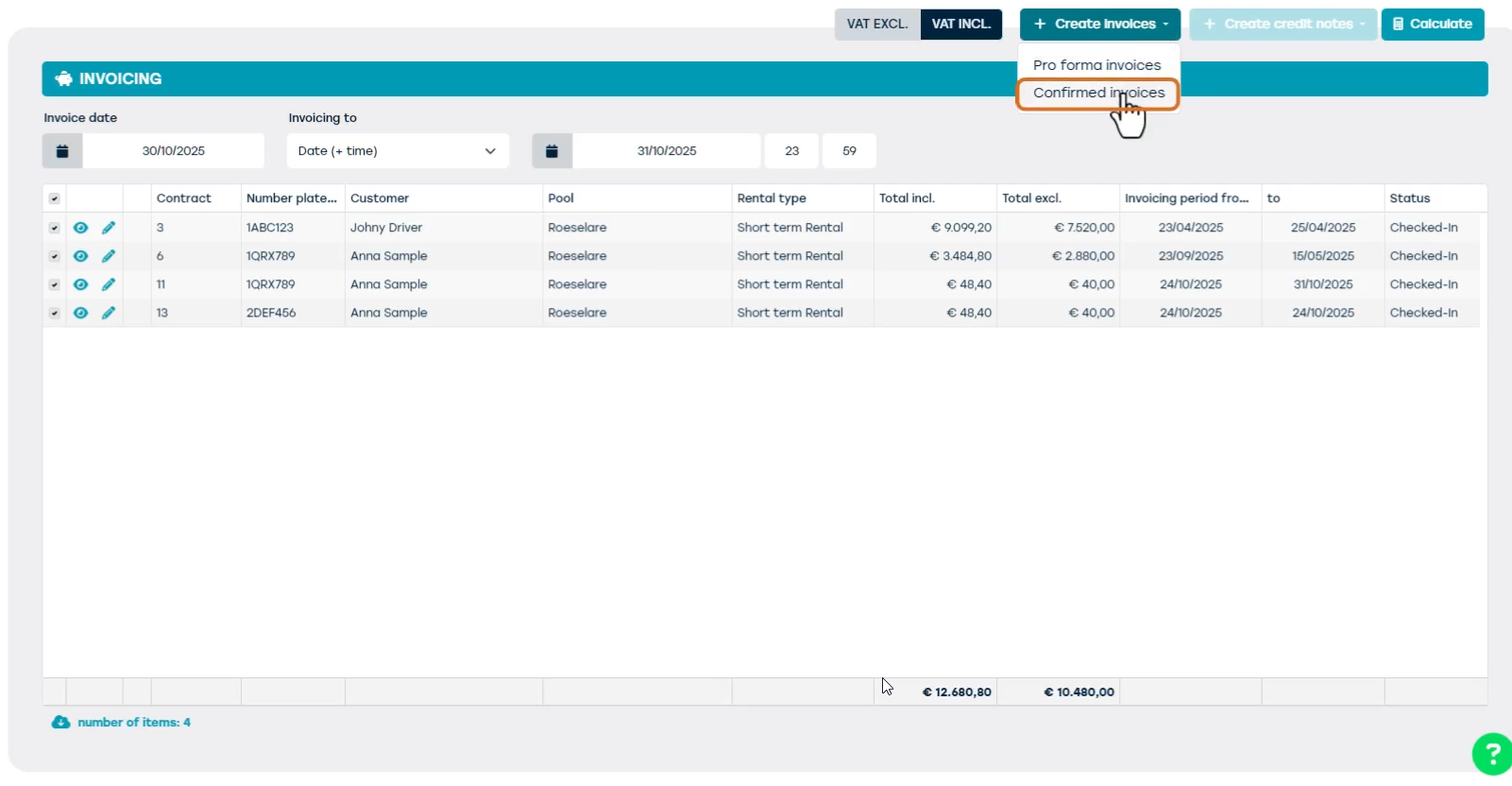
ProPlanner will now automatically generate invoices for the selected contracts. The invoice date of these generated invoices is displayed in the top left corner and can be adjusted if needed. If the delivery method on the customer record is set to ‘Automatic Email’, the invoices will be sent directly to the customer.
Once the invoices are created, you can find them on the respective contracts under the ‘Tarification’ tab, or via the general overview of all invoices under Manage, Financial and then Invoices.
Additionally, you can define on the customer sheet to allow invoice grouping. If a customer has multiple contracts included in the Invoice Run, only one invoice will be created, combining all relevant contracts. This ensures clear and customer-friendly invoicing.